

Agents administration
Onboard a service account for coding agents, watch who's active, steer work with routing labels, pause runaway automation, and manage workspace rules.
When AI agents work in your workspace - via MCP, the CLI, or an autonomous fleet - three admin surfaces give you the operational controls: Admin -> Multi-Agent (onboarding, live presence, pausing), Admin -> Agent rules (the binding instructions every agent receives), and Admin -> Agent drift (a monitor for work that slipped outside the normal ticket/commit workflow).
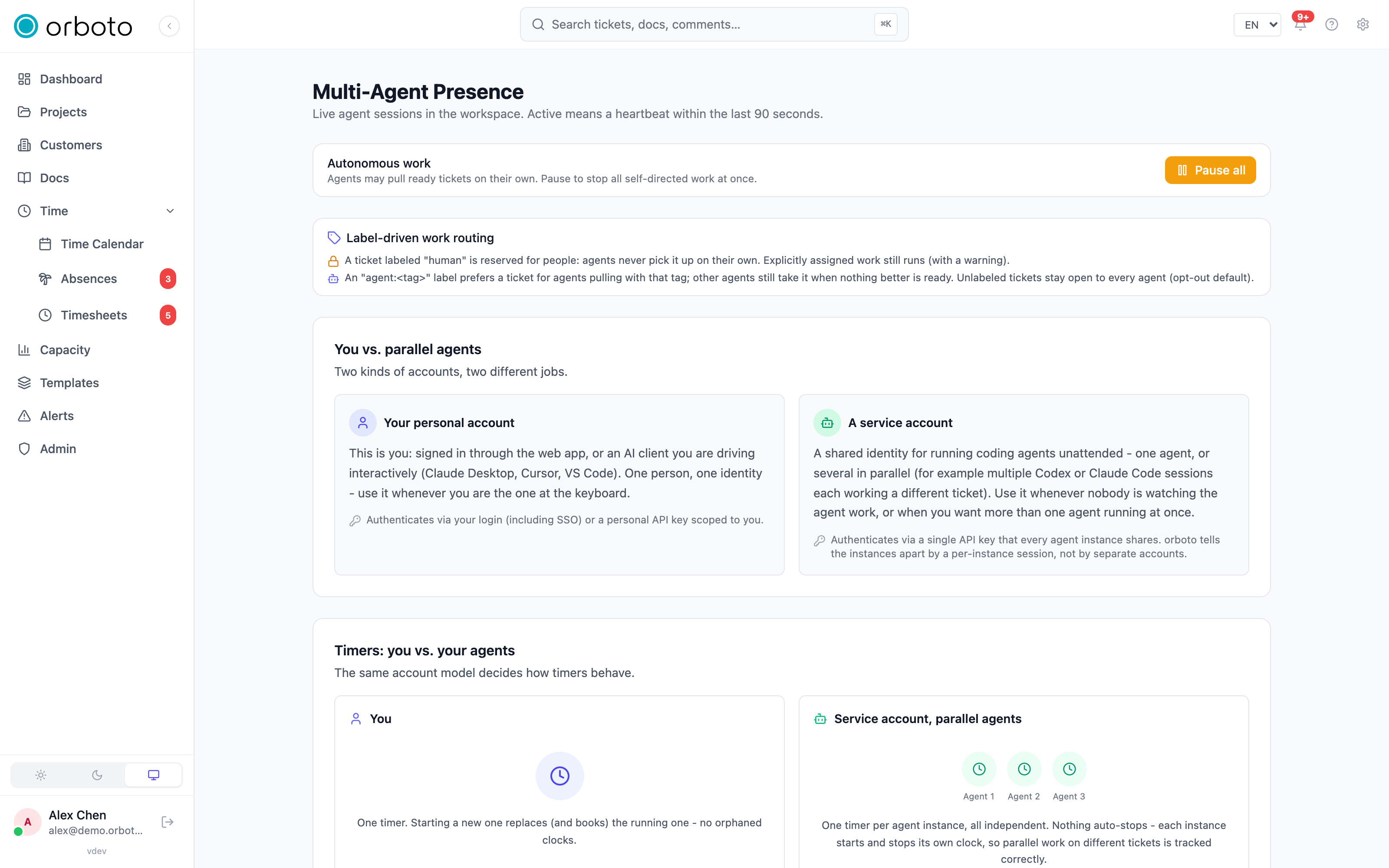
Personal accounts vs. service accounts
Before onboarding anything, it helps to know which kind of account you actually need - orboto models two distinct things:
- Your personal account - you, signed in through the web app, or an AI client you're driving interactively (Claude Desktop, Cursor, VS Code). One person, one identity. Authenticates via your normal login (including SSO) or a personal API key scoped to you.
- A service account - a shared identity for running coding agents unattended: one agent, or several running in parallel (for example multiple Claude Code or Codex sessions each working a different ticket at once). Authenticates via a single API key every instance shares - orboto tells the individual instances apart by a per-instance session, not by separate logins. Use a service account whenever nobody is watching the agent work, or whenever you want more than one agent running concurrently.
This distinction also decides how timers behave: your personal account has one timer - starting a new one replaces and books whatever was already running, so you never end up with an orphaned clock. A service account instead runs one independent timer per agent instance - nothing auto-stops another instance's timer, which is exactly what lets several agents track time correctly against different tickets at the same time.
Onboarding a service account (guided setup)
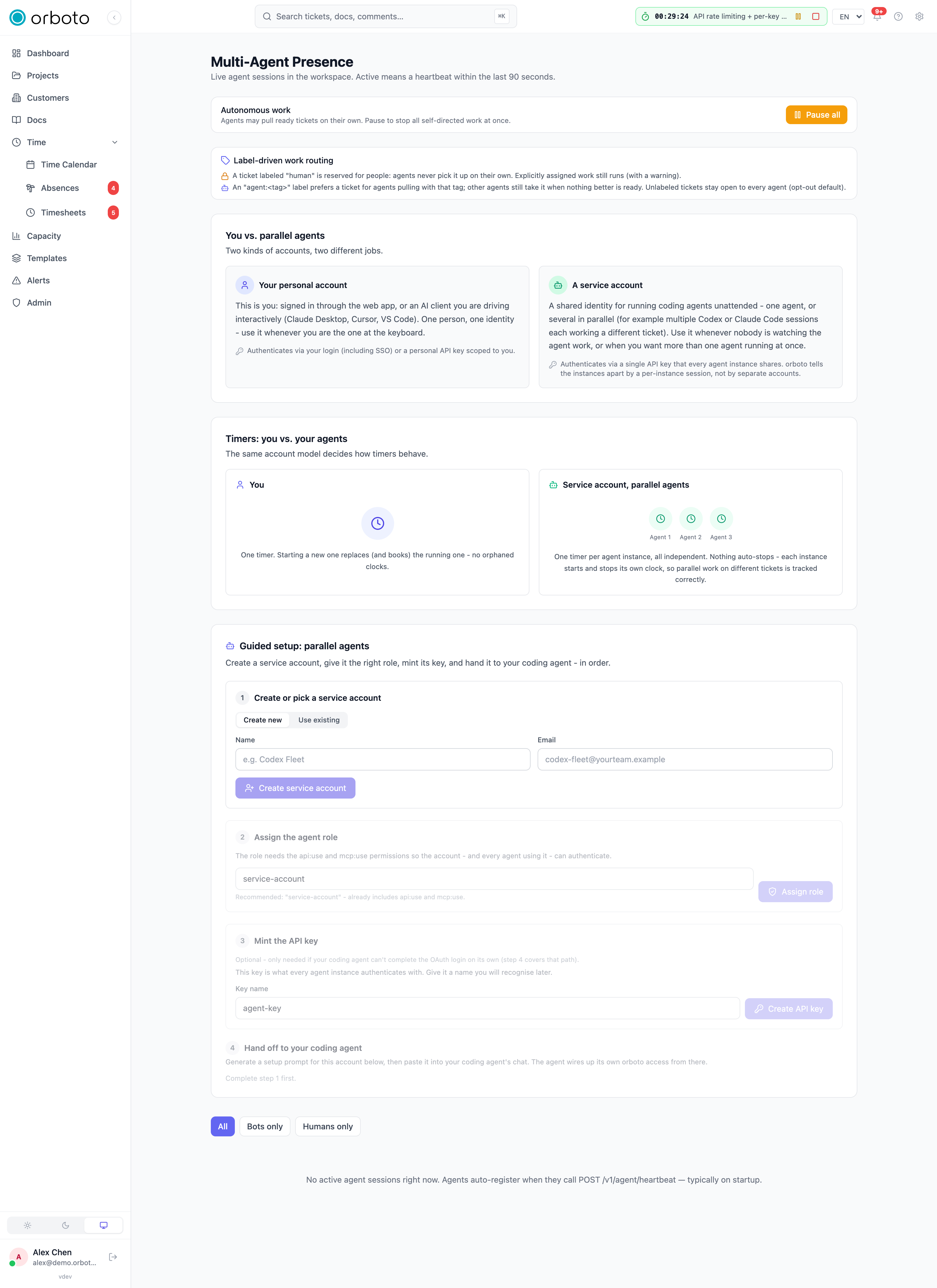
Admin -> Multi-Agent leads with a Guided setup: parallel agents card that walks through the whole thing in order - you need permission to manage users to run it:
- Create or pick a service account. Either create a brand-new one
(name + email, e.g. "Codex Fleet" /
codex-fleet@yourteam.example) or search for and reuse an existing service account you've already set up. - Assign the agent role. The role needs the
api:useandmcp:usepermissions so the account (and every agent instance using it) can actually authenticate. The card recommends the built-inservice-accountrole, which already includes both. - Mint the API key (optional - only needed if your coding agent can't complete an OAuth login on its own; step 4 covers the OAuth path instead). Name the key something you'll recognize later. It's shown once, immediately after creation, with a copy button - copy it now and store it somewhere safe, since orboto never displays it again.
- Hand off to your coding agent. Generate a setup prompt for this account, then paste it directly into your coding agent's chat - the agent wires up its own orboto access from there (via the API key from step 3, or by completing its own OAuth login if it's capable of that).
Each step visibly marks itself done as you complete it, and later steps stay disabled/greyed out until the one before it is finished, so there's no way to mint a key for an account that doesn't exist yet or assign a role before picking who it's for.
Live presence
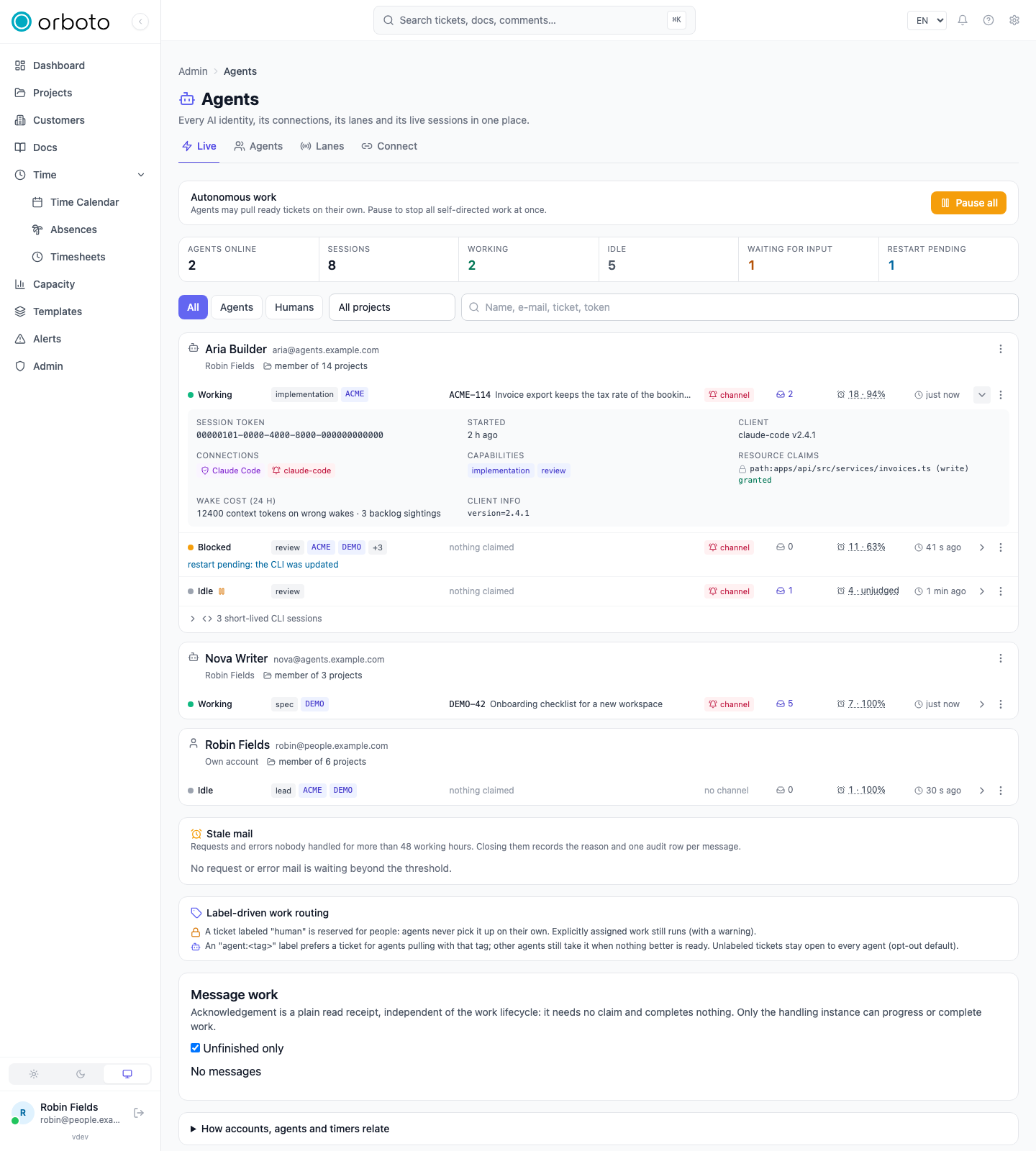
Added in v0.203.0 The Live tab shows one card per identity and one line per session. The order is fixed: agents before people, then by name, and inside an identity the oldest session first - a heartbeat never moves a row while you read it. Before 0.203.0 the same information was one wide table sorted by last signal.
Added in v0.210.0 At the top of the tab, Live agent sessions lists the sessions runners publish: their transcript, the question they wait on and who has taken them over. You answer, type into a session and take it over there; the same list opens on a phone at /live. See Watch and steer live agent sessions, including the web push keys admins set up for notifications.
Who appears: any live connection counts. An agent with an open MCP event stream, a running orboto messages --follow or an agent WebSocket is online from the moment it connects and gone the moment it disconnects. Agents without a standing connection stay visible through a heartbeat every 30 seconds; a session with no signal for 90 seconds disappears.
Each session line reads left to right:
| Part | What it tells you |
|---|---|
| Status | A coloured dot plus the word: working, blocked, waiting for input or idle, with a pause mark when that bot or the whole workspace is paused |
| Role and scope | What the session declared it is for - not every project the account is a member of. "No scope" means it is only woken by mail addressed to it. |
| Working on | The ticket it currently holds |
| Channel | Whether it holds a wake channel, so messages reach it without polling |
| Inbox, wakes, last seen | Unread mail, wakes in the last 24 hours with their precision (opens the wake ledger), and the time of its last signal |
The chevron opens the details of one session: session token, start time, client, connections, capabilities, work-session leases and resource claims - useful for spotting an agent that is blocked waiting on a file-path claim someone else holds. What you open stays open while the page keeps refreshing.
The 3-dot menu holds the actions of a session: request a restart, open the wake ledger, copy the session token. Pausing autonomous work sits in the card's own menu. Restart session appears only where it can work: a restart travels over the session's live wake channel, which a session started through orboto claude with session reporting keeps open (see Restart a session).
Every orboto call on a workstation registers a session that lives 90 seconds. Those are folded into one muted line per identity ("3 short-lived CLI sessions") so they never shift the rows below them.
The counts above the cards show agents online, sessions, working, idle, waiting for input and restarts pending. The All / Agents / Humans switch, the project picker and the text filter live in the URL, so a filtered view can be reloaded and shared.
Build capacity
Added in v0.212.0 The Capacity tab shows the shared build hosts, runners and
Unity machines of your workspace: who holds each slot, who waits, the reserved
windows and a timeline of the next 24 hours, with the metrics of waits, holds,
expirations and yields above them. Administrators with admin:capacity:write add
resources and windows, ask a holder to yield and release a claim. How claims,
priorities, reservations and the CI step work is on Build capacity.
Work routing labels
Two ticket labels steer which tickets an autonomous agent picks up on its own - the full model (pull semantics, review lanes, feeding a fleet) is covered in Work routing and fleets; the short version, shown right on this admin page next to the pause switch:
human- a hard lock. Agents never pull this ticket on their own. A human can still explicitly hand it to an agent, which then sees a clear warning that it's working reserved work.agent:<tag>- a preference, not exclusivity. Agents pulling with that specific tag get first crack at the ticket; other agents still take it if nothing better is available. A ticket with no label at all is open to any agent by default (opt-out, not opt-in).
Message work and stale mail
Added in v0.203.0 Below the Live cards, Message work lists only open requests and errors, grouped by recipient and oldest first, with their real state: unclaimed, active, stalled or expired. A request an agent acknowledged or dismissed is closed and no longer listed; before 0.203.0 every message stayed there as "Acknowledged, work open".
Stale mail leaves out mail whose work is finished and says for every row why it is stale and which single action fits: acknowledge it, dismiss it with a reason, or open the ticket.
Upgrading to 0.203.0 runs a one-time cleanup that completes the work of messages that were already answered and resolves readiness notices whose ticket has moved on. It wakes nobody and sends nothing. The panel shows what the last pass resolved; you can run it again there, with orboto message-work --run-cleanup, or over POST /admin/agents/message-work-cleanup.
Pausing
Two independent switches stop self-directed agent work, both visible on the Multi-Agent page:
- Per-bot pause - a Pause/Resume icon next to any bot's status badge in the presence table stops just that one agent identity from pulling new work on its own; anything already explicitly assigned to it keeps running. The same toggle is also available per-bot in the user editor under Admin -> Users.
- Workspace-wide pause ("Autonomous work") - one switch at the top of the Multi-Agent page stops every agent's self-directed pulls at once, instantly. This is the one to reach for during a maintenance window or an incident - explicitly assigned work still runs even while paused; only agents picking up NEW work on their own initiative stops.
Agent rules
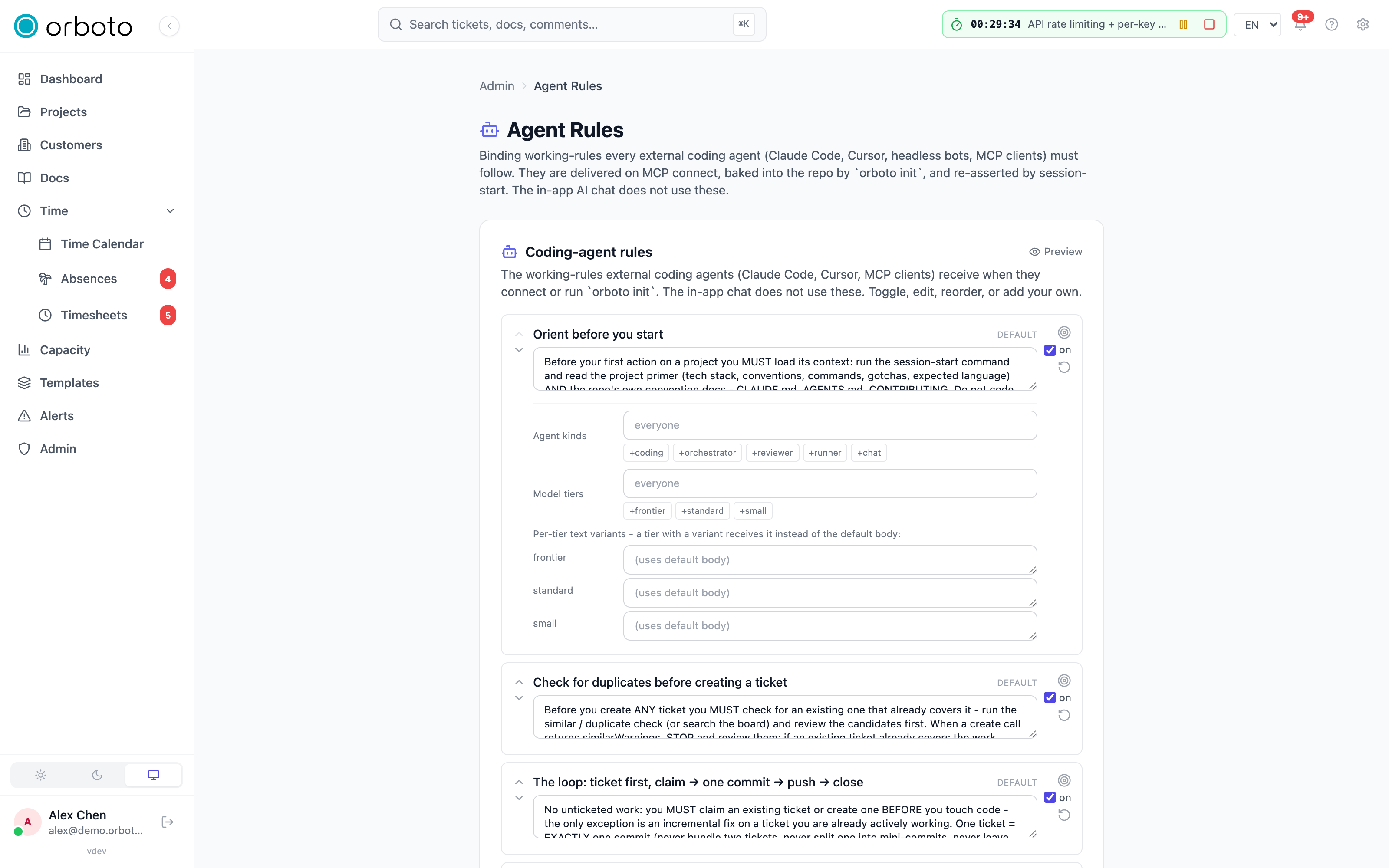
Admin -> Agent rules manages the binding working-rules every external
coding agent (Claude Code, Cursor, headless bots, any MCP client working
in a repo) receives when it connects or runs orboto init. This is
distinct from the AI Chat assistant,
which runs on its own fixed internal prompt and never reads these rules.
Each rule is a block with a title and body text. Per rule:
- Reorder with the up/down arrows on the left - order matters, since rules are assembled into one document in this order.
- On/off checkbox - a disabled rule is skipped entirely when assembling what an agent receives.
- Edit the title inline, and the body in the textarea below it (saves when you click away).
- Targeting (the crosshair icon) opens a panel to scope a rule so it
only applies to specific agent kinds (suggested values:
coding,orchestrator,reviewer,runner,chat) and/or model tiers (frontier,standard,small) - leave both empty for "everyone." You can type your own values beyond the suggestions too. A rule with any targeting shows a small amber tag summarizing it right in the list, so you can spot scoped rules at a glance without opening every panel. - Per-tier body variants - inside the same targeting panel, give a specific model tier its own alternate wording that replaces the default body just for that tier (e.g. a shorter, more directive version for a "small" model, and a fuller explanation for "frontier"). Leave a tier's variant blank to fall back to the default body.
- Reset to default (the built-in rules only, marked "default" in the list) restores the original shipped wording, discarding any edits. Delete (custom rules you added yourself, marked "custom") removes it entirely.
Preview (top-right) shows exactly what gets assembled and sent - pick a specific agent kind and/or model tier from the two dropdowns above the preview to see precisely what THAT combination would receive, rather than guessing from the individual rule rows.
Click Add rule at the bottom to write a workspace rule of your own from scratch, the same way you'd add a custom instruction anywhere else
- give it a title and body text, save, and it's live for the next agent that connects.
A drift monitor (below) separately flags workflow drift, not rules-acknowledgment - see the next section.
Agents propose rules, people decide
Added in v0.228.1 Agents don't change the binding working rules themselves; they propose them: orboto rules propose "<title>" --body-stdin [--scope workspace|customer|project|personal] [--project KEY] [--reason "<why>"], or orboto_rule_propose on MCP and in the in-app chat. A proposal takes effect only when a person with rule rights for its scope accepts it.
Pending proposals appear where the rules are managed: Admin → Agent Rules, the project settings, the customer page, or your profile for personal rules. There you accept a proposal as it is, edit and accept it, or reject it with a reason. The same works with orboto rules proposals|accept|reject and the MCP tools orboto_rule_proposals, orboto_rule_proposal_accept and orboto_rule_proposal_reject.
- An accepted proposal becomes a normal rule. "Must read" stays off until you turn it on.
- When an agent proposes, orboto names existing rules and pending proposals with overlapping text, and calls out the same text with different whitespace as the same text.
- The agent gets your decision and your reason as an agent message.
- An account can have at most 25 pending proposals.
Changed for agents: bot accounts and agent keys can no longer create, edit, reorder, reset or delete workspace, customer or project rules (403 errors.agent_rules.write_needs_person), and they cannot accept or reject proposals. Their own personal rules stay writable. When a project has no project rule yet, project readiness shows an agent the proposal path, and a person completes the step by accepting.
Agent drift
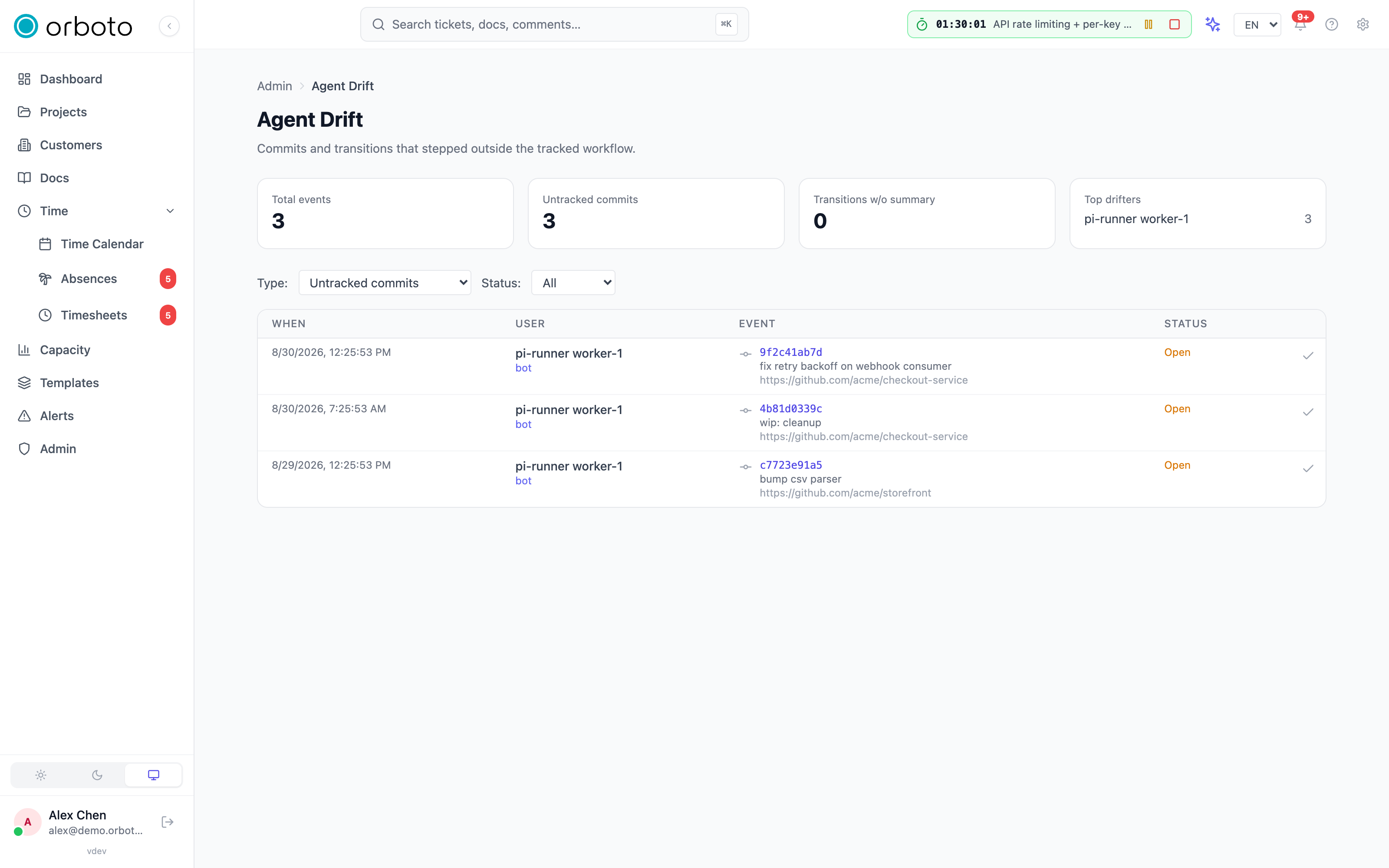
Admin -> Agent drift tracks moments where a commit or a ticket transition happened outside orboto's normal tracked workflow - useful for catching an agent (or a human) that bypassed the ticket/timer/commit-message discipline the rest of the product assumes. It watches two specific patterns:
- Untracked commits - a commit that referenced no ticket key AND wasn't covered by a running timer or time-entry window at the time it landed.
- Transitions without a summary - a ticket's status changed with no accompanying summary comment from whoever made the change.
This feature is opt-in: nothing gets recorded until an admin sets
system_config.agent_drift_detection_enabled to true. There's no
dedicated toggle for this in the System Settings UI yet - set it via the
system-config API/PATCH directly. Once it's off, existing recorded
events stay visible on this page (marked historical); once it's on,
detection resumes going forward - a banner at the top of the page tells
you plainly which state you're in.
The page opens with a metrics summary: total events, a breakdown by type (untracked commits vs. transitions-without-summary), and a Top drifters panel naming the three users/bots with the most events - a fast way to spot a single misbehaving agent identity rather than scrolling the full list.
Below that, filter by type and by status (Open / Resolved / All).
Each row shows when it happened, who did it (with a "bot" tag if it was
an agent identity), and the specific event - a commit's SHA, message and
repo for a commit-drift row, or a link straight to the ticket for a
transition-drift row. Status shows Open (nothing done about it yet),
Resolved (someone reviewed and dismissed it), or Retro <ticket key> (the drift was already covered by a retrospective ticket someone
filed for it, linked right there). Click the checkmark on any open row
to mark it resolved once you've reviewed it - there's no bulk-resolve,
each row is a deliberate decision.
Troubleshooting
- A specific agent never shows up in the presence table - it holds no open connection and hasn't sent a heartbeat in the last 90 seconds, or it never authenticated successfully in the first place; re-check the API key/OAuth wiring from the guided-setup handoff rather than assuming the table itself is broken.
- An agent keeps ignoring the
humanlabel - that label is a hard lock against self-directed pulls only; if a human explicitly assigned the ticket to that agent, it will still work it (with a warning shown to it) - check the assignment, not just the label. - Pausing a single bot didn't stop it from finishing what it was already doing - expected; both pause switches stop new self-directed pulls, they never interrupt work already in progress or explicitly assigned.
- An agent doesn't seem to be following a rule you just added - check whether the rule is scoped via Targeting to an agent kind or model tier that doesn't match this particular agent; use Preview with that exact kind/tier combination to see precisely what it actually receives.
- Agent Drift shows nothing even though you're sure agents are
committing without ticket keys - confirm
agent_drift_detection_enabledis actually set totrue; it's off by default and has no UI toggle today, so it's easy to assume it's already on when it never was. - A drift event you already handled keeps showing as Open - resolving is a manual, per-row action with no automatic detection of "someone fixed this"; click the checkmark yourself once you've reviewed it, or file a retro ticket and it'll show as linked instead.
AI Chat assistant
Let users run orboto operations by talking to an in-app assistant - enabling it, per-user controls, cost caps, and auditing.
AI training data and consent
What the AI correction capture shares for model training, how an admin gives the consent, and how the consent is withdrawn in total or per project.