

Email templates
Customize the subject, body, and branding of every transactional email orboto sends.
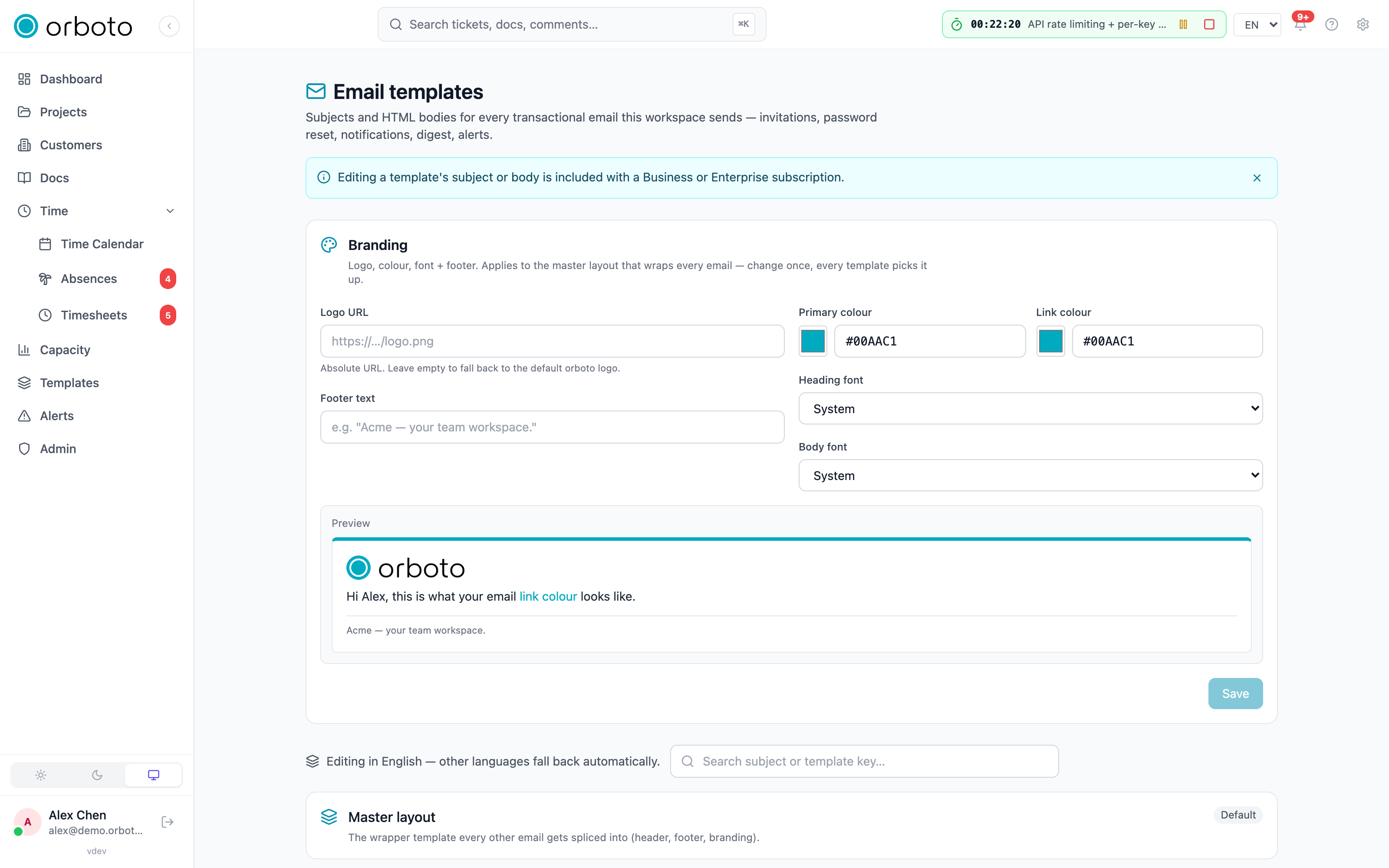
Every outbound email - invitations, notifications, digests, alerts - is rendered from an editable template. Admin → Email templates lists them all, grouped (Auth & onboarding, Notifications, Digest, Alerts, System, Custom) with a status badge: Default, Customised, or Disabled. Search by subject or template key.
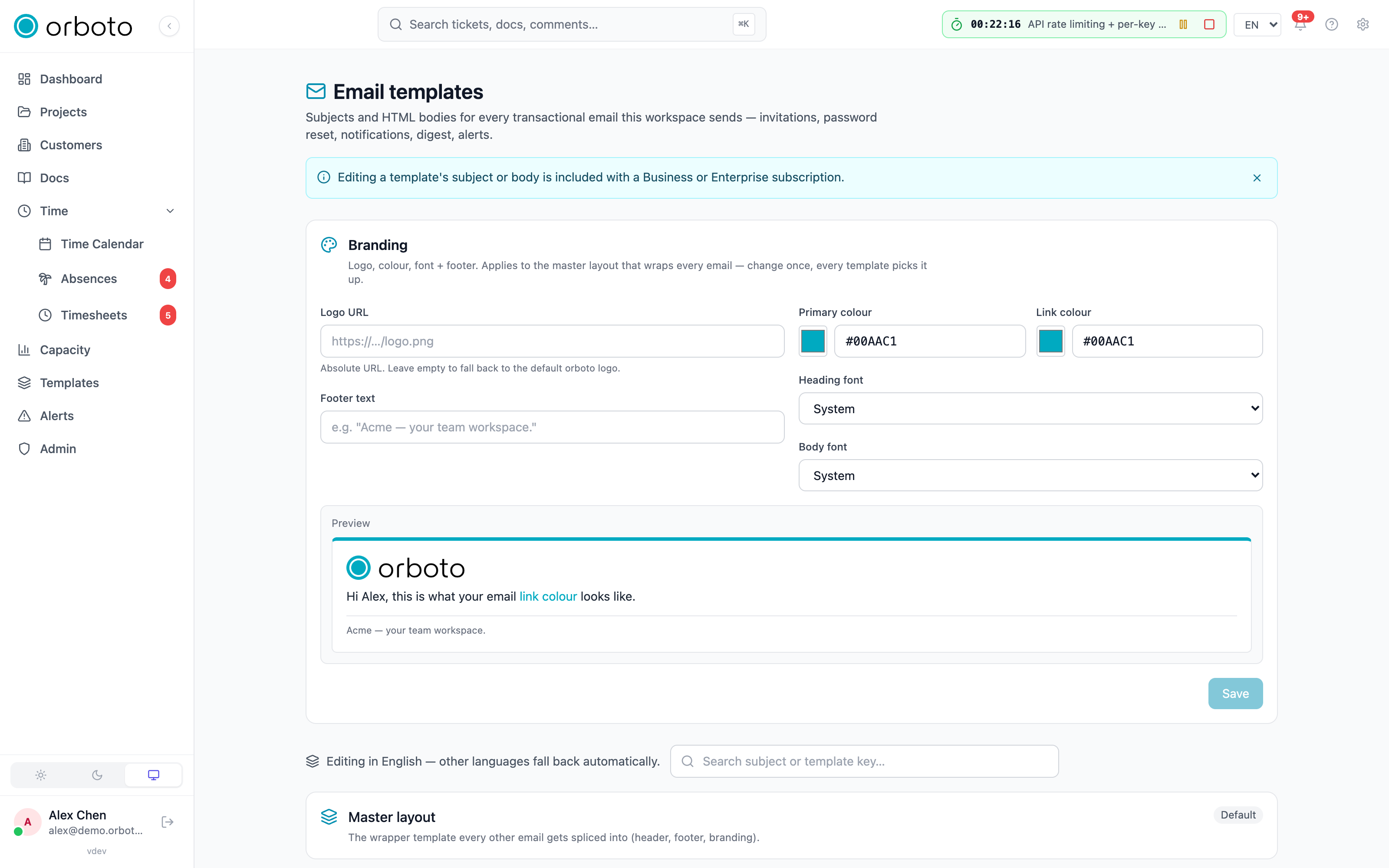
This is a Business/Enterprise feature. On the Community plan editing still works but raises a soft-warn on the License page; nothing is blocked.
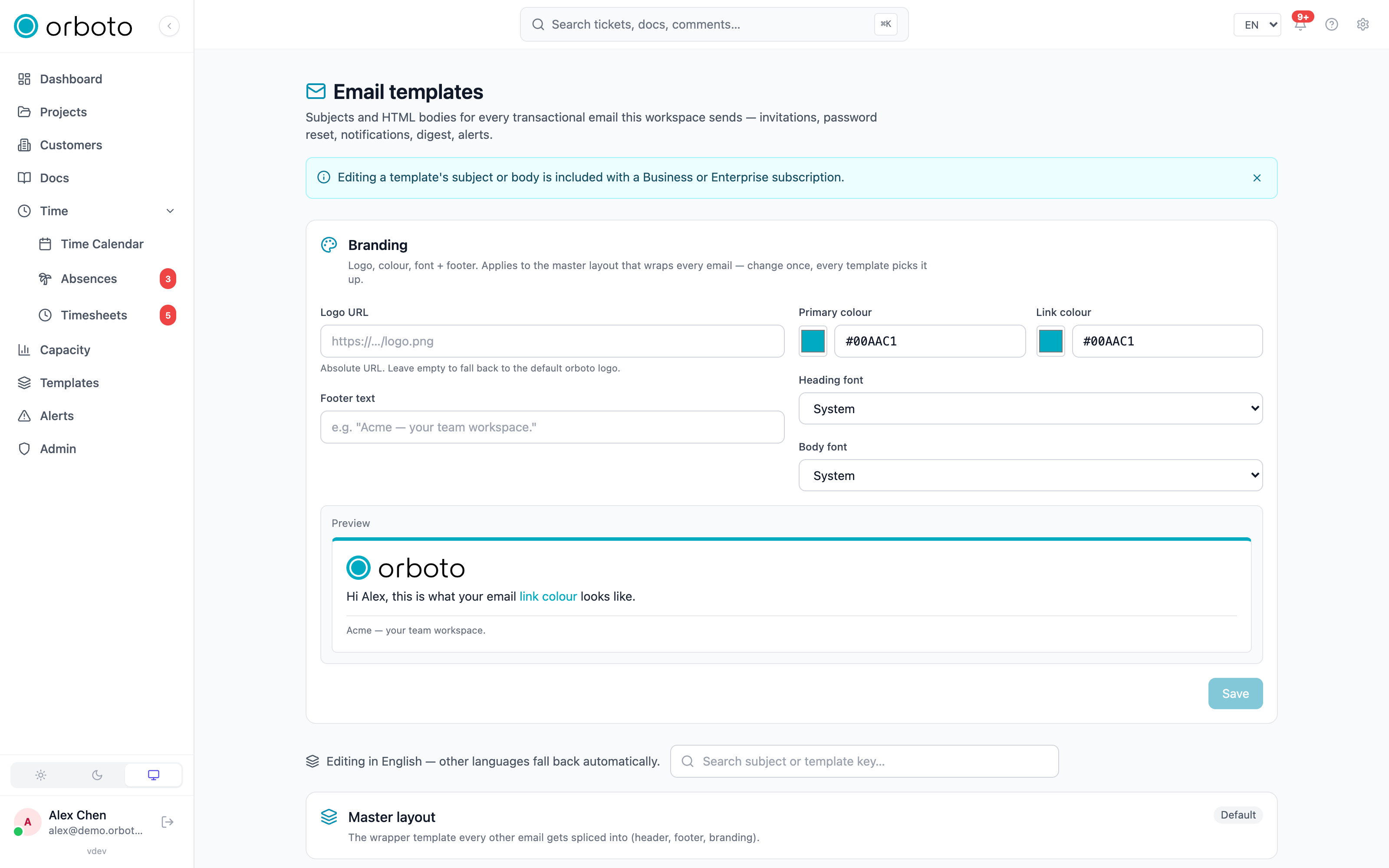
Branding
The Branding section at the top of the list applies workspace-wide, across every template: logo URL, footer text, primary colour, link colour, and separate heading/body fonts. Changing it here propagates everywhere immediately - you don't edit colours per template.
The master layout
A shared master template provides the frame every other email
renders into (header, footer, branding) - one branding change applies
everywhere. It's edited like any other row from its own card above the
grouped list, but as a raw HTML source instead of the rich editor: the
master layout is a full document (doctype, tables, inline styles, a logo
<img>) that the rich editor would strip down to a plain fragment, so it
gets a plain-text HTML box instead. A template can opt out of the master
frame for a bare email where that's more appropriate.
Editing a template
Open a row to reach the editor: subject field, body editor, and a live preview side by side.
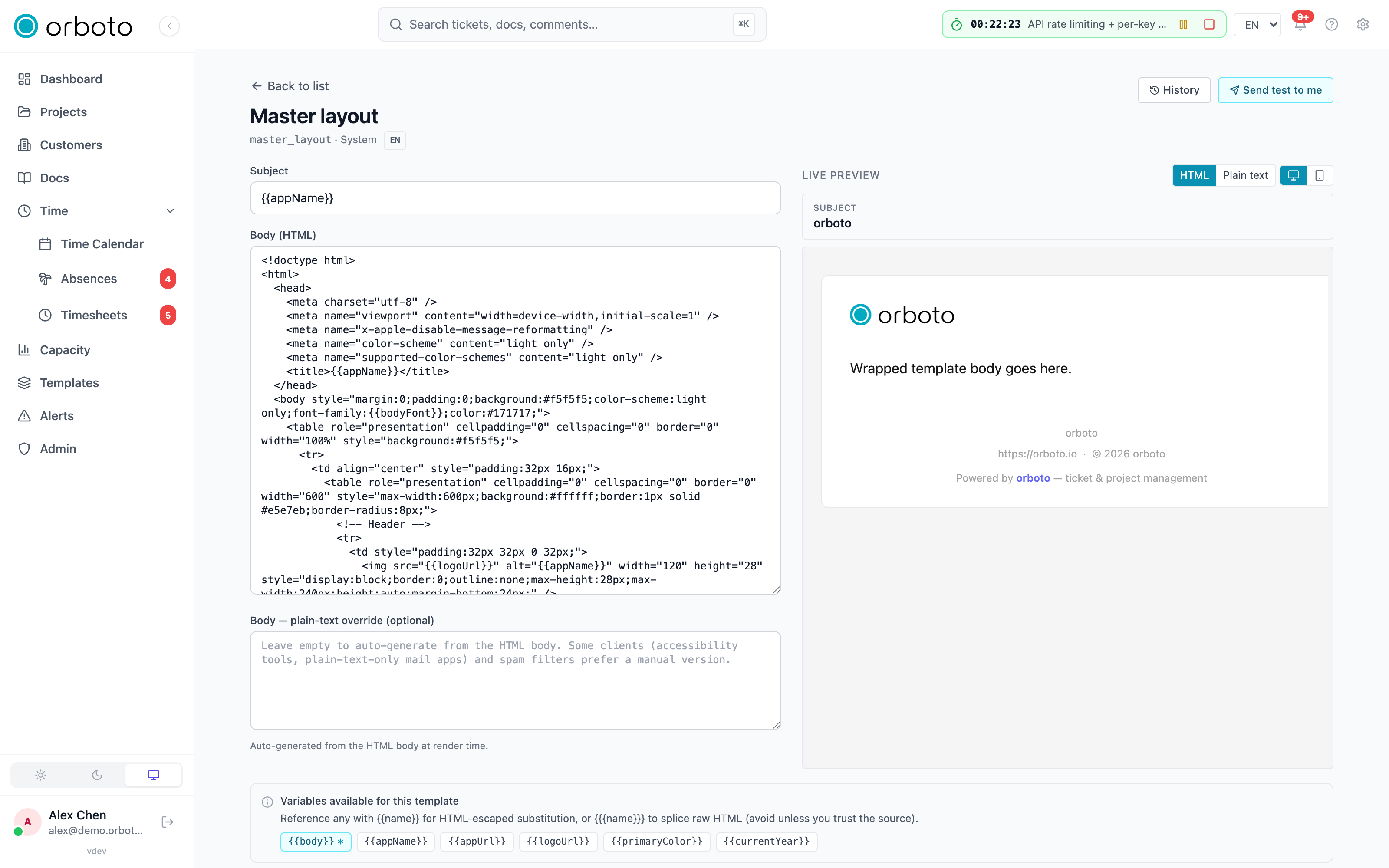
- Subject - plain text with
{{variable}}placeholders; a picker shows the variables available for this template. - Body - a rich, email-safe editor (Tiptap). Reference a variable
with
{{name}}for HTML-escaped substitution, or{{{name}}}to splice raw HTML - avoid the triple-brace form unless you trust the source. - Plain-text override (optional) - leave empty and orboto auto-generates the plain-text version from the HTML at render time; paste your own if you want an opinionated version for accessibility tools or plain-text mail clients.
- Preview - renders live as you type (debounced), with desktop and mobile widths and HTML / plain-text tabs.
Send test to me sends a rendered copy - using sample data from the variable catalog - to your own email address via the workspace's configured email provider, so you can check real client rendering before committing.
Disabling a template
The Email enabled switch at the bottom of the editor is a kill switch: turning it off stops orboto from sending that email type entirely, while in-app notifications (where the same event also has one) keep working. Useful for muting a noisy notification type without touching the underlying feature.
Reset to default
Reset to default restores the shipped subject and body, discarding your edits (confirm dialog). Your customization is tracked separately from the built-in version, so product updates never silently overwrite an edit you kept.
History
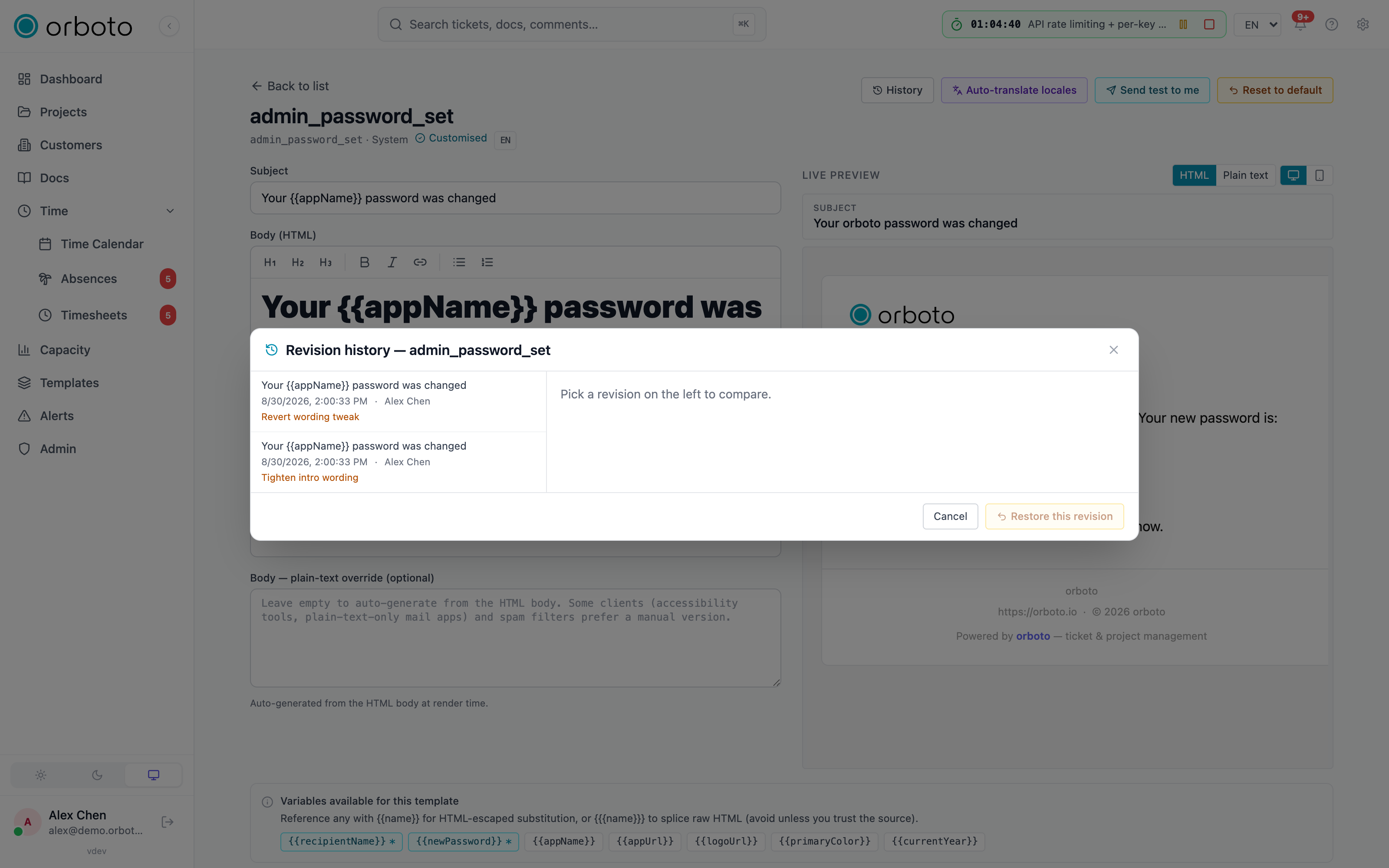
History opens every prior saved version of this template (subject + body), each save recorded automatically - restore an earlier version if a reset went too far or an edit needs undoing.
System-managed templates
A few templates (storage-quota warnings and similar) are locked - shown with a lock icon, no edit link. Their body is owned by the system so the alert UX stays consistent; configure their thresholds and recipients from the relevant Alerts & Notifications settings instead.
Languages
Templates are edited in the workspace's default locale only - there is no per-locale picker. A recipient in any other language gets the built-in default for their locale automatically. To get your customization into other languages, use Auto-translate locales on an already-customized template: it machine-translates your edited subject and body into every other seeded locale via the workspace's AI provider, marking each as customized. Re-running it overwrites any existing customized translation for those locales - it's meant for "I edited the English version, now sync everything else," not for hand-tuning individual languages afterwards. The button only appears once AI is configured and the template has at least one customization to translate from.
Troubleshooting
Auto-translate button is missing. It only shows once the template is customized (nothing to translate from the shipped default) and once the workspace has an AI provider configured under Admin → AI.
Edited the template but the email still looks like the old version. Check you saved on the workspace's default locale - the editor has no locale picker, so if you're expecting a non-default-locale recipient to see your edit, run auto-translate after saving, or confirm that locale hasn't been separately customized to something else via a translation.
Save button is disabled. It's a system-managed template (locked, no edit access here) - configure it via the relevant Alerts & Notifications settings instead. Otherwise, Save only enables once you've actually changed the subject or body.
A template stopped sending. Check its status badge for Disabled - the "Email enabled" switch in its editor may have been turned off.