

Git integration
Connect GitHub, GitLab, Azure DevOps, Bitbucket, Gitea, Forgejo or plain SSH - commits and pull requests link themselves to tickets, step by step.
Connect a repository and orboto keeps tickets and code in sync: commits and pull requests that mention a ticket key appear on the ticket automatically, and pull-request state (open / merged / closed) updates itself as the PR progresses. All communication is HTTPS REST - orboto never clones the repository or pushes to it, and no SSH access to your Git host is required (except for the dedicated SSH-poll connection type, covered below).
Setting this up is two separate jobs, done by two different people in a larger org:
- Workspace setup (Admin -> Git integration) - a one-time, instance-wide step where a workspace admin registers the credentials every project's connections will reuse: a GitHub App and/or a GitLab OAuth application.
- Per-project connection (each project's own Settings -> Git tab) - a project owner connects that specific project's repository, using either the workspace app from step 1 or a manually pasted token.
You need step 1 done (by an admin) before step 2 becomes the easy path; step 2 also works entirely on its own with a manual token, for any provider, even if nobody has set up an App at all.
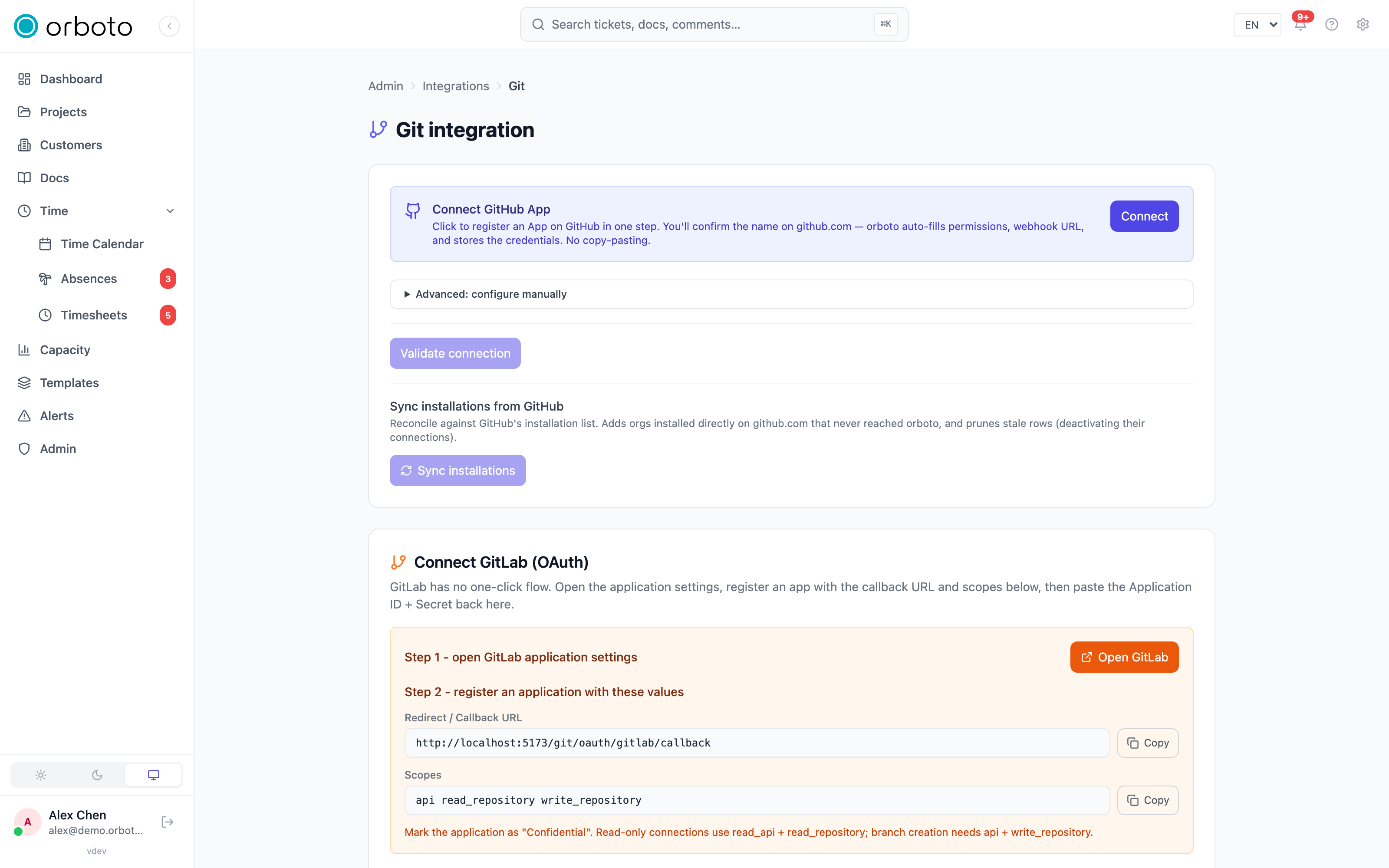
Step 1 - workspace setup (Admin -> Git integration)
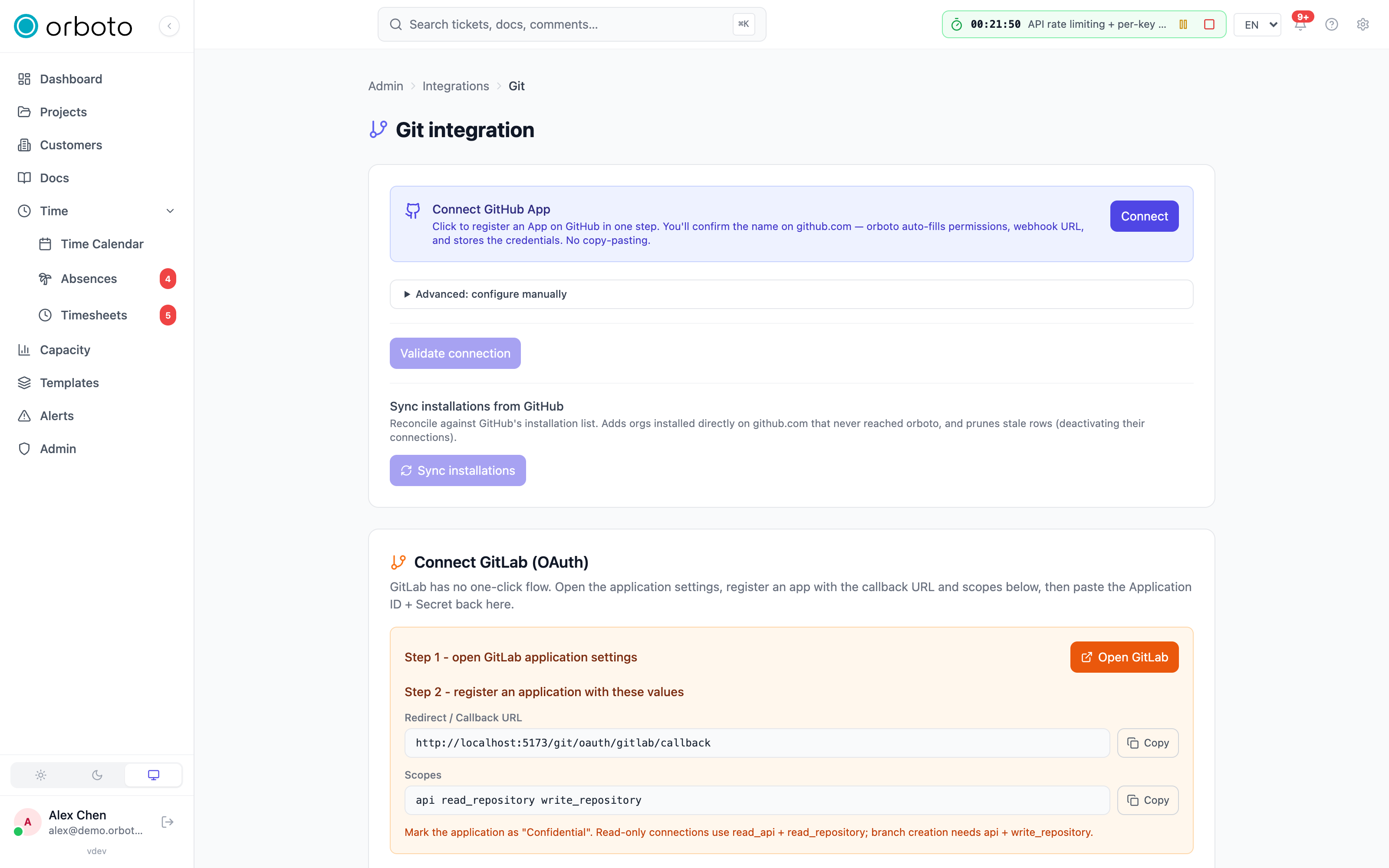
Open Admin -> Git integration. The page has two independent sections
- set up either or both, depending on which Git hosts your teams actually use.
GitHub - the one-click App flow
Click Connect GitHub App. This does NOT ask you to fill in any fields yet - it takes you straight to github.com to confirm the App's name. GitHub then redirects you back to orboto, which automatically:
- fills in the App's required permissions and webhook URL from a manifest orboto generated for you,
- receives and stores the App ID, private key and webhook secret GitHub issued,
- shows a success banner with the App's slug once it lands back on this page.
You never see or copy an App ID, a PEM private key, or a webhook secret by hand with this path - that's the entire point of it.
If an App is already configured, the same button reads Re-register GitHub App instead - clicking it replaces the stored credentials with a freshly generated App. The OLD App registration on github.com is left in place untouched; if you don't need it anymore, go uninstall it manually on GitHub's side (orboto has no way to reach in and remove it for you).
Advanced: configure manually is a collapsed panel below the App card, for anyone who'd rather register the GitHub App by hand on github.com and paste the results in themselves:
- GitHub App ID - the numeric ID from the App's registration page.
- GitHub App slug - the URL-safe handle from the App's URL (used to build the install link shown to project owners).
- GitHub App private key (PEM) - paste the full
.pemfile GitHub gave you when you created the App. It's shown as a large text box; after saving, the field goes blank again (the stored value is masked, not re-displayed) - pasting a new value and saving replaces it, leaving it empty and unsaved keeps the old key. - GitHub App webhook secret - the shared secret you set on the App's webhook config on GitHub's side. Same masked-on-read behavior.
- Disable GitHub App flow - a checkbox. When on, the GitHub App card disappears from every project's "Add connection" picker workspace-wide, even though the credentials stay saved. Use this during a planned migration or an incident, without losing the configuration.
After either path, click Validate connection. orboto pings GitHub with the stored credentials and, on success, shows the App's name, its owner (with account type), and a link to the App's page on github.com - proof the credentials actually work, not just that they were saved.
If you are a super-admin, a third control appears once an App is configured: Sync installations from GitHub. GitHub lets an organization admin install your App directly from github.com, bypassing orboto entirely - this button reconciles against GitHub's own installation list, adding any installation orboto doesn't know about yet and deactivating the connections for any installation that was removed on GitHub's side. The result panel lists every installation it found, with a "suspended" tag on any GitHub has itself suspended.
Which projects may use an installation
Added in v0.212.5 Every GitHub App installation has a list of the projects that may use it. A project sees an installation in its Add-connection picker, browses its repositories, connects through it and receives access tokens for it only while the installation lists that project. Installing the App from a project's Add-connection screen does not add that project to the list.
Under Admin -> Git integration, the Projects per installation
section shows one row per installation. Add or remove projects in a row and
select Save projects; the result line reports how many projects were
added and removed and how many connections were deactivated. The section
needs admin:system:write. The same list is available over REST:
GET /admin/git-app-installations (with admin:system:read),
GET /admin/git-app-installations/project-options for the projects you can
pick, and PUT /admin/git-app-installations/:id/projects with
{ "projectIds": [...] } to replace a list.
- Existing connections were carried over. When your instance moved to 0.212.5, every installation received the projects that already had a connection through it, active or not, so nothing stopped working.
- New installations start empty. An installation that is new after that
- installed from a project, directly on github.com and picked up by Sync installations from GitHub, or re-created - lists no project until an admin allows some.
- Removing a project deactivates its connections through that installation, in the same save. Adding the project back does not switch them on again; those connections stay inactive (the Git tab marks them "inactive") until they are switched on again for the project.
GitLab - the guided manual flow
GitLab has no equivalent one-click App-creation flow, so this section walks you through the manual steps instead of doing them for you:
- Open GitLab - a button deep-links to GitLab's own application-settings page (your self-hosted instance's base URL if you set one in the field below, otherwise gitlab.com).
- On that GitLab page, register a new OAuth application. Two copy
buttons on the orboto page give you the exact values to paste:
- Redirect / Callback URL - must match exactly, or GitLab's OAuth handshake will refuse orboto's callback.
- Scopes - copy this exact string into GitLab's scopes field.
Read-only connections need
read_api+read_repository; branch creation from a ticket needsapi+write_repository. Mark the application Confidential on GitLab's side - this is required for the OAuth flow to work as a server-side integration rather than a public client.
- Back on orboto, paste GitLab's Application ID and Application Secret into the two fields at the bottom of this section, plus the GitLab base URL if you're on a self-hosted instance (leave empty for gitlab.com) and the Redirect URI if you need to override the default.
- A Disable GitLab OAuth flow checkbox works the same way as the GitHub one - hides the card everywhere without discarding the saved credentials.
There's no "validate" button on the GitLab side; the first project that connects through it will surface any credential problem immediately, at which point re-checking the pasted Client ID/Secret against GitLab's application page is the fix.
Step 2 - connecting one project's repository
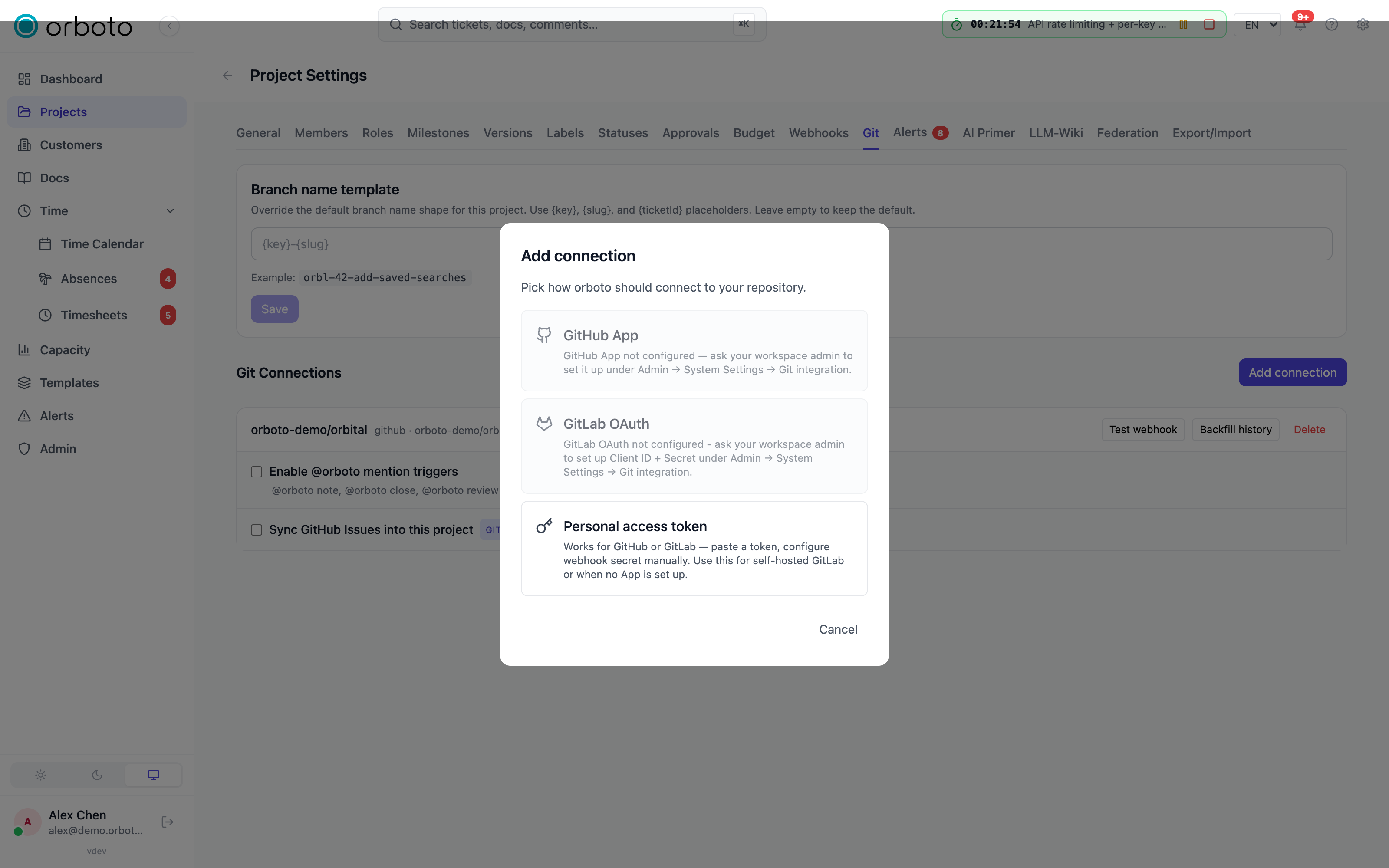
Open the project you want to connect, go to Settings -> Git -> Add connection. A three-option picker appears:
-
GitHub App - shown as the recommended option (with a "recommended" tag) once a workspace App is configured; greyed out with an explanation if it isn't. Clicking Continue to GitHub takes you to GitHub's own installation screen. Important: on that screen, choose "Only select repositories" and pick just the ones this project actually needs - GitHub defaults to "All repositories", which orboto cannot narrow for you from its side; a small in-page note reminds you of this right before you leave for GitHub. Once you return, the repository is connected with no token to manage - GitHub issues short-lived installation tokens on demand instead of a long-lived secret sitting in orboto. Added in v0.212.5 The installation must list the project (see Which projects may use an installation); an installation made from the project itself does not add it, so an admin allows the project first.
-
GitLab OAuth - shown once a workspace OAuth app is configured; authorize once, orboto mints short-lived tokens automatically after that.
-
Manual token - works for every provider: GitHub, GitLab, Azure DevOps / TFS, Bitbucket Cloud, Bitbucket Server, Gitea, Forgejo, or a read-only SSH poll connection. Picking a provider here shows a Get a token button that deep-links straight to the right token-creation page on that provider (GitHub's token-creation form pre-filled with the right scopes, GitLab's personal-access-token page, Azure DevOps's PAT settings for the org you type in, Bitbucket's App Passwords page, or the Forgejo/Gitea applications page on your self-hosted base URL). Self-hosted providers (GitLab self-managed, Azure DevOps, Bitbucket Server, Gitea, Forgejo) additionally need that instance's base URL; Azure DevOps also needs the org/project name since PATs there are org-scoped.
The SSH poll option is different in kind from the rest: there is no token at all. orboto generates an ED25519 keypair itself when you save the connection and shows you the public key to add as a deploy key (or to your server's
authorized_keys) on the repository's side. Use this for a self-hosted Git server that has no webhook support and no API to poll - orboto instead periodically checks the remote HEAD over SSH. It only supports read-only, poll-based updates (no branch creation, no webhook).
Added in v0.212.5 The webhook secret of a connection is stored sealed at rest, like the tokens; connections created before keep verifying their webhooks.
Every connection - regardless of provider or path - defaults to read-only. Flip the read-only switch off, and supply a token with write scope, if you want to let tickets create branches directly from orboto. If the token you provide has webhook-admin scope on the provider's side, orboto installs the inbound webhook automatically when you save; otherwise the connection screen shows you the exact URL and secret to paste into the provider's webhook settings by hand.
How ticket linking actually works
Mention a ticket's key anywhere in a commit message or a pull-request
title - ACME-42: fix the flux capacitor - and that activity appears on
ticket ACME-42, tagged with its current state (open, merged, closed for a
PR; just "committed" for a plain commit). The activity feed on the ticket
is append-only for commits, but a pull request's entry updates itself
in place as the PR's state changes - you see one PR row that flips from
"open" to "merged", not a new row each time something changes on it.
Connection health
Each connection on the project's Git tab shows a health badge with two independently-tracked signals, refreshed periodically in the background:
- Outbound reachable - can orboto currently reach the provider's API using the stored credentials.
- Inbound delivering - are webhook events actually arriving from the provider.
Hovering the badge shows both signals explicitly (a checkmark or cross for each), the last time orboto probed, and - on failure - the specific error orboto received. This is what makes a silently-broken integration visible: a connection can look "fine" in the connection list while quietly failing, and this badge is where that shows up first, before someone notices commits aren't appearing.
Troubleshooting
- Health badge shows outbound failing - the token expired, was revoked, or lost scope on the provider's side. Regenerate it via the "Get a token" deep-link and update the connection; for a GitHub App connection specifically, re-register the App (Admin -> Git integration) or re-check its installation via Sync installations.
- Health badge shows inbound not delivering - the webhook was deleted or its secret rotated on the provider's side, outside orboto. If the token has webhook-admin scope, removing and re-adding the connection reinstalls the webhook automatically; otherwise re-paste the URL and secret manually into the provider's webhook settings.
- A provider call fails with an error about the size of the answer Added in v0.230.0 - orboto reads at most 16 MB of any one answer from the provider's API. An answer above that fails the call. See Connected services.
- Commits aren't appearing on a ticket even though the message looks right - ticket-key matching is case-sensitive and must match the project's actual key exactly; also confirm the connection covers the exact repository the commit landed in, not a fork of it (a fork is a separate repository as far as the webhook is concerned).
- A GitHub org installed the App directly from github.com and nothing shows up in orboto - run Sync installations from GitHub (Admin -> Git integration, super-admin only) to pick it up. Added in v0.212.5 A new installation lists no project yet: allow the project under Projects per installation, otherwise it does not appear in the project's picker.
- A project's GitHub App connection stopped working after an admin edited an installation - Added in v0.212.5 removing a project from the installation's list deactivates its connections through it. Add the project back, then switch the connection on again; adding the project back alone does not reactivate it.
- The GitLab OAuth card is greyed out on a project's Add-connection screen - the workspace-level Client ID / Secret haven't been set yet; a workspace admin configures them under Admin -> Git integration first, or you fall back to the Manual token path for GitLab in the meantime.
- An SSH-poll connection never updates - check the public key orboto
generated was actually added as a deploy key (or to
authorized_keys) on the target server, and that the server allows the SSH user/port you configured; there's no webhook to fall back on for this connection type, so a wrong key silently means "never polls successfully".