

First-run setup
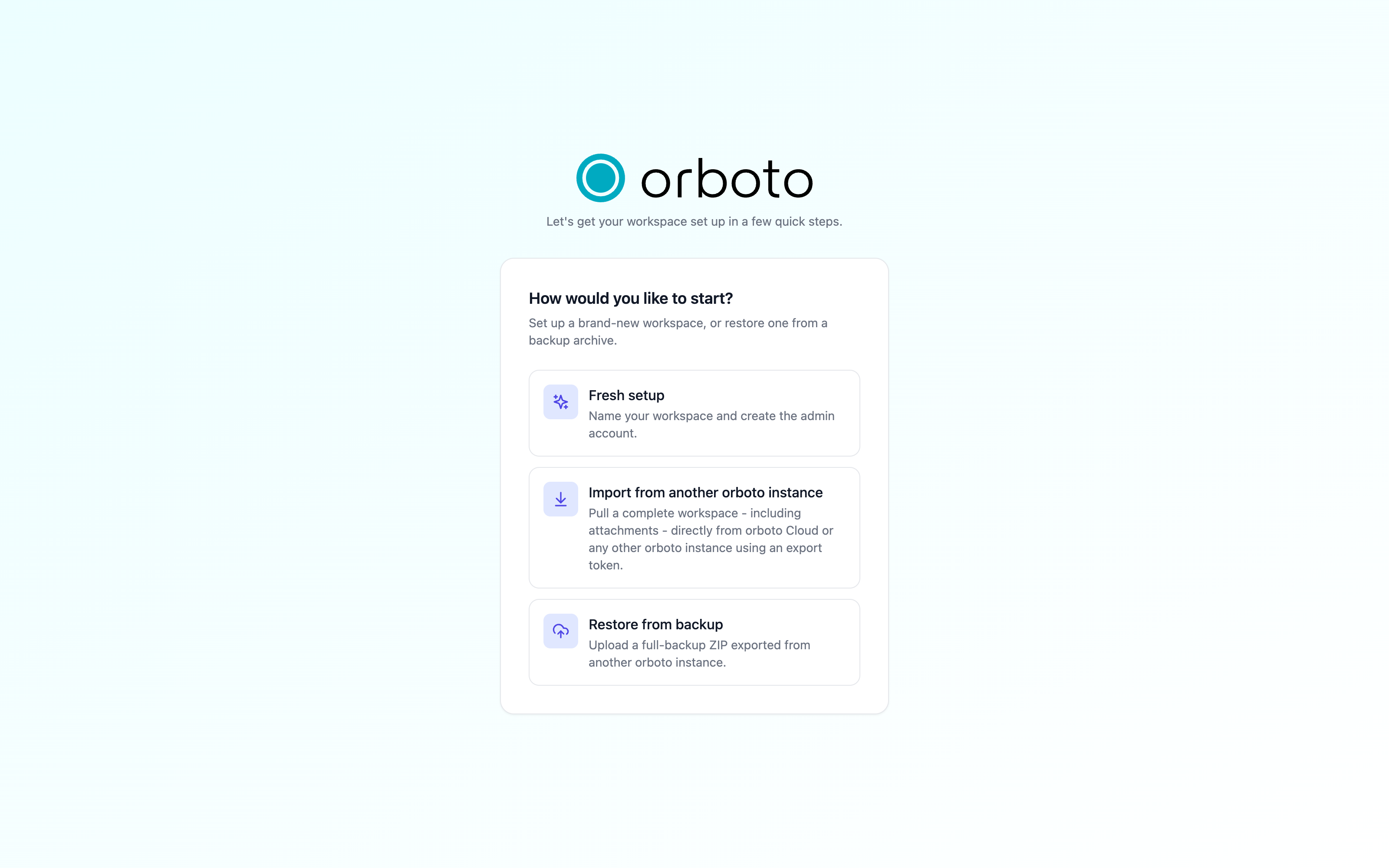
The setup wizard: create a fresh workspace, restore a backup, or import from another orboto instance.
The first time you open a fresh orboto instance you land in the setup wizard. It only appears while the instance is uninitialized, and it offers three starting points.
The setup token
Two of the three paths below (restore, and import from another instance) ask for a setup token - a one-time secret that proves you're the operator of this specific machine, not a random visitor who reached your fresh instance before you did. You don't need it for a brand-new fresh workspace, only for restore and import.
Where to find it:
- If you set the
SETUP_TOKENenvironment variable yourself, that's the token - it doesn't change between restarts. - Otherwise, orboto generates one automatically and prints it once to the
container's boot log, in a boxed banner. Read it with
docker compose logs api(or your platform's log viewer) right after first boot. It regenerates on every process restart if you never setSETUP_TOKEN, so if you missed it, restart the container and read the log again before you start the wizard.
The token is never returned by any API response - it only ever reaches you through the log. It stops being needed the moment setup completes.
Option 1: Fresh workspace
Two steps, then you're in.
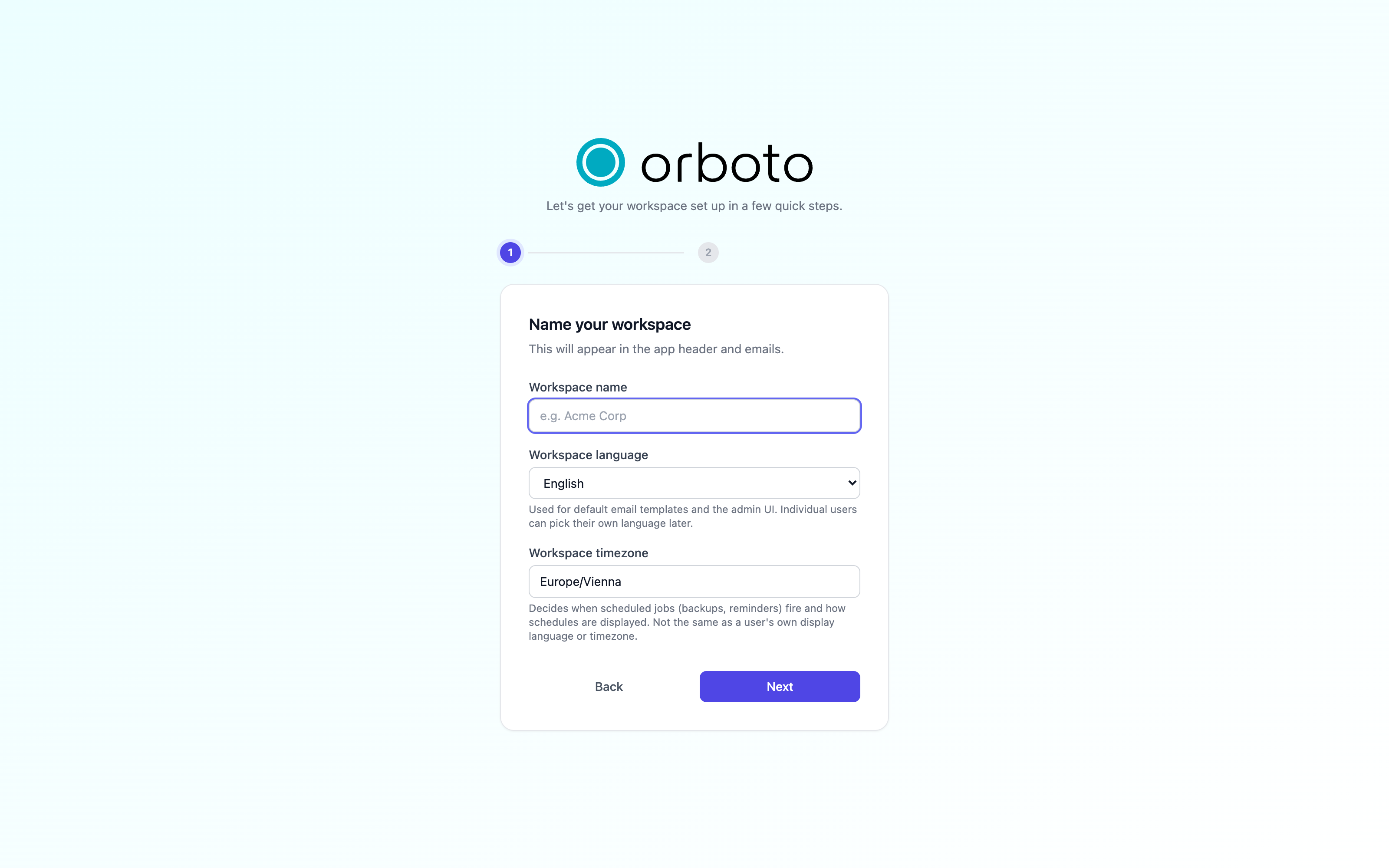
Step 1 - workspace basics.
- Workspace name - shown in the browser tab and in outgoing email templates. Required.
- Workspace language - the initial UI language for the admin account you're about to create, and the language used for default email templates. Individual users can still pick their own display language later, once they're in - this only sets the starting point.
- Workspace timezone - pre-filled from your browser, but editable. This is not a display preference: it's the single timezone your scheduled jobs (backups, reminders, cron-based alerts) are anchored to. Get this right if your server runs in a different zone than the browser you're setting it up from - individual users set their own display timezone separately, later, in their profile.
Step 2 - the administrator account. Your name, email, and password. This becomes the first user in the workspace, with full administrator access.
Submit, and you're signed in immediately. The admin configuration wizard then walks you through the common areas (email, AI, integrations) inside the app at your own pace - none of it blocks you from using orboto right away.
Option 2: Restore from a backup
Choose this to move an existing workspace onto this instance from a backup archive you already have - see Backups for how archives are produced.
- Enter the setup token for this instance (see above).
- Select or drag in the archive file (
.zip). - Select Start restore.
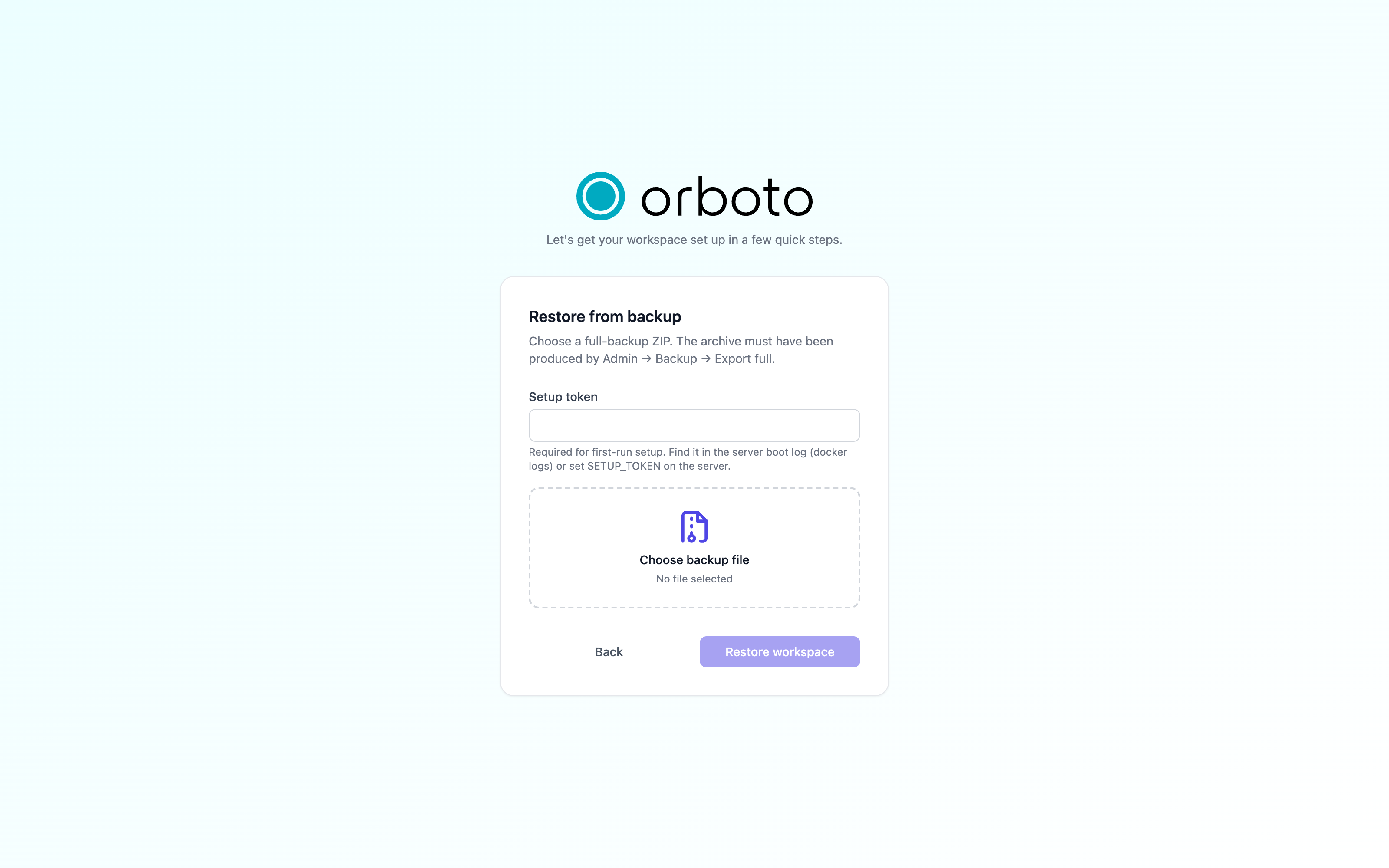
The instance restores every user, project, and file from the archive, then shows a summary: how many rows across how many tables, and how many storage objects (attachments, avatars, and so on) came along. If anything in the archive couldn't be applied cleanly, it's listed as a warning below the summary rather than silently dropped - read those before you continue. Select Go to sign in and use the credentials from the backup - not new ones, the account you restored already exists with its original password.
Added in v0.230.0 The archive is checked against limits before anything is restored: up to 5120 MB to upload, 100000 entries inside it, 5120 MB for any single entry and 51200 MB unpacked. A fresh instance has no administrator yet, so the wizard uses these defaults. For a larger archive, finish a fresh setup, raise the limit under Admin -> Backup -> Import and sync limits, and restore through Admin -> Backup -> Import, which wipes the workspace (see Backups). The archive is streamed to a temporary file instead of held in memory, only one restore or import runs at a time, and an archive with a ZIP comment is refused. Every limit and refusal is on Import and sync limits.
Option 3: Import from another orboto instance
Choose this to pull a complete, running workspace directly from another live orboto instance - including its attachments - without producing an intermediate archive file yourself. Useful for moving from orboto Cloud to self-hosted, or between two self-hosted instances, without a manual export/download/upload round-trip.
You need two tokens from two different places:
- On the source instance (the one you're moving from), sign in as
an admin and go to Admin → Backup → Migration export access, and
create an export token there (it looks like
orbexp_…). This is a separate credential from your account password, scoped only to this migration. - On this instance (the fresh one you're setting up), gather the setup token as described above.
Then, in the wizard:
- Source instance URL - the full address of the instance you're
importing from (for example
https://old.example.com). - Export token - the
orbexp_…token from step 1. - Setup token - this instance's own setup token from step 2.
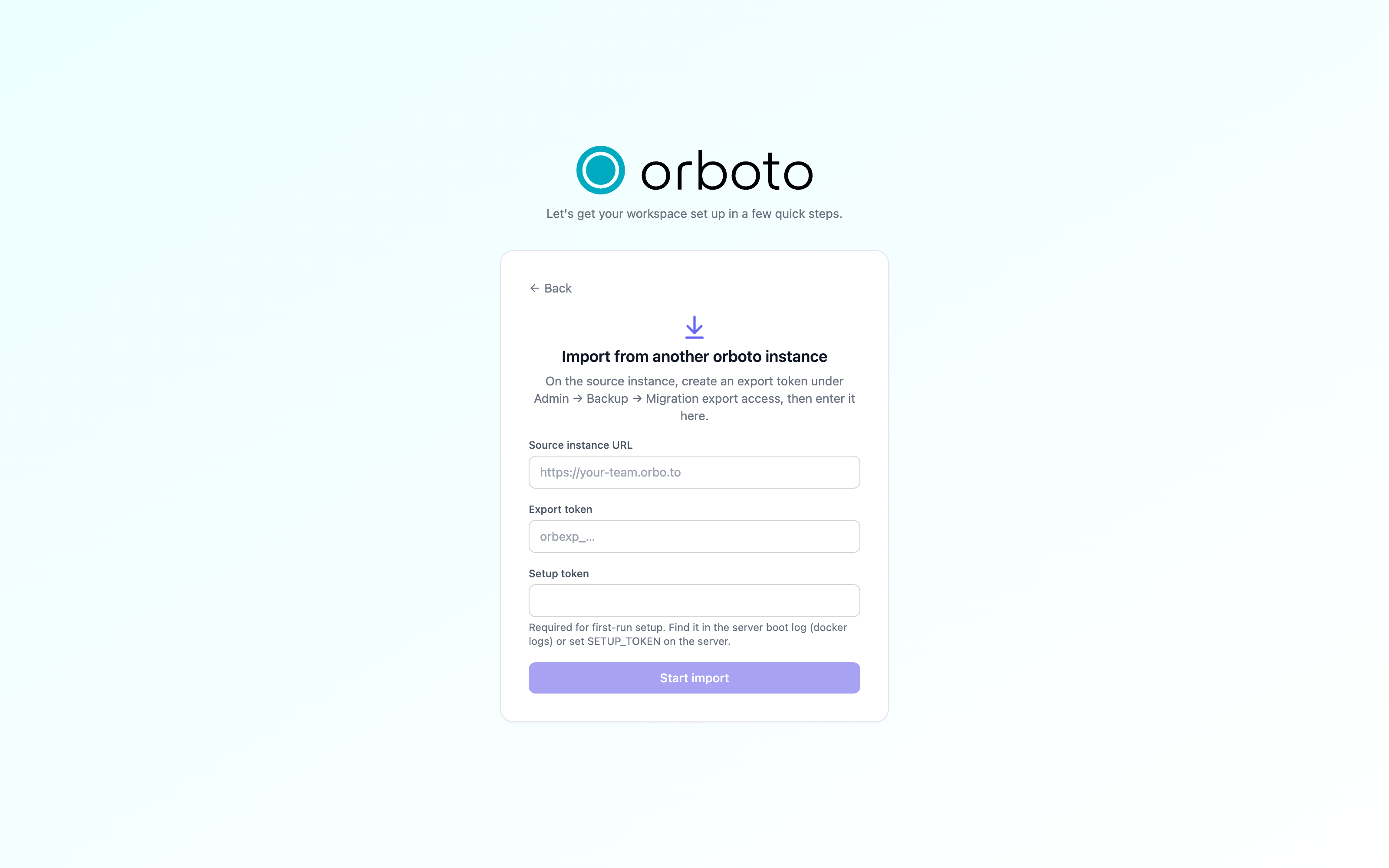
Select Start import. This can take a while for a large workspace - it checks the source, transfers the storage objects (attachments, avatars) one by one and then imports the database export. Once it's done, sign in with the credentials from the old instance - everything came along, including passwords.
Added in v0.230.0 The import is all or nothing:
- Check first. The file list, the database archive and the storage quota of the new instance are checked before a single file is written. A source that fails a check is refused and nothing changes.
- Only referenced files. Only files that the imported data actually uses are transferred. Each file must match the size the source announced.
- Roll back on failure. If a file cannot be transferred (orboto retries
three times) or the database import is refused, every file written by this
run is deleted again and nothing is imported. The error names the file
(
errors.system.import_object_transfer_failed). Start the import again. - Quota. When the new instance has a storage quota, the import books all
files up front. If they do not fit, the import is refused with
413anderrors.storage.quota_exceededbefore anything is written. A booking left behind by an interrupted import never blocks the next attempt. - One at a time. Starting a second import while one is running (for
example a retry after a proxy timeout) answers
409witherrors.system.import_already_runningand changes nothing. Wait for the first run and check its result. A restore or an inspection running on the instance counts as well. - Bounded answers. Added in v0.230.0 The source's version answer may be at most 64 KiB and its list of files at most 64 MiB. Its archive streams to a temporary file and may not be larger than the restore limit (5120 MB by default), and every file is written straight to storage and may not be longer than the size the source announced. A source that sends nothing for 60 seconds ends the import. Nothing is kept from a refused run. See Moving a workspace from another instance.
Retry missing files (after setup, super-admins only) transfers files that your data references but your storage lacks. It never overwrites a file that is already there, and it books no extra quota: the records that use those files already count. If a later file fails, the files it already transferred stay, because your records use them.
While an import runs, Delete orphaned files under Admin -> Attachments
answers 409 and deletes nothing; run the cleanup after the import has
finished (see Attachments and storage).
The import result carries objectsUnreferenced: files in the source's list
that no imported record uses, which stay at the source. objectFailures is
always empty now, because a failed file stops the import.
A machine account from the environment
Added in v0.203.0 If a script of yours should be able to drive a fresh instance through the API before any person has logged in, you can have orboto create one service account at start-up. Without these variables nothing is created.
| Variable | Required | Default | What it does |
|---|---|---|---|
ORBOTO_MACHINE_ACCOUNT_EMAIL | switches it on | - | The account's address. An address that already belongs to an account is refused; an existing user is never converted. |
ORBOTO_MACHINE_ACCOUNT_PURPOSE | yes | - | One line, up to 200 characters, saying what the account is for. Shown word for word in Admin -> Users. Without it the whole block is refused and nothing is created. |
ORBOTO_MACHINE_ACCOUNT_KEY_HASH | no | - | The SHA-256 hash (64 lowercase hex characters) of an API key you generated yourself: orb_ followed by 48 lowercase hex characters. Change the value to replace the key - the old one stops working at once. Remove the value to withdraw the key. The key itself never reaches the instance. |
ORBOTO_MACHINE_ACCOUNT_PROJECT_KEY | no | EVAL | The one project the account belongs to. Created if it does not exist. |
ORBOTO_MACHINE_ACCOUNT_DOC_SPACE | no | eval | The one doc space inside that project. Created if it does not exist. |
ORBOTO_MACHINE_ACCOUNT_AI_BUDGET_TOKENS | no | 0 | The account's monthly AI token budget. 0 means no limit of its own. |
The account can create, edit and delete tickets and docs in its one project, comment, use the AI chat and call the API. It has no admin rights. GET /system/machine-account reports it (address, purpose, project, doc space and a fingerprint of the key, never the key) to the account itself and to an admin.
An admin can deactivate the account in Admin -> Users at any time, and that decision survives every restart - see An account provisioned by the platform.
Notes
- The wizard is rate-limited and disabled the moment setup completes - it can never be re-run against a live instance, by any of the three paths.
- If the instance shows the normal sign-in screen instead of the wizard, it is already initialized.
Troubleshooting
The wizard rejects my setup token as "invalid or missing".
Cause: you typed it wrong, it regenerated on a restart because
SETUP_TOKEN was never pinned in your environment, or setup already
completed on this instance (the token stops being checked afterwards).
Fix: re-read the current token from the boot log (docker compose logs api), or set SETUP_TOKEN explicitly in your environment so it stops
changing between restarts.
I reach the wizard again after setup already completed. Cause: this shouldn't happen on a genuinely initialized instance - you are more likely looking at a different instance (a fresh container, or a database that was reset) than the one you set up before. Fix: confirm you're pointed at the right hostname and the right database before restoring or importing anything, so you don't overwrite an existing workspace.
The restore step rejects my backup archive. Cause: the archive is corrupted, from an incompatible version, or the upload was interrupted. Fix: re-download the archive from its original source and try again; see Backups for how archives are produced.
The restore step says the archive is too large, holds too many entries or is invalid. Cause: Added in v0.230.0 the archive is over a restore limit (upload size, entry count, size of one entry or total unpacked size), carries a ZIP comment, or is not an orboto archive. The message names the limit. Fix: see What a refusal looks like. For a limit, finish a fresh setup, raise it under Admin -> Backup -> Import and sync limits and restore through Admin -> Backup -> Import.
The remote import answers 409 with errors.system.import_already_running.
Cause: another import is still running on this instance - for example, you
retried after a proxy timeout while the first attempt kept running.
Fix: wait for the first run to finish, then check its result before you
start another one.
The remote import is refused with errors.storage.quota_exceeded.
Cause: the files the source holds do not fit the storage quota of this
instance. Nothing was written.
Fix: raise the storage quota on this instance, or import a smaller source.
The remote import fails with errors.system.import_object_transfer_failed.
Cause: one file could not be transferred after three attempts, or the
database import was refused. Every file the run wrote was deleted again and
nothing was imported.
Fix: the error names the file; check the source can serve it and that the
network between the two instances is stable, then start the import again.
The remote import answers 400 with errors.system.import_source_too_large or errors.system.import_source_timeout.
Cause: Added in v0.230.0 the source sent an answer above its limit (its archive above the restore limit, its file list above 64 MiB), or sent nothing for 60 seconds while transferring.
Fix: nothing was imported. For a slow source, check the network between the two instances and start the import again. For an archive above the limit, finish a fresh setup, raise the limit under Admin -> Backup -> Import and sync limits and restore a backup archive of the source through Admin -> Backup -> Import.
The remote import fails immediately with a connection error. Cause: the source instance URL is unreachable from this server (typo, firewall, or the source instance is actually down), or the export token was already used up or revoked on the source side. Fix: confirm you can reach the source URL from this host, and generate a fresh export token from the source instance's Admin → Backup → Migration export access if you're unsure the old one is still valid.
I can't reach the wizard at all - it goes straight to a sign-in screen.
Cause: the instance is already initialized (setup_completed is set).
Fix: sign in normally, or restore/import into a fresh database if you
intended to start over.