

Upgrades
Moving a self-hosted instance to a new version safely - the exact commands, and how to roll back.
orboto releases are shipped as versioned container images. This page walks through an upgrade end to end, for both a manual Docker Compose deploy and a Coolify-managed one, then covers rolling back if it goes wrong.
Before you start: why this is safe
Database migrations that ship with a new version are additive and
idempotent - existing rows keep their values, and a new required column
is introduced with a default plus a backfill in the same migration, never
by rejecting old rows. On top of that, the API automatically snapshots
your database with pg_dump immediately before it applies any pending
migration, and refuses to apply the migration at all if that snapshot
fails - see pre-migrate snapshot
for exactly how. In practice this means a routine upgrade is low-risk by
default, and you always have a fresh restore point even if you forget to
take one yourself.
1. Back up first
Trigger a backup run (or confirm last night's succeeded) so you have a restore point that isn't only the automatic migration snapshot - see Backups. This step is about your own peace of mind on top of the automatic snapshot, not a substitute for it.
2. Update the image tag
Manual Docker Compose:
cd /opt/orboto
git pull
docker compose --env-file .env.prod pull
docker compose --env-file .env.prod up -d
If you pin an explicit IMAGE_TAG in .env.prod instead of tracking
latest, update that value first, then run the same pull / up -d
pair.
Coolify: open the orboto resource → set IMAGE_TAG in the environment
variables tab to the new version (or leave it as latest to always track
the newest release) → select Redeploy.
3. Migrations run automatically
Either path above re-runs the API container's entrypoint,
node dist/db/migrate.js && node dist/index.js - it takes the pre-migrate
snapshot, applies any pending migrations, and only then starts serving
traffic. Watch it happen:
docker compose logs -f apiLook for the migration count logged near the top of the output, then a line indicating the server is listening. If a migration fails, the container exits non-zero and never starts serving - Coolify in particular will not route traffic to a half-migrated API, so your previous version stays live in front of users while you investigate.
4. Verify
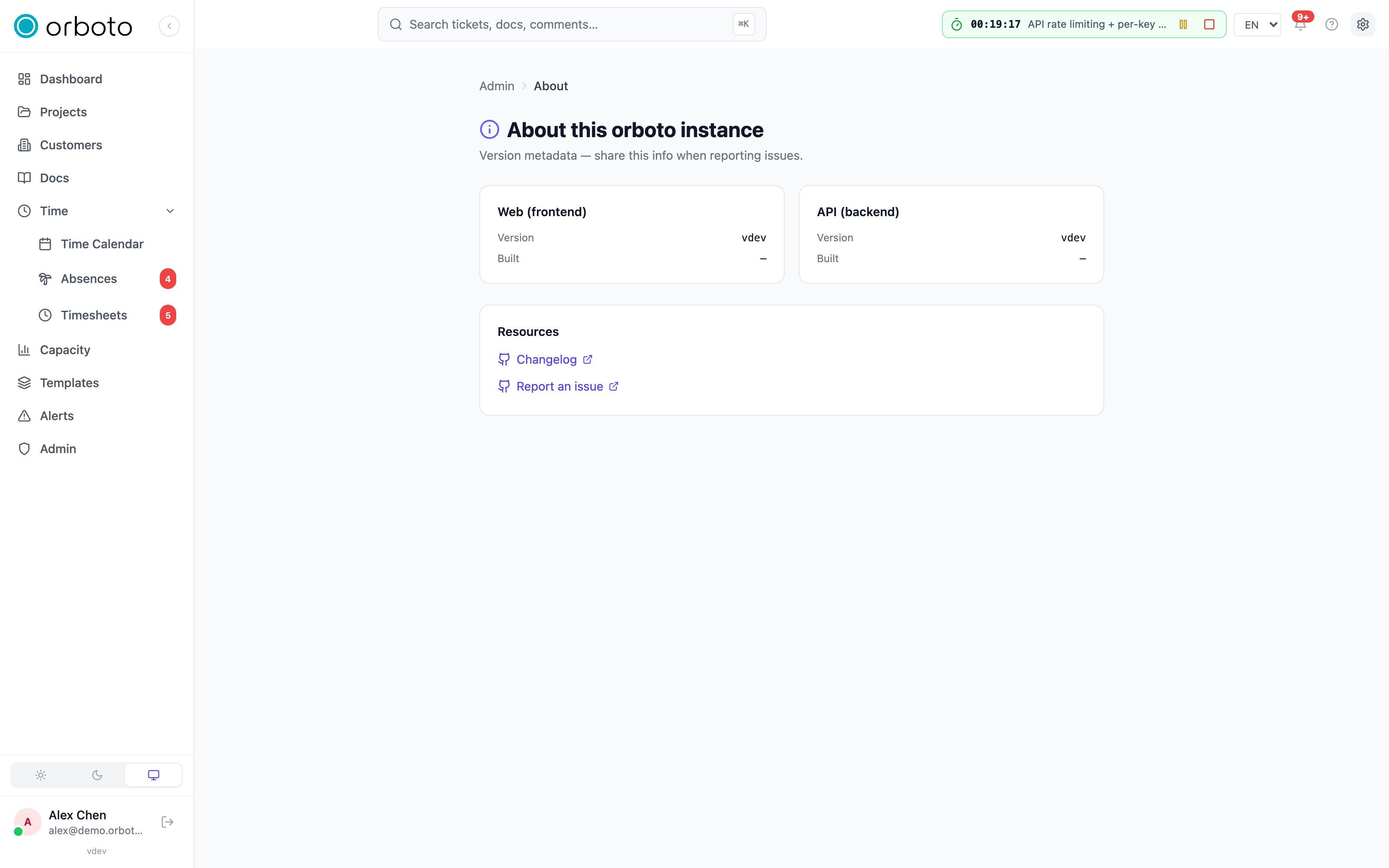
curl -f https://your-domain.example.com/healthA 200 confirms the new process is up. Then open the app as an admin and
check the About page - the version shown there should match the tag
you just deployed. If it still shows the old version after the health
check passes, see Troubleshooting below.
Rolling back
Point the image tag back at the previous version and redeploy, using the
same mechanism as step 2 (.env.prod + docker compose up -d, or the
Coolify IMAGE_TAG field).
IMAGE_TAG=<previous-version> docker compose --env-file .env.prod up -d api webIf a migration was the actual problem (not just a runtime bug), the new schema may already be in place and simply starting the old image against it can misbehave - restore the pre-migration snapshot first, then start the old image:
docker compose --env-file .env.prod exec -T postgres \
  pg_restore -U "$SERVICE_USER_POSTGRES" -d "$POSTGRES_DB" --clean /backups/pre-migrate-<timestamp>.dump
Never run a newer database schema against an older application version - roll the schema back with it if a migration is involved.
Practices
- Upgrade regularly - many small steps beat one giant leap; skipping many versions at once means more migrations run in one shot and more release notes to read before you understand what changed.
- Read the release notes for the versions you skip.
- On multi-container setups, upgrade
api, web andmcptogether - the images of one release belong together, and running mismatched versions across them is unsupported.
Troubleshooting
The API container won't come back up after I bumped the version.
Cause: a migration failed partway, or the new image needs an environment
variable an older version didn't require. Check docker compose logs api
for the actual error - a migration failure aborts before serving traffic,
so the previous version is never left half-migrated.
Fix: address the underlying error (missing variable, unreachable
database), or roll back to the previous image tag while you investigate.
The health check passes but the admin About page still shows the old version.
Cause: your browser is serving a cached copy of the web bundle.
Fix: hard-refresh the page. If it persists, confirm the web container
was actually rebuilt/pulled to the new tag too - a mismatched web vs
api tag from skipping the "upgrade them together" practice above also
produces this.
I upgraded and now I need to go back. Cause: the new version introduced a regression for your setup. Fix: follow Rolling back above - point the image tag at the previous version, restoring the pre-migration snapshot first if a migration ran.
Everything local with Ollama
Run orboto on your own box with Ollama next to it: chat and embeddings from local models, and an agent that works your tickets on a local model too.
Multiple domains
Run one workspace under a second brand domain for customer-facing invitations, while the internal address stays as-is.