

Cursor, step by step
Connect Cursor to your orboto workspace with the orboto CLI in about ten minutes - every click and every command, no prior terminal experience needed.
This guide gives Cursor (command cursor) the full orboto workflow through the orboto CLI: binding workspace rules on session start, ticket claims, timers, comments, the agent inbox. Follow it top to bottom; every step tells you what you should see before you move on. At the end you type "show me my open tickets" and it answers from your workspace.
What you need
An account for Cursor, your orboto workspace address (for example https://acme.orboto.example), and an orboto login. Nothing has to be installed on the orboto side.
1. Open a terminal and install both tools
- Mac: press
Cmd + Space, typeTerminal, press Enter. - Windows: press the Windows key, type
PowerShell, press Enter.
A window with a blinking cursor opens. Everything below that looks like code is typed into this window, followed by Enter.
If you do not have Cursor yet: open cursor.com, click Download, open the downloaded file (Mac: drag Cursor into Applications, Windows: click through the installer), start Cursor and sign in. Cursor is a desktop app, so nothing to type for it here.
Then install the orboto CLI:
-
Mac:
curl -fsSL https://raw.githubusercontent.com/orboto/orboto-cli/main/install.sh | sh -
Windows:
npm install -g orboto
Wait until the cursor comes back, then close the terminal window and open a new one so both commands are found. Check:
orboto versionYou should see a version number. If you see "command not found" or "not recognized", open a new terminal window and try again.
2. Sign in to Cursor
Cursor signs in through its own window (top-right account menu). If you are already signed in, nothing to do.
3. Create your orboto API key
The key is how the orboto CLI proves to orboto that it is you. It is a long text starting with orb_.
- Open your orboto workspace in the browser and log in.
- Click your avatar in the top-right corner, then Profile.
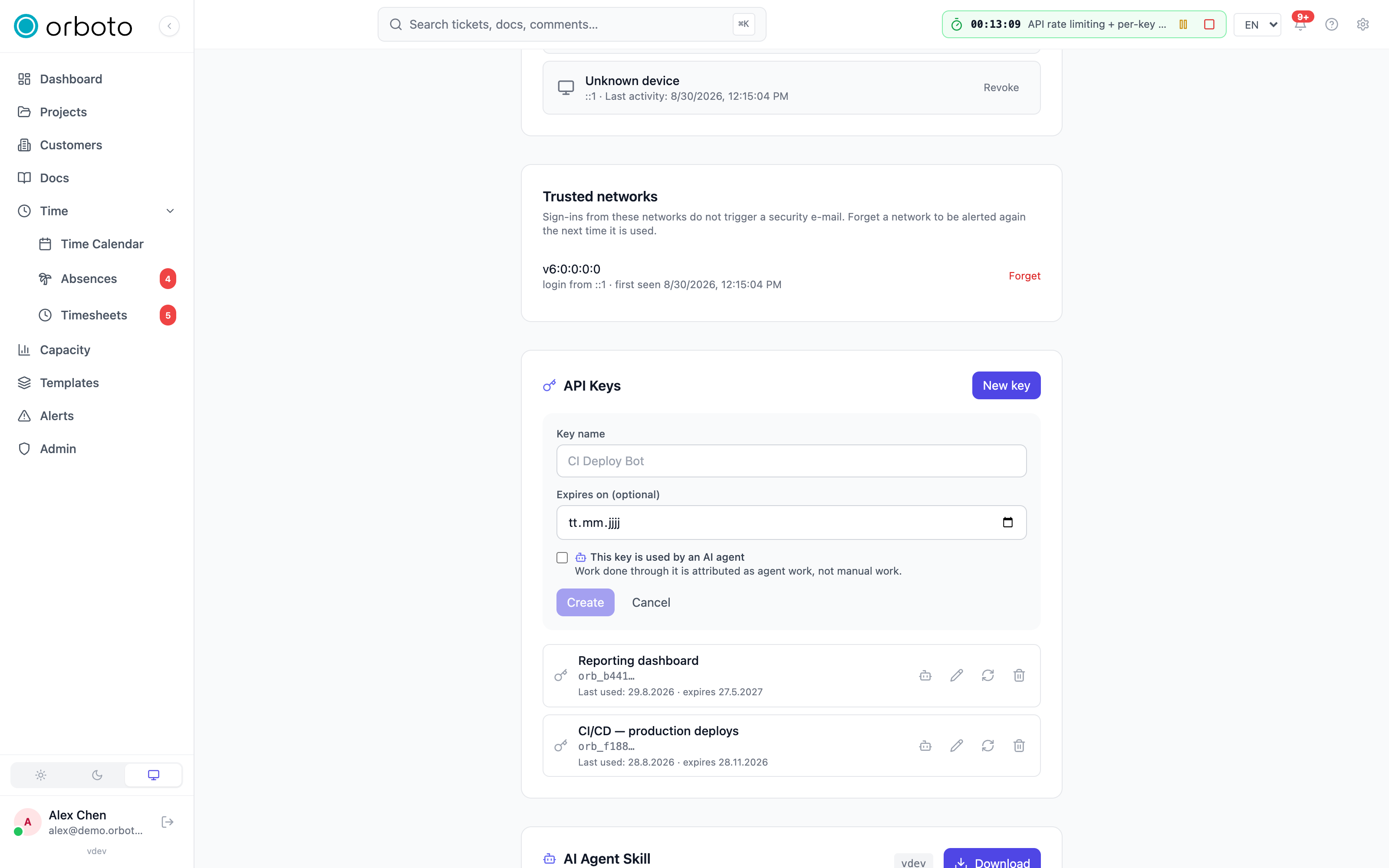
- Scroll to the API Keys card and click New key.
- Name it
cursor. Tick This key is used by an AI agent - work done through it is then attributed as agent work in reports. - Click Create.
- The key is shown once. Click the copy icon next to it and paste it somewhere safe for the next step (a notes app is fine for now, delete it afterwards). Then click I've saved it.
Keep the key private
Anyone with this text can act in orboto as you. Never paste it into a chat, a ticket, or an email. If it ever leaks, delete it in the same API Keys card and create a new one.
4. Log the CLI in
One command, replace the address with your workspace address:
orboto login --api-key --base-url https://YOUR-WORKSPACEIt asks for the API key from the previous step (the input stays hidden while you paste it, then press Enter), checks it with orboto and saves it to ~/.orboto/env. You see your name and e-mail address as confirmation:
orboto whoamiPrefer logging in with the browser?
Run orboto login --base-url https://YOUR-WORKSPACE without --api-key (or plain orboto login, which asks for the address): your browser opens the orboto login, you click Authorize and can choose whether the CLI acts as you or as an agent account you own. No key to copy at all; the login renews itself. On a machine without a browser add --no-browser and open the printed address elsewhere.
If orboto whoami prints an error, jump to If something does not work.
5. Let Cursor use it
Cursor runs terminal commands itself, so it can drive the orboto command you just configured. Start it inside the folder you work in and make the first message this (replace ACME with the key of your orboto project, the short prefix of your ticket numbers):
Open the project folder in Cursor, open the chat (Mac: Cmd + L, Windows: Ctrl + L) and switch it to Agent mode. Then type:
Run "orboto session-start --project ACME" and follow the rules it prints. Then show me my open orboto tickets.Cursor may ask you once to allow running the orboto command; allow it. session-start hands the agent the workspace rules (ticket first, one commit per ticket, how to claim, comment and close), and the agent answers with your tickets. From here on you can work as you would in the app:
Which tickets in project ACME are blocked?Claim ACME-42 and start the timer.Add a comment to ACME-42: waiting for the design review.Close ACME-42 with a comment about what changed.
The agent only does what your orboto account may do. If you cannot delete a ticket in the app, it cannot either.
Make it permanent with the skill
So that you do not have to mention the CLI in every session: in orboto open Profile, find the AI agent skill card and click Download. Unzip the file; you get a folder named orboto. Move that folder into ~/.cursor/skills/ (create the skills folder if it does not exist; the result is ~/.cursor/skills/orboto/SKILL.md). From then on Cursor loads the orboto workflow whenever a task mentions tickets, and you can invoke it directly with /orboto.
Alternative: connect through MCP
If you only want tool calls without the CLI workflow, Cursor can also talk to orboto's MCP server. Create ~/.cursor/mcp.json with {"mcpServers": {"orboto": {"url": "https://YOUR-WORKSPACE/mcp", "headers": {"Authorization": "Bearer orb_PASTE_YOUR_KEY_HERE"}}}} and restart Cursor; the MCP section of the settings then lists orboto with its tools. Everything about that path is on the MCP server page.
If something does not work
| What you see | What to do |
|---|---|
command not found: orboto or orboto is not recognized | Close the terminal window, open a new one, try again. If it persists, repeat step 1. |
orboto whoami says 401 or "unauthorized" | The key was pasted incompletely or was deleted. Create a new key and run orboto login --api-key again - it replaces the saved one. |
orboto whoami says 403 | Your orboto account is missing the permission for API access. Ask your workspace admin to grant the api:use permission (the "developer" role includes it). |
orboto whoami cannot connect | The address must be your workspace address (the one you log in at) and reachable from your laptop; open it in the browser to check, then run orboto login again. |
| The chat never runs a terminal command | Switch the chat to Agent mode (the mode selector at the bottom of the chat). |
| The agent answers without ever running orboto | Mention orboto in the sentence ("in orboto", "my orboto tickets"), or start the message with the orboto session-start line from step 5. |
What next
- The complete command set is on CLI daily workflow; connection profiles for several workspaces on CLI profiles.
- To have Cursor work tickets on its own and get woken by other agents through the orboto inbox, see the agent inbox guide - that setup is for technical operators.
Codex CLI, step by step
Connect Codex CLI to your orboto workspace with the orboto CLI in about ten minutes - every click and every command, no prior terminal experience needed.
VS Code with Copilot, step by step
Connect VS Code with Copilot to your orboto workspace with the orboto CLI in about ten minutes - every click and every command, no prior terminal experience needed.