

Calendar sync
See orboto schedules in your calendar - the personal feed, and two-way sync with Google, Microsoft 365, or any CalDAV server.
orboto offers two independent ways to connect a calendar: a read-only feed anyone can subscribe to in seconds, and a deeper provider sync that pushes your approved absences out and pulls your busy time in. You can use either on its own, or both together.
Calendar feed (any calendar app)
The feed is the fastest way to see orboto dates in a calendar you already use - no OAuth, no admin setup.
- Open your profile.
- Find Calendar feed and select Generate feed URL (or copy the existing one if you already generated it).
- Choose which schedule types the feed carries - due dates, milestones, absences.
- Copy the URL and add it as a subscription (not an import) in your calendar app - the exact menu differs per app, but it's the option labeled "Subscribe from URL", "Add calendar by URL", or similar, never "Import" (import is a one-time snapshot; subscribe keeps refreshing).
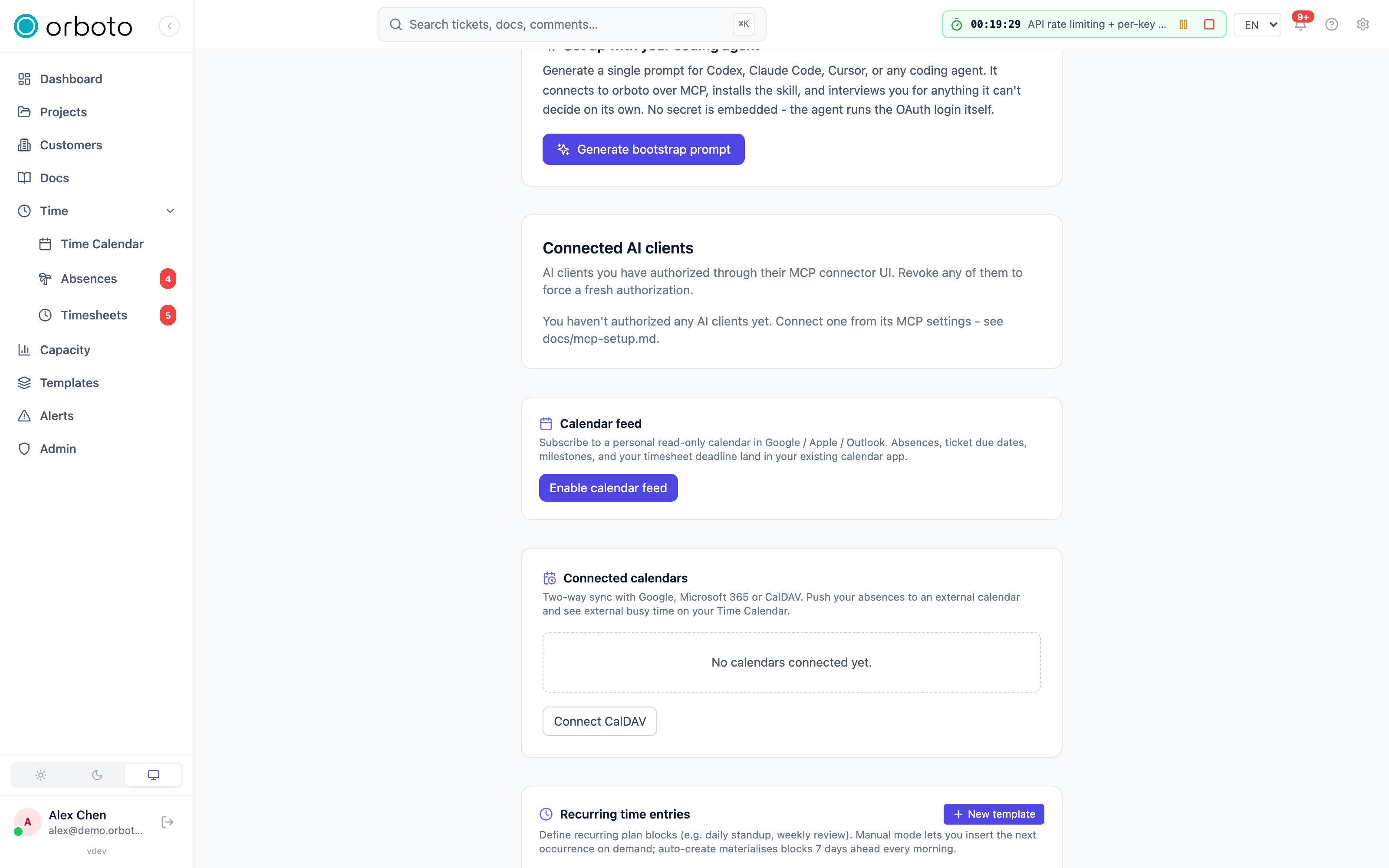
The URL contains a private, unguessable token - anyone who has the URL can read the events it carries, so treat it like a password. If a URL leaks (pasted somewhere public, shared with the wrong person), select Regenerate - the old URL stops working immediately and every subscriber needs the new one.
Added in v0.230.0 The feed URL follows your account. While your account
is deactivated, the URL answers 404 and your calendar app receives nothing;
reactivating the account brings the same URL back. Anonymising the account
removes the URL for good. An administrator can also revoke your feed URL
(Admin -> Users -> Security, see
A person's calendar feed and connected calendars).
After a revoke, select Generate feed URL on your profile for a new one;
every subscriber needs it.
The feed is read-only at the consuming end: your calendar app refreshes it periodically (the interval is controlled by the app, not orboto - most refresh every few hours) but you can't edit an orboto event from inside your calendar app and have it write back.
Provider sync (Google, Microsoft 365, CalDAV)
Provider sync is two-way in a specific sense:
- Push - your approved absences become all-day events on a calendar you choose (your primary/default calendar unless you pick a different target).
- Pull - your busy windows from that external calendar appear as a read-only hatched overlay on your Time Calendar, so you can plan orboto work against your real availability. orboto only ever reads busy/free status, never event titles or details - this is a deliberate privacy choice, not a current limitation.
Three providers are supported, each connected the same way from Profile → Connected calendars, but set up differently underneath.
Added in v0.230.0 A connection syncs only while its owner's account is active. While the account is deactivated, nothing is pushed and no busy time is pulled; the connection stays on file and syncs again when the account is reactivated.
Google Calendar
One-time workspace setup (operator). Before any user can connect Google Calendar, an operator registers one OAuth client in the Google Cloud Console that every user connects through:
-
Open the Google Cloud Console and pick (or create) a project.
-
APIs & Services → Library → enable the Google Calendar API.
-
APIs & Services → OAuth consent screen → configure it (External or Internal - Internal is simplest if every orboto user is in the same Google Workspace organization).
-
APIs & Services → Credentials → Create credentials → OAuth client ID → application type Web application.
-
Under Authorized redirect URIs, add exactly:
https://<your-orboto-host>/calendar/callback/googleUse the exact host your workspace serves on. Add one entry per host if you run more than one (e.g. staging and production).
-
Set the resulting Client ID and Client secret as environment variables on the orboto deployment:
GOOGLE_CALENDAR_CLIENT_ID=...
GOOGLE_CALENDAR_CLIENT_SECRET=...
Until both are set, Google Calendar simply doesn't appear in the "+ Connect" list on any user's profile - there's nothing to misconfigure partway.
Why two scopes. The connection requests
https://www.googleapis.com/auth/calendar.events (to push - insert,
update, delete the absence events orboto owns) and
https://www.googleapis.com/auth/calendar.readonly (to list your
calendars for the target picker, and to read free/busy for the overlay).
The write scope alone can't enumerate calendars or query free/busy, so
the read scope is added on top - it's additive, not a downgrade.
Per-user connect flow:
- Profile → Connected calendars → Connect Google Calendar.
- Your browser is sent to Google's consent screen.
- Approve access. Google redirects back to orboto.
- orboto stores the connection (encrypted) and runs an initial sync: your currently-approved absences get pushed, and the busy overlay fills in on the next scheduled pull.
- Back on your profile, pick a target calendar (defaults to your primary one) and toggle push / pull independently - you can run either direction alone if you only want one.
Keeping the connection alive. Google issues short-lived access tokens (about an hour); orboto refreshes them automatically ahead of expiry using the refresh token from your original consent - you never see this happen. If you revoke orboto's access from your Google account, or Google otherwise invalidates the grant, the next sync attempt fails, the connection is marked inactive, and you get a notification asking you to reconnect. Reconnecting just repeats the connect flow above.
If two edits collide. If you (or Google Calendar) also edit one of the events orboto pushed, the next sync overwrites your external edit with orboto's version - orboto is authoritative for what it pushed. This only applies to events orboto created; anything else on your calendar is untouched.
Microsoft 365 / Outlook
One-time workspace setup (operator). Register one Microsoft Entra ID (Azure AD) app that every user connects through:
-
Open the Azure portal → Microsoft Entra ID → App registrations → New registration.
-
Name it (e.g. "orboto calendar sync").
-
Choose Supported account types - this decides single-tenant vs multi-tenant (see below):
- Accounts in this organizational directory only → single-tenant.
- Accounts in any organizational directory (optionally and personal Microsoft accounts) → multi-tenant.
-
Under Redirect URI, pick platform Web and add exactly:
https://<your-orboto-host>/calendar/callback/microsoft -
API permissions → Add a permission → Microsoft Graph → Delegated permissions → add
Calendars.ReadWriteandoffline_access. Grant admin consent if your tenant requires it. -
Certificates & secrets → New client secret → copy the secret value immediately (Azure only shows it once).
-
Set these as environment variables on the orboto deployment:
MICROSOFT_CALENDAR_CLIENT_ID=...
MICROSOFT_CALENDAR_CLIENT_SECRET=...
MICROSOFT_CALENDAR_TENANT=common
Use
commonfor multi-tenant (any work/school account across any Entra tenant can connect - the broadest reach, but a foreign tenant's admin may need to consent separately). Use your directory (tenant) id instead for single-tenant (only your own organization's accounts can connect - the tightest scope, and the right default when every orboto user is in the same Microsoft org).
Until the client id and secret are set, Microsoft 365 doesn't appear in the "+ Connect" list.
Why one scope covers both directions. Unlike Google, Calendars.ReadWrite
alone covers push AND the reads needed for the calendar picker and the
busy overlay - so Microsoft's scope set stays to just that plus
offline_access (needed to get a refresh token, since access tokens
only last about an hour).
Per-user connect flow:
- Profile → Connected calendars → Connect Microsoft 365.
- Consent on Microsoft's page.
- orboto stores the connection and runs an initial sync.
- Pick a target calendar (defaults to your default calendar) and toggle push / pull.
Keeping the connection alive. orboto refreshes access tokens proactively before they expire, and Microsoft rotates the refresh token on every refresh - orboto always re-stores the newest one, so this requires no attention from you. If Microsoft's API is temporarily rate-limiting requests, orboto waits and retries automatically; you'd only notice as a slightly delayed sync, never a failure. As with Google, if you revoke access or the grant otherwise becomes invalid, the next sync fails, the connection is marked inactive, and you're notified to reconnect.
If two edits collide, the same rule as Google applies: orboto is authoritative for events it pushed, and overwrites external edits to those specific events on the next sync.
CalDAV (self-hosted / other providers)
CalDAV is the option for any RFC-4791 server - Nextcloud, Mailcow, Fastmail, Posteo, mailbox.org, Apple iCloud, and more - and needs no workspace setup. It always appears under "+ Connect" because there's no OAuth app to register first; you connect directly with a server URL and credentials.
Per-user connect flow:
- Profile → Connected calendars → CalDAV.
- Fill in:
- Server URL - the CalDAV entry point for your provider (see the per-provider values below). A quick-preset chip row prefills the common ones.
- Username - usually your email address or account login.
- Password - for any account with two-factor authentication (iCloud, Fastmail, many mailbox providers) this must be an app-specific password, not your normal login password; your regular password will be rejected by the provider itself.
- orboto verifies the credentials against the server before saving anything - a wrong URL or password fails immediately with a clear error, nothing partial gets stored. On success it lists your calendars and pre-selects the primary one as the sync target; change the target any time from the account card.
Per-provider server URL and password notes:
| Provider | Server URL | Password |
|---|---|---|
| Nextcloud / ownCloud | https://<your-host>/remote.php/dav | Your login password, or an app password from Security → Devices & sessions if 2FA is on. |
| Fastmail | https://caldav.fastmail.com | An app password from Settings → Privacy & Security → App passwords, scoped to CalDAV - your normal password won't work. |
| Apple iCloud | https://caldav.icloud.com | An app-specific password from account.apple.com → Sign-In & Security → App-Specific Passwords. iCloud rejects your plain Apple ID password over CalDAV. |
| Mailcow (SOGo) | typically https://<host>/SOGo/dav | An app password where the provider offers one. |
| Posteo, mailbox.org, and other generic RFC-4791 servers | the provider's published CalDAV endpoint (or your account's direct calendar URL if that's all you have - discovery degrades gracefully) | An app password where the provider offers one. |
Sync timing. Push is event-driven: approving, updating, or cancelling an absence sends the change to your calendar within moments. Pull runs on a schedule (about every 15 minutes) and covers the next 30 days of busy time; if nothing changed on your calendar since the last pull, orboto reuses the cached result instead of re-fetching, so an unchanged calendar doesn't cost extra requests.
If the server later rejects your stored credentials (password rotated, app password revoked), the next sync marks the account Reconnect and notifies you. Re-enter the credentials from the account card to resume - nothing else about the connection changes.
Self-hosted note. If your CalDAV server lives on a private network
address (e.g. a LAN Nextcloud instance), the operator needs to set
WEBHOOK_ALLOW_PRIVATE_IPS=true on the orboto deployment - by default,
outbound requests to loopback/private/link-local addresses are blocked
as an SSRF guard. This setting affects every outbound user-supplied URL
on the instance (webhooks included), so only enable it when the orboto
instance itself runs inside a trusted network.
Limits. Added in v0.230.0 Every request to your CalDAV server waits at
most 30 seconds, its answer included. An answer is read up to 10240 KB, and one
sync stores at most 5000 busy events. Connecting against a server that exceeds
the first two stops with a message in the form that names the limit (see
Messages when connecting; the API answers 400 with
errors.calendar.caldav_response_too_large or errors.calendar.caldav_timeout).
A background sync that exceeds one keeps the busy times it already had, shows
a message on the connection that names the limit (see
CalDAV sync messages), and records the reason
(caldav_response_too_large, caldav_timeout or caldav_too_many_events) as
lastError of the account in GET /calendar/accounts. An administrator changes
the three limits under Admin -> Backup -> Import and sync limits; see
Import and sync limits.
CalDAV sync messages
Added in v0.230.0 When the last sync of a CalDAV connection failed, the
connection shows one red line under its name on Profile -> Connected
calendars. The line names the cause and what to do. The first column is the
value GET /calendar/accounts returns as lastError for the same failure.
lastError | What the connection shows | Cause |
|---|---|---|
caldav_auth_failed | The calendar server rejected your username or password. Select Reconnect and enter your current credentials, with an app-specific password if your provider requires one. | The server answered 401, or the connection holds no stored credentials. |
caldav_discovery_failed | orboto reached the server but found no calendar it can sync. Check that the server URL is your provider's CalDAV address and that the account has a calendar for events, then select Reconnect. | The server answered, but no calendar for events was found, or the answer was not a readable CalDAV document. |
caldav_transport_failed | orboto could not get a usable answer from the calendar server. Check the server URL and that the server is online and reachable from this orboto instance, then re-sync. A server on a private network address is blocked unless the operator of this instance allows it. | The server did not answer, its certificate or address could not be used, or the address is on a private network (see the self-hosted note above). |
caldav_origin_approval_required | Your server pointed orboto to another server address that you have not approved. Select Reconnect, submit the form, then check the address it shows with your provider and choose Approve server and connect. | The server's discovery answer or a redirect led to another scheme, host or port than your Server URL, and the connection holds no approval for it. orboto sends your credentials to that address only after you approve it. |
caldav_response_too_large | The calendar server's answer was larger than the limit for CalDAV, so the sync stopped. Ask an admin to raise "Largest CalDAV server answer" (caldav_max_response_kb) under Admin -> Backup -> Import and sync limits, then re-sync. | One answer passed caldav_max_response_kb (10240 KB by default). Nothing of it was used. |
caldav_timeout | The calendar server did not answer in time, so the sync stopped. Check that the server responds, or ask an admin to raise "Seconds to wait for a CalDAV server" (caldav_timeout_seconds) under Admin -> Backup -> Import and sync limits, then re-sync. | A request, or reading its answer, took longer than caldav_timeout_seconds (30 by default). |
caldav_too_many_events | Your calendar holds more busy events in the next 30 days than one sync accepts, so the sync stopped. Ask an admin to raise "Most busy events per CalDAV sync" (caldav_max_events) under Admin -> Backup -> Import and sync limits, then re-sync. | One sync found more busy events than caldav_max_events (5000 by default). The busy times shown before stay. |
caldav_http_status_NNN, NNN below 500 | The calendar server answered HTTP NNN. Check the server URL and that this account may use CalDAV, then re-sync or select Reconnect. | The server refused or could not find the request, for example 403 (no CalDAV access for this account) or 404 (wrong URL). |
caldav_http_status_NNN, NNN 500 or above | The calendar server answered HTTP NNN. The server failed on its side. Try again later, or check with whoever runs the server. | The server reported a fault of its own, for example 503 (overloaded or down for maintenance). |
Any other value shows the general line "Calendar sync failed. Re-sync, or reconnect to check your server, credentials and approvals." The connection never shows the server's own text, only these messages.
Messages when connecting
Added in v0.230.0 When Connect CalDAV (or Reconnect on a connection)
cannot finish, the form shows one red line under the fields and saves nothing.
The first column is the errorKey the API answers POST /calendar/caldav/connect with.
errorKey | What the form shows | Cause |
|---|---|---|
errors.calendar.caldav_auth_failed (401) | CalDAV authentication failed. Check the username and app password. | The server rejected the username or password. With two-factor authentication it must be an app-specific password. |
errors.calendar.caldav_discovery_failed (400) | Could not find a calendar on this CalDAV server. Check the server URL. | The server answered, but no calendar for events was found at the address, or the answer was not a readable CalDAV document. |
errors.calendar.caldav_transport_failed (400) | orboto could not get a usable answer from the calendar server. Check the server URL and that the server is online and reachable from this orboto instance, then connect again. A server on a private network address is blocked unless the operator of this instance allows it. | The server did not answer usefully: it is unreachable, its certificate or address could not be used, or the address is on a private network (see the self-hosted note above). orboto does not tell these causes apart. |
errors.calendar.caldav_http_status (400) | The calendar server answered HTTP 503, so nothing was saved. A 4xx status usually means a wrong server URL or missing CalDAV access for this account, a 5xx status a problem on the calendar server. Check the server URL or wait a moment, then connect again. | The server answered a request with that HTTP status, for example 403 (no CalDAV access for this account), 404 (wrong URL) or 503 (overloaded or down for maintenance). The number is the only part of the answer the form shows. |
errors.calendar.caldav_response_too_large (400) | The calendar server's answer was larger than the limit for CalDAV (10240 KB), so nothing was saved. Ask an admin to raise "Largest CalDAV server answer" (caldav_max_response_kb) under Admin -> Backup -> Import and sync limits, then connect again. | One answer passed caldav_max_response_kb. The number in the message is the limit now in force. |
errors.calendar.caldav_timeout (400) | The calendar server did not answer within 30 seconds, so nothing was saved. Check that the server responds, or ask an admin to raise "Seconds to wait for a CalDAV server" (caldav_timeout_seconds) under Admin -> Backup -> Import and sync limits, then connect again. | A request, or reading its answer, took longer than caldav_timeout_seconds. The number in the message is the limit now in force. |
errors.calendar.account_not_found (404) | Calendar account not found | You reconnect a connection that is no longer on your profile, for example because it was removed in another tab. Close the form and connect the calendar again. |
errors.common.rate_limited (429) | Too many connection attempts. Wait 42s, then connect again. | You tried to connect more than 5 times within a minute. The form shows the seconds the API names in retryAfterSeconds (the number here is an example); Retry-After carries the same. |
When the server's discovery answer or a redirect leads to another scheme, host or
port than your Server URL, the form stops before it sends your credentials there
(errors.calendar.caldav_origin_approval_required, 400). It shows the address,
asks for a reason and offers Approve server and connect. Check the address with
your provider first; orboto sends your credentials to it only after you approve.
Any other refusal, such as an invalid server URL, shows "Could not connect. Check the server URL and credentials."
Invitations
Scheduled items that involve other people (for example, planning sessions) go out as standard calendar invitations attached to the notification email - accepting one adds it to whatever calendar app you open the invitation with, independent of the feed and provider-sync paths above.
Troubleshooting
| Symptom | Fix |
|---|---|
| The feed shows nothing / stopped updating | Confirm you subscribed (not imported) - an import is a one-time snapshot and will never update again. Also check the feed still has schedule types selected in your profile; an empty selection carries zero events by design. |
| The feed URL answers 404 | Added in v0.230.0 Your account is deactivated (the same URL works again after reactivation), an administrator revoked the URL (generate a new one from your profile), or you regenerated the URL and your calendar app still uses the old one. |
| Feed URL was pasted somewhere it shouldn't have been | Regenerate it from your profile immediately - the old URL stops working the instant you do, cutting off whoever has it, but every legitimate subscriber (including your own devices) needs to re-subscribe with the new one. |
| A provider doesn't appear in "+ Connect" | For Google or Microsoft 365, this means the workspace-level OAuth app hasn't been registered yet - that's an operator task (see the setup steps above), not something a user can self-serve. CalDAV always appears; if it doesn't, something's wrong with the instance itself. |
| Connection shows "Reconnect" | The stored credentials or token grant stopped working - most often you (or your IT) revoked access on the provider's side, a password rotated, or an app password was regenerated. Reconnect using the same steps as the initial connect. |
| Busy overlay is empty even though the connection is active | Pull runs on its own schedule (roughly every 15 minutes for CalDAV; Google/Microsoft similarly poll rather than push instantly) - give it a few minutes after connecting. If it's still empty after that, check the connected calendar actually has events in the next 30 days, and that pull is toggled on for that connection. |
| An event orboto pushed keeps reverting your manual edit | Expected behavior - orboto is authoritative for events it created and overwrites external edits to them on the next sync. Edit the absence in orboto instead of the calendar event directly. |
| CalDAV shows a red message under the connection, or the Connect CalDAV form says the server's answer is too large or did not come in time | Added in v0.230.0 Find the message in CalDAV sync messages or Messages when connecting; it names the cause and the fix. When it names a limit (a slow server at 30 seconds per request, a very large answer at 10240 KB or a calendar with more than 5000 busy events), reduce what the calendar holds or ask an administrator to raise the limit (Import and sync limits). |
| CalDAV connect fails against a server on your local network, with "orboto could not get a usable answer from the calendar server" | If the CalDAV server is on a private/LAN address, ask your operator whether WEBHOOK_ALLOW_PRIVATE_IPS is enabled - by default the SSRF guard blocks private-network destinations, and the form reports it like any server that did not answer usefully. |