

Integrations
orboto connects to the tools around it - AI clients, code repositories, chat tools, and email. Some connections you set up yourself; the workspace-wide ones are
orboto connects to the tools around it - AI clients, code repositories, chat tools, and email. Some connections you set up yourself; the workspace-wide ones are handled by an administrator. This chapter covers the parts you touch as a regular user, and points you to the admin material for the rest.
Connecting an AI client to your workspace
You can connect an AI client - such as Claude Desktop, Cursor, or a Copilot-style assistant in your editor - to orboto, so it can read and update your tickets and docs directly from that tool. orboto speaks the Model Context Protocol (MCP), the standard these clients use to talk to external systems.
The usual flow:
- In your AI client, add orboto as an MCP connection using the address your workspace provides.
- Your browser opens an orboto consent screen asking you to approve the connection for your account.
- The consent screen also lets you choose which identity the connection acts as - yourself (the default: every ticket, comment, and timer the client touches is attributed to you, with your exact permissions), or an AI agent account you own, if your workspace uses those. Choosing an agent account keeps your own personal timer and timesheet untouched, since the connection's actions are attributed to the agent instead.
- Review what it will be allowed to do and approve. The client is now connected and acts with the chosen identity's permissions - it can never see or change more than that account can.
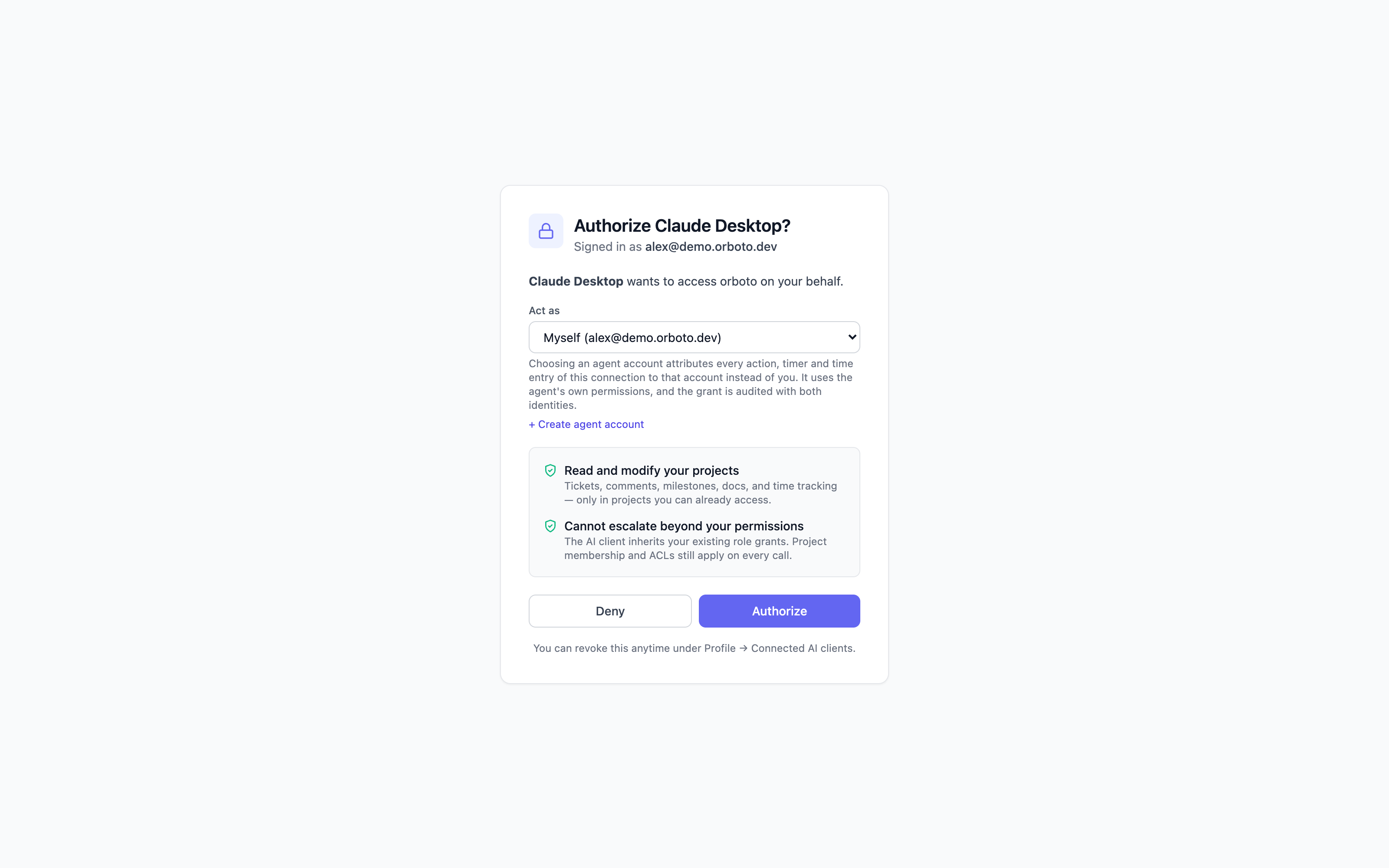
If you decline, or close the browser tab without approving, nothing is connected - the client simply reports it couldn't authorize, and no partial access is granted. You can revisit and approve later from the same "add connection" step in your client.
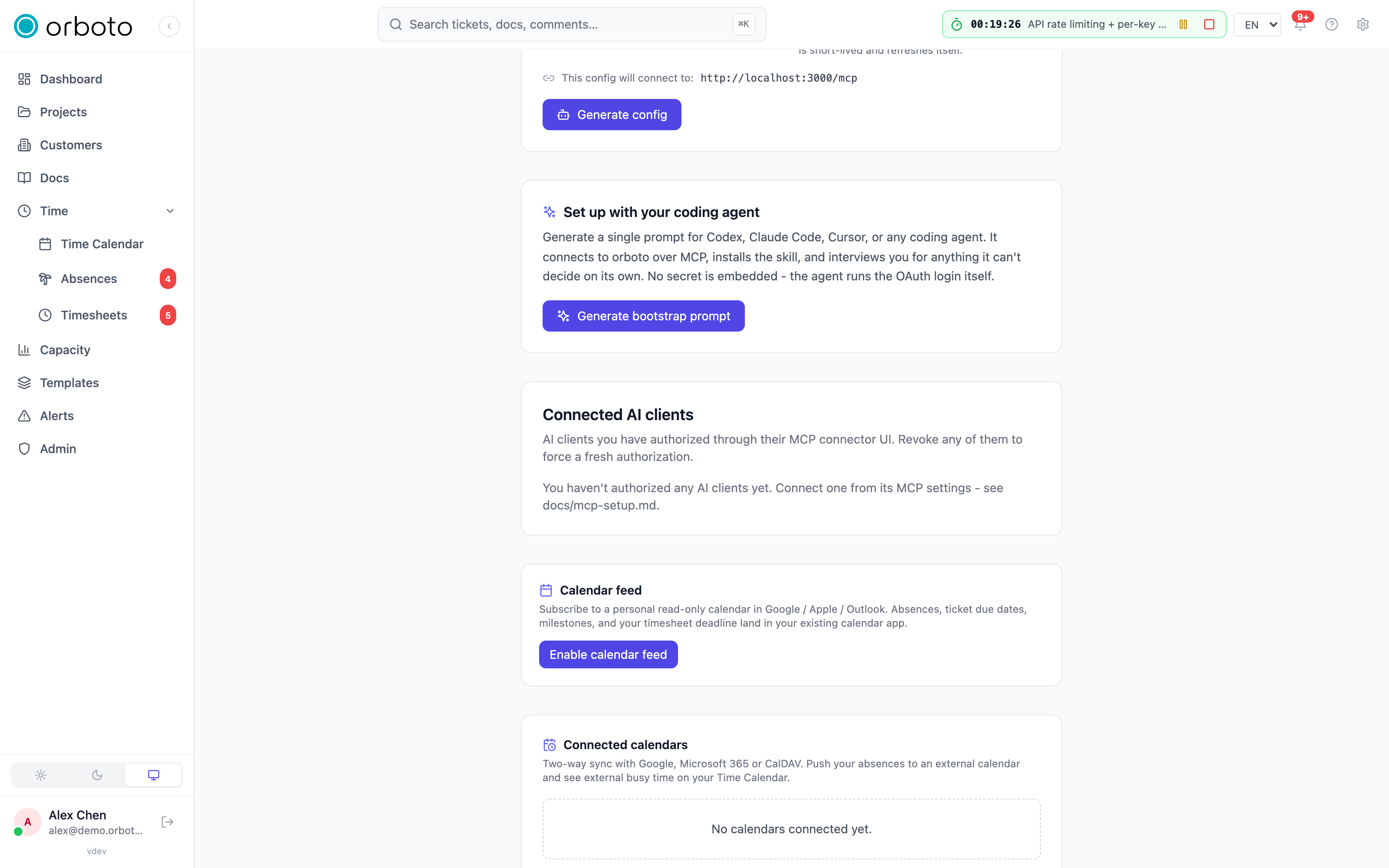
Revoking access later. Open Profile → Connected AI clients to see every client that's ever connected, when it last used the connection, and which identity it's acting as. Remove one you no longer use, or one you don't recognize, and its access ends immediately - the next call that client makes fails authentication rather than silently keeping working.
Anything the connected client does respects your roles and access exactly as if you did it in the app. For the detailed setup steps per client, see the MCP setup guide.
Chat notifications
To send orboto notifications into Discord, Slack, Microsoft Teams, Telegram, or a custom webhook, set up a channel in Notification settings - see Chat and webhook notifications for the exact connection steps per platform, and Notifications for routing individual event types to a channel.
To let agent notices (ticket ready, completed, errors, capacity) reach a team channel and let people start, claim and close work from the chat, an administrator connects the chat bot for Slack, Microsoft Teams and Discord.
Invoicing (Lexware Office)
To hand billable time to Lexware Office and get invoice and payment state back, an administrator connects the workspace with a Lexware API key - see Lexware Office.
External AI spend
To report AI spend from your own systems - a billing export, a gateway or a script - an administrator sets a shared secret and the sender posts signed deliveries to the workspace. See External AI spend webhook.
Code repositories (Git)
When your workspace is connected to a code host (such as GitHub or GitLab), mentioning a ticket key in a commit message or pull request links that work to the ticket automatically. You then see linked commits and pull requests on the ticket's Git tab (see Projects and tickets).
Connecting the repository itself is an administrator task - see the administration pointers below.
Administration topics
The following are set up and run by workspace administrators, not individual users. They are documented separately; the most relevant references already in this repository are linked here:
- Inviting and managing users, roles, and permissions - the admin area.
- Single sign-on (SSO) - sso-setup.md.
- Automatic user provisioning (SCIM) - connect your identity provider so joiners and leavers sync automatically (setup guide coming to this section).
- Importing from another tool (issues, projects, CSV) - the admin import area.
- Backups and restore - backup-destinations.md.
- Inbound email to tickets - inbound-email.md.
- The MCP server and AI provider configuration - mcp-setup.md and the admin AI settings.
- Webhooks, API keys, audit log, compliance export, and federation - the admin area.
If you need any of these enabled or changed, contact a workspace administrator.