

Users, roles and permissions
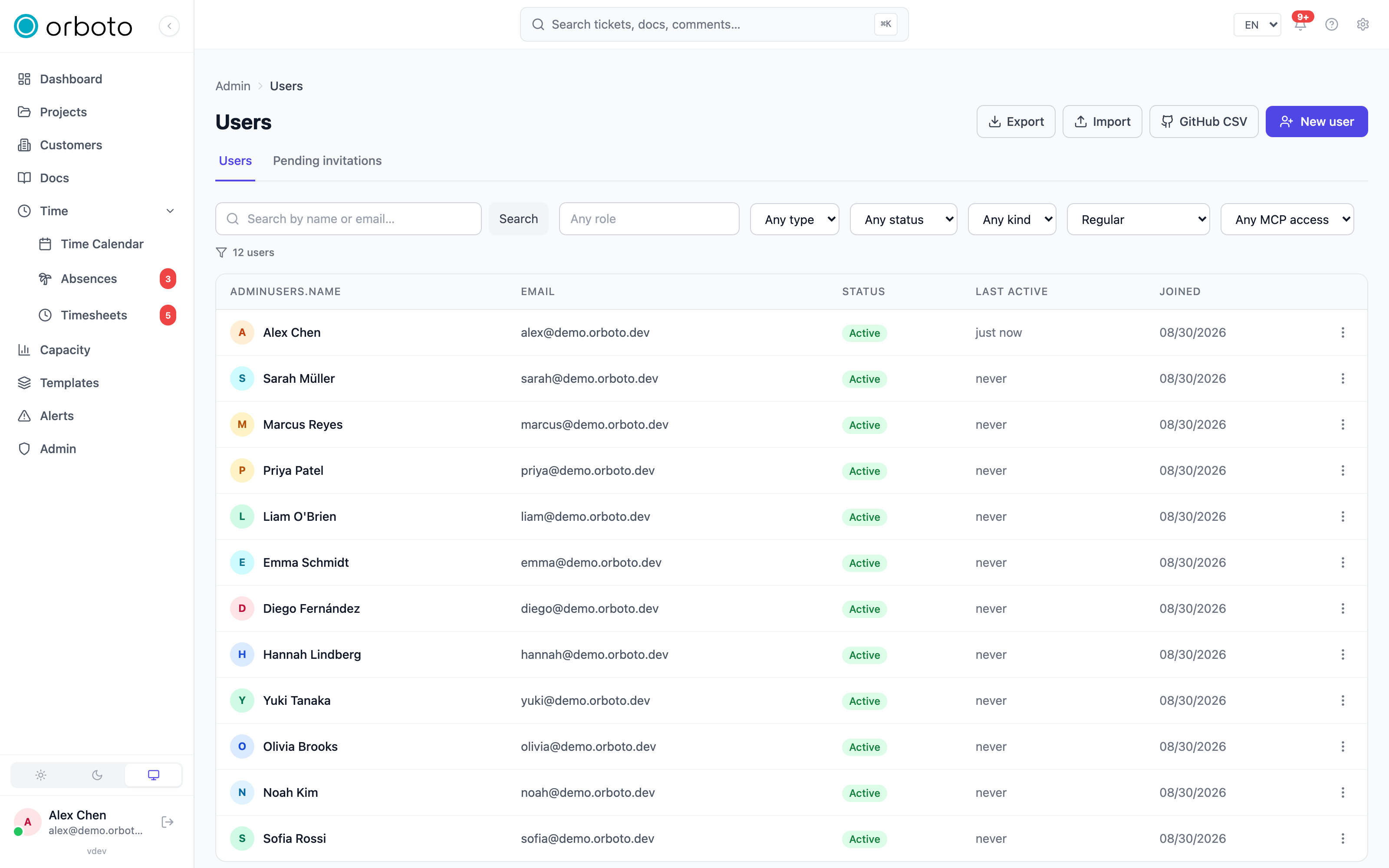
The permission model, creating and editing accounts, roles, sessions, and data-protection actions.
The permission model
orboto uses fine-grained, permission-based access control. Every sensitive
action is gated by a permission slug like ticket:edit,
milestone:view_private or admin:users:write. Permissions are bundled
into roles; roles are granted either per project (project
membership) or globally (for admin areas).
- A super-admin global role passes every check - reserve it for very few people.
- Admin permissions are deliberately narrow (
admin:backup:read,admin:webhooks:write, ...) so you can delegate one area without handing over the whole admin panel. - Destructive rights are separate slugs from edit rights (for example
ticket:deleteis not implied byticket:edit), so "can change" never silently means "can destroy". - What a user cannot do, they also do not see - navigation entries and buttons are hidden along with the permission.
Managing roles
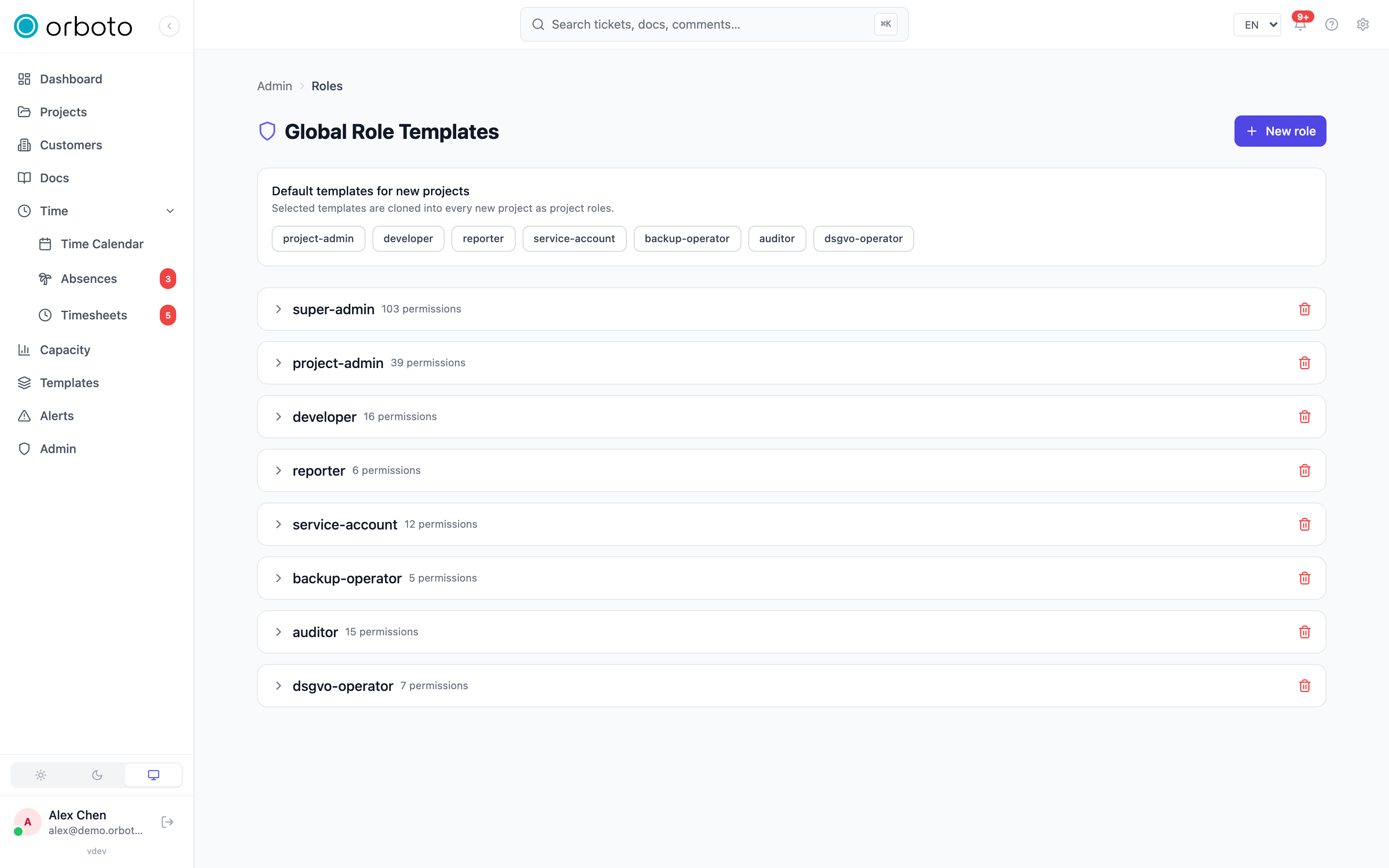
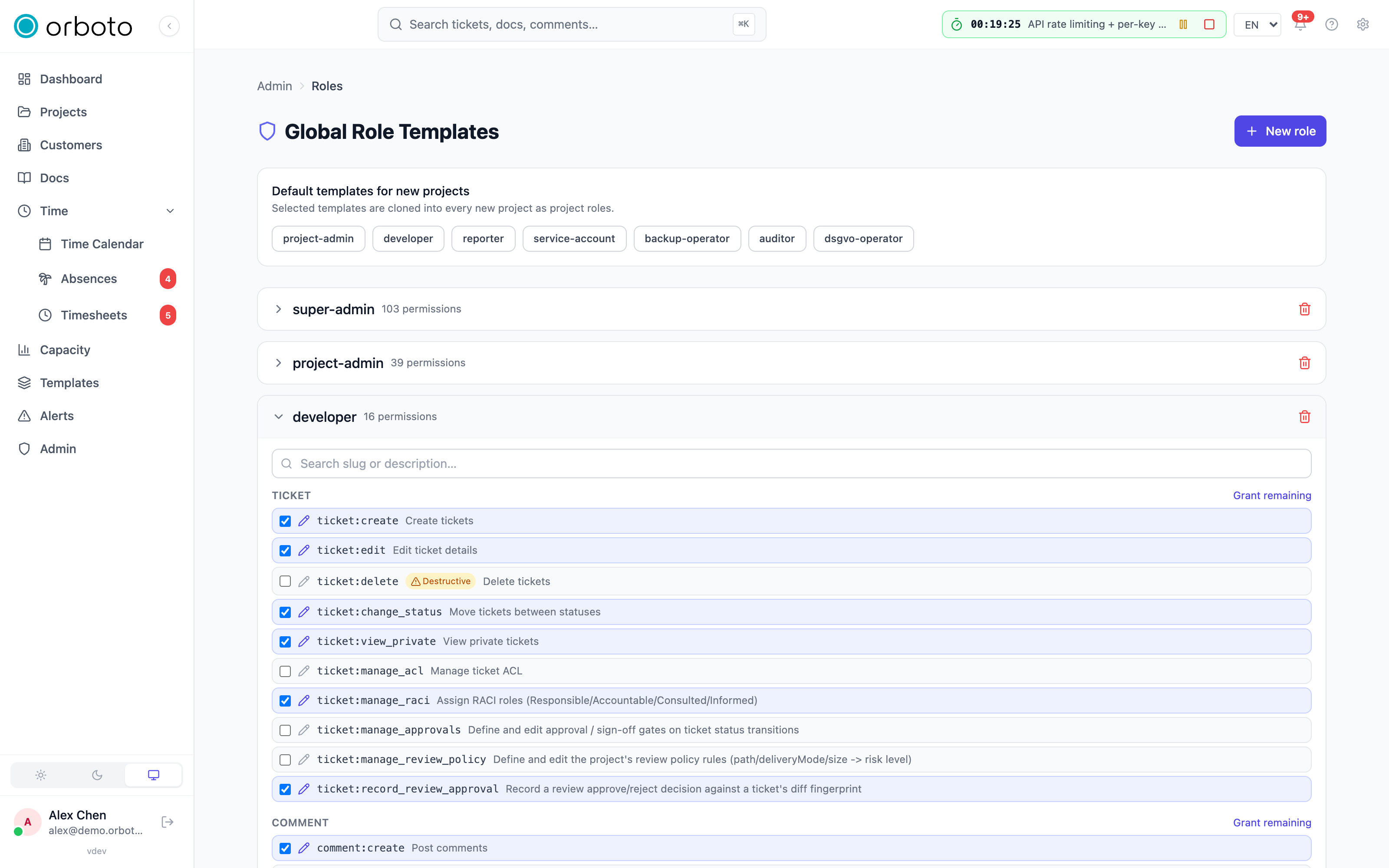
Admin → Roles lists every role with its permission count. Click a role to expand its permission matrix, grouped by family (ticket, comment, time, users, admin, ...). Toggle a single permission, or use Grant all / Revoke all on a family header - changes save immediately.
New role opens a form with:
- Name and Scope - Global (available everywhere) or Workspace (all projects in this workspace).
- Start from preset -
backup-operator,auditor,dsgvo-operator,developerandreporterpre-check a sensible slug set you can adjust before saving. - The same searchable permission matrix as the edit view.
Permissions carry small badges where relevant: destructive (an irreversible action) and deprecated (kept for older integrations, not recommended for new roles).
Pick which role templates auto-seed into every new project from the Default templates for new projects panel above the role list.
Creating users
Admin → Users → New user offers two modes:
- Invite by email (default) - enter a name and email, pick an invite scope (whole workspace with a global role, a single project with a project role, or a single customer with a customer role), and send. The invitee sets their own password on first sign-in. Re-inviting an email that already has a pending invitation surfaces that invitation instead of creating a duplicate.
- Create directly - you set the password yourself (or generate a random one and copy it), with an option to email the credentials. Use this for bot accounts or when email delivery is unreliable.
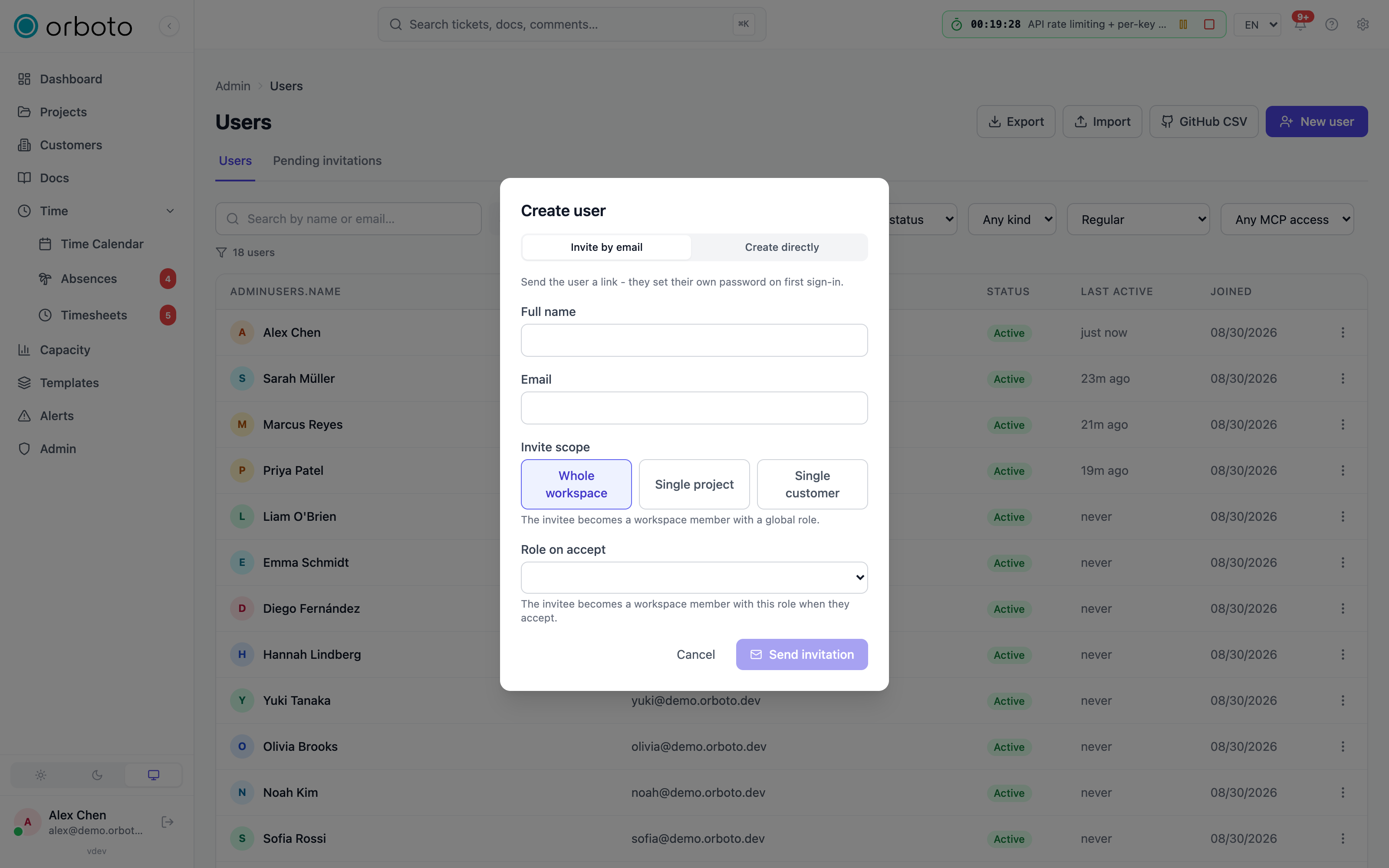
If the invitation email can't be delivered, the dialog stays open and shows the invite link directly so you can copy-paste it - resend it any time from the Pending invitations tab.
Bot accounts
Bots are service identities for agents and integrations: they cannot sign in with a password, they authenticate only via API keys minted for them, and each bot has a responsible human owner. Give every agent, integration and automation its own bot - presence, audit trails and rate limits stay attributable, and revoking one integration never breaks another. Bots can also be paused: a paused bot stops picking up work on its own while explicitly assigned tasks keep working (see Agents & AI).
An account provisioned by the platform
Added in v0.203.0 An orboto that was set up for you by a hosting platform can come with one machine account. The platform uses it to work inside your instance through the API without a person logging in - for example to fill an evaluation workspace. It is not a hidden door:
- You see it in Admin -> Users with the badge Provisioned by the platform and a sentence, written by whoever set it up, that says what it is for.
- It belongs to exactly one project and one doc space. It has no admin rights, cannot create projects, cannot log in with a password and cannot use an AI client connection. Whatever role or membership someone adds to it by hand is pulled back at the next start.
- You can switch it off. Deactivate or delete it like any other user. Your decision holds: no later start of the instance re-enables it, gives it a new key or puts it back into its project.
- When it was created, when its key changed or was withdrawn, and when it was switched off or on again is in the audit log under
system.machine_account.*.
If you run orboto yourself, no such account exists unless you ask for one - see A machine account from the environment.
Bulk-creating or updating many accounts at once (from a spreadsheet or another system)? See Bulk user management.
Editing a user
Open a row to edit across tabs:
- Details - avatar, name, email, hourly rate, an optional overhead
factor override, and the GitHub username used for webhook attribution
and assignee sync. Bot rows additionally show the responsible owner and
an autonomy-pause switch. MCP (AI client) access is shown read-only here
- the user controls that toggle from their own profile.
- Schedule - working days, hours and week start.
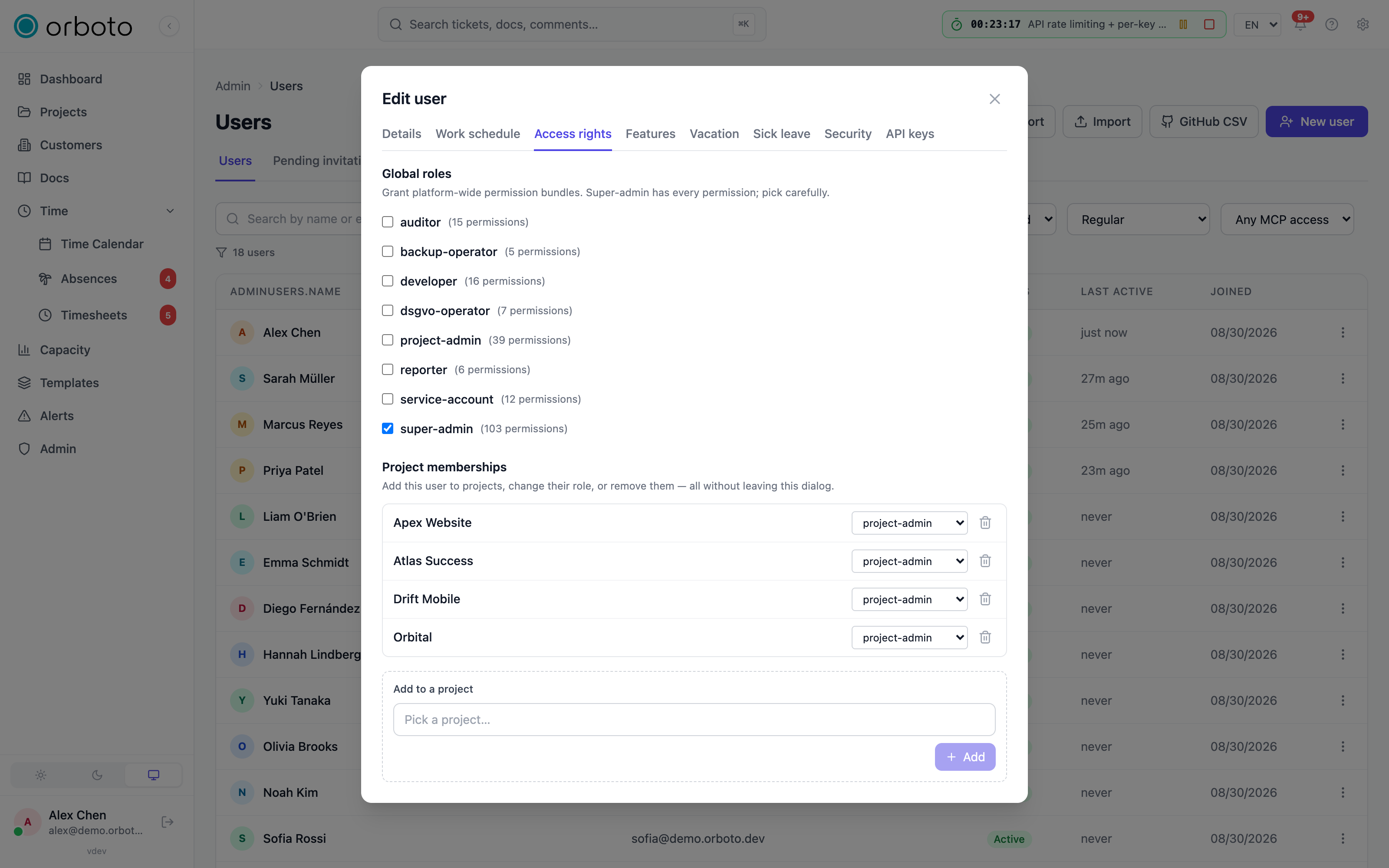
- Access - global roles (checkboxes) and project memberships, editable inline without leaving the dialog. Added in v0.230.0 A role you may not grant is shown unavailable ("Granting this role needs authority you do not hold yourself"); see Who may grant what.
- Features - per-user overrides for surfaces that default by account type (work schedule, out-of-office delegation, time calendar): inherit the role default, or force show/hide.
- Vacation / Sick leave - balances and, for sick leave, who gets notified when this person reports sick.
- Security - reset the password: send a reset link, or set one directly (optionally emailing it). Added in v0.230.0 For an account that holds authority you do not hold yourself, these actions and the API key, email and deactivate actions are not offered. Added in v0.230.0 A Calendar feed panel shows whether the person's personal calendar feed URL is live and revokes it; see A person's calendar feed and connected calendars.
- API keys - mint, rotate or delete keys on this user's behalf, including bot agent profiles. See API keys.
Who may grant what
Added in v0.230.0 Nobody grants, issues credentials for or acts on an authority they do not hold themselves. When you change an account, a role or a membership, orboto compares what is being changed with what you hold, permission for permission. A super-admin holds everything; everyone else needs every permission the change adds, removes or touches. The rule applies to:
- Global roles - granting or removing them for an account (the Access
tab,
PUT /admin/users/:userId/global-roles), a user import (also when it would overwrite an existing account) and a global invitation. - Roles themselves - creating, editing, deleting or rolling back a role template, a project role or a customer role. You can only add or remove permissions you hold; for a project role, permissions you hold in that project.
- Members - adding a project or customer member, changing their role and removing them. The role's permissions must be yours (in that project for a project member; for a customer member, your global permissions, because customer roles are mirrored into the customer's projects).
- Invitations - project, customer and global invitations, and assigning an invited person to a project.
- Another account's credentials and standing - setting a password, sending a reset link, resetting two-factor authentication, creating, editing or rotating an API key, revoking its calendar feed URL, changing the email address, deactivating or deleting the account, and changing a bot's responsible owner. Here the comparison reads the global roles of the account only; its project memberships do not count.
- Acting as a bot through an OAuth connection - see OAuth clients.
The super-admin role is granted, edited and acted on only by a super-admin, and the last super-admin cannot be removed. An API key with scopes carries only the authority of its scopes and never counts as super-admin.
Taking something away stays open: you can still delete another account's API key, because revoking never widens anyone's access.
A refused action answers 403 with "You can only grant roles, issue
credentials or manage accounts within the authority you hold yourself.
Missing: ..." naming the first permission you lack (or super-admin). It is
written to the audit log as security.authority_refused, with the operation
and the kind of credential that was used. If you need the change, ask someone
who holds that authority, or a super-admin.
Sessions
Admin → Sessions lists every active sign-in workspace-wide - user, device, IP address, last activity and expiry - searchable by name or email. Revoke a session after a suspected compromise; it takes effect immediately. There's no single "revoke all" button - after a compromise, search by the user's name and revoke each of their rows.
Data protection
Per user, administrators with the corresponding rights can:
- Export all personal data as a downloadable JSON file
(
admin:dsgvo:export). - Anonymize an account - scrubs personal data but keeps the row (and
their tickets, comments and audit trail) in place, attributed to an
anonymous author (
admin:dsgvo:anonymize). You must typeANONYMIZEto confirm. You can't anonymize your own account, and an account under legal hold can't be anonymized until the hold is lifted.
Both actions are audit-logged.
Deactivate, reactivate, or delete
Deactivating blocks sign-in immediately; reactivating restores it. Hard
delete (typing delete <email> to confirm) permanently removes the
account - sessions, comments, time entries, assignments and memberships
are wiped, while tickets they created, audit-log entries and attachments
stay with an anonymous author. Prefer Anonymize when you want the
workspace history intact but the person's data gone.
Added in v0.230.0 Deactivating, deleting or anonymising an account also closes every live connection it has open at that moment, both the ones opened with a login session and the ones opened with an API key: the app and agent WebSockets (close code 4401) and the MCP event streams. Reactivating does not reopen them; the person's clients connect again. See Live connections.
A person's calendar feed and connected calendars
Added in v0.230.0 A person's personal calendar feed URL and their connected external calendars (see Calendar sync) follow the state of the account:
- While the account is deactivated, the feed URL answers
404, so calendar apps subscribed to it receive nothing. Reactivating the account restores the same URL, unless its token was cleared in the meantime. - Anonymising the account clears the token for good; a new URL needs a new token. Hard delete removes the token with the account.
- A connected calendar (Google, Microsoft 365 or CalDAV) of a deactivated person neither pushes absences nor pulls busy time. The connection stays on file and syncs again when you reactivate the account.
- Revoking the feed URL of an active account. Open the user and choose the
Security tab. The Calendar feed panel says whether a URL is live;
Revoke feed URL clears the token at once, the URL stops answering, and
the person generates a new one from their profile. The panel is shown for
people, not for bot accounts. Revoking needs
admin:users:writeand an account whose global roles you hold yourself (see Who may grant what); reading the state needsadmin:users:read.
From the API, GET /admin/users/:userId/calendar-feed answers
{ "enabled": true } or { "enabled": false }, and
DELETE /admin/users/:userId/calendar-feed revokes the URL and answers 204.
The revoke is written to the audit log as admin.user.calendar_feed_revoke;
with the CLI, use orboto get /admin/users/<userId>/calendar-feed and
orboto delete /admin/users/<userId>/calendar-feed.
Revoking AI-client access
Separately from API keys, an admin can revoke all of a user's MCP (AI client) OAuth grants and clear their MCP sessions - their AI clients (Claude Desktop, Cursor, ...) must then re-authorize. Use this alongside deactivation and session/API-key revocation when someone leaves.
Troubleshooting
Deactivated a user, but something of theirs still runs. Deactivating an
account stops everything that acts as that person. Every request with one of
its sessions or API keys is refused with 401 (Account disabled or User disabled), and so is every OAuth connection of an AI client. A bot that works
on its owner's behalf through OAuth is refused as soon as the owner is
deactivated. Added in v0.230.0 The account's open live connections
(WebSockets and event streams) close at once, so a running agent stops
receiving events. A chat account linked to it only gets "ask an admin" from the
chat bot. The sessions, keys and OAuth grants themselves stay on file and work
again if you reactivate the account; revoke the sessions (Admin → Sessions),
delete the keys (the user's API keys tab) and revoke the MCP grants when
the person is gone for good.
Added in v0.230.0 The person's own calendar channels stop with the account
as well. Their personal calendar feed URL answers 404, and the external
calendars they connected (Google, Microsoft 365 or CalDAV) no longer push or
pull. Reactivating the account brings both back, the feed URL unless its token
was cleared. Anonymising the account clears the feed token for good, and you can
revoke the URL of an active account under Admin -> Users -> Security; see
A person's calendar feed and connected calendars.
What keeps running is whatever belongs to the workspace and not to the login, even if that person set it up:
- Outbound webhooks they created keep delivering, on Admin -> Webhooks and in Project Settings -> Webhooks. Disable or delete them there.
- Federation links and SCIM tokens run on their own credentials, not on the account that created them. Revoke a SCIM token under Admin → SCIM provisioning; pause or delete a federation link under Admin -> Federation.
A permission checkbox change didn't seem to apply. The role editor saves each toggle immediately - refresh if the UI looks stale. Users with that role need to sign out and back in only if their session carries stale claims; most permission checks are read live from the database.
Invited someone and nothing arrived. Check the Pending invitations tab first - if the invite exists, resend it or copy its link directly instead of creating a new one (a duplicate invite for the same email surfaces the existing one rather than sending twice).
Can't anonymize an account. Either it's your own account (not allowed), or it's under legal hold - check Admin → Compliance for active holds before anonymizing.