

Two-factor authentication
Native TOTP 2FA, workspace enforcement policy, and admin recovery for locked-out users.
orboto has native time-based one-time-password (TOTP) two-factor authentication. A user pairs an authenticator app (Google Authenticator, 1Password, Aegis, etc.), and from then on a 6-digit code is required as a second step after the password at sign-in.
This is a Business/Enterprise feature. On the Community plan it works but raises a soft-warn on the License page; nothing is blocked.
It is standard RFC 6238 TOTP: HMAC-SHA1, 30-second step, 6 digits, with a ±1 step tolerance for clock drift. Any compliant authenticator app works - there is no orboto-specific app to install.
For users
Enrol
- Go to Profile → Two-factor authentication and click Enable 2FA.
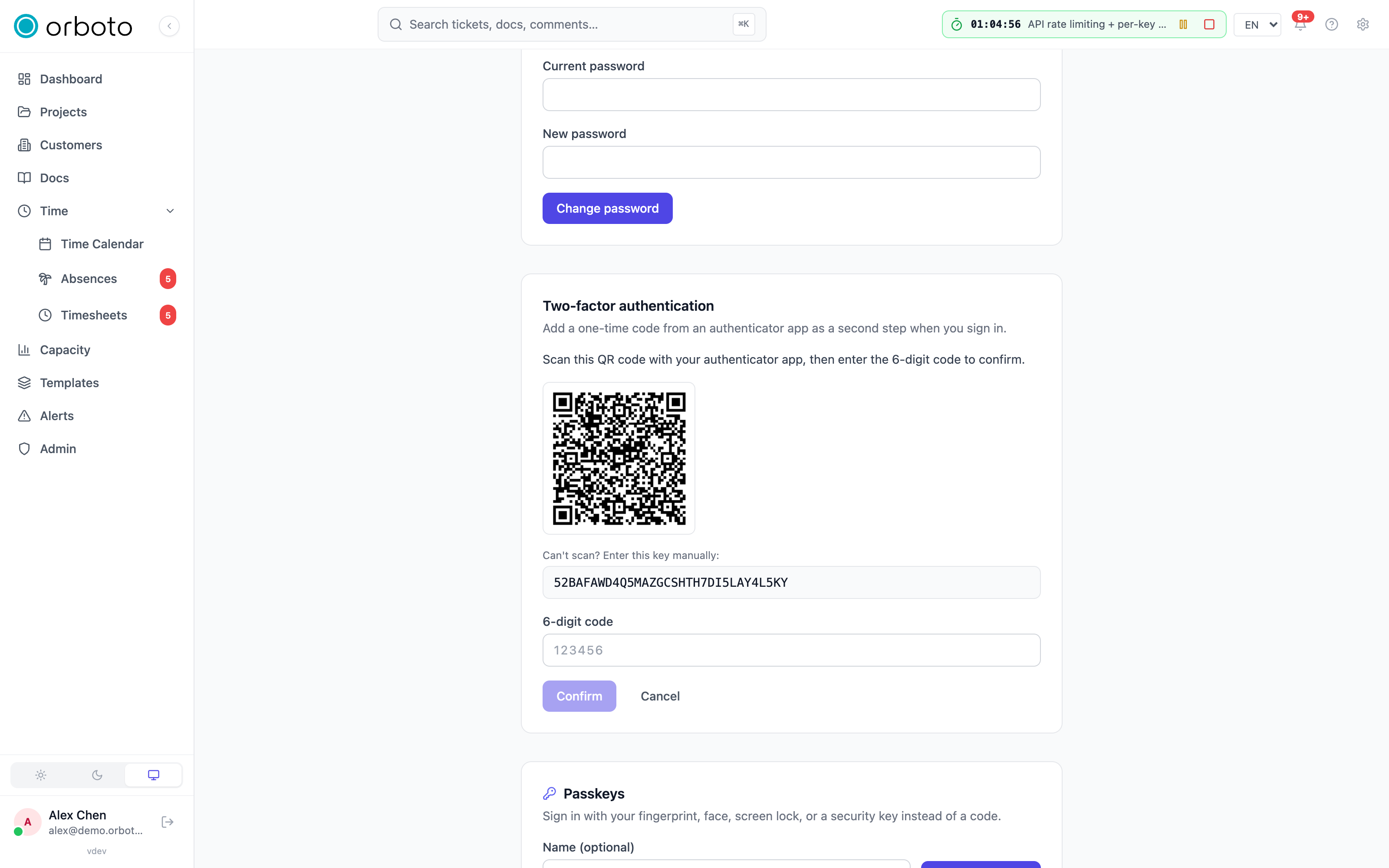
- Scan the QR code with your authenticator app, or type the shown secret key in manually.
- Enter the current 6-digit code to confirm. 2FA is now on.
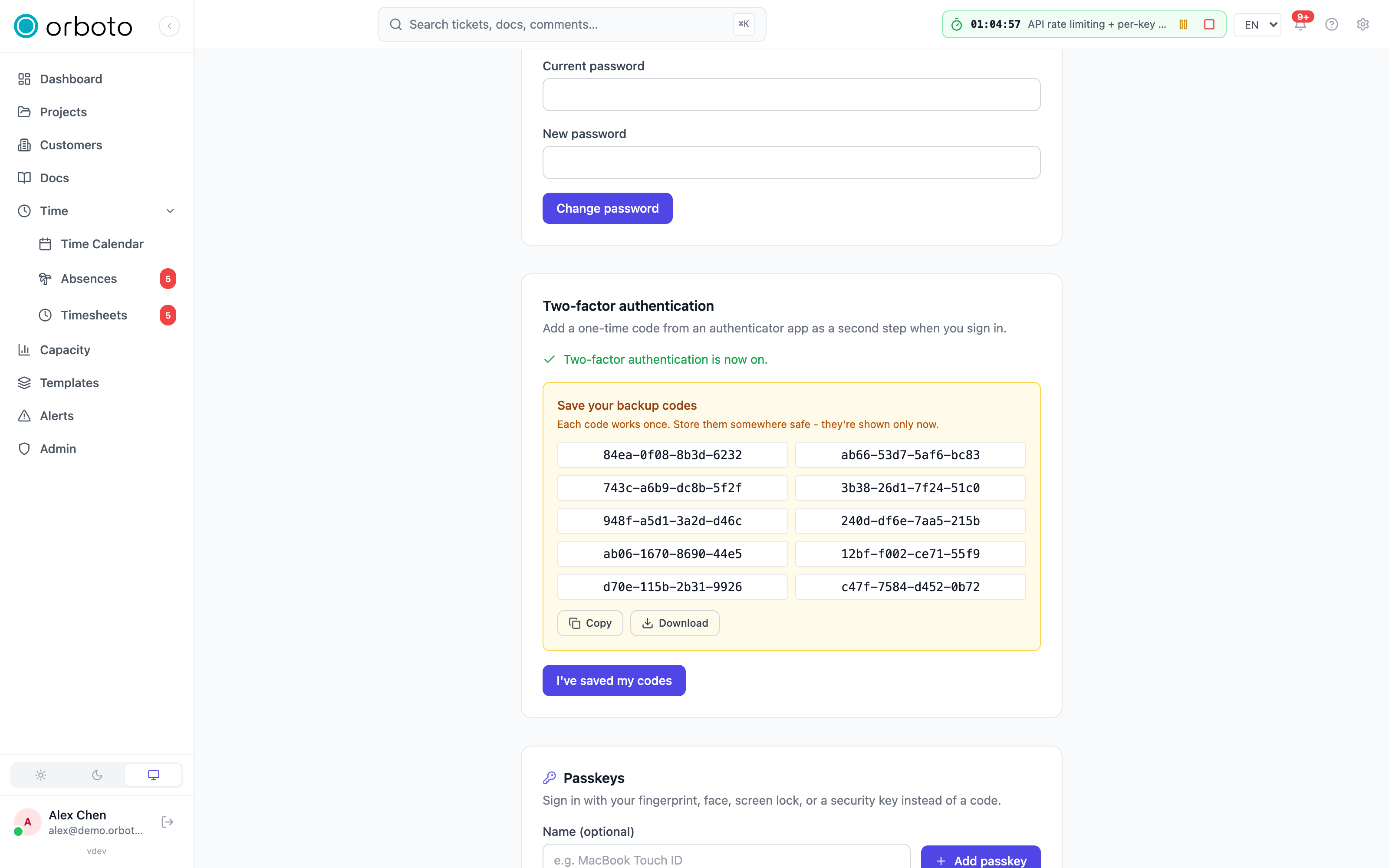
- Save your backup codes. Ten one-time codes are shown once, right after you confirm. Copy or download them and store them somewhere safe (a password manager). Each code works exactly once.
Added in v0.212.5 Enrolling the first second factor, an authenticator app or a passkey, first asks you to prove who you are again: enter your account password. An account that signs in only through SSO has no password to enter, and neither does an account whose password was replaced when SSO linked it; it is offered a fresh SSO login instead. A session that came from an SSO login within the last 15 minutes counts as that proof. orboto does not force the identity provider to ask again, so a browser that still has a session at the provider is sent back silently and the new login counts. An account that already has a second factor is not asked. Wrong passwords count against the same attempt limit as wrong codes.
Sign in with 2FA on
After your email + password are accepted, orboto asks for your authentication code. Open your authenticator app and enter the current 6-digit code. If you don't have your device, enter one of your backup codes in the same field instead.
Too many wrong codes in a row temporarily locks the code step for a few minutes (brute-force protection). Wait, then try again with a fresh code.
Added in v0.212.0 A passkey signs a user in without a password only when it verified the user on the device (PIN, biometrics or device unlock); a passkey that proves presence only does not. As the second factor after the password, a presence-only passkey is still accepted. New passkeys are always registered with verification: enrolment refuses one that only proves presence. When the account has no authenticator app, the code step of the sign-in page asks for a backup code and says so.
Disable
Profile → Two-factor authentication → Disable 2FA, then enter a current code or a backup code. This removes your secret and all remaining backup codes.
Added in v0.230.0 Wrong codes are limited everywhere. The code you enter to disable two-factor authentication or to regenerate your backup codes counts against the same limit as the code step at sign-in. After five wrong codes within a five-minute window - on any of these steps - all of them are locked until that window ends, even for a correct code. Wait, then try again with a fresh code. A correct code clears the count.
Lost your device and your backup codes
Ask a workspace admin to reset your 2FA (see below). After a reset you sign in with your password only, and should immediately enrol again - especially if the workspace requires 2FA.
For admins
Reset a user's 2FA
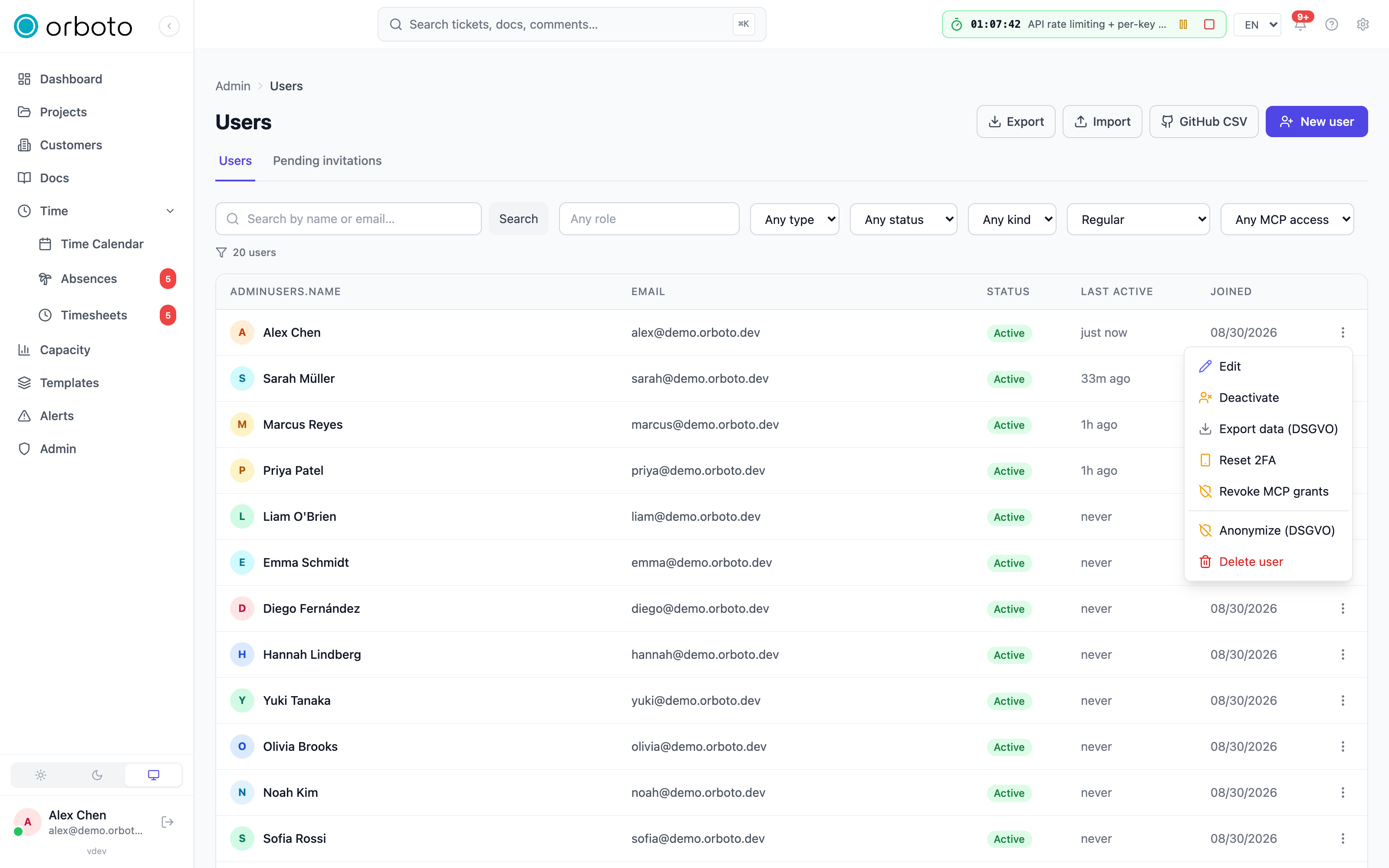
Admin → Users → the user's row → Reset 2FA. This clears the user's TOTP secret and backup codes; you can optionally add a reason, which is shown to the affected user. It's reversible in the sense that the user can simply enrol again - it does not expose any secret.
Resetting someone else's 2FA is a takeover-adjacent action: it requires
admin:users:write, and you must have completed your own MFA
challenge recently (a step-up check) before the reset goes through. If
the user had 2FA enabled, they're notified in-app and by email that an
admin disabled it.
Added in v0.230.0 You can only reset the 2FA of an account whose global
roles you hold yourself, permission for permission. A user administrator
cannot reset a super-admin, or an account that holds a permission the
administrator lacks: orboto answers 403 ("You can only grant roles, issue
credentials or manage accounts within the authority you hold yourself") and
the attempt is written to the audit log as security.authority_refused. Ask
someone who holds that authority, or a super-admin. The same rule covers
password resets, API keys and the other credentials of another
account.
Added in v0.212.5 These admin actions ask for the same recent MFA step-up (15 minutes) when your account has a second factor: creating or rotating another user's API key, assigning a user's global roles, saving changes to an SSO provider, and creating a workspace export token. See API keys for how an agent on an API key is handled.
Require 2FA for the workspace
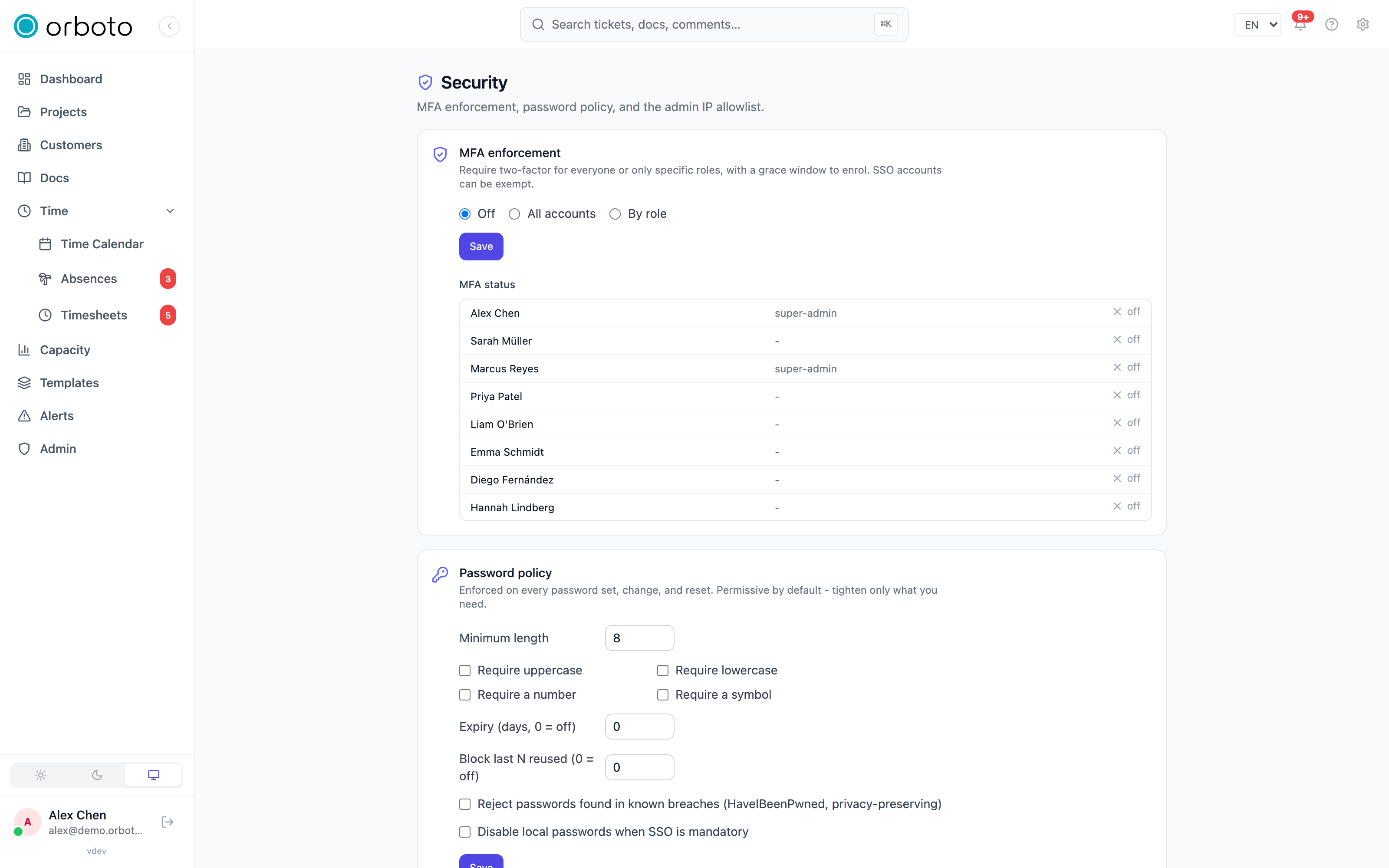
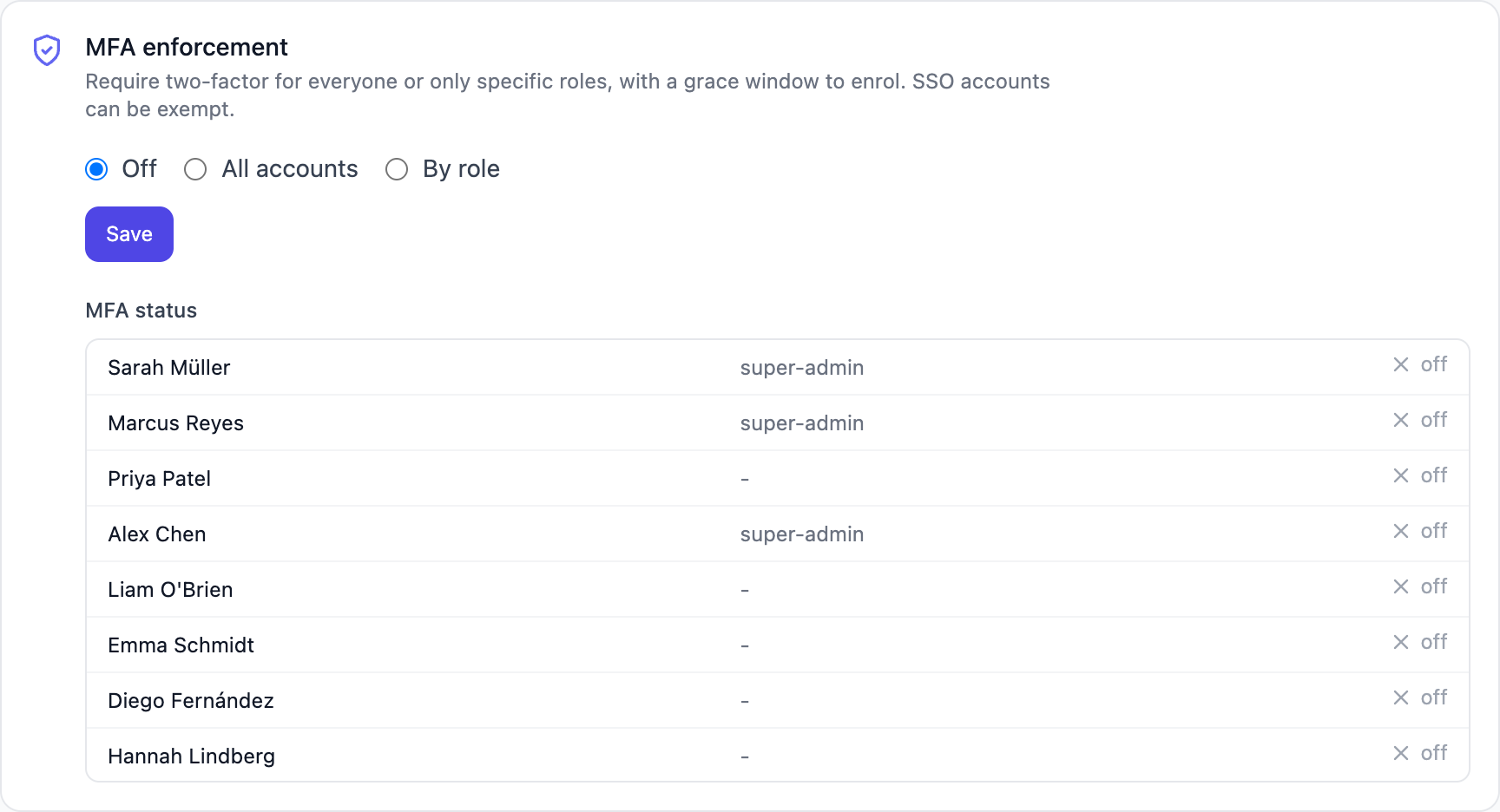
Admin → Security has an MFA enforcement card with three modes:
- Off - nobody is required to have 2FA.
- All - every local (password) account must enrol.
- Roles - only accounts holding the listed global roles must enrol
(for example
super-admin, admin).
Two more settings apply whenever a mode other than Off is active:
- Exempt SSO accounts (on by default) - see below.
- Grace days - how many days a newly-covered account gets to enrol
before being blocked.
0means immediate enforcement.
A blocked account can only reach the 2FA setup flow, sign-out, and its own profile until it enrols. The same card shows a compliance table: every active user, their global roles, and whether 2FA is currently on - useful for confirming a rollout actually landed before you tighten the grace period.
Reading the policy requires admin:system:read; changing it requires
admin:system:write.
SSO and 2FA
The enforcement policy applies to local password accounts. Users who sign in through SSO (OIDC / SAML) are, by default, not asked for an orboto TOTP code and not subject to the policy - their second factor is enforced by your identity provider, which is where it belongs. Uncheck Exempt SSO accounts in the enforcement policy if you want SSO users covered too. Configure MFA on the IdP side via SSO setup.
Added in v0.211.3 When an SSO login links a local account that never verified its email on an enforced domain, the account's second factors and backup codes are removed with its other credentials; see SSO setup.
A user who has both a password and an SSO identity, signing in with the password on a domain that isn't SSO-enforced, is treated as a local account and is subject to the policy.
How it works (operator notes)
- The TOTP secret is stored AES-256-GCM-encrypted, keyed from
MFA_ENC_SECRET(falling back toJWT_SECRETif unset). Set a dedicatedMFA_ENC_SECRETin production and rotate it like any other secret - rotating it invalidates existing enrolments, and users re-enrol. - Backup codes are stored only as SHA-256 hashes; the plaintext is shown once at generation and never again. A backup code is single-use.
- Login is two-step: a correct password for a 2FA-enabled user yields a short-lived (5-minute) challenge token, not a session. The session is issued only after a valid TOTP or backup code is presented. The code step is rate-limited per account and additionally capped per IP.
- Backup-code count is fixed at ten and regenerated (replacing any prior set) every time 2FA is confirmed.
Audit events
| Action | When |
|---|---|
mfa.enabled | a user confirms enrolment |
mfa.disabled | a user disables their own 2FA |
mfa.admin_reset | an admin resets a user's 2FA |
auth.mfa_challenge_success | a login challenge is passed |
auth.mfa_challenge_failed | a wrong code at the login challenge (includes whether it tripped the lock) |
auth.mfa.disable_failed | Added in v0.230.0 a wrong code when disabling 2FA (includes whether it tripped the lock) |
auth.mfa.backup_codes_regenerate_failed | Added in v0.230.0 a wrong code when regenerating backup codes (includes whether it tripped the lock) |
security.authority_refused | Added in v0.230.0 an admin tried to reset the 2FA of an account whose authority they do not hold (or another operation covered by that rule) |
Troubleshooting
Reset 2FA action is greyed out or fails. You need a recent MFA
challenge of your own - sign out and back in (completing your own 2FA
step) before retrying, in addition to holding admin:users:write.
A user is locked out even though "Exempt SSO accounts" is on. That exemption only applies to accounts actually bound to an SSO provider. Someone with both a password and an SSO identity, signing in with the password, is treated as local and stays covered by the policy.
Rolled out enforcement but some accounts still show 2FA off. Check the grace days setting - accounts inside their grace window are allowed to sign in without 2FA yet. The compliance table on the enforcement card shows exactly who's still unenrolled.