

Background jobs
What runs in the background, how to read the jobs admin panel, and how to trigger a run without waiting for its schedule.
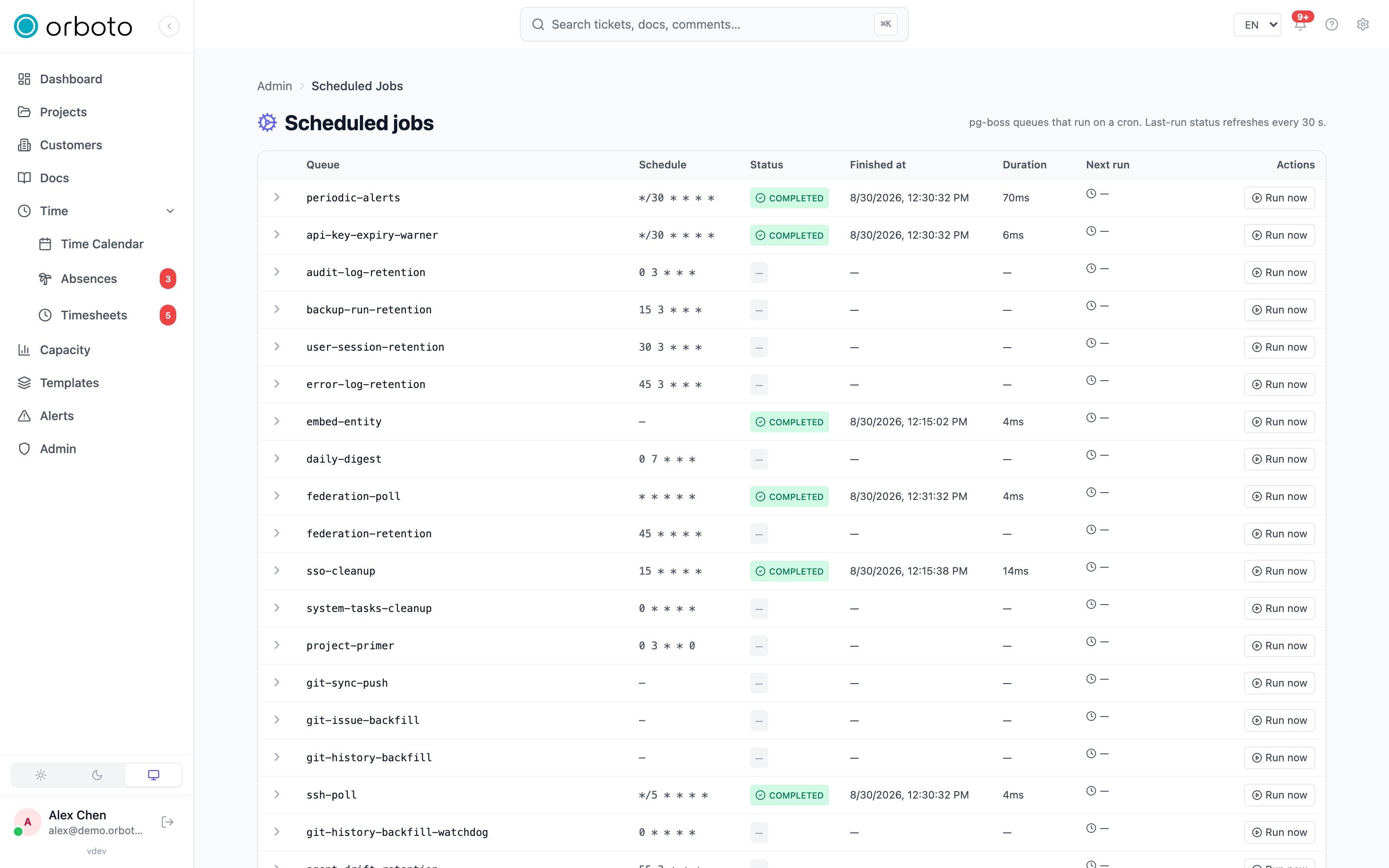
Not everything orboto does happens instantly while you wait for a page to load. A lot of work - sending scheduled digests, pruning old data, syncing with external systems, generating embeddings for search - runs in the background on its own schedule. Admin -> Background jobs gives you visibility into that layer: what's scheduled, when it last ran, whether it succeeded, and a way to trigger a run on demand.
What "a background job" means here
Behind the scenes, orboto runs a job queue (built on PostgreSQL) that holds two kinds of work:
- Scheduled (cron-driven) jobs - things that run on a recurring timer regardless of what anyone does in the app: retention cleanup, digest emails, periodic sync polling, cache/session pruning, and similar housekeeping.
- Event-driven jobs - work enqueued in reaction to something that just happened (a ticket was created and needs an embedding generated, a webhook delivery needs to be attempted). These don't have a fixed schedule, but they still show up here once queued, with the same run history as scheduled jobs.
Every queue orboto knows about is listed on this page, whether or not it has fired yet - so a brand-new workspace shows the full expected set of jobs with empty history, not a shorter list that fills in over time.
Reading the table
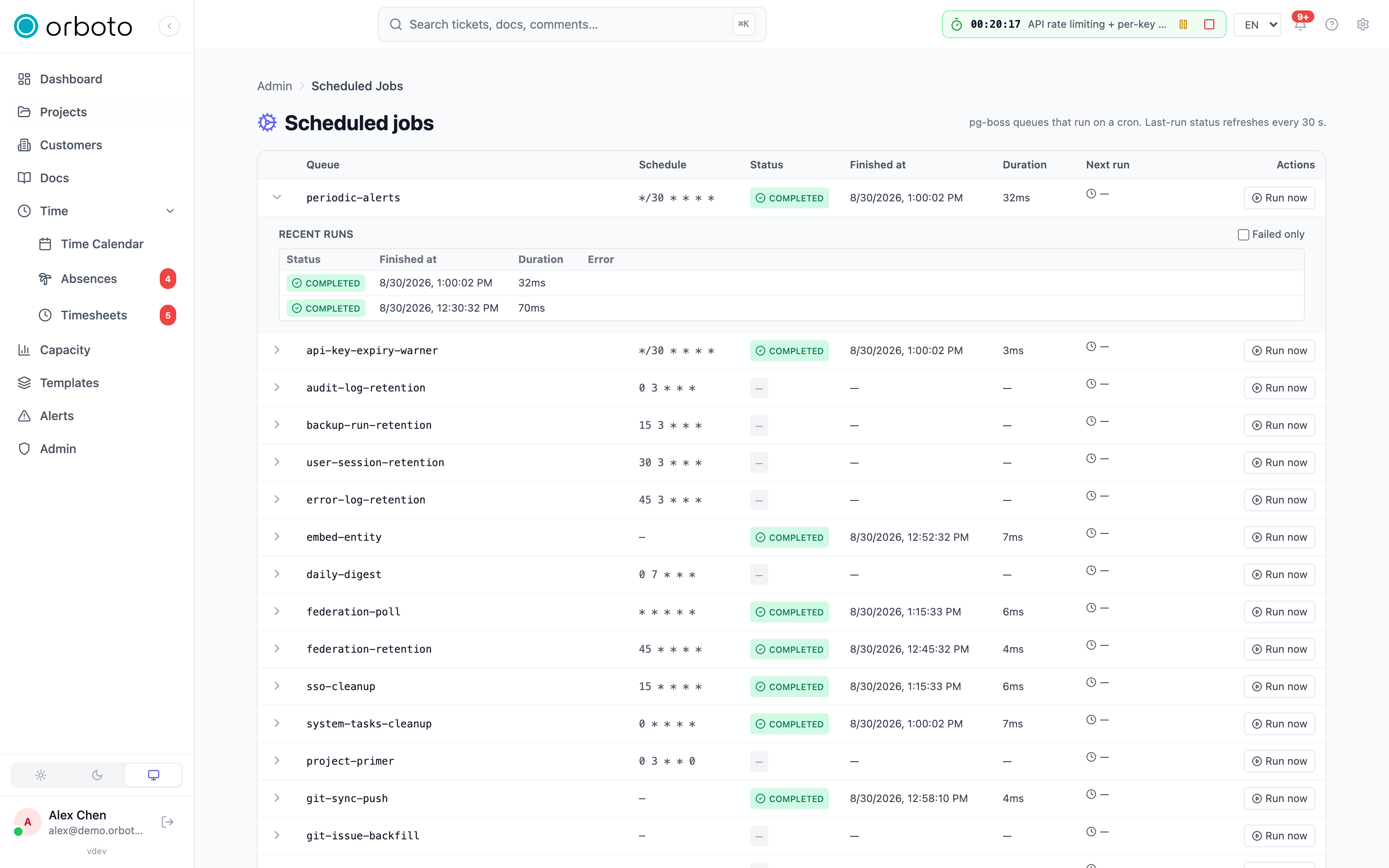
Each row is one job (queue), with:
- Queue - the internal job name.
- Schedule - its cron expression, or blank for an event-driven job with no fixed timer.
- Last run - a status badge: completed, failed, active (currently running), cancelled, or a dash if it's never run yet. A retry count appears next to the badge if the last run needed retries before finishing.
- Last run time - when that run started or completed, plus its error message inline underneath the row if it failed, so a failure is visible without opening the row.
- Duration - how long the last run took.
- Next run - when the job is next scheduled to fire (only meaningful for cron-driven jobs).
- Actions - a Run now button.
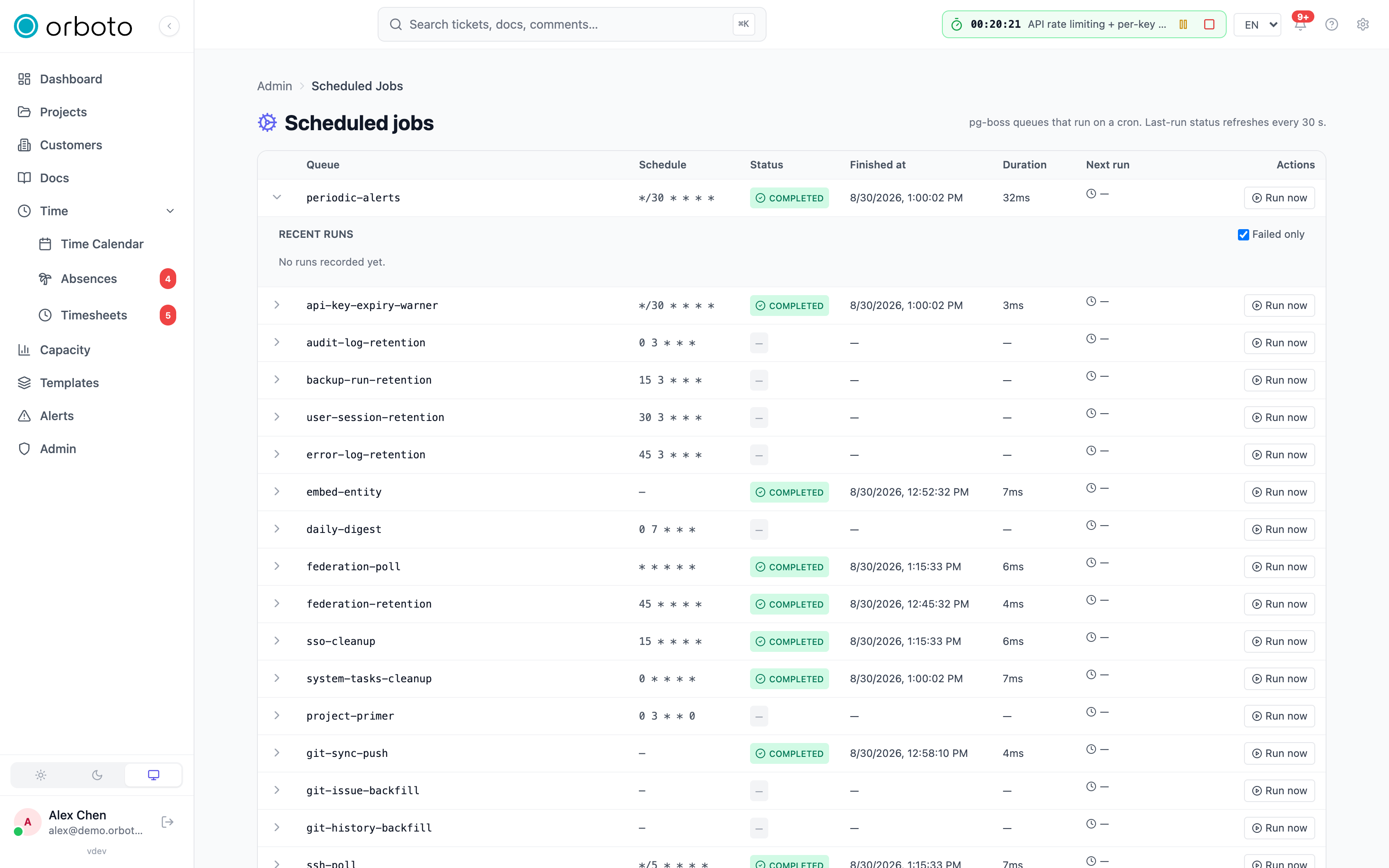
Click the row's expand arrow to see its run history - up to the last 50 runs, each with the same status/time/duration columns, plus a failed only checkbox to filter straight to the runs that need attention when a job has been flaky.
Run now
Run now enqueues a one-off execution of that job immediately, bypassing its cron schedule entirely - it doesn't change or skip the next scheduled run, it just adds an extra run right away. This is the tool for two situations:
- You just changed a setting that job depends on (a retention threshold, a digest configuration) and want to see the effect immediately instead of waiting for the next scheduled window.
- A job failed and you've fixed the underlying cause (a misconfigured integration, a transient outage) and want to confirm the fix worked without waiting.
Some jobs accept no parameters and simply run their default behavior when triggered this way (for example, the project-primer regeneration job fans out to every project in the workspace in one click, rather than needing a per-project manual trigger).
Troubleshooting
- A job shows "failed" with no obvious cause - expand the row and read the error message under Run history; it's the job's own thrown error, so it usually names the specific failure (a network timeout to an external system, a bad configuration value) rather than a generic failure.
- Run now doesn't seem to do anything - it enqueues the job; a busy queue may take a moment before the new run actually starts, and the page refreshes its status every 30 seconds, so a run that just started might not show as active until the next refresh.
- Run now returns an error immediately - the queue itself may not be running (for example in a degraded deployment state); this is reported distinctly from the job's own failures, since it means the job never even got the chance to start.
- A job I expect to see isn't listed - every queue orboto knows about is shown regardless of whether it has fired; if something is genuinely missing, it likely hasn't been wired into this admin view yet rather than being hidden - check with support before assuming it's silently failing.
- Next run keeps slipping - this only applies to cron-driven jobs; an event-driven job (queued in reaction to something happening elsewhere) has no fixed next-run time by design, since it only runs when there's actually something for it to do.