

Getting started
Sign in, get oriented on screen, and learn the global shortcuts - the first page to read if you are new to orboto.
This chapter gets you from "I have a link to orboto" to "I know my way around the screen". If you have never used orboto before, read this first, then jump to whichever chapter matches what you want to do.
What orboto is
orboto is a place for teams to plan work, track it, and talk about it. Work is organised into projects. Inside a project you create tickets - a ticket is a single unit of work such as a task, a bug, a larger story, or an epic (a big piece of work that groups several smaller tickets). You move tickets across a board as the work progresses, discuss them in comments, attach files, log the time you spend, and watch progress on charts.
Everything you can reach depends on your role and permissions. If a link or button described in this guide is not visible to you, your workspace administrator has not granted you access to that area - that is expected, not a bug.
Signing in
- Open the workspace address your administrator gave you.
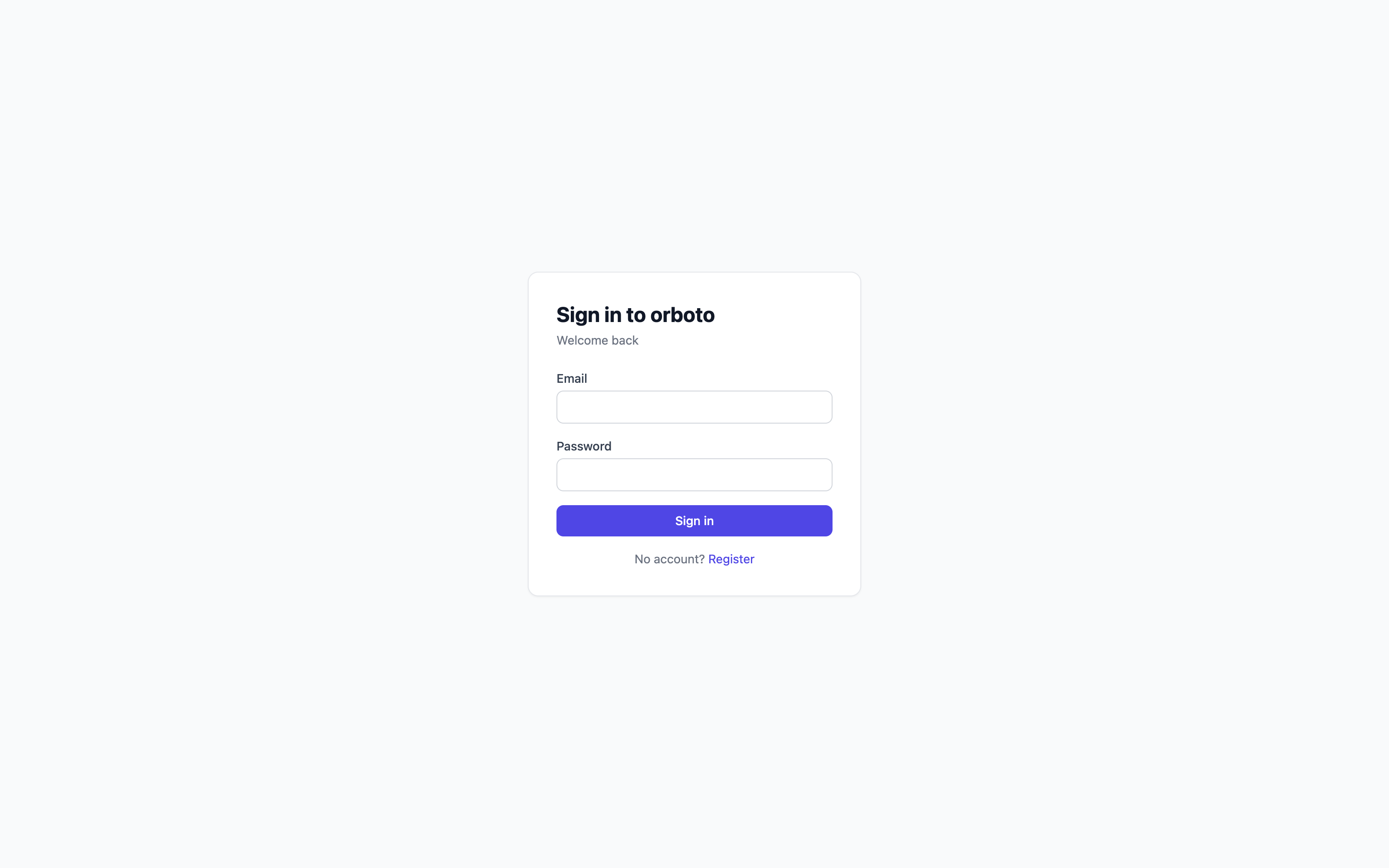
- Enter your email and password, then select Sign in.
- If your workspace uses single sign-on (SSO - logging in through your company's central identity provider, such as your Google or Microsoft work account), select the SSO button instead of typing a password, and complete the login in the window that opens.
If you are asked for a second step
If your account has two-factor authentication turned on (an extra security step beyond your password), after your password you are asked for one more thing:
- A code from your authenticator app - open the app on your phone and type the six-digit code.
- A passkey - your device prompts you for your fingerprint, face, or device PIN.
- A recovery code - if you cannot reach your phone, select the backup-code option and enter one of the one-time recovery codes you saved when you set two-factor up.
Setting up two-factor authentication for your own account is covered in Account and security.
Accepting an invitation
If you were invited to the workspace by email:
- Open the invitation email and select the join link.
- Set your name and a password (or continue with SSO if offered).
- You land directly in the workspace.
Resetting a forgotten password
- On the sign-in screen, select Forgot password.
- Enter your email. If an account exists, you receive a reset link by email.
- Open the link and choose a new password.
Added in v0.230.0 A reset link sets your password once. If the same link is opened twice - in two tabs, or by someone who copied it - only the first submission changes the password; every other one answers that the link is no longer valid, and you request a new one. If the password you choose does not meet the workspace password policy, the link stays valid and you can try again until it expires (60 minutes after it was sent).
The workspace at a glance
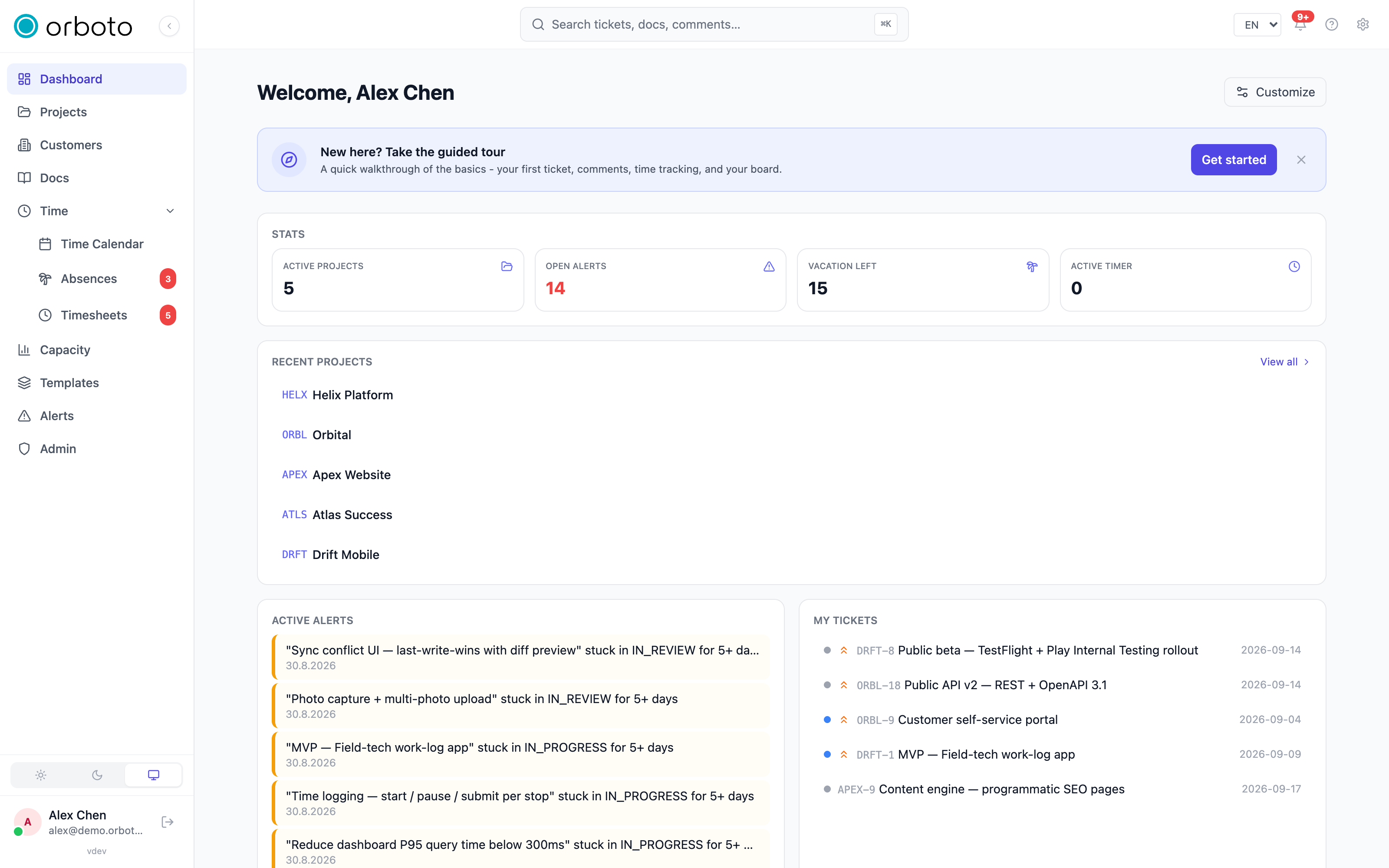
Once you are in, the screen has three parts:
- The left sidebar is your main navigation. It lists the areas you have access to: Dashboard, Projects, Customers, Docs, Time, Capacity, Templates, Alerts, and (for administrators) Admin. You can collapse the sidebar to icons with the small arrow at the top of it, and it collapses automatically on narrow screens.
- The top bar holds the global Search button in the centre, and on the right: your running timer, the AI assistant button (if enabled), a language selector, the notification bell, and a settings gear for notification preferences.
- The main area shows whatever you selected in the sidebar.
At the very bottom of the sidebar is your profile area - your avatar, name, and email. Select it to open your profile settings. Next to it is the sign out button.
Choosing light or dark mode
Near the bottom of the expanded sidebar is a small three-button switch: Light, Dark, and System (System follows whatever your operating system is set to). Your choice is remembered on this device and synced to your account.

Changing the language
Use the language selector in the top bar to switch the interface language. The change applies immediately.
Setting your presence
If your workspace has presence turned on, a small coloured dot sits on your avatar. Select the dot to switch between Online and Invisible. Invisible hides your active status from teammates without signing you out.
Keyboard shortcuts
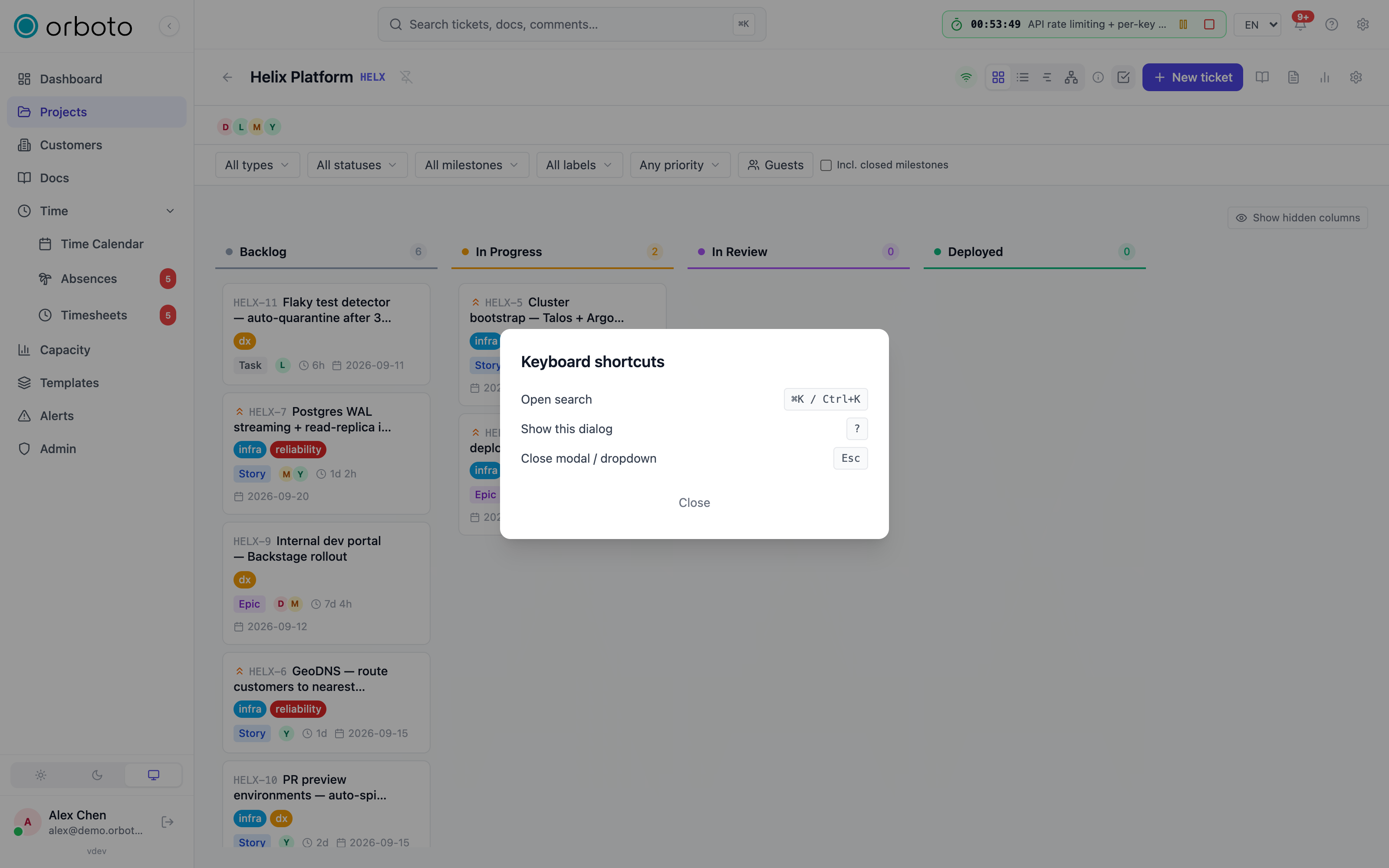
orboto has a few global shortcuts:
- Cmd/Ctrl + K - open global search.
- Cmd/Ctrl + J - open the AI assistant (when enabled for you).
- ? - show the list of shortcuts.
- Esc - close the current dialog.
Troubleshooting
I don't see Admin, or a sidebar item my colleague has. Cause: what you see depends on your role and permissions, not on a bug or a missing installation step. Fix: ask your workspace administrator to grant the relevant permission if you believe you need it.
The reset-password email never arrives. Cause: either the address has no account, or the message landed in spam/junk. Fix: check spelling and your spam folder; if it still doesn't show up, ask your administrator to confirm an account exists for that email.
My authenticator code is always "invalid". Cause: authenticator codes are time-based, so a device clock that has drifted even a little makes every code wrong. Fix: check your phone's clock is set to automatic/network time, then try again. If you are still locked out, use one of your saved recovery codes and set two-factor up again.
My invitation link says it has expired or was already used. Cause: invitation links are only valid for a limited time and can only be accepted once. Fix: ask whoever invited you to send a new invitation.
Where to go next
- Create your first project and ticket: Your first project
- Plan and track work in depth: Projects and tickets
- Find anything fast: Search
- Write and organise knowledge: Docs and wiki
- Record your time and time off: Time tracking
- Turn a project into a requirements specification or customer report: Requirements documents and reports
- Set up your account and security: Account and security