

Search
How to use global search, its query language, AI search, and saved searches to find anything you're allowed to see.
orboto has one search box that reaches everything you are allowed to see - tickets, docs and comments - and takes you to a project, milestone, doc space or customer by its key or name. Open it from the Search button in the centre of the top bar, or press Cmd/Ctrl + K anywhere.
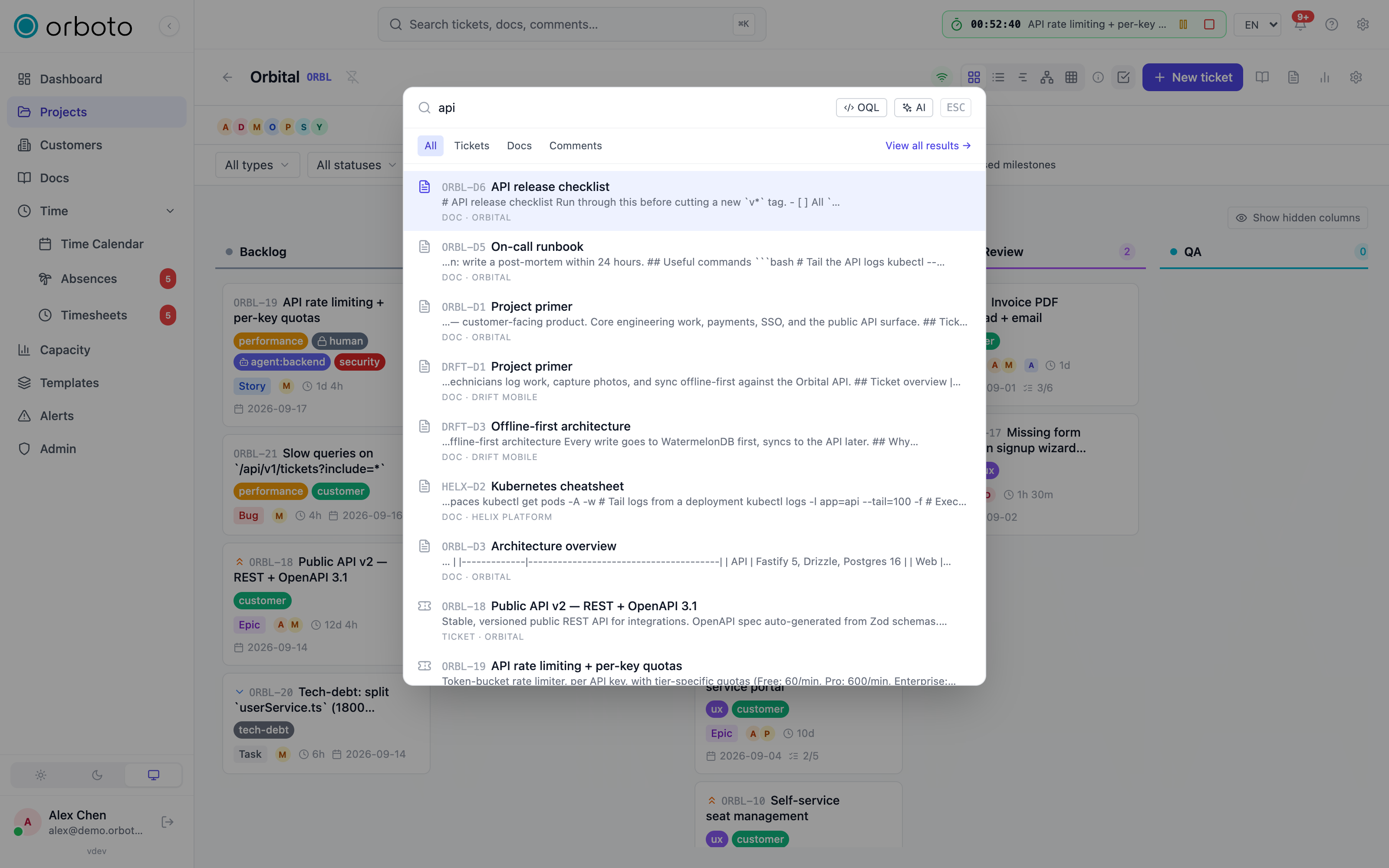
Quick search
Start typing (at least two characters) and results appear grouped by kind, with the matching ticket or doc key shown alongside the title. Use the All / Tickets / Docs / Comments tabs to narrow by type. Select a result - or use the arrow keys and Enter - to jump straight to it.
- The palette remembers your recent searches so you can re-run them with one click from an empty query.
- If your search returns nothing, orboto may offer a "did you mean" suggestion for a likely typo - select it to re-run the corrected query.
- If a plain search comes up empty and AI is available on your workspace, orboto silently retries it as an AI search behind the scenes - so a phrase like "my bugs from last week" can still return something even if you never switched modes.
Jump to a project
Added in v0.204.0 Type a project's key or part of its name and the project appears at the top under Jump to - press Enter to open it. The same section lists matching milestones (with their project), doc spaces, customers (if you may open the customer list) and, for administrators, admin pages. Accents do not matter: "munster" finds "Münster".
A bare project key such as ACME or a ticket key such as ACME-42 is a direct jump: Enter opens the project or the ticket right away, without waiting for the search.
With an empty box the palette shows your pinned projects, then the last five projects and tickets you opened, then your recent searches - so one keystroke and Enter take you back to where you were working. The recently opened list is kept per person in this browser.
Keyboard: the arrow keys move through all sections, Home and End jump to the first and last entry, Cmd/Ctrl + Enter opens the selected entry in a new tab, and Shift + Enter on a ticket opens its project without the ticket panel - the same as the Open project button on the row. Escape closes the palette.
Precise search with the query language
For exact, repeatable filtering, switch on OQL (the code-brackets toggle) next to the search box. This lets you write a short query in orboto's query language instead of clicking through filters:
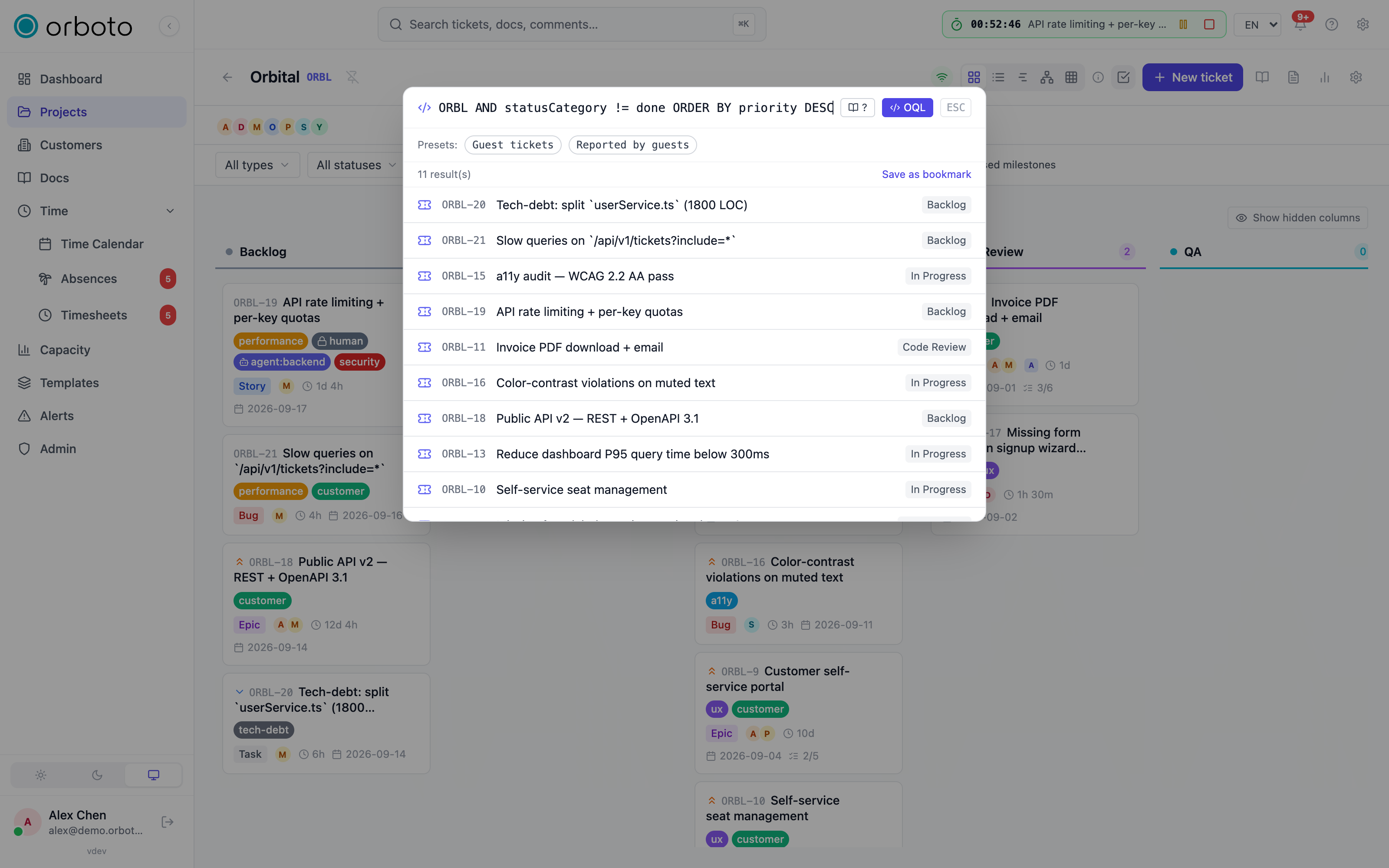
project = ACME AND assignee = currentUser() AND statusCategory != done
ORDER BY priority DESC
Press Enter to run it (OQL doesn't search as you type - the parser cost isn't worth paying per keystroke). A few ready-made presets (for example, "Guest tickets") are one click away, and the ? button opens an inline reference of fields, operators, and functions without leaving the palette. Errors show inline with the line and column where the query broke.
The full field and operator reference, with worked examples, lives on the OQL reference page.
Saving a search
Turn a query you use often into a reusable saved search:
- Run a search (plain or OQL).
- Select Bookmark (in OQL mode) or Save (on the full search page) and give it a name.
- It is now available to run again in one click from the search page's saved-search list, and can be pinned to your dashboard as a live widget.
AI search (natural language)
If your workspace has AI features on, switch to AI mode (the sparkle toggle) and describe what you want in plain language, for example "high priority bugs assigned to me that are overdue." orboto turns that into a set of filters, runs it, and shows the matching tickets - combining exact filtering with semantic matching (finding tickets that mean the same thing even when they use different words).
- The filters orboto extracted (project, status, priority, assignee, labels, date range, ...) show as chips above the results. Remove a chip's
×to drop just that filter and re-run without it. - If nothing matched with the filters applied, orboto automatically falls back to an unfiltered keyword search and tells you so; if even that comes up empty it may fall back further to semantically similar tickets.
- Select Edit in OQL under the chips to see - and fine-tune - the exact OQL query the AI produced.
The full search page
For a roomier results view with pagination - useful for long result lists - open the dedicated Search page. It offers the same plain/AI modes and type filter as the palette, plus your list of saved searches with a delete option for each.
When semantic search is unavailable
Added in v0.221.11 Semantic matching needs the embedding backend. A search never waits on it: a request gives the backend a deadline of 4 seconds, with one attempt and no retry. If it times out, fails, or its circuit breaker is open, the search answers from full-text matching alone and says so. After three failed attempts in a row the breaker skips the backend for two minutes.
- API responses carry
semanticDegraded: true(GET /search,POST /search/nl,GET /docs/searchand the knowledge and AI routes that embed a query). The field is optional and absent when semantic matching worked. - The CLI, the skill wrapper and the MCP tools print one line,
semantic search unavailable, showing full-text results. The CLI and the wrapper print it on stderr, so--jsonoutput stays one document. GET /docs/search?mode=semanticasks for semantic results only and therefore answers 400 (errors.docs.semantic_unavailableorsemantic_breaker_tripped) within the same deadline instead of hanging.- Creating a ticket still checks for duplicates. While the backend is down the check uses full text only, and only an embedding score blocks a create.
Results are still limited to what you may see; only the ranking by meaning is missing until the backend answers again.
Troubleshooting
-
A project does not show up under Jump to. You only see projects you are a member of; private milestones need the permission to view them, and customers appear only for accounts that may open the customer list.
-
My query returns nothing but I expect matches. In OQL mode, check the inline error for a line/column - a typo'd field name or a missing quote is the most common cause. In plain mode, remember results are ACL-filtered: you only ever see what you have permission to see.
-
AI mode returns different results than I expect. Check the filter chips - the AI may have narrowed by a project, assignee, or date range you didn't intend. Remove the offending chip, or switch to OQL to write the exact filter yourself.
-
I don't see the AI toggle. AI search is only available when your workspace has AI features configured and enabled for your account.
-
A ticket or doc I know exists isn't showing up. Private tickets and private milestones are excluded unless you have access, and Added in v0.230.0 so is every sub-ticket below a private ticket or below a ticket in a private milestone; guest and external accounts see an even narrower slice by design. Added in v0.211.3 Search results, title suggestions and semantic matches follow the same read rules as the ticket and doc pages themselves, and a ticket disappears from your open boards and lists as soon as you lose visibility of it.
-
Search says "semantic search unavailable". The embedding backend was slow or down; you got full-text results. Try again in a minute or two.