

Projects and tickets
Find your projects, switch between the five ways to view a project's tickets, and filter down to what you need.
This is the heart of orboto: where work lives. A project is a container for related work. Inside it, each unit of work is a ticket. This page covers finding your projects, the five ways to view a project's tickets, filtering, and a project's settings. For creating and working a single ticket, see Working with tickets.
Working with projects
Finding your projects
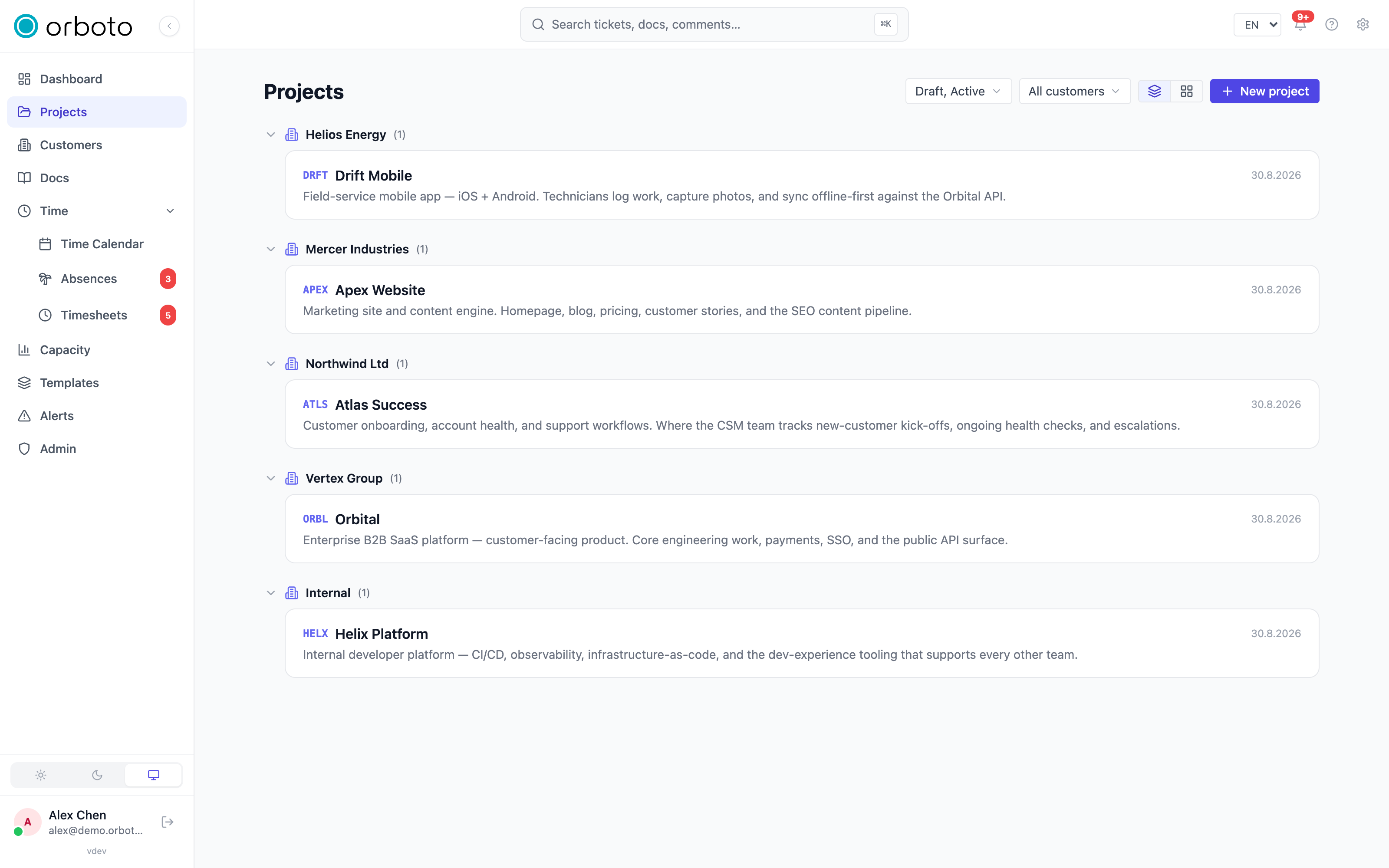
Select Projects in the sidebar to see every project you are a member of. Each project has a short key (for example ACME) that prefixes its tickets, so ticket ACME-42 belongs to the project with key ACME.
Added in v0.204.0 The projects overview has a search box at the top. Type part of a project's key, name, description or customer name - upper or lower case and accents do not matter. The search works together with the status and customer filters, and the line next to the box shows how many projects match, for example "3 of 7 projects". Press / to jump into the box, Escape to clear it, and Enter to open the project when only one matches or when you typed its exact key. The search is part of the page address, so you can bookmark a filtered overview and the back button brings it back. From the command line, orboto project list --search <text> finds projects the same way.
Pinning a project
If you spend most of your time in one project, you can pin it. Once pinned, selecting Projects in the sidebar takes you straight to that project instead of the list. Use the pin / unpin control on the project page to change this.
Creating a project
If you have permission to create projects:
- On the Projects screen, select New project.
- Give it a name and a key. The key is what prefixes every ticket in this project - pick something short and stable. You can change it later (see Changing the project key); the old ticket keys keep working.
- Save. You can refine its settings afterwards (see Project settings) or start it from a template instead of blank.
Project readiness
Added in v0.204.0 The project page shows the setup status as one line in the header ("Setup needs attention (3)"), only to people who can fix something in that project and only while something is missing. Click it to see the checklist with a link to each setting; click the x to hide it for that project. It comes back by itself when something new goes missing, or when you choose Show again on the readiness card in the project settings, where the full card always stays. Before 0.204.0 the card sat on every project page and could not be hidden.
The Git connection item is ready as soon as the connection is switched on, its webhook points to your instance's public address, orboto reached your git host in the last 30 minutes and at least one event has arrived - no matter who installed the webhook. When it is not ready, the checklist says exactly why (for example that the webhook points to another address, or that the git host refuses the token) and what to do about it.
Viewing a project's tickets
Open a project and you get five ways to look at the same tickets. Switch between them with the view buttons at the top of the project.

Kanban board
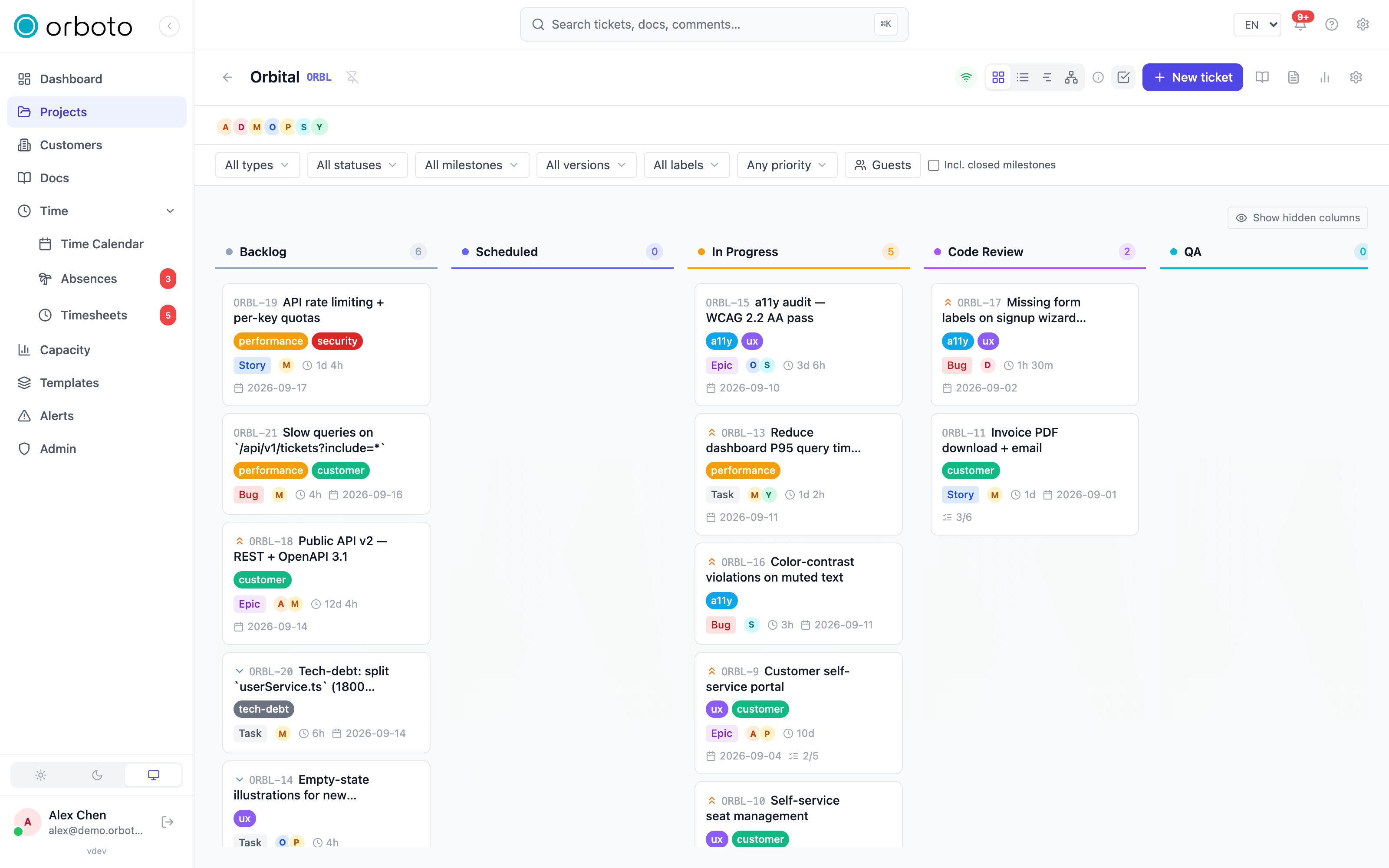
The Kanban board shows tickets as cards in columns, one column per status (for example To Do, In Progress, Done). Drag a card from one column to the next to move the work forward.
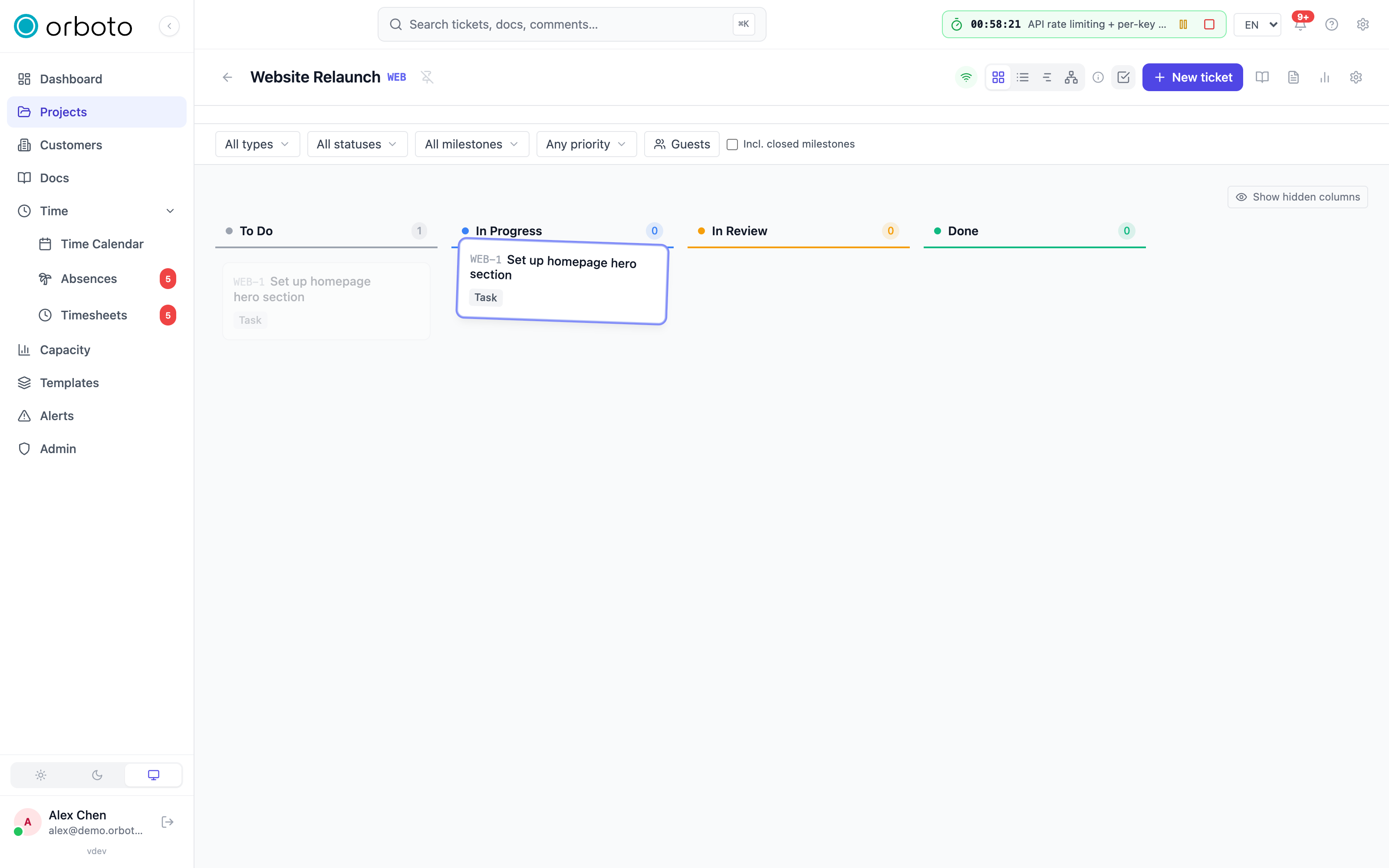
Showing hidden columns. Your administrator can mark some statuses as "hidden on the board by default" to keep the board tidy. When a project has such statuses, a Show hidden columns toggle appears above the board (it shows how many tickets are tucked away). Turn it on to reveal those columns, and Hide hidden columns to tidy up again. Your choice is remembered on this device.
List
The List view is a compact table. Use it when you want to scan many tickets, sort them, or group them:
- Group by - cluster rows by milestone, status, assignee, and so on.
- Sort by - order rows by the field you care about.
For quick capture, the List view also offers an inline quick-add row - type a title and press Enter to create a ticket without opening the full form.
Keep your place while sorting Added in v0.176.0 - by default the list re-sorts live, so a ticket you just saved can jump to the top while you are still working through the rows. If you prefer the list to hold still, switch List behavior after saving a ticket to Stay in place in your profile settings: saved tickets then keep their position, and when the underlying order has drifted a small Order changed button appears next to the sort control - click it whenever you are ready to re-sort.
Backlog
The Backlog view collects the open tickets nobody has planned into a milestone yet - the work that is agreed but not committed to a sprint - in one priority-ordered list, with the total estimate at the top so you can see how much is waiting at a glance. The same filter bar as the List view applies, so you can groom by priority, type or label. Planning is a single move: switch on select mode, tick the items you want to commit, and use Set milestone in the bulk bar to drop them into the sprint, or create the milestone right there and move them in one step. Moving tickets in bulk requires the ticket-edit permission, and the controls appear only for people who hold it. The same view is available to your tools: the API and CLI list tickets with an unscheduled filter, and the query language expresses it as milestone IS EMPTY AND statusCategory IN (todo, in_progress), so an assistant can pull up the backlog or plan a sprint for you without opening the browser.
Gantt
The Gantt view is a timeline. Each ticket is a bar placed by its start and due dates, so you can see what runs when and where things overlap. Dependencies between tickets are drawn as links between the bars. See Milestones and alerts for scheduling with milestones, and Versions and releases for release planning.
Network
The Network view draws tickets as a diagram of their dependencies - which ticket blocks which. It is the quickest way to spot a chain of blockers or the critical path through the work.
RACI
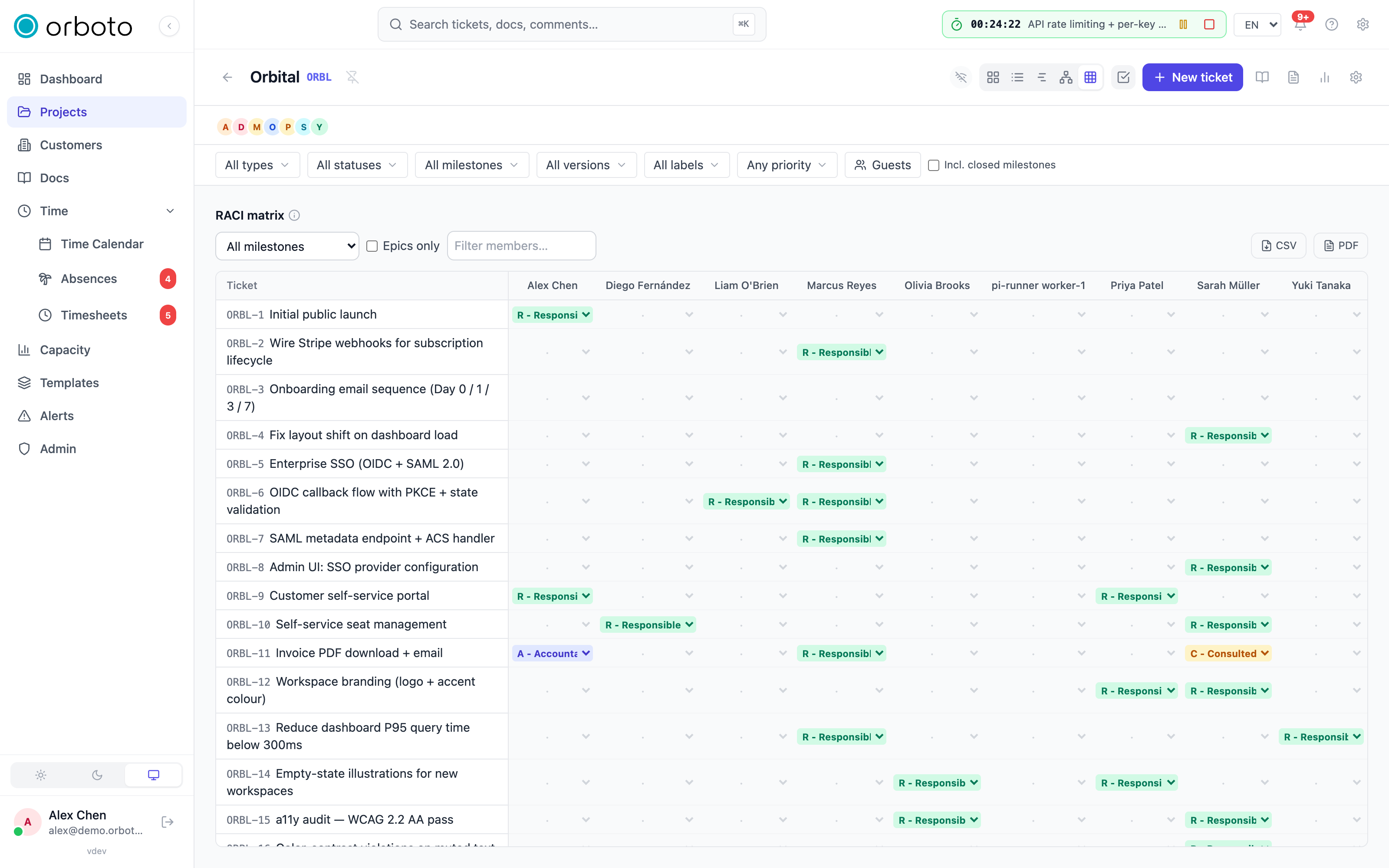
The RACI view is a responsibility matrix. RACI stands for Responsible (does the work), Accountable (owns the outcome), Consulted (gives input), and Informed (kept in the loop). This view shows, per ticket, who holds each of those roles, so accountability is never ambiguous.
Filtering and finding tickets in a project
Above the board is an avatar row for filtering by assignee - select one or more team members to see only their tickets - plus the filter bar:
- Filter by type (task, bug, story, epic), priority, milestone, version, or label.
- Choose No milestone to find unscheduled work, or Show closed milestones to include finished ones.
- Clear resets every filter at once.

If you manage guest access, a guest view toggle lets you preview the project exactly as an external user would see it.
Project settings: a quick tour
If you have permission to manage a project, the Settings button opens its configuration:
- General - name, description, status and the project key (see Changing the project key).
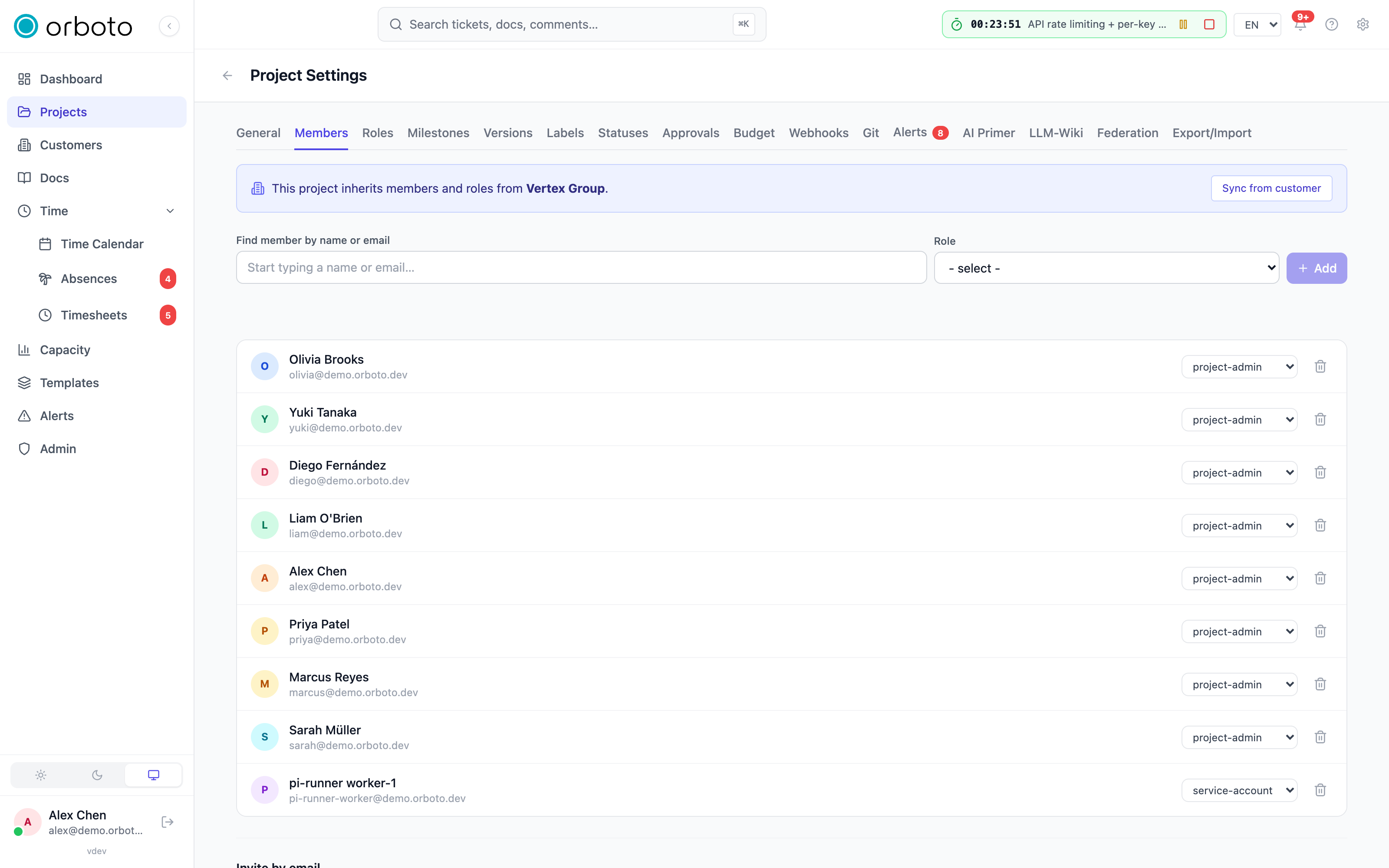
- Members - who is in the project and their role. You can also invite new members.
- Statuses / workflow - the columns on the Kanban board, including which are hidden by default.
- Labels - colored tags you attach to tickets.
- Milestones and versions - see Milestones and alerts and Versions and releases.
- Budgets - a money and/or hours budget for the project and its milestones (see Analytics).
- Alerts - project-scoped alert rules (see Milestones and alerts).
- Guest access - whether external users can see the project, and which milestones are open to them (see Customers and guests).
Changing the project key
Added in v0.230.10 In Settings -> General, select Change next to the project key. You need permission to edit the project.
- Type the new key: 2 to 10 capital letters or digits, for example
NEW. - Leave the box Rename the ticket keys from PROJ-N to NEW-N ticked to move every ticket, doc, milestone and space key of the project to the new prefix -
PROJ-12becomesNEW-12- together with the smart links that name them. Turn it off to change only the project key; existing tickets then keepPROJ-12and only new tickets getNEW-. - The dialog runs a dry run and lists what the change touches: ticket, doc, milestone and space keys, the smart links in docs, tickets and comments, the commits, branches and pull requests that name
PROJ-keys, and how many old ticket keys stay reachable. Nothing has changed yet. - Type the current key,
PROJ, to confirm, and select Change key.
Old keys keep working. After a change with renamed ticket keys, every old ticket key stays an alias of its ticket. Links such as /projects/proj?ticket=proj-12 or /tickets/PROJ-12, bookmarks, search for PROJ-12, smart links typed with the old key, replies to notification mails with [PROJ-12] in the subject, and commit messages, branch names and pull request titles that name PROJ-12 all find the ticket under its new key NEW-12.
A live key always wins: if a new project later takes the key PROJ, its own PROJ-1 is the one PROJ-1 finds, and the old alias for that number is dropped.
Every key change is recorded in the audit log with the old key, the new key and the counts. From the command line, orboto project change-key PROJ NEW --rewrite-existing-tickets --dry-run shows the same counts (see CLI usage).
Troubleshooting
A ticket I expect to see is missing from the board. Check the filter bar and the assignee avatar row first - an active filter is the most common cause. If the ticket belongs to a closed milestone, turn on Show closed milestones; if it has no milestone at all, clear the milestone filter or select No milestone.
I can't find New project. Creating projects needs a permission an administrator grants - ask them, or ask to be added as a member of an existing project instead.
The Kanban board looks emptier than the List view for the same project. A status your administrator hid by default is likely holding tickets - toggle Show hidden columns above the board.
A link with the old project key opens nothing. The old keys resolve only when the key was changed with the ticket keys renamed. A change without it keeps the old ticket keys as they were, so PROJ-12 is still the live key and resolves directly. If a new project took the old key since, its tickets win.