

Requirements documents
orboto can turn a project into two polished, customer-facing documents:
orboto can turn a project into two polished, customer-facing documents:
- A requirements specification (a Pflichtenheft) - a structured, numbered document of what will be built, with must/should/could classification and a glossary.
- A customer report - a proposal or status overview of the project, its milestones and its budget.
Both are generated from the project you already have. The more of your project you have written down in the right places, the more complete these documents come out. This chapter explains exactly which piece of information fills which chapter, so nothing lands empty when you do not want it to.
You need permission to generate these documents. If you cannot find the button described below, your workspace administrator has not granted it to you - that is expected, not a fault.
Where you generate the documents
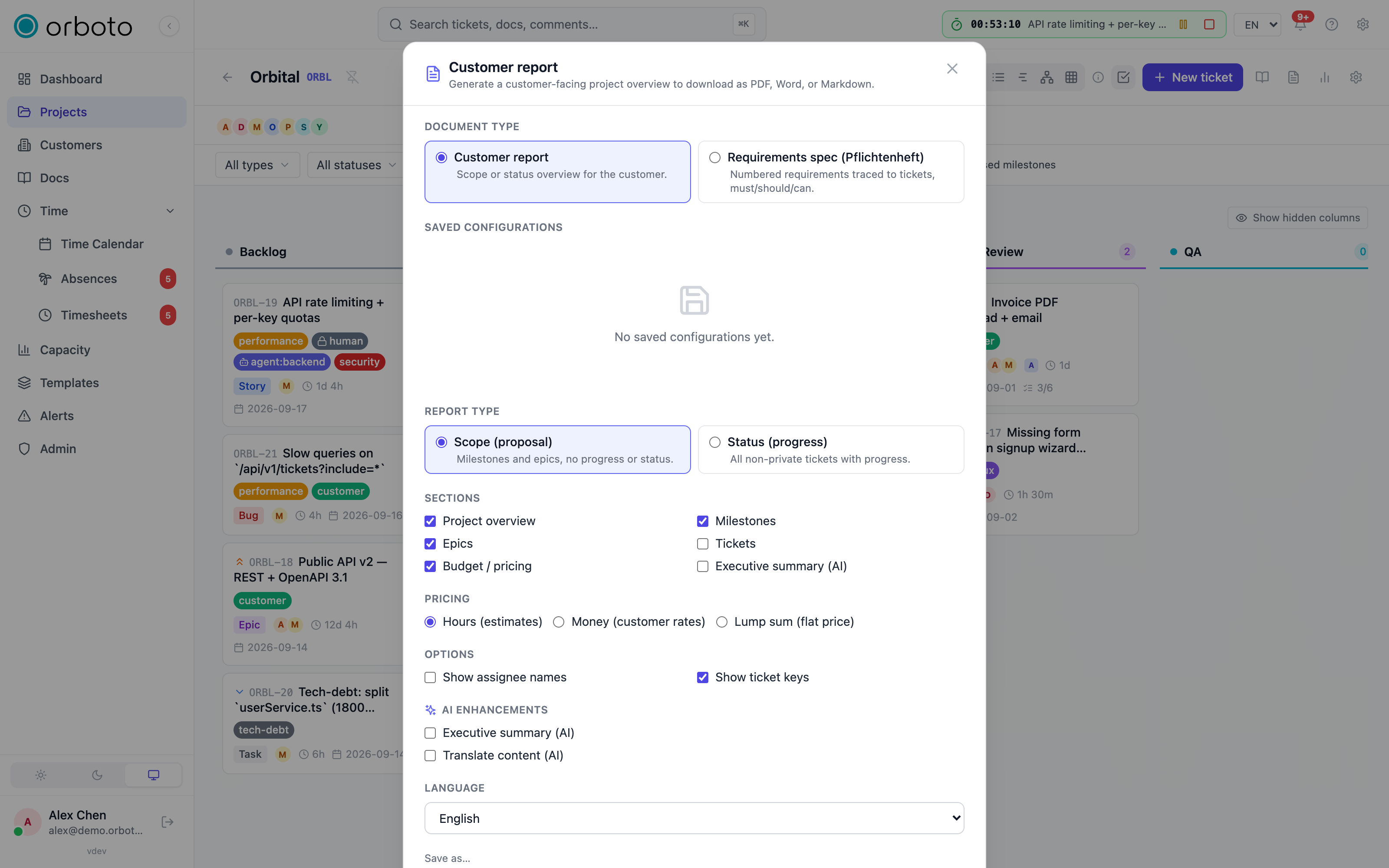
Open a project and select Customer report in the project's header. In the dialog that opens you choose the document type - a customer report or a requirements specification (Pflichtenheft) - and a few options (see Options that shape the document below). Then generate and download it as PDF, Word (DOCX), or Markdown.
PDF and Word rendering can take a moment on a large project - you do not have to wait with the dialog open. It generates in the background and lands in the Recent reports list at the bottom of the dialog with a pending / ready / failed status; download it from there once it is ready.
What a primer fact is
Several chapters are filled from primer facts. A primer fact is one small, structured piece of information about your project. Each fact has three parts:
- a category (for example tech stack, non-functional, or other),
- a key - a short label (for example
databaseordata protection), - a value - the information itself, written in plain words (for example
PostgreSQL 16 with pgvector).
You capture primer facts once, and orboto reuses them: they help the AI assistant understand your project, and they fill the chapters of your requirements document and report. Think of them as the project's fact sheet.
An empty chapter in a generated document almost always means "not captured yet", not a bug. The fix is to add the missing facts, not to change any settings.
Which information fills which chapter
This table shows, for the requirements specification, where every chapter gets its content. Fill the ones you care about and that chapter fills in.
| Chapter | Filled from | How you capture it |
|---|---|---|
| Objectives | The project's description | Edit the project description in project settings |
| Current state | Primer facts in category conventions or other | Add primer facts (see below) |
| System overview | Primer facts in category tech stack, architecture, integrations, deployment | Add primer facts |
| Functional requirements | Your epics and tickets | Create real epics and tickets in the project |
| Non-functional requirements | Primer facts in category non-functional | Add primer facts |
| Solution outline | Your epics and their summaries | Give epics a clear description or customer summary |
| Scope | The list of functional requirements | Create real epics and tickets |
| Implementation and phases | Your milestones and their dates | Create milestones with start/end dates and estimates |
| Acceptance criteria | Derived from your requirements | Write clear, checkable ticket and epic titles |
| Assumptions and cooperation | A standard note, plus primer facts in category gotchas | Add primer facts for known constraints |
| Glossary | Primer facts in category other | Add glossary terms as primer facts |
The customer report draws on the same project data - your milestones, epics, tickets and budget - so the same capture work improves both documents.
A couple of things worth knowing:
- The glossary and the current state chapters both draw on the other category. If you want a clean glossary, put state-of-the-world facts under conventions and keep other for genuine glossary terms.
- The acceptance criteria chapter is built from your requirements rather than a separate field, so clear, verifiable ticket and epic titles pay off directly here.
Worked examples: capturing your facts
Your technology stack
Capture each part of your stack as a tech stack fact - these fill the system overview chapter.
- key
database, valuePostgreSQL 16 - key
backend, valueNode.js API - key
frontend, valueReact web application
Your non-functional requirements
Non-functional requirements are the qualities the system must have - performance, security, data protection, operations, languages - as opposed to specific features. Capture each as a non-functional fact. These lead the non-functional chapter and are shown exactly as you wrote them.
- key
performance, valueSearch results return in under one second for typical projects - key
security, valueAll access is permission-controlled; sign-in supports two-factor authentication and single sign-on - key
data protection, valuePersonal data can be exported and deleted on request, in line with the GDPR - key
languages, valueThe interface is available in English and German
If you have no non-functional facts yet, orboto still tries to derive some from your other facts by looking for relevant keywords - but the explicit facts you write are always the clearest and are shown first.
Your glossary
Capture project-specific terms your customer might not know as other facts. Each becomes a glossary entry.
- key
Milestone, valueA phase of the project with its own goal and date - key
Epic, valueA large piece of work grouping several smaller tickets
How to capture primer facts
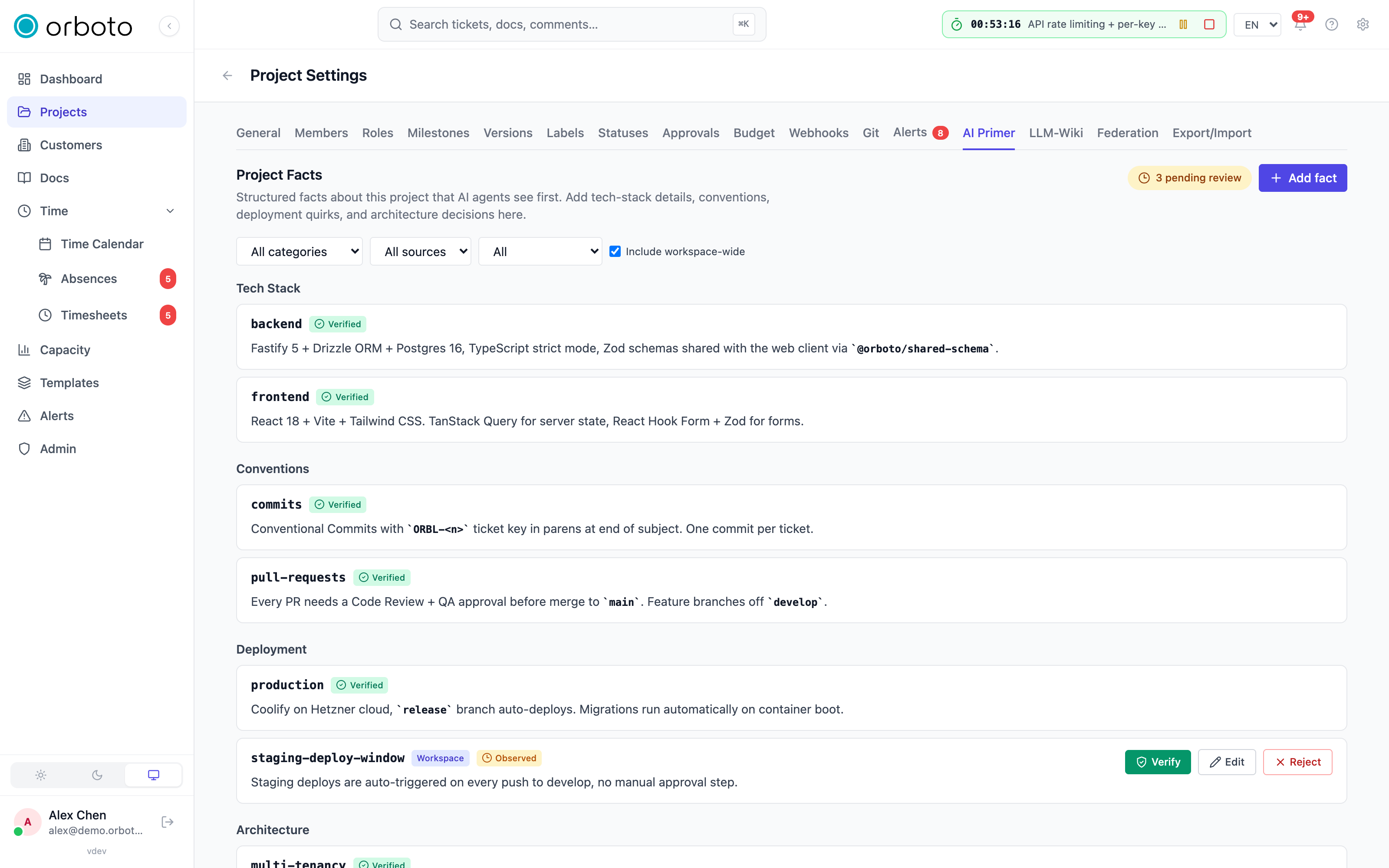
- Open the project and go to its settings.
- Select the AI primer tab.
- Use Add fact: pick a category, type a short key and the value, and save.
- To fix a fact later, edit it in the same place; to replace a wrong one, use supersede so the history is kept.
Workspace administrators can also add facts that apply to every project (organisation-wide rules) from the admin area. Use those sparingly.
The AI assistant can add primer facts for you too. If you have it enabled, you can simply ask it to record a fact - for example "add a non-functional fact that search must return in under a second" - and confirm the change. See AI assistant.
Options that shape the document
When you generate a document you can adjust:
- Document type - a customer report or a requirements specification (Pflichtenheft).
- Report type (customer report only) - Scope (proposal): milestones and epics, no progress or status; or Status (progress): all non-private tickets with progress.
- Outline (requirements specification only) - Neutral (a balanced default), Industry (chapter order per VDI/VDE 3694, for industrial systems), or Software (SRS chapter order per IEEE 830). These reorder and rename chapters; the content is the same.
- Sections (customer report only) - toggle individual chapters on or off: project overview, milestones, epics, tickets, budget/pricing, and (when AI is on) an AI-written executive summary.
- Pricing - show effort in hours (estimates), in money at your customer rate (needs budget permission), or as a lump sum - a flat amount, currency, and optional note you type in.
- Options - show or hide assignee names, and show or hide ticket keys, in the output.
- AI enhancements (when AI is on) - an AI-written executive summary, and translate content into the document's language.
- Language - the document's output language, independent of your own interface language.
Once you have a combination you like, save it as a named configuration so you can re-generate the same document later - for a status update, or for a second customer on a similar project - in one click via Apply, without resetting every option.
Whatever you choose, anything marked private - private milestones, private tickets, and their contents - is always left out of the document. Added in v0.230.0 That includes every sub-ticket of a private ticket and of a ticket in a private milestone.
Must, should, could
In the requirements specification, each functional requirement is tagged must, should, or could. That tag comes straight from the ticket's priority: high-priority work becomes must, normal becomes should, low becomes could. So if the must/should/could split matters to your customer, set your ticket priorities deliberately before you generate the document.
Keeping customer wording clean
The document never shows your raw internal ticket descriptions - those can contain planning notes you would not send to a customer. For each epic and ticket, orboto uses, in order: a customer summary if you wrote one, otherwise a short AI-written summary of the description (when AI is enabled), otherwise just the title. For the cleanest result, fill in the customer summary field on the epics and tickets that will appear in the document.
Troubleshooting
- A whole chapter is empty. Almost always means "not captured yet" - check the chapter table above for what feeds it and add the missing primer facts, epic summaries, or milestone dates.
- I don't see the requirements-specification option, only customer report. Generating a Pflichtenheft needs a separate permission from the customer report. Ask your workspace administrator.
- Money pricing is missing. Showing effort in money needs budget-view permission on the project, in addition to the document-generation permission.
- My PDF/Word never showed up. Check Recent reports in the dialog for a Failed status - reopen the dialog later; large projects can take a while to render.
- The output is in the wrong language. The Language option controls the document's language independently of your own interface language - set it explicitly per document.
Where to go next
- Set up projects, milestones, epics and tickets: Projects and tickets
- Let the assistant capture facts for you: AI assistant
- Plan phases and dates: Planning and alerts