

Account and security
How to manage your profile, password, two-factor authentication, passkeys, sessions, calendar sync, and personal API keys.
Your profile is where you manage how you appear, how you sign in, and how securely. Open it by selecting your avatar and name at the bottom of the sidebar, or go to the profile page directly.
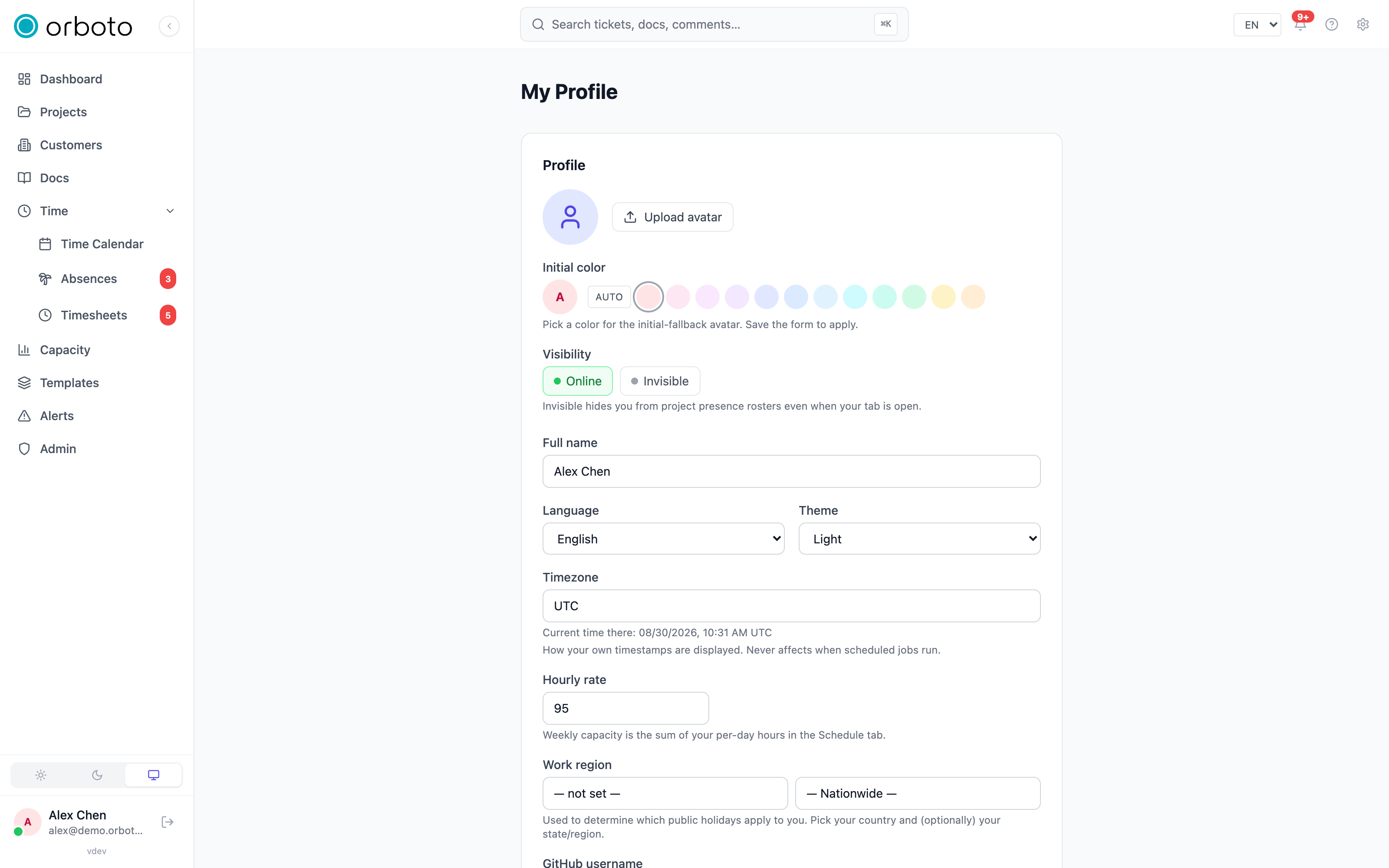
Your identity
- Avatar - upload a picture, or let orboto generate a coloured initials avatar. You can pick the avatar colour or leave it automatic.
- Name and email - shown to teammates on tickets, comments, and mentions.
- Theme - Light, Dark, or System (also on the sidebar switch).
- Language - the interface language.
- Availability visible to teammates - lets colleagues see a green/amber/red capacity badge for you in assignee pickers. Your actual calendar details are never shared, only that busy/available signal - turn it off to hide even that.
Project readiness
Added in v0.204.0 Profile -> Preferences -> Show project readiness turns the setup line in the project header on or off for you. Until you choose, it follows the workspace default; Use the workspace default undoes your choice.
Date and time
Added in v0.203.0 Profile -> Preferences -> Date and time decides how dates and times look everywhere in orboto. Before 0.203.0 different screens wrote the same date in different ways; now there is one setting and one format.
| Setting | Choices |
|---|---|
| Date format | Automatic (from your language), 31.12.2026, 2026-12-31, 12/31/2026, 31 Dec 2026 |
| Time format | Automatic, 24-hour, 12-hour |
| Relative times | On: recent timestamps read "3 hours ago", with the exact value in the tooltip. Off: always the exact value. |
A live preview shows all three as you change them. The setting reaches every screen at once - board, list, ticket, time calendar, timesheets, absences, activity feed and the admin logs - and it travels with your account, not with the browser. Emails orboto sends you, PDF exports and document exports follow it too.
Two things it never changes:
- Which day a due date is. A due date, a start date and an absence are calendar days. They are never shifted by a timezone and always show the day they say. Your display timezone only decides which moment a timestamp belongs to.
- Machine output. The REST API, MCP,
orboto ... --jsonand webhooks always return ISO 8601. Only the tables the CLI prints for people follow your preference.
Password
In the password section, change your password by entering your current password and a new one. If your workspace uses single sign-on, you may sign in without a password at all.
Two-factor authentication
Two-factor authentication (2FA) adds a second step at sign-in so a stolen password is not enough. orboto supports two kinds, and you can use both.
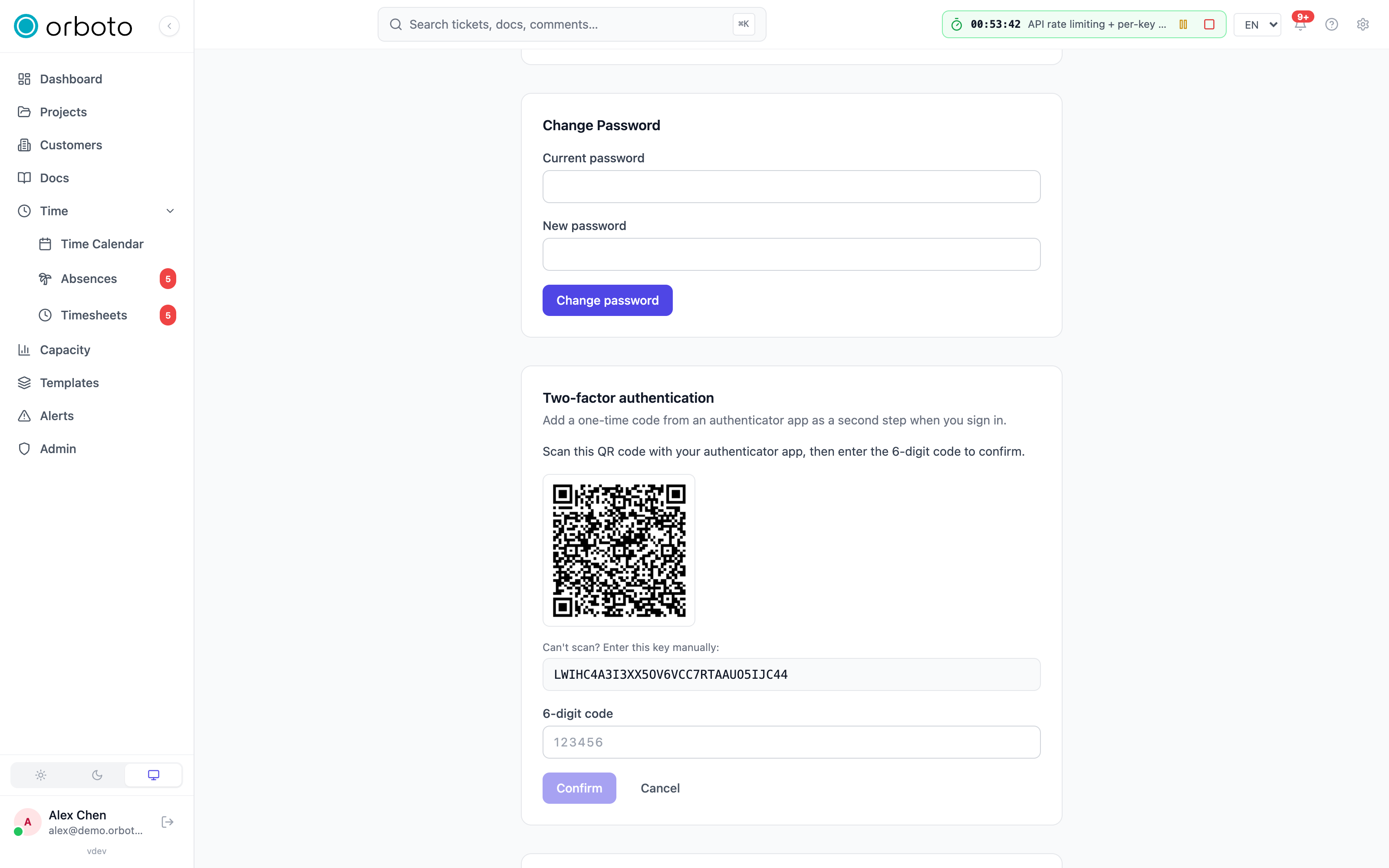
Authenticator app (one-time codes)
- Select Enable in the two-factor section.
- Scan the shown QR code with an authenticator app on your phone (or type the key manually).
- Enter the six-digit code the app shows to confirm.
- Save your recovery codes. These one-time backup codes let you get in if you lose your phone - store them somewhere safe. Without them, losing your device can lock you out.
To turn it off later, use Disable and confirm.
Added in v0.212.5 Setting up your first second factor, an authenticator app or a passkey, asks for your account password first. If you sign in only through SSO and never set a password, orboto asks you to sign in with SSO again instead; a sign-in from the last 15 minutes is enough. Your identity provider may answer without showing a page when its own session is still open. Once you have a second factor, adding another does not ask for the password again; the usual step-up prompt applies.
Passkeys
A passkey signs you in with your device's fingerprint, face, or PIN - no code to type, and nothing to phish.
- Select Add passkey.
- Give it a label (for example "work laptop") so you can recognise it later.
- Follow your device's prompt to create the passkey.
Your registered passkeys are listed with when they were added and last used; remove any you no longer trust.
Added in v0.212.0 Signing in with a passkey requires that it verified you on the device, with a PIN, a fingerprint, your face or a device unlock. Adding a passkey that only checks that you are present, for example a security key without a PIN, is refused. A passkey you added earlier keeps working when your device verifies you. One that cannot verify you no longer signs you in on its own, but it still works as the second factor after your password. If the sign-in page says that the passkey was cancelled, failed or could not verify you, set a PIN on the key or use the passkey of your device, then try again or use another sign-in method.
The extra-confirmation prompt (step-up)
Some sensitive actions ask you to re-confirm your identity even though you are already signed in - this is called step-up. When it happens, a small dialog asks for your authenticator code (or passkey). Enter it and the action continues. This protects high-risk operations from being done by someone who wandered up to your unlocked screen.
Active sessions
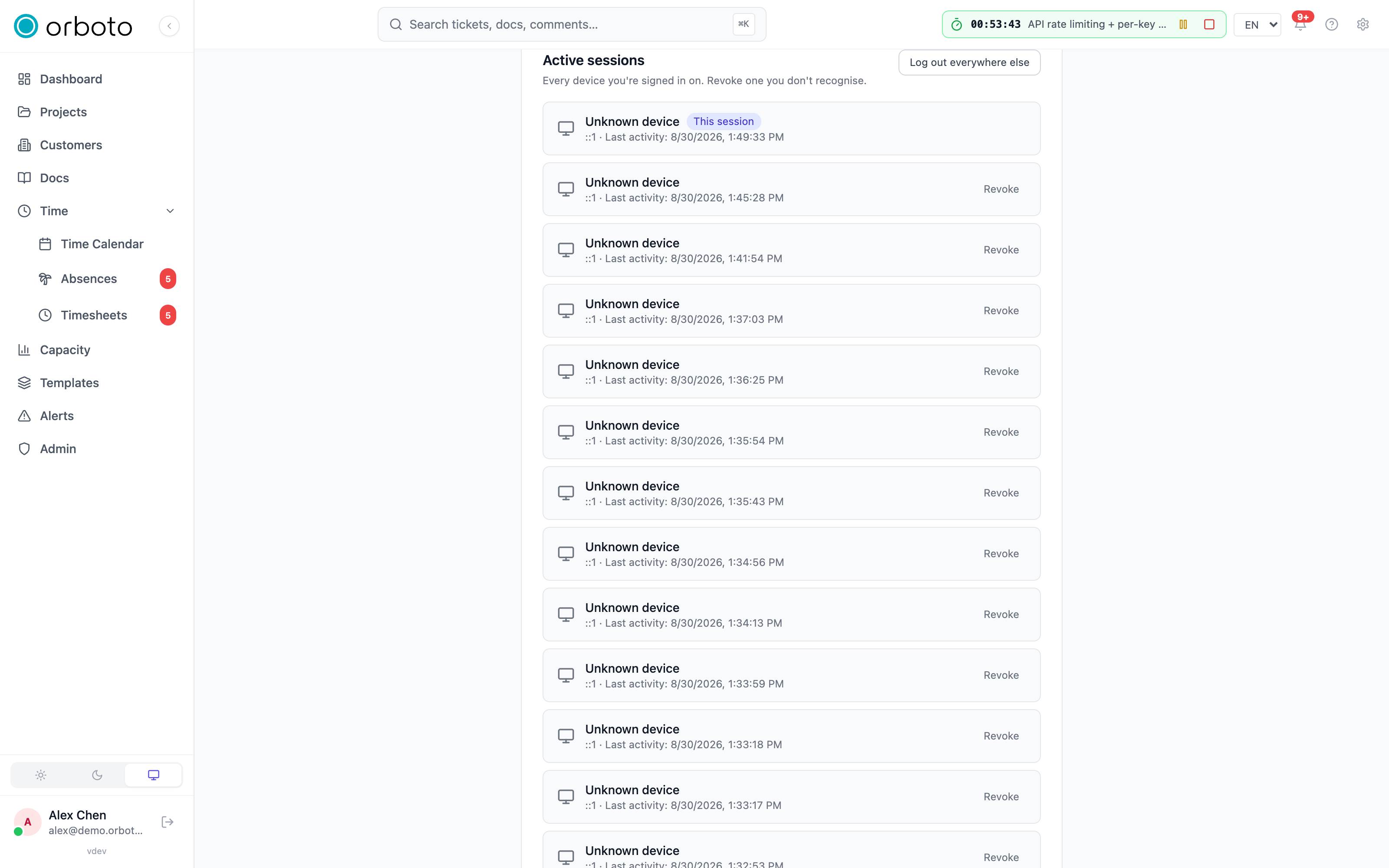
The sessions section lists every device currently signed in to your account, with its last activity. Your current session is marked. If you see something you do not recognise, revoke that session, or revoke all others to sign out everywhere except here.
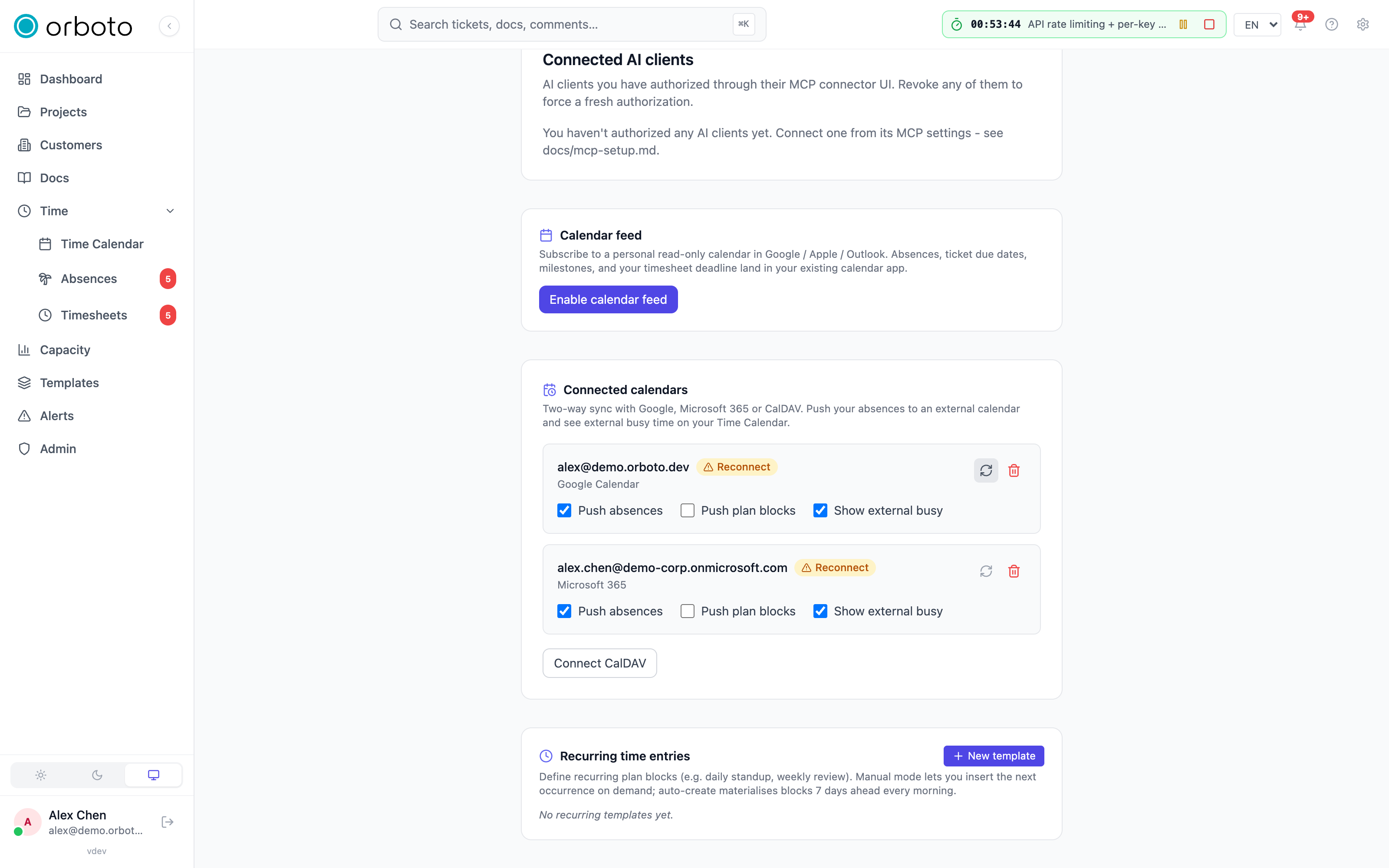
Calendar feed and connected calendars
- Calendar feed - a personal, read-only iCal subscription URL you paste into Google Calendar, Apple Calendar, or Outlook. Choose which items it carries: absences, ticket due dates, milestones, and your timesheet-submission deadline. Regenerate the URL if it leaks, or disable the feed entirely.
- Connected calendars - connect Google Calendar, Microsoft 365, or a CalDAV server (which uses a server URL, username, and app password instead of the OAuth flow the other two use) so orboto and your calendar sync both ways: push your absences and planned work blocks out, and pull your busy times back in to feed the availability signal above. Each connection can be resynced on demand or disconnected.
Email preferences
- Daily digest email - a once-a-day summary instead of many individual emails.
Personal API keys
If you build scripts or connect other tools, the API keys section lets you create personal keys that act on your behalf through orboto's API:
- Select New key, give it a name, and optionally set an expiry date.
- Mark it as an agent key if a script or AI agent will use it - work done through an agent-flagged key is recorded as agent work rather than attributed as your own manual activity.
- Create it - the secret is shown once. Copy it immediately; it is never shown again.
- Later, rotate a key to issue a new secret while invalidating the old one (without recreating the key's name/settings), edit its expiry inline, or delete it when you no longer need it.
Treat a key like a password. For connecting AI clients specifically, see Integrations.
Backup approver
If your workspace uses backups, you may be able to nominate a backup approver - a trusted colleague who can approve a sensitive restore on your behalf. Set this in your profile where offered.
Troubleshooting
- I lost my phone and can't get in. Use a saved recovery code from when you enrolled 2FA. If you have none, ask a workspace administrator to reset your two-factor setup.
- A step-up prompt keeps interrupting me. It only appears on genuinely sensitive actions (for example, changing security settings or approving a destructive AI action) - it is not something you can turn off, by design.
- My API key stopped working. Check its expiry date, or whether it was rotated (rotating issues a new secret and invalidates the old one immediately).
- My calendar feed shows nothing. Confirm the feed is enabled and at least one scope is turned on; some calendar apps cache a subscribed feed for several hours before refreshing. Added in v0.230.0 A feed URL that answers
404was regenerated, revoked by an administrator, or belongs to a deactivated account; generate a new one from your profile (see Calendar sync). - A connected calendar shows a sync error. Use Resync first; for CalDAV, a repeated failure usually means the server URL, username, or app password needs re-entering.
Browsers
Added in v0.206.2 Account -> Security -> Browsers lists every browser where you signed in to the orboto extension. For each one you see the browser, the operating system, the extension version, when it was paired and when it was last online. Agent sessions of your account connect to a paired browser from the orboto CLI without asking you first.
If you no longer use a browser, or you do not recognise one, click Unpair. Its connections close at once and the extension signs out. The browser has to sign in again before it can pair again. Admins see all paired browsers under Admin -> Agents -> Browsers and can unpair them as well.