

Docs and wiki
How to create, organise, link, comment on, and share pages in orboto's documentation area.
Beyond tickets, orboto has a full documentation area for the knowledge that outlives any single task - specifications, how-tos, meeting notes, onboarding guides, and reference material. Open it from Docs in the sidebar.
Spaces and pages
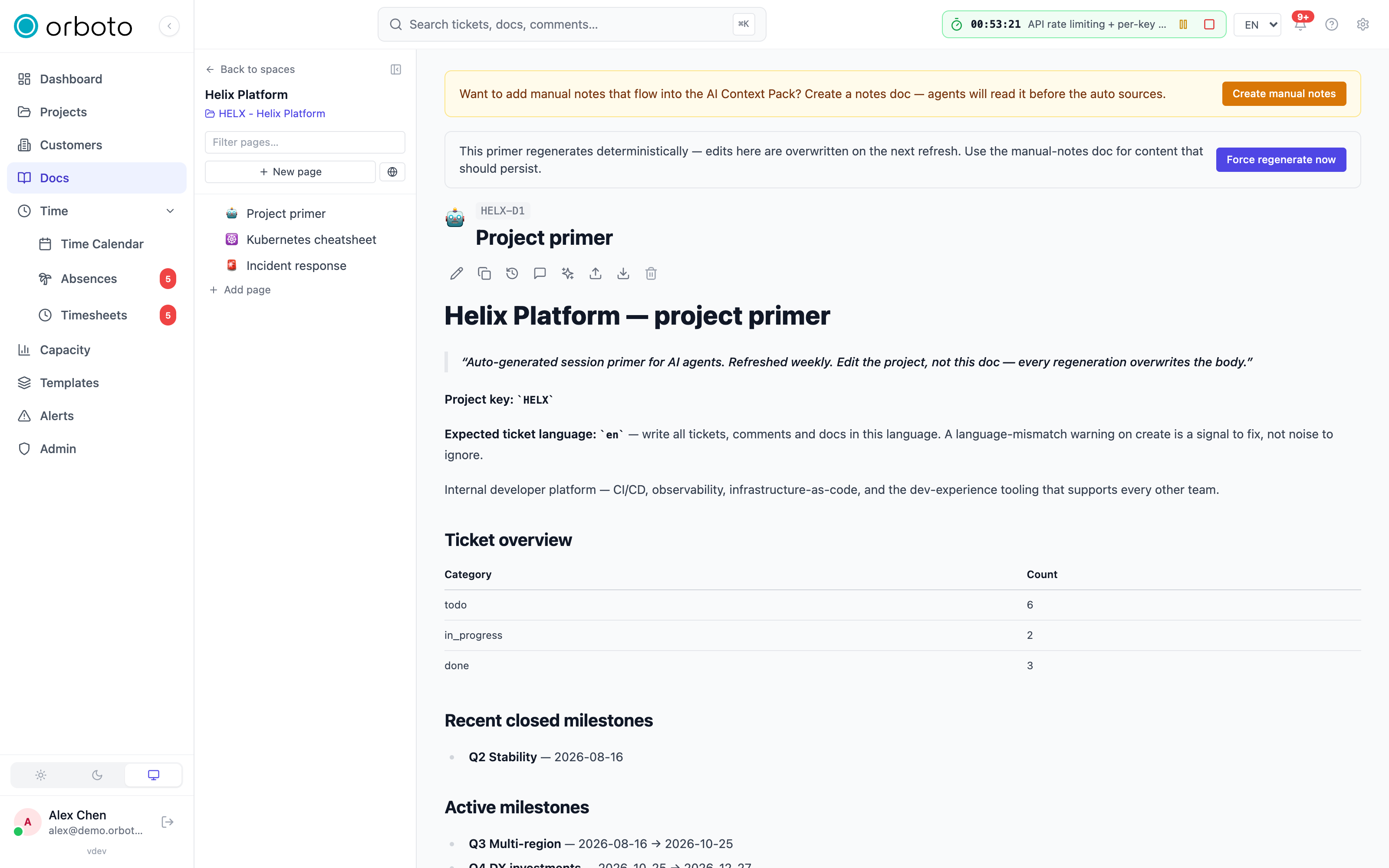
Docs are organised into spaces. A space is a folder of related pages, shown as a tree you can nest.
- A space can be global (visible workspace-wide) or linked to a project (its natural home is that project, and the page header links back to it).
- Inside a space, each page is a rich document with a title, an optional emoji icon, and content written in the same editor as ticket descriptions.
Creating a space
- On the Docs screen, select New space.
- Name it, add an optional description, and choose whether it is global or linked to a project.
- Save. You can filter the space list by scope and search spaces by name.
Creating and organising pages
- Open a space and select New page (or the globe icon next to it to import one - see Importing content below).
- Give it a title and pick an icon from the emoji picker if you like.
- Write the content, then save.
- Move or reorder pages within the tree by dragging, or nest one under another to build a hierarchy.
- Use the filter box above the tree to jump to a page by name in a large space.
Each page carries a short doc key (for example ACME-D12 for a project doc, or DOC-5 for a global doc). Select the key to copy it - handy for referencing the page elsewhere.
On mobile the page tree becomes an off-canvas drawer opened with the menu icon; on desktop you can collapse it to a full-width reading surface and bring it back with the show-pages button.
Added in v0.202.0 Long page titles cut off? Drag the right edge of the page tree to make it wider - up to half of the window. Double-click the edge to return to the standard width. Your browser remembers the width for all spaces; another device keeps its own, because every screen is different. With the keyboard: Tab to the edge, arrow keys to resize, Home to reset.
Slash commands
Type / at the start of a line (or after a space) while editing and a menu of blocks opens. Keep typing to narrow it - /tab jumps to Table, /h2 to Heading 2, /img to Image - then press Enter or Tab to insert, or Escape to close the menu and keep what you typed. The menu offers headings 1 to 3, bullet, numbered and task lists, a table with a header row, a code block, a quote, a divider, an image (it opens the same upload and picker as the toolbar button), a callout, and a smart link (it hands over to the [[ picker below).
Added in v0.202.0 /badge inserts a status pill and opens its label and tone picker - see Status badges.
The same menu works in ticket descriptions and comments - it is one editor everywhere. A / inside a word, a path or a URL never opens it.
Smart links and backlinks
While writing, type [[ to insert a smart link to another doc, ticket, project, or milestone. The link shows the target's current title and stays correct if the title changes.
Every page also has backlinks - a list of the other pages that link to it, shown at the bottom of the page - so you can see what references the page you are reading.
Comments and revisions
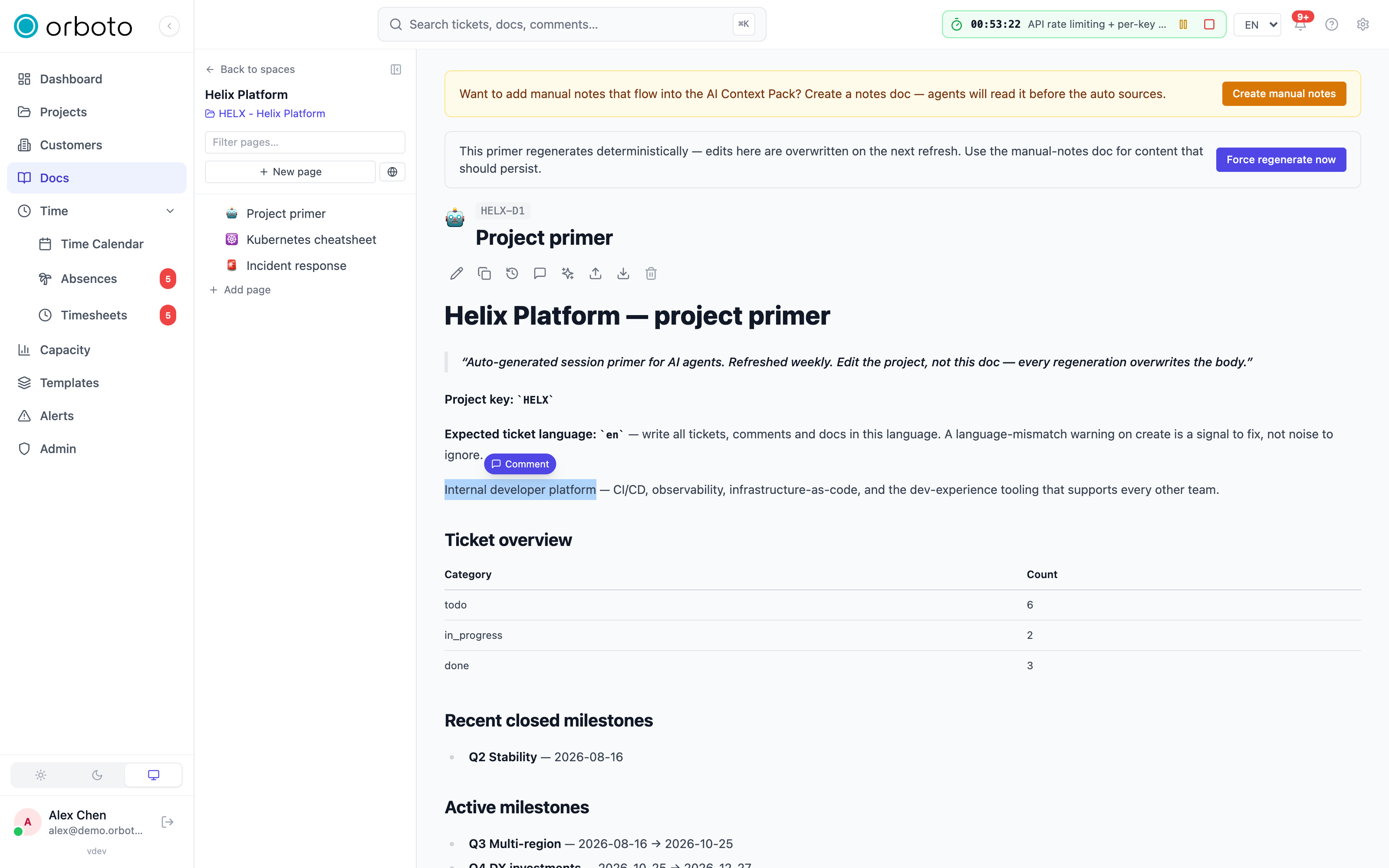
- Comments - select any text while reading a page and a small comment bubble appears; select it to open the comment composer anchored to that exact passage. Once resolved, a thread moves under show resolved and can be reopened later if needed.
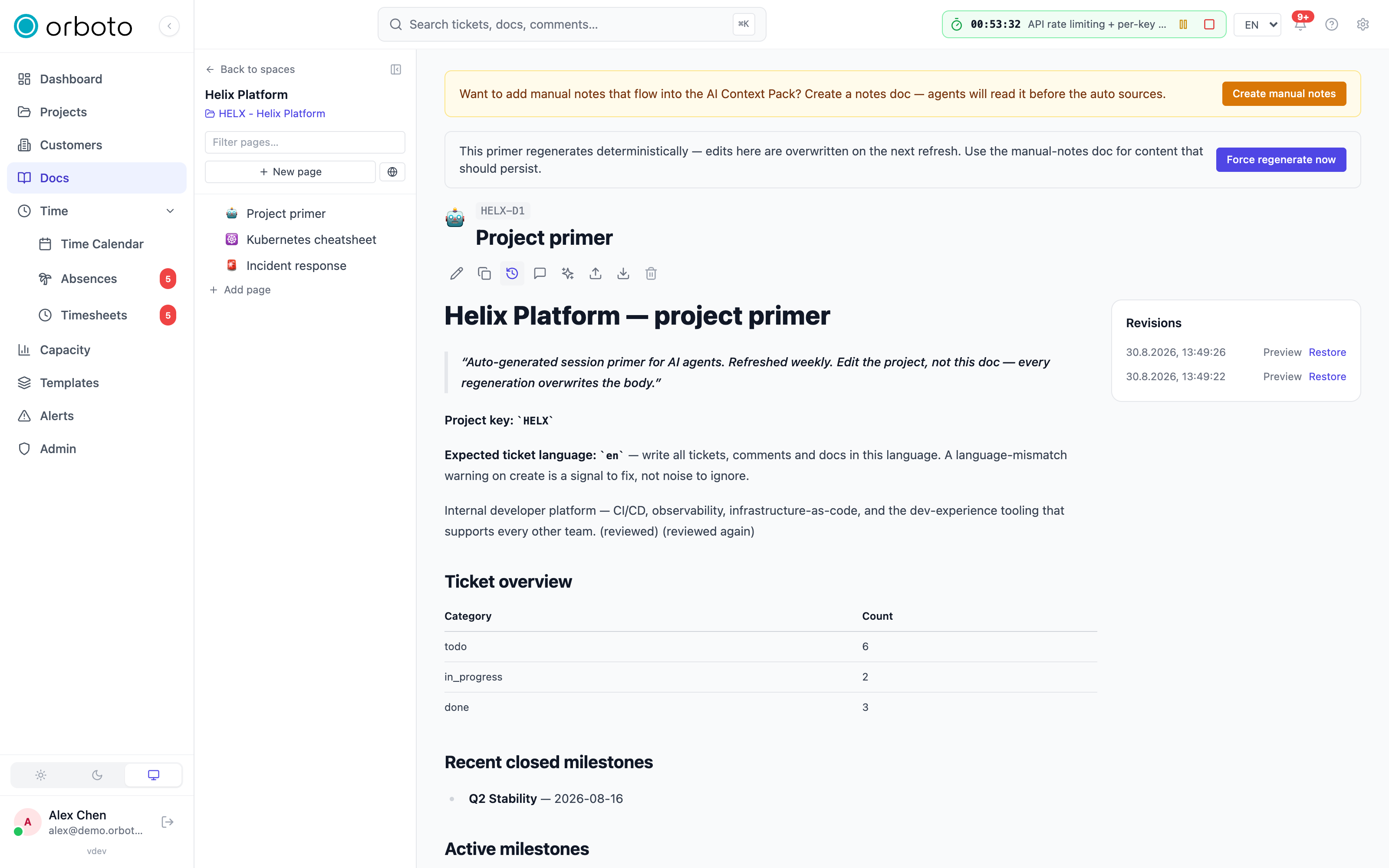
- Revisions - every save is kept. Open the revision history to see a timestamped list, preview any earlier version side by side, and restore it if needed.
If you start editing and navigate away or close the tab before saving, orboto keeps a local draft and offers to restore it the next time you open the page - or you can discard it.
Sharing and exporting
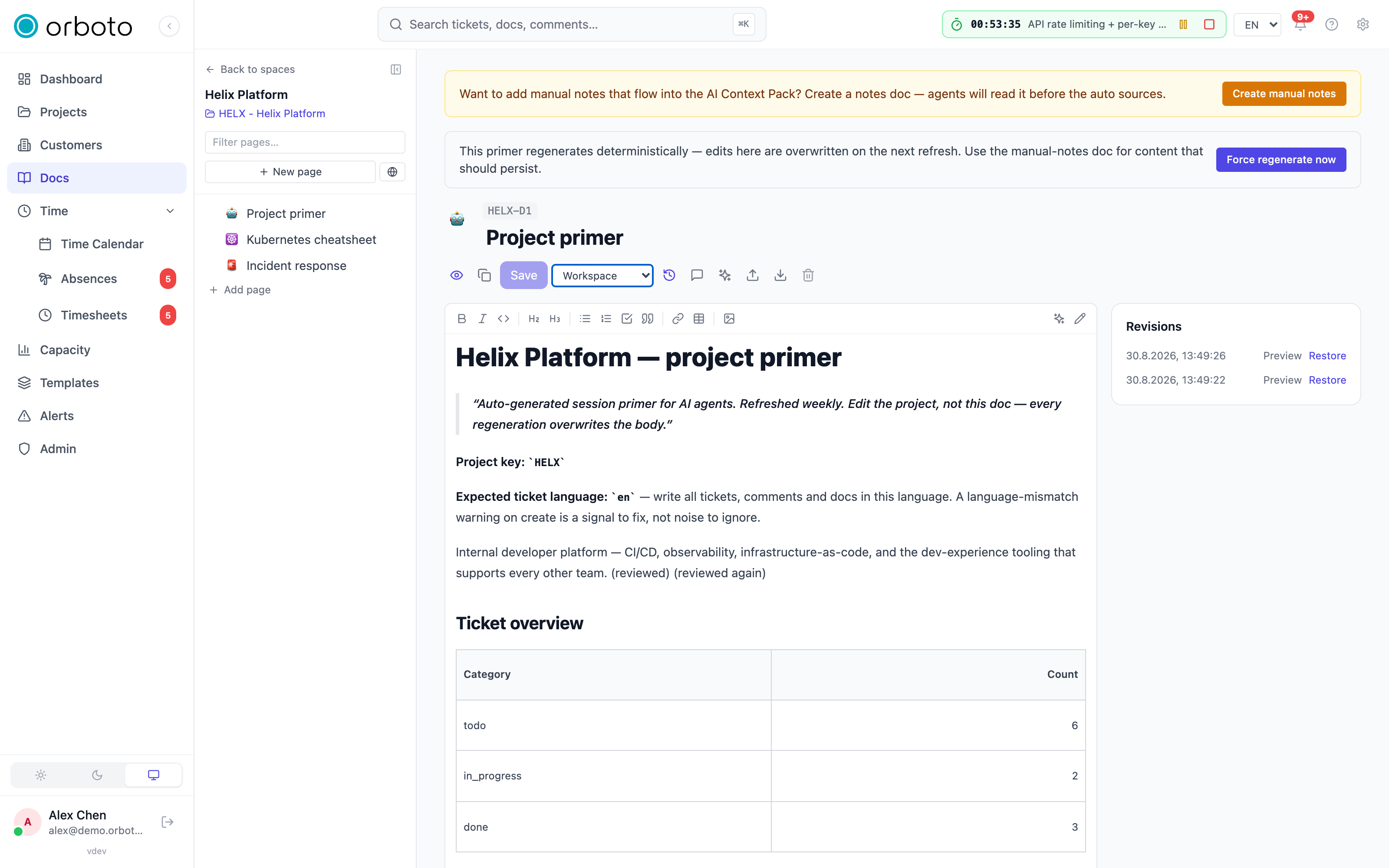
- Visibility - a page can be public (anyone with the link, no sign-in required), workspace (any signed-in member), members (only people with access to the space), or specific (a hand-picked list). Set it from the visibility dropdown while editing.
- When a page is public, a share button copies its public link to your clipboard. Public share links are unchanged.
- Added in v0.211.1 The link that orboto and your agents post for a page, in the API, the CLI and the MCP tools, is the short link
/spaces/<SPACE-KEY>/docs/<DOC-KEY>, for example/spaces/ACME-S1/docs/ACME-D3. It opens the page for anyone who has access to the space. A page or space without a key keeps its internal ID in that part of the link. - Export - download a page as PDF or Markdown from the download menu, or copy the page as Markdown straight from the toolbar (works in read mode, no need to enter edit mode first).
Importing content
Bring existing material into a space instead of retyping it:
- From a URL - select the globe icon next to New page, paste a URL, and orboto extracts the article content, converts it to Markdown, and saves it as a new page with a link back to the source.
- From a file - PDF, Word (
.docx), Markdown, or plain text, up to 25 MB. Use the same import dialog's file tab, or the upload icon on an existing page to upload as a new child page, replace the current page's content (the old content is kept as a revision), or append the file's content to the end of the page.
Images
Added in v0.202.0 Images follow the same rules as on GitHub. An image on a line of its own becomes a full-width picture you can resize; the same  written next to text, inside a table cell, a list item or a heading stays in the line at text height. There is no separate syntax for the two shapes, and exporting the page never turns one into the other.
Status badges
Added in v0.202.0 Write :badge[BUILT]{tone=success} to place a small status pill in a sentence or a table cell. Unlike a status image, the label is real text: search finds it, Ask AI can quote it, and screen readers read it out together with its tone.
The tones are neutral, info, success, warning, danger and accent; they follow light and dark mode. An unknown or missing tone renders as neutral.
A label is one to twenty-four characters. A longer label is shown shortened with an ellipsis and keeps its full text in the tooltip.
In the editor, use the badge button in the toolbar or type /badge, then set the label and pick a tone. Click a badge to edit it again, and press Backspace to remove the whole pill at once.
Attachments
Attach files to a doc page the same way you attach them to tickets. They are stored securely and served through the app, never as a public link.
Ask AI about your docs
If AI features are on, the Ask AI button (sparkle icon) on a doc lets you ask a question in plain language and get an answer drawn from your documentation, with references back to the source pages. This is the fastest way to find "what did we decide about X" without reading every page.
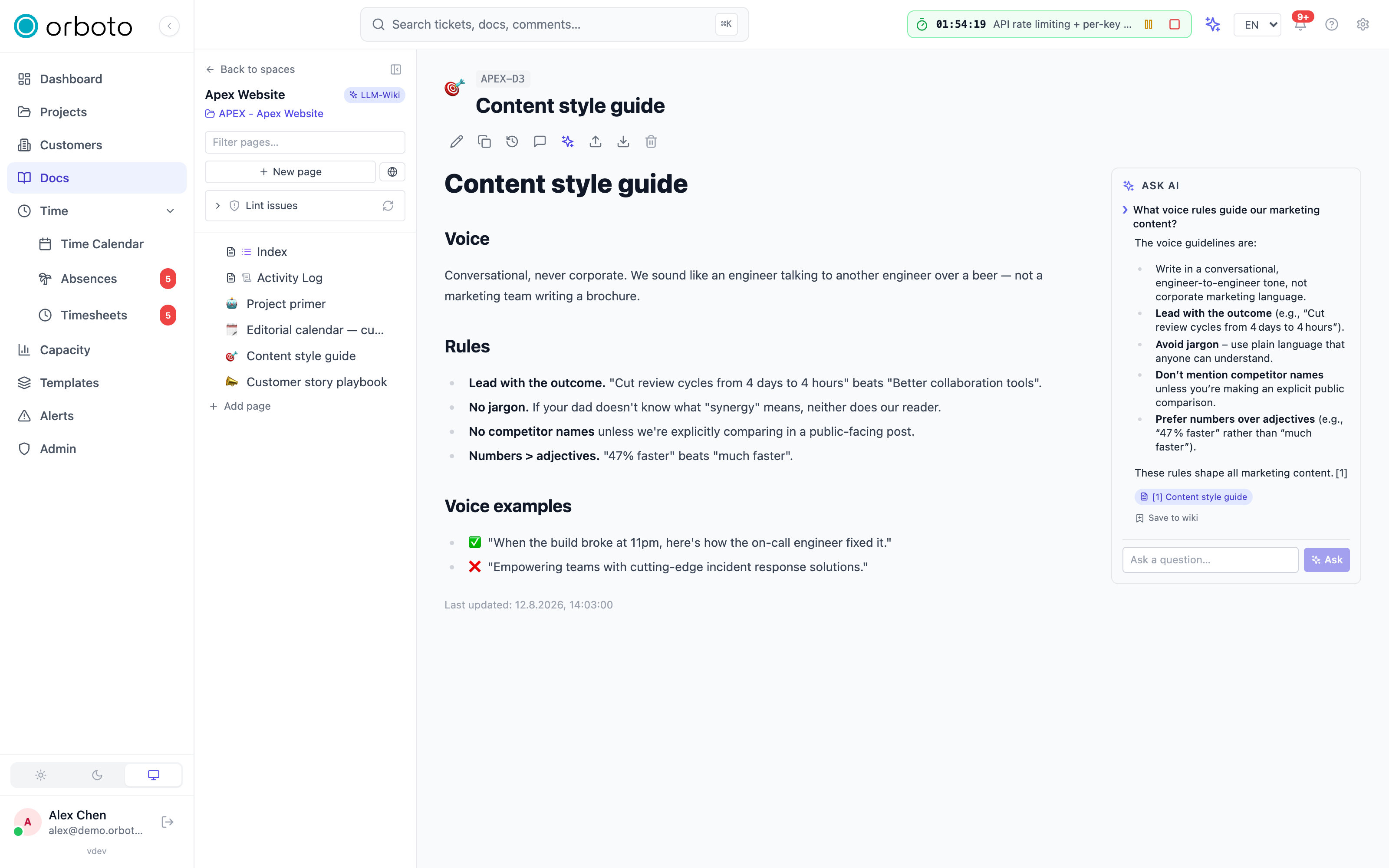
The living wiki
orboto can maintain a wiki that keeps itself current as your work evolves - capturing decisions, summarising discussions, and flagging pages that have gone stale (out of date) so someone can refresh them. Where enabled, you will see a wiki badge and settings gear on the relevant spaces, and an Ask entry point. The heavy lifting (ingesting content, planning updates, lint checks) is handled by your workspace's automation and administrators; as a reader you mostly use Ask and follow the links it gives you. Pages the wiki maintains automatically are read-only for regular editing - they show a badge marking them as machine-maintained.
Troubleshooting
- My changes disappeared after I navigated away. Check for the draft-restore banner the next time you open the page - orboto buffers unsaved edits locally and offers to bring them back.
- The smart link shows the old title. Smart links resolve the current title live; if it still looks wrong, the target may have been deleted or you may not have access to it.
- I can't find a delete or edit option. Some pages (index, log, and source pages inside a wiki-managed space) are machine-maintained and read-only by design - look for the badge next to the title.
- The public share link 404s for the recipient. Confirm the page's visibility is actually set to public - the share button only appears once it is, but visibility can be changed back afterwards.
Earned Value Management
Whether the progress you've made matches what your spend and schedule should have bought - explained from first principles, with a worked example.
Doc spaces
How to create, organise, and manage the spaces that hold orboto's documentation pages - settings, visibility, moving pages, and duplicating a whole space.