

Alerts and SLA
Build alert rules step by step, then set response-time policies, escalation ladders and on-call rotations.
Two related but separately-owned surfaces. Alert rules live per project - a project admin builds them in that project's own settings, because most conditions (budget, capacity, stuck tickets) only make sense in the context of one project's data. SLA policies, escalation ladders and on-call rotations are workspace admin surfaces under Admin -> SLA & escalation, because they typically apply the same way across every project a support or customer-facing team runs.
Building an alert rule (per project)
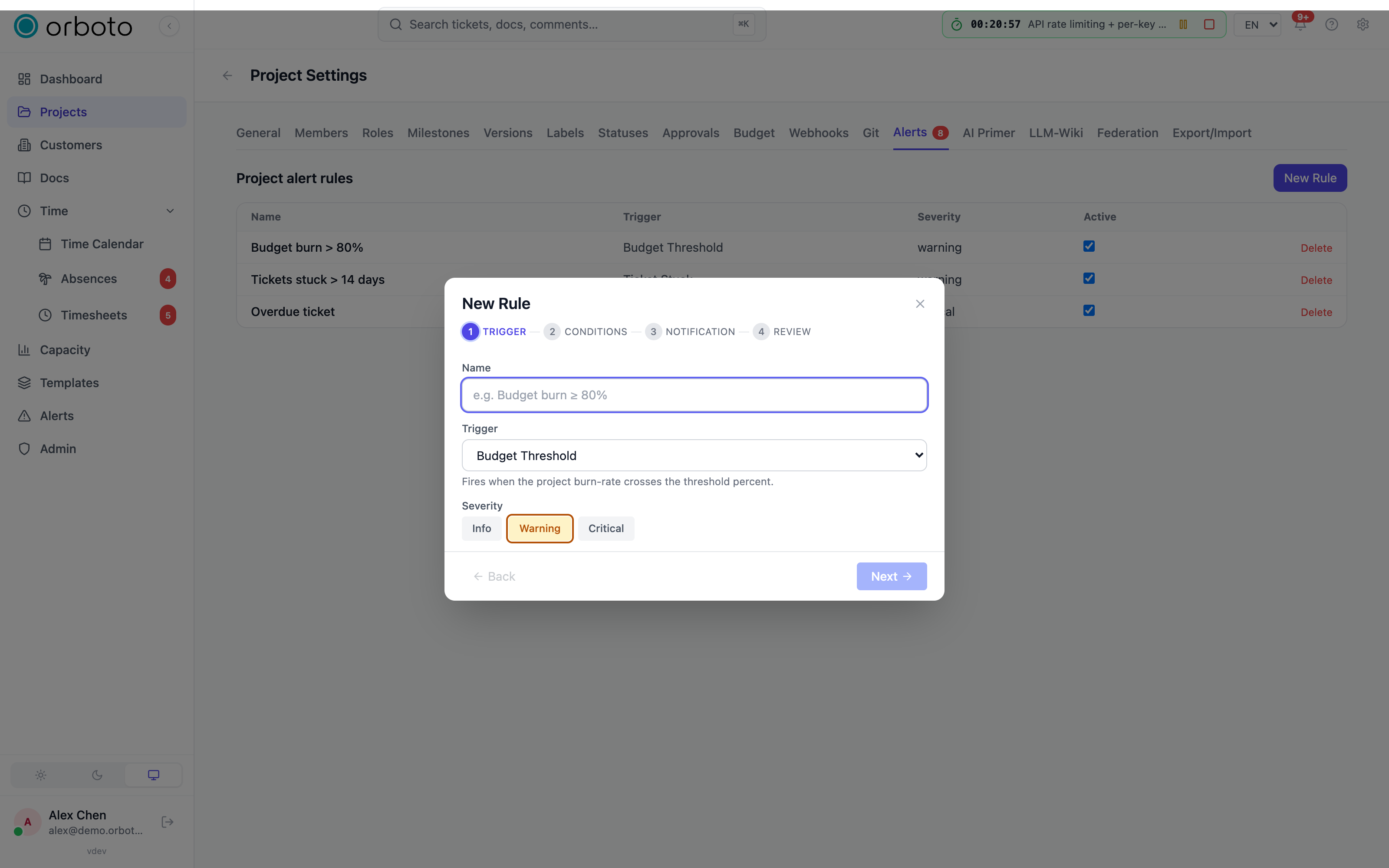
Open a project's Settings -> Alerts tab and start the rule wizard - a four-step flow: Trigger -> Conditions -> Notification -> Review.
Step 1 - Trigger
Give the rule a name and pick a trigger type from the dropdown. A one-line hint under the dropdown explains what each one watches:
| Trigger | Fires when |
|---|---|
| Budget threshold | The project's spent budget crosses a percentage you set |
| Estimate exceeded | Logged time on a ticket exceeds its own estimate |
| User over capacity | A person's assigned workload exceeds their configured capacity |
| Ticket overdue | An open ticket passes its due date |
| Ticket stuck | A ticket sits in one status too long |
| No sprint activity | A milestone/sprint has had no activity for a stretch |
| Milestone deadline risk | A milestone's remaining work makes its deadline unlikely, within a days-remaining threshold you set |
| AI risk assessment | orboto's AI milestone-risk assessment flags a milestone red (or optionally yellow too) |
| Timesheet not submitted | A user's timesheet is still open past its submission point |
| Ticket created | A new ticket is created - narrow with conditions below to catch specific intake patterns |
Also pick the severity - info, warning, or critical - shown as a colored badge everywhere the rule and its firings appear.
Step 2 - Conditions
This step's fields change entirely based on the trigger you picked in step 1:
- Budget threshold / estimate exceeded / user over capacity - a single threshold number (meaning depends on the trigger: a percentage for budget, a ratio for estimate/capacity).
- Ticket overdue / ticket stuck - checkboxes for which statuses count as "still open" for this rule's purposes (so, for example, a status you use as an explicit "waiting on customer" holding pen can be excluded from counting as overdue).
- Milestone deadline risk - days remaining before the deadline at which the rule should start firing.
- AI risk assessment - an include yellow checkbox: off (default) fires only when the AI assessment marks a milestone red; on also fires on yellow (at-risk, not yet critical), for teams that want the earlier warning.
- Ticket created - three independent, all-optional narrowing filters: restrict to specific milestones, restrict to tickets created by someone holding specific project roles, and/or a checkbox to only fire when the creator is a guest/external account - useful for flagging external intake for review before it's treated like internal work.
Step 3 - Notification
Pick who gets notified and how:
- In-app and/or Email delivery checkboxes.
- Specific project roles to notify (everyone currently holding that role gets it) and/or specific individual users.
- Cooldown (minutes) - once this rule fires, it won't fire again for the same underlying condition until the cooldown expires, even if the evaluation cycle runs again in the meantime. This is what keeps a persistent problem (a ticket that's been overdue for a week) from spamming a notification every single evaluation cycle - it alerts once per cooldown window, not once per check.
Step 4 - Review
A summary of everything you picked across the previous three steps, before you commit. Go back to any earlier step to adjust, or confirm to create the rule - it's active immediately.
Immediate vs. scheduled evaluation
Budget threshold, estimate exceeded, user over capacity, ticket overdue, and ticket created are immediate triggers - they fire right after the change that caused them, not on a delay. Ticket stuck, no sprint activity, milestone deadline risk, AI risk assessment, and timesheet not submitted are evaluated on a schedule instead, since "has this been true for a while" isn't a single point-in-time event to react to.
SLA policies (Admin -> SLA & escalation)
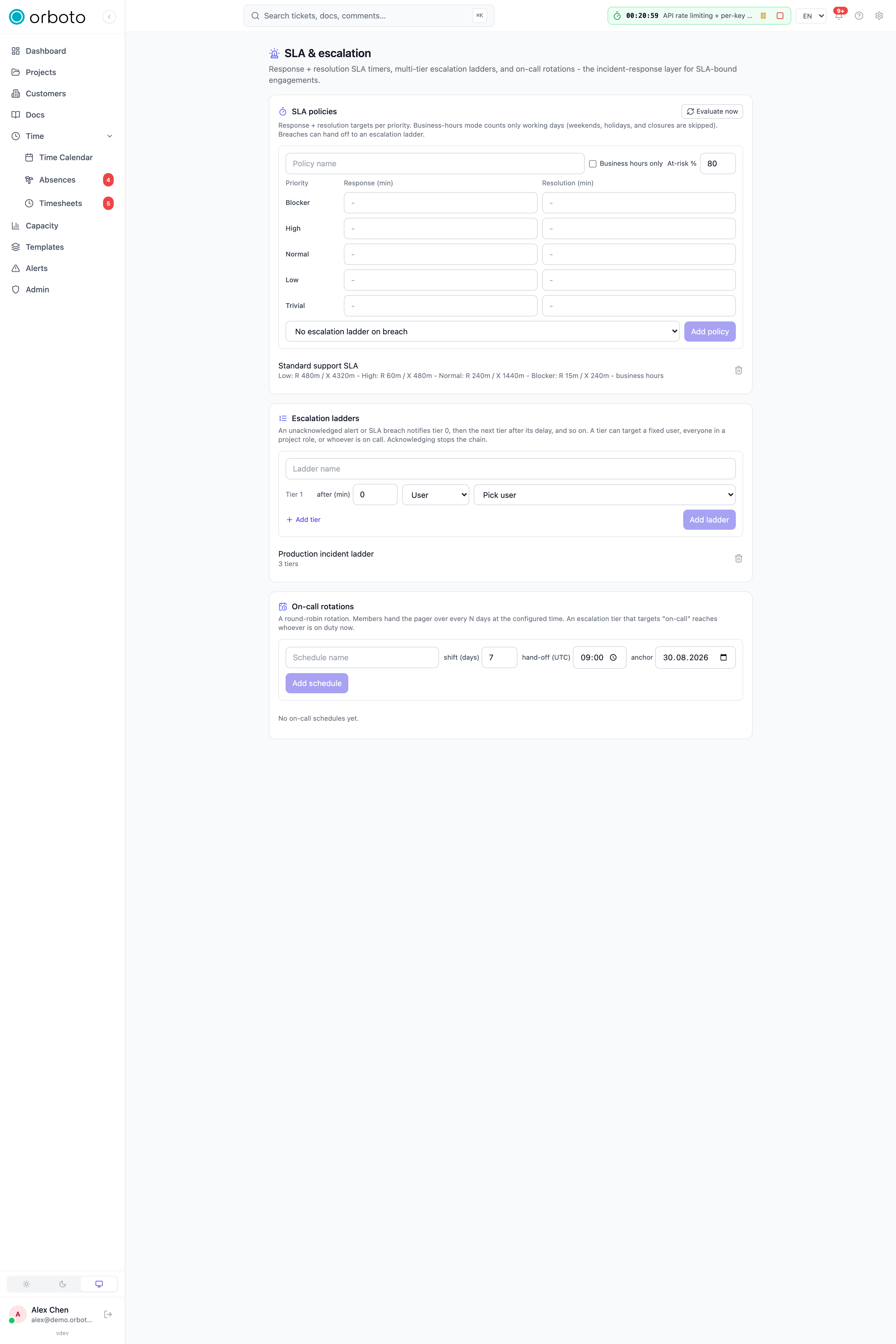
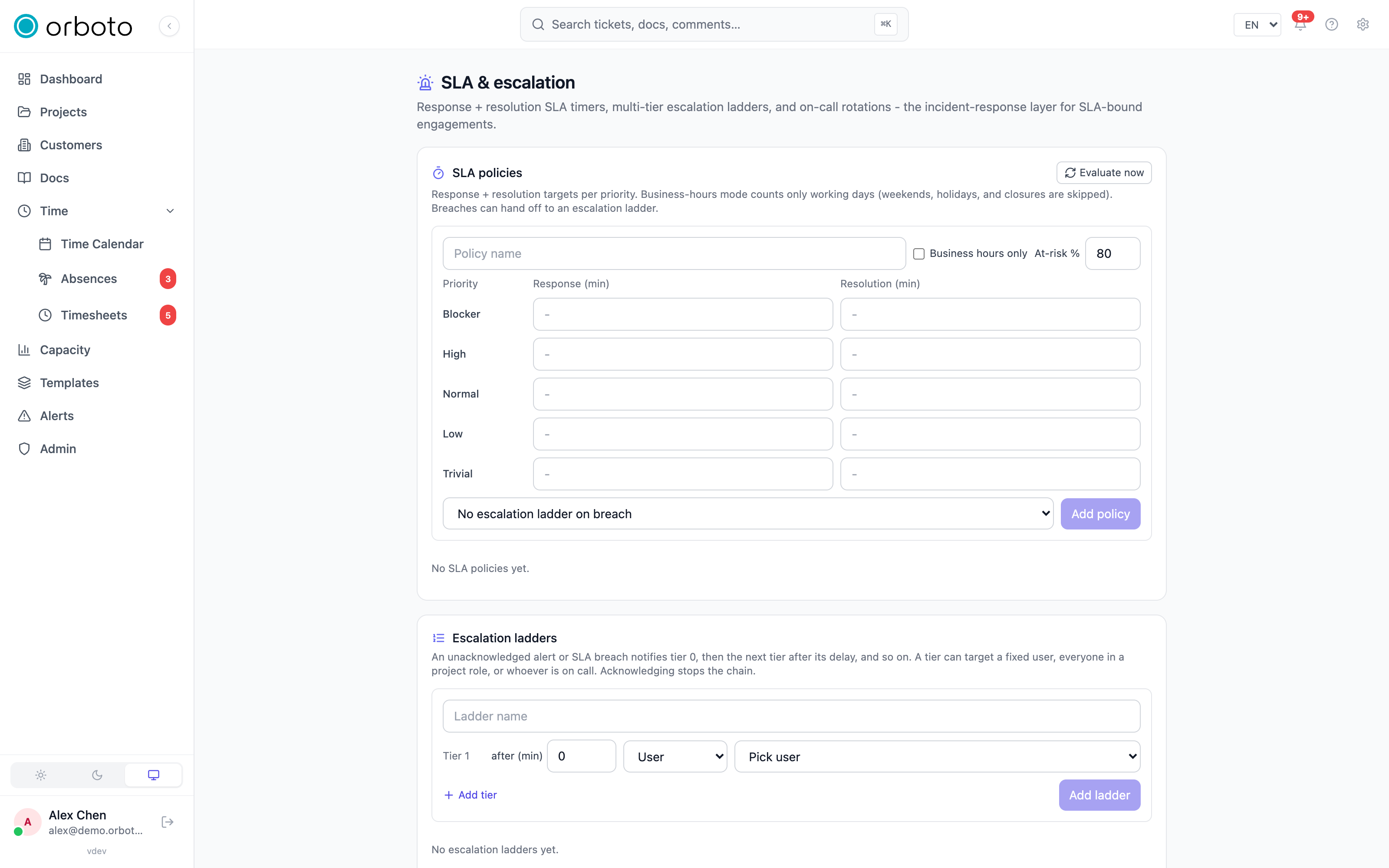
For teams with response-time commitments (support inboxes, customer projects), open Admin -> SLA & escalation and use the SLA policies card:
- Enter a policy name.
- Toggle Business hours only if targets should only count working time - weekends, public holidays, and configured company closures are excluded, using the same calendar the time-tracking module uses. Leave it off to count wall-clock time around the clock.
- Set the at-risk % threshold (default 80) - the percentage of the target consumed at which a ticket flips to "at risk" so escalation can start before an actual breach, not after.
- Fill in response and resolution targets, in minutes, per priority (blocker / high / normal / low / trivial) - leave any cell blank to not track that target for that priority at all.
- Optionally attach an escalation ladder (see below) to hand off a breach automatically; pick "No escalation ladder on breach" to just track the SLA without any automated hand-off.
- Click Add policy.
Every ticket in scope gets a live SLA timer the moment it qualifies, shown running/paused/met/breached/cancelled in the Running timers list at the bottom of the card. Evaluate now forces an immediate re-check of every timer instead of waiting for the next scheduled pass - useful right after creating or editing a policy to see its effect immediately rather than waiting.
Escalation ladders
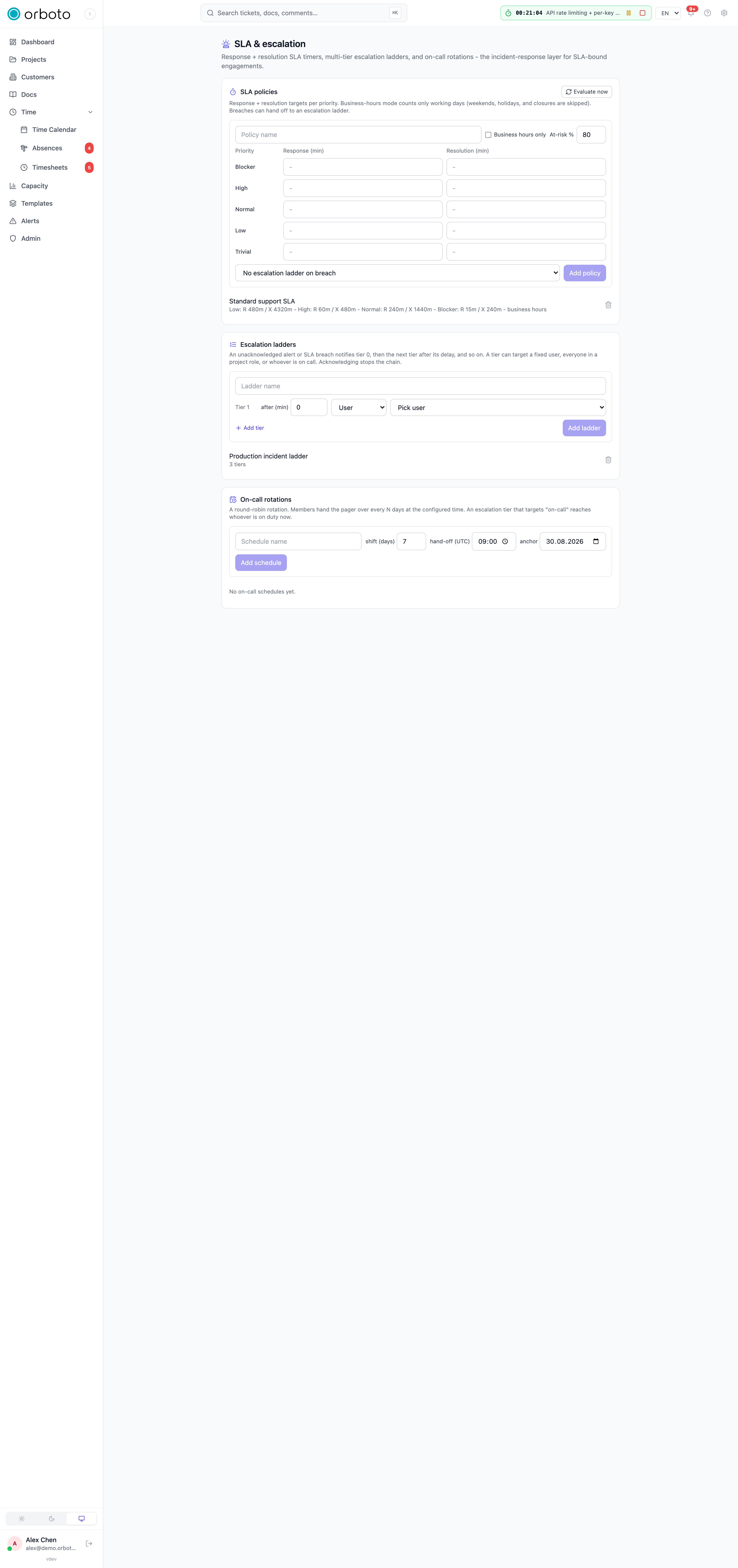
An escalation ladder is an ordered chain of tiers: tier 0 notifies immediately when triggered, tier 1 fires after its own configured delay if nobody has acknowledged yet, tier 2 after its delay, and so on.
Building one: name it, then for each tier set delay (minutes) - how long to wait after the previous tier before escalating further - and a target: a specific fixed user, everyone holding a given project role, or whoever the on-call rotation currently says is on duty. Add as many tiers as you need.
Once triggered (by an SLA breach, or standalone), an escalation shows up as an instance with a status: active (still escalating), acknowledged (someone stopped the chain), resolved, or exhausted (every tier fired with no acknowledgment). Acknowledge on an active instance stops it from advancing to the next tier - it does NOT resolve the underlying ticket or SLA breach itself, it just stops the notification chain.
On-call rotations
A rotation defines a round-robin list of users, a rotation length (days) before it hands off to the next person, and a daily hand-off time (UTC). An escalation tier that targets "on call" always resolves to whoever the currently-active rotation entry says is on duty at that moment - keep the rotation's user list current, since a rotation with nobody actually scheduled leaves that tier with no one to notify.
Troubleshooting
- An alert rule never fires even though the condition is clearly met
- check the cooldown first: if the same condition already fired within the cooldown window, it's suppressed by design, not broken. Also confirm the rule lives on the right project - alert rules are per-project, never workspace-wide.
- A scheduled-evaluation trigger (stuck, deadline risk, AI risk, timesheet) seems delayed - these evaluate on a periodic schedule, not the instant the condition becomes true; an immediate trigger fires right away, a scheduled one waits for its next evaluation pass.
- SLA timer shows breached but nobody was notified - the SLA policy
by itself doesn't send notifications; attach an escalation ladder to
get an actual hand-off, or rely on a project alert rule targeting
ticket_overdueif you just want a direct in-app/email ping without the tiered escalation machinery. - Escalation keeps re-notifying after someone already handled it - acknowledge the specific escalation instance (not just resolving the underlying ticket) to stop the ladder from advancing to its next tier.
- "On call" tier never resolves to the right person - verify the rotation's hand-off time is genuinely in UTC as you expect, and that its user list is current; check whether the rotation even has an active schedule covering right now.
- Business-hours SLA calculations look wrong - they depend on the same blocked-days calendar as the time-tracking module; verify public holidays and company closures are configured correctly for the period in question.
Data protection (GDPR)
Track data-subject requests end to end, place legal holds, and set automatic retention - all under Admin -> Compliance.
Ticket hygiene
Two detectors for tickets that need a human nudge: work that landed but was never handed to review, and open tickets that drifted from their original scope.