

Federation
Sync projects across separate orboto instances, or share a single project with a partner org - concepts, security model, and a full setup walkthrough.
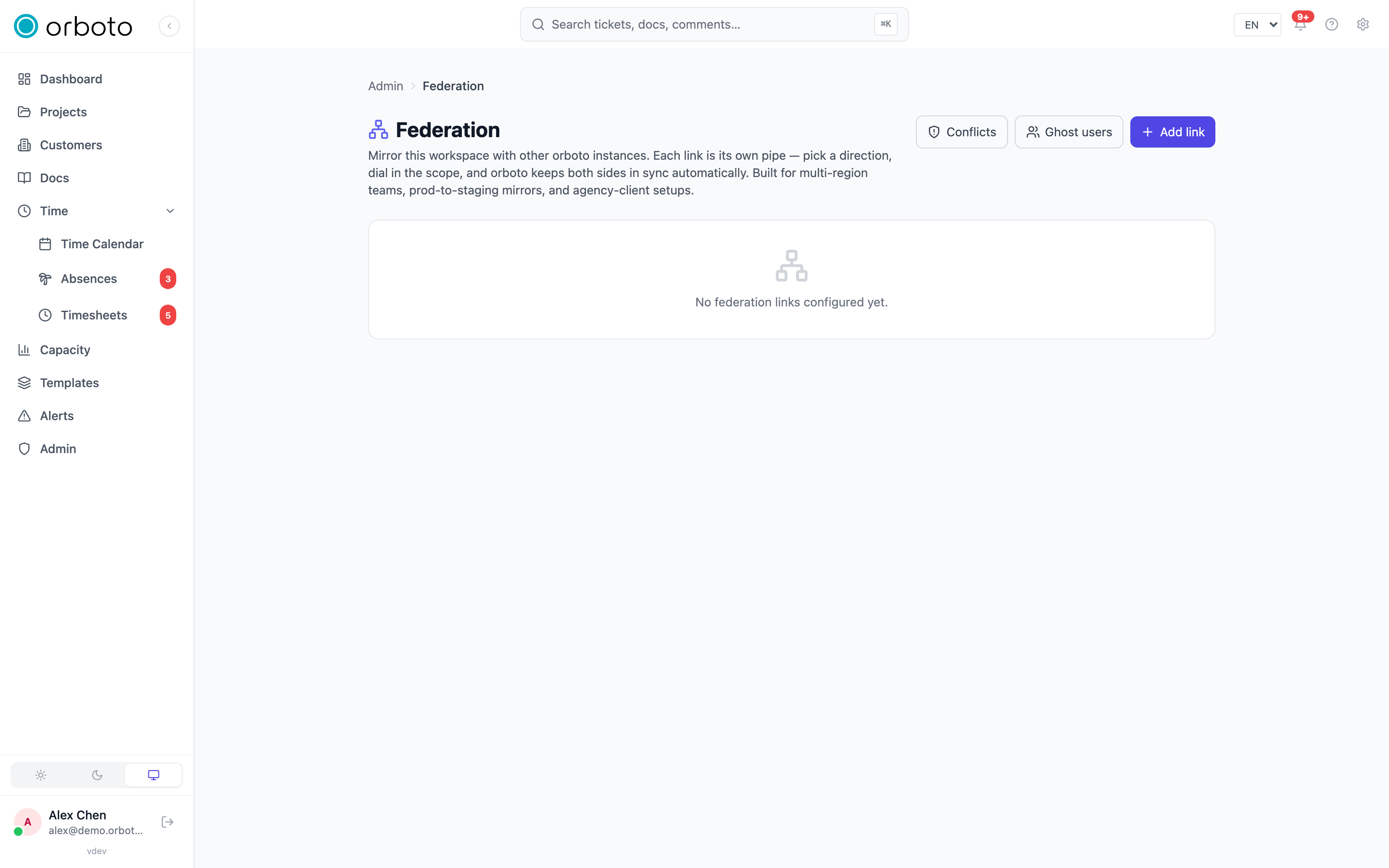
Federation connects separate orboto instances - for example your production workspace and a partner company's own orboto - and keeps shared ticket/project data flowing between them automatically. Each side keeps its own users, permissions and infrastructure; only the federated data crosses the wire. This is an Enterprise capability with two distinct modes that solve different problems - pick the one that matches what you actually need before setting anything up.
| Instance federation | Project federation | |
|---|---|---|
| Who sets it up | A workspace admin, on both sides | A project owner on the sharing side; a workspace admin accepts on the receiving side |
| Where | Admin -> Federation | Project Settings -> Federation (invite side); the API, on the accepting side - see below |
| Scope | The whole instance, or a filtered subset of its projects | Exactly one project, shared with exactly one partner instance |
| Bootstrap | An admin manually exchanges URLs, tokens and a shared secret | The owner mints a time-limited invite link/QR code; the partner pastes it in once |
| What can be shared | Any of 18 entity types, symmetric per link | Field-level masks, independently configurable per direction |
| Mental model | A replica or mirror of (part of) your workspace | A shared folder for one project |
Use instance federation for a staging replica of production, a regional office that should see (and maybe edit) the same data, or an agency that runs client work inside its own instance. Use project federation when you want to hand ONE project to an outside party - a client, a subcontractor, your accountant - without exposing anything else in your workspace, and without them needing an account on your instance at all.
How the two instances trust each other (security model)
Every request one peer sends to the other must pass three independent checks, all enforced server-side, before any data moves:
- Bearer token. The caller sends
Authorization: Bearer <token>. The receiving side hashes it and compares against the stored hash for that link - only the hash is ever stored, never the plaintext, so a database leak on either side doesn't hand over live credentials. - Timestamp freshness. The request carries a timestamp header that must be within five minutes of the receiving server's clock. This blocks replay of an old, captured request.
- HMAC signature. The request is signed over
<timestamp>.<raw body>using a shared secret both sides hold in plaintext (needed to sign outbound requests too). The receiver recomputes the signature and compares it.
All three must pass or the request is rejected with a single, deliberately
generic error - the response never reveals which check failed, so a
probing attacker learns nothing useful from a failed attempt. Every
successful and failed credential check, link creation, rotation, and
conflict decision is written to the audit log with the acting admin's id,
so Admin -> Audit log is your source of truth after an incident.
Federated data itself is never re-authenticated per user on the sending side beyond the link/pair check above - once a link or a project pair is set up, it moves whatever its scope and masks allow. This is why narrowing scope (instance federation) or picking a tight preset (project federation) matters: the link IS the trust boundary.
Instance federation - step-by-step setup
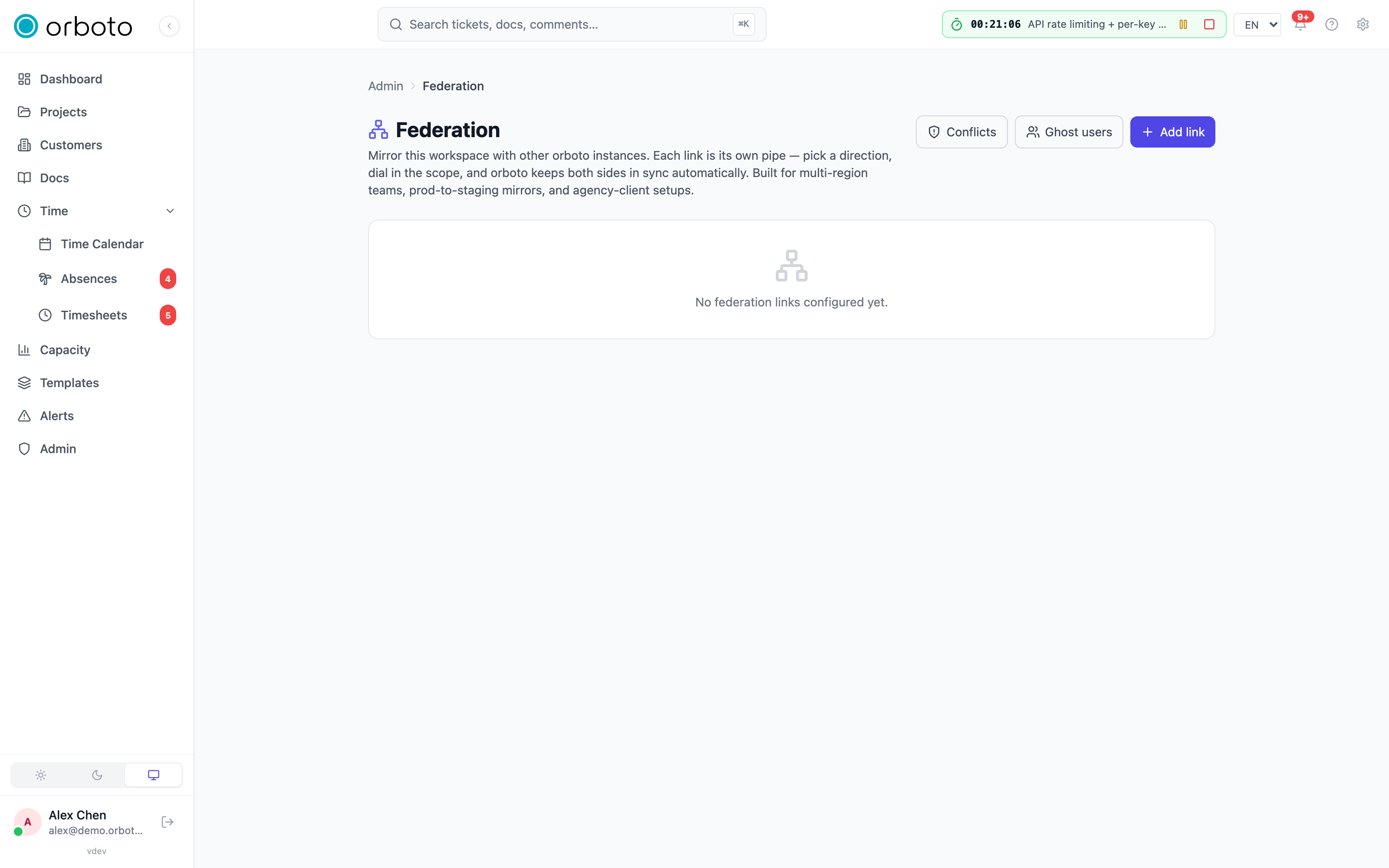
This walks through connecting two instances - call them A (where you start) and B (the peer). The steps are identical regardless of direction; only the values differ.
1. Decide the direction upfront
- Source - A emits changes, B (or a fleet of consumers) reads them. A never applies anything B sends. Use this for a one-way mirror, e.g. production feeding a read-only staging replica.
- Target - A only consumes from B; B is authoritative. The mirror image of Source.
- Bidirectional - both sides emit and consume. Use this for two offices that both actively edit shared projects.
2. On instance A: create the link
Go to Admin -> Federation -> Add link and fill in:
- Link name - a label for your own reference (e.g. "Stage mirror").
- Remote URL - B's base URL, e.g.
https://orboto.partner.example.tld. Must be HTTPS. - Direction - as decided above, from A's point of view.
- Poll interval - how often A pulls from B (only meaningful for
target/bidirectional, since asourcelink never pulls). Default 60 seconds, minimum 15, maximum 3600. Leave the peer's bearer token field blank for now. - Entity scope and project filter - see "Narrowing what syncs" below. Leave both empty on a first setup; you can tighten them later.
Click Create link. A modal shows, once, the credentials A just generated for B to use:
- Incoming token - B will send this in
Authorization: Bearer …when it talks to A. A stores only its hash. - Shared secret - both sides use this to sign every request.
Copy both immediately and check the "I've saved these values" box before closing - there is no way to retrieve them again; only rotation produces a new one.
3. On instance B: create the matching link
Log into B's own Admin -> Federation and create a link the same way, but:
- Direction is the mirror of A's - if A picked
source, B pickstarget; if A pickedbidirectional, B also picksbidirectional. - Paste the shared secret A generated into B's link (the field is editable at creation).
- Leave B's own generated incoming token to copy afterward - A will need it.
4. Cross-paste the tokens
- On A's link (Edit), paste B's incoming token into "Peer's bearer token".
- On B's link (Edit), paste A's incoming token into "Peer's bearer token", if you hadn't already.
At this point each side holds: its own incoming token (hash only), the peer's incoming token (used as the outgoing token, encrypted at rest), and the same shared secret in plaintext on both sides.
5. Let it sync, or dry-run it first
Nothing more to configure - the scheduler picks up new/changed links on its next tick (within a minute). Watch the link card: the health dot goes amber ("Pending first sync") then green ("Healthy") once a poll succeeds, and "Last polled" stamps with the latest attempt.
For a cautious first run, toggle Dry-run: on on the link before that first poll. Events are fetched and logged but never applied or acknowledged - safe to inspect, nothing changes. Toggle it back off once you're satisfied.
Narrowing what syncs
- Entity scope - check only the entity types this link should carry (project, milestone, label, version, ticket status, ticket, ticket assignment, ticket label, ticket ACL, ticket dependency, comment, time entry, project member, doc space, doc, doc revision, attachment, project template). Leave every box unchecked to sync everything the direction allows.
- Project filter - check specific projects to restrict sync to just those; leave empty to sync every project the scope permits.
Managing a link day to day
Each link card offers, inline: Pause/Resume (stop and restart syncing without losing configuration or history), Dry-run toggle, Rotate token (invalidates the old incoming token immediately - the peer needs the new one before its next poll or it 401s), Rotate secret (the peer must mirror the new value within minutes or every signature check starts failing), Edit (change name, URL, direction, poll interval, scope, filter), Force-resync (target/bidirectional links only - replays every event the peer still has; unchanged rows are harmless no-ops, rows that drifted apart surface as new conflicts to triage), and Delete (removes the link, its sync history and any open conflicts for it; data already mirrored locally is not rolled back).
Project federation - step-by-step setup
Use this to share exactly one project without wiring up whole-instance federation. It has an intentionally different flow: the project owner initiates, and it never touches Admin -> Federation's link plumbing directly (those links exist under the hood but are invite-managed).
1. On your side: create the invite
Open the project, go to Project Settings -> Federation
(project:federation:manage, granted to project admins by default - no
workspace-level federation permission needed here) and click Invite
partner instance. Pick a sharing preset (see the table below), add an
optional note the accepting admin will see, and click Create invite.
You get a token (with a copy button) and a QR code, both valid for
15 minutes. Send either to the partner's admin through whatever
channel you'd use to share a link with them.
2. On the partner's side: accept the invite
The partner's workspace admin (needs admin:federation:write) accepts
the invite by calling the API directly - POST /federation/accept-project-invite with the token - since there is
currently no dedicated admin-panel page for this step. Once accepted, the
project federation shows up on both sides.
3. Watch it sync
Project pairs poll roughly every 15 seconds (faster than the 60-second instance-link default, since partner comments should feel conversational, not batched). The federation card on your Project Settings -> Federation tab shows a health dot: amber "pending" until the first poll succeeds, green "active" once it has, grey "paused" if you've paused it, red "error" if the last poll failed (hover the dot for the reason). A small globe marker appears next to the project name on both sides once it's live.
Sharing presets
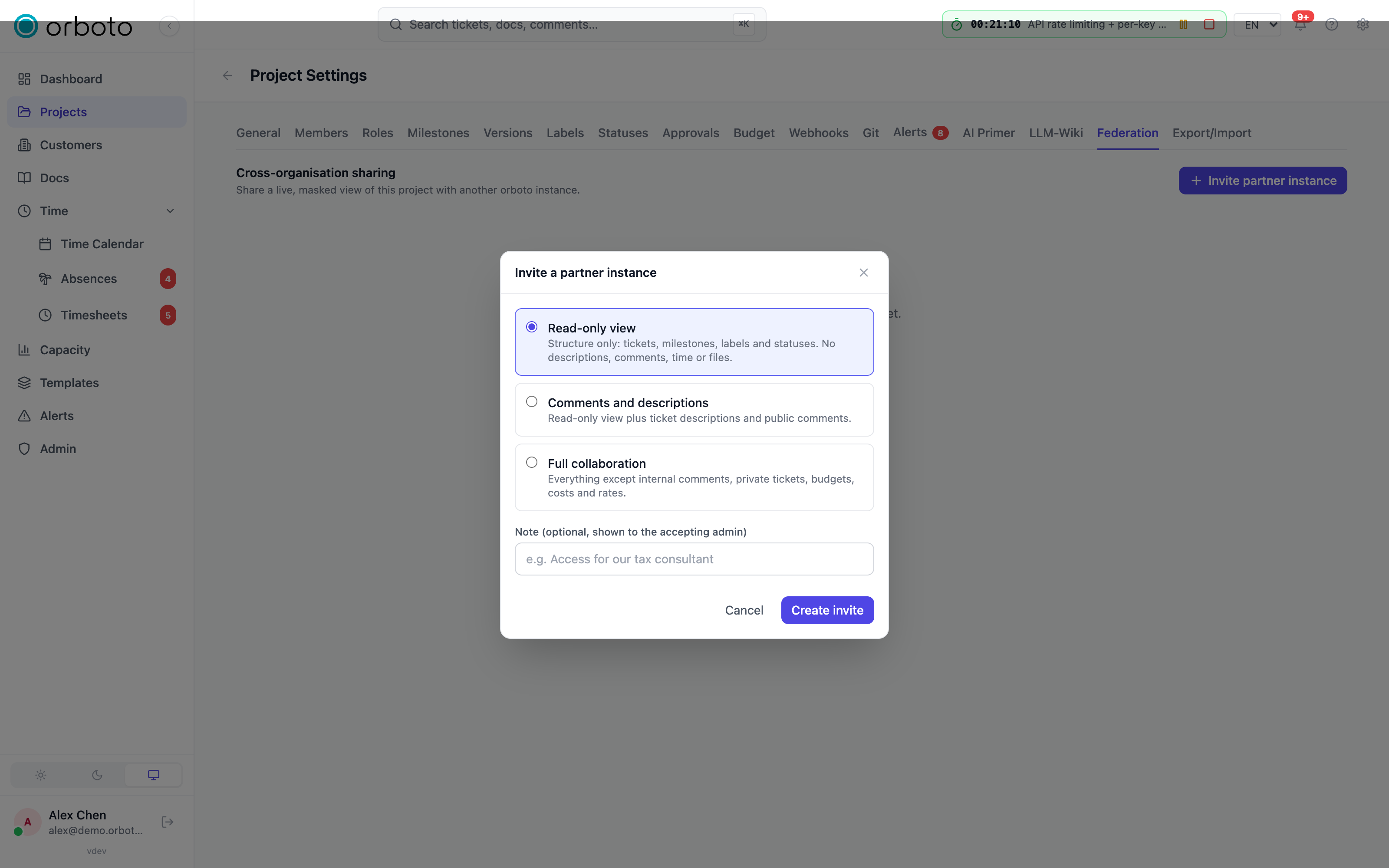
| Preset | Tickets | Milestones/Labels/Versions/Statuses | Dependencies | Comments | Time entries | Docs | Attachments | Fields stripped |
|---|---|---|---|---|---|---|---|---|
| Read-only view (default) | yes | yes | yes | no | no | no | no | ticket description, estimated time |
| Comments and descriptions | yes | yes | yes | public only | no | no | no | estimated time |
| Full collaboration | yes | yes | yes | public only | yes (no cost field) | public only | yes | none |
| Custom | starts from Full collaboration, then tuned per direction in the mask editor |
Assignees only cross on Full collaboration or Custom. A preset is applied symmetrically at invite/accept time and can be re-tuned independently per side afterward.
Managing an active project federation
- Edit sharing masks (the slider icon) opens a mask editor: which
entity types sync at all, and two free-form lists - fields we do not
send (outbound) and fields we do not accept (inbound) - letting
you strip specific fields (e.g.
ticket: estimatedTimeMinutes) per direction independently. Saving flips the pair to the Custom preset. Changes apply to future events only - data already sent stays on the peer. - Pause/Resume stops sync without losing the pairing.
- Revoke requires typing the project's key to confirm (the same bar as the destructive backup-wipe flow). It deletes the pair and its underlying link; sync stops immediately on both sides. Data already synced is not clawed back - if that matters, this is a legal conversation with the partner, not a technical undo.
- Open invites (below the active list) shows invites created but not yet accepted, with a countdown; revoke on an open invite kills the token immediately even before it expires.
Hardwired exclusions - never cross, regardless of any mask
Masks only narrow what's shared, they never widen it. The following never cross a project federation pair no matter how you configure it: internal comments, private tickets, private milestones, non-public docs, ticket access-control rows, project-membership rows, password hashes, hourly rates, time-entry cost, and project/milestone budget fields. Admin roles and system configuration are not federatable data types at all.
Troubleshooting
- Every poll 401s - almost always a token rotation on one side that wasn't mirrored on the other. Re-paste both sides' current tokens.
- A poll or handshake fails although the peer is up and the tokens match Added in v0.230.0 - orboto reads at most 32 MB per batch of changes and 64 KB per handshake answer from the peer, and a request to the peer ends after 60 seconds, its body included. A peer that answers with more, or more slowly, fails that poll, and the link's health dot shows the error. See Connected services.
- "Direction mismatch" (403) - the peer is pulling from a link you
configured as
target(you consume, they shouldn't be pulling from you). Fix the direction on one side to match reality. - Link stuck on amber "pending first sync" for more than a few minutes - check the link card's inline error; usually the peer URL isn't reachable from your instance yet (DNS, firewall, or a typo in the base URL).
- A project federation's health dot is red - hover it for the last error; most commonly the peer instance is offline or its own link was revoked/rotated without telling you.
- A field you expected to be shared isn't showing on the partner's side - check the hardwired-exclusions list first (some things never cross, no matter what), then the pair's current mask - changing a mask only affects events from that point forward.
- Federation between two orboto versions behaves oddly - both instances need to run the same major version; cross-version event schema drift isn't supported.
For ghost-user identity mapping and resolving sync conflicts, see Federation conflicts and user mapping.