

Backups
Scheduled backup jobs, external S3 destinations, content scopes, and exactly how full and project restores work.
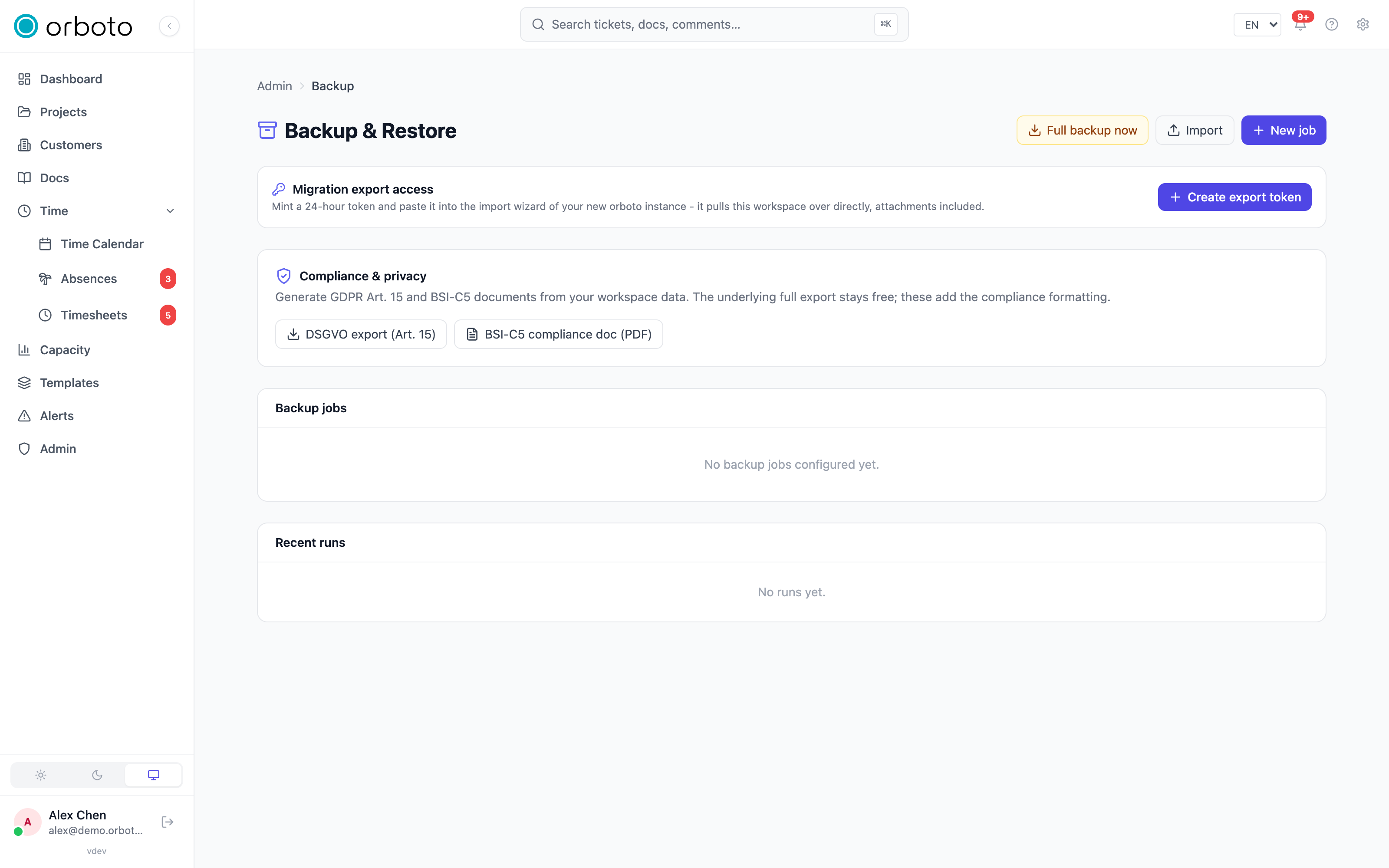
What a backup contains
A full backup is a single archive: a manifest, every database table as line-delimited JSON, and a copy of every stored file (attachments, avatars). Derived data - search vectors, AI embeddings, cached translations - is deliberately excluded and regenerated after a restore instead of shipped in the archive, which keeps archives smaller and portable even across different AI providers (a restore doesn't assume the target has the same embedding model as the source).
Creating a scheduled backup job
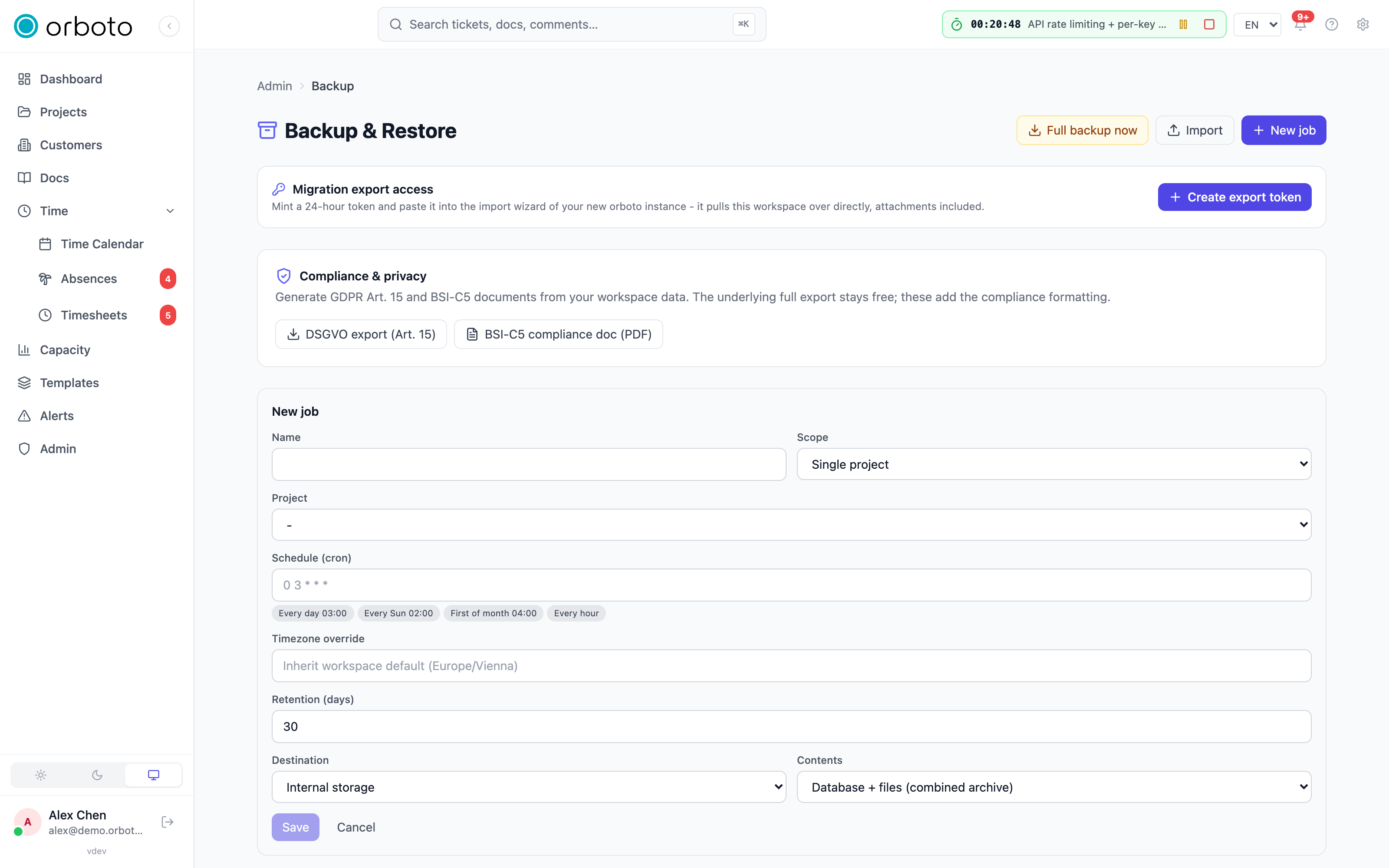
Go to Admin -> Backup -> New job. Fill in:
- Name - your own label, shown in the job list and on every run it produces.
- Scope - Full (the whole workspace) or Project (pick one project from the dropdown that appears).
- Schedule - a cron expression, with four quick presets (every day at 03:00, every Sunday at 02:00, first of the month at 04:00, every hour) you can click instead of typing cron syntax by hand. Leave it blank if you only want to trigger this job manually.
- Timezone override - optional; leave blank to run on the workspace's own timezone (Admin -> System settings), or pick a different IANA zone for just this job.
- Retention (days) - how long completed runs from this job are kept before automatic cleanup.
- Destination - Internal storage (default) or External S3 bucket (see below).
- Contents - what the job actually captures (see the table below).
Save, and the job appears in the list with a green dot (active). Click Run now on any job at any time - before a risky upgrade, before a bulk import - without waiting for its schedule.
Destination: external S3 bucket
Any S3-compatible service works: AWS S3, Cloudflare R2, Backblaze B2, MinIO, Hetzner Object Storage. Selecting External S3 bucket reveals: endpoint (leave empty for AWS), region, bucket name, an optional path prefix, access key, and secret. Click Test connection before saving - it verifies the credentials actually work against that exact bucket, catching a typo'd region or a permissions gap before your first scheduled run fails at 3am. The secret is encrypted at rest and never returned by the API; the edit form always shows it masked, and leaving it blank on save keeps whatever is already stored - only typing a new value replaces it.
What the access key needs
Added in v0.212.3 A destination key only needs rights inside its path
prefix; it does not need access to the rest of the bucket. <prefix> is
the configured path prefix, or orboto-backups when you leave the field
empty. Slashes at either end are ignored.
| Right | Scope | Used for |
|---|---|---|
s3:ListBucket | the bucket, with a StringLike condition on s3:prefix for <prefix>/ and <prefix>/* | connection test, retention, the files mirror |
s3:PutObject | objects under <prefix>/* | archive upload (including multipart), files mirror, connection test |
s3:DeleteObject | objects under <prefix>/* | retention deletes, connection test |
s3:AbortMultipartUpload | objects under <prefix>/* | abort of a failed large upload |
Test connection checks exactly these rights in three steps: it lists
under the prefix, writes a small object named .orboto-destination-probe
under the prefix, and deletes it again. A failure names the step (list,
write or delete). The probe is never counted as an archive.
A red delete step on a job without destination retention means only that retention could not delete there: uploads work. The probe then stays in the bucket and the next test overwrites it. On a bucket with versioning or object lock the delete writes a delete marker, the test stays green and each test leaves one non-current probe version.
Content scope
| Scope | What it produces | Best for |
|---|---|---|
| Database + files | The classic combined ZIP archive - every table as NDJSON plus every storage object together. Restorable as-is through the setup wizard or the Admin import button. | Your primary, restorable backup |
| Database only | The same ZIP, without storage objects - small and fast. | Frequent schedules (hourly/daily), paired with a Files-only job |
| Files only (S3 mirror) | No archive at all - external destinations only. Every owned storage object (attachments, avatars) is mirrored to <prefix>/storage/<key> in your bucket, incrementally by key + size. Nothing is ever deleted remotely, even if the object is later removed locally. Added in v0.230.0 A file that orboto keeps encrypted is never copied out as plaintext; see Encrypted file mirror. | Cheap, frequent offsite copies of large attachment histories |
A common offsite pattern is two jobs pointed at the same bucket: a daily "Database only" job plus a daily "Files only" mirror job. The mirror only transfers what's new or changed since last time, so daily runs stay cheap even once the attachment history is large.
Encrypted file mirror
Added in v0.230.0 A "Files only" job never puts a plaintext copy in your
bucket of a file that orboto keeps encrypted. What lands at
<prefix>/storage/<key> depends on how orboto stores the file and on whether
backup encryption is on (Admin -> Encryption, see
Encrypting your backups):
| The file in orboto's storage | Backup encryption | What lands in your bucket |
|---|---|---|
| Encrypted (file encryption is on) | On or off | The encrypted bytes exactly as orboto stores them. The file is never decrypted for the mirror. |
| Not encrypted | On | The file, encrypted with your instance key (AES-256-GCM, the same key handling as encrypted archives). |
| Not encrypted | Off | The file as it is. |
What to expect:
- The run history says what was encrypted. The destination path of a run
reads like
(12 new, 340 unchanged, 12 sealed): the last number counts the files that were written encrypted in that run. As for an archive, the run also records whether it was sealed and with which key. - The first encrypted run uploads everything. Switching backup encryption on replaces the plaintext copies that earlier runs wrote on the next run, and a job that has never run under the new rules has no record of what is in the bucket. Plan for one full transfer of your attachment history. Unlike an archive, a mirrored file does not keep the state it was first written with.
- A key change replaces the affected copies. The mirror keeps a record per job and file: the stored size, whether the copy is encrypted, and which key its header names. It skips a file only when the copy in your bucket still has the recorded size, is encrypted whenever backup encryption asks for it, and names the key a new write would use now. After a rotation of your own key (BYOK) or a change of key provider, the next run uploads again every copy that still uses the old key.
- The record also keeps the file's last-modified time. orboto reads the key named in an encrypted copy's header again only when the file changed (a rotation rewrites it), so an ordinary run reads no headers. A header it cannot read counts as out of date, and the file is uploaded again.
- An encrypted copy is never replaced by a plaintext one, not even after
you switch backup encryption off. To get plaintext copies after switching it
off, create a new "Files only" job for the same destination: it starts
without records and uploads every file whose copy differs in size, which every
encrypted copy does. Never delete the records of a job by hand (on a
self-hosted instance, the
backup_mirror_objectstable); the mirror trusts them to know what is in the bucket. - Housekeeping. Records of files that no longer exist are removed at the end of each run, and the copies in your bucket stay. Deleting a job deletes its records and leaves the bucket as it is.
- Server-side encryption of your bucket changes nothing here; orboto never relies on it.
- Losing the key loses the encrypted copies, exactly as for encrypted archives. orboto keeps no copy of your key.
Managed jobs
On a hosted (Coolify-managed / cloud) instance, jobs the control plane created for your plan show a Managed badge in the job list. You can still Run now on a managed job, but pause, edit, and delete are hidden for it - those stay under the platform's control.
Manual full export
The Full backup now button (top of the Backup page) downloads a complete workspace archive immediately, completely outside any schedule. Use it right before a version upgrade or any change you'd want a rollback point for.
Exporting one project
Added in v0.230.0 Project settings -> Export/Import -> Download project
as ZIP exports a single project as a ZIP archive. Through the API it is
POST /projects/{projectId}/export. You need the project:edit permission
on the project, or admin:backup:export.
The archive holds one of two scopes:
| Scope | Who gets it | What it holds |
|---|---|---|
full | super-admins and internal accounts with admin:backup:export | every record of the project |
viewer | everyone else with project:edit | only what you can see in orboto yourself |
A viewer archive leaves out:
- private tickets you have no access to, and every ticket below a private ticket or in a private milestone you cannot open;
- private milestones you cannot see;
- docs and doc spaces outside your access;
- internal comments, if you are a guest;
- budget and rate figures, without budget:view;
- user rates and roles.
The comments, time entries, attachments and other records of a left-out ticket are left out with it.
By default orboto exports the widest scope you are allowed (visibility=auto).
Add ?visibility=viewer to take a viewer archive even when you could take the
full one. ?visibility=full without admin:backup:export is refused with
errors.backups.full_project_export_forbidden.
Two places say which scope an archive holds: the visibility field in its
manifest.json ({ "scope": "viewer", "userId": "..." }) and the response
header x-orboto-export-visibility. The export tab also shows the scope under
the button. The project's calendar feed link is never exported.
Compliance exports
Admins holding the DSGVO-export permission additionally see two buttons here: a DSGVO Art. 15 export (a person's own personal-data export, for a data-subject request) and a BSI-C5 compliance PDF. These are distinct from the audit-trail evidence exports - see Audit and compliance for those.
Run history
Every run - scheduled or manual - lands in Recent runs, with its status (success / failed / running, with a spinner while in flight), size, and start time. A run triggered by a job shows that job's name; a manual full export shows as Manual. Each completed run offers Download (grabs the archive) and Delete (removes just that run's stored archive and history row - a simple confirm, since the run itself carries no live data, only its own history entry).
Encrypted archives
Added in v0.203.0 Each run in the list shows whether its archive is encrypted and whose key opens it: your instance's key, a key you hold yourself, or a passphrase. An encrypted archive is downloaded as a .orbenc file; you can also download it re-sealed with a passphrase of your choice if you want to keep it somewhere outside orboto. Losing the key or the passphrase loses the backup - see Encrypting your backups.
Restoring
There are two genuinely different restore paths, and picking the right one matters:
Full restore (whole workspace)
The reliable, always-works path is the first-run setup wizard: on a
brand-new instance, the wizard's first screen offers Fresh setup,
Restore from a backup, or Import from a remote instance. Pick
Restore from a backup, upload the archive, and enter the setup
token (a one-time value printed in the server's boot log, or set via
the SETUP_TOKEN environment variable - required so an unauthenticated
first-run screen can't be used to overwrite a running instance by
anyone who finds the URL). Click Start restore; you'll see a live
progress view (table-by-table row counts, then storage objects), and a
completion screen with the total rows and tables restored. Sign in
afterward with the credentials from the backup - not a new account.
You can also trigger a full restore directly from Admin -> Backup ->
Import on an already-running instance (it needs admin:backup:import):
upload the archive, and orboto inspects it first (read-only) showing its
kind, export date, orboto version, total rows, and a per-table breakdown,
before asking you to type WIPE-AND-RESTORE to confirm. This wipes the
workspace's data and replaces it with the archive, so use it only when you
mean to roll the whole workspace back. For a brand-new instance, the
setup-wizard path above is still the reliable one. Credentials are handled
specially on this path; see
Credentials after a full restore.
After any full restore, AI embeddings are automatically re-queued and rebuild in the background - AI-dependent search features stay empty until that finishes (or until you configure an AI provider, if none was set on the source workspace).
Limits on an uploaded archive
Added in v0.230.0 An archive you upload for a restore, an inspection or an
import is streamed to a temporary file on the server, never held in memory as
a whole, and the file is removed when the request ends. A restore reads each
table in small batches, so the size of your tables does not matter; the
archive has to stay within four limits instead: the size of the upload
(default 5120 MB), the number of entries inside it (default 100000), the
largest single entry (default 5120 MB) and everything unpacked together
(default 51200 MB). You set them under Admin -> Backup -> Import and sync
limits; every limit, every refusal and the temporary directory
(IMPORT_STAGING_DIR) are on
Import and sync limits.
- Only one archive is handled at a time on an instance. While a restore, an
inspection, an import from another instance or a restore drill runs, a second
one answers
409witherrors.system.import_already_running. Added in v0.230.4 A run frees the instance before it answers, so a request you send after the answer is never refused. - An archive that carries a ZIP comment is refused ("Invalid backup data in archive"). orboto archives have none; download the original again.
- The read-only inspection applies the same limits, so an archive over a limit is refused before you are asked to confirm anything.
Credentials after a full restore
Added in v0.230.0 A restore never brings back a credential that was revoked, rotated or used after the backup was taken.
Not in backups at all. These are short-lived, so after any restore:
- everyone signs in again, admins included;
- password reset and sign-in links that were sent before the restore no longer work;
- OAuth clients such as MCP clients, AI assistants and the browser extension authorize again;
- a sign-in, SSO login or calendar connection that was still in progress starts again;
- a migration export token is gone; a super-admin mints a new one.
Kept and re-checked. These are long-lived and stay in the archive, so integrations keep working after a disaster restore:
- API keys and SCIM tokens;
- agent keys and OAuth client registrations;
- passwords and MFA factors, including passkeys and backup codes;
- invitations and federation links;
- auditor access and browser pairings;
- calendar feed links.
When an administrator runs a full restore over an existing workspace (Admin -> Backup -> Import, wipe and restore), orboto compares each of these with the workspace's current state before the wipe:
- a key, token, factor or invitation that was revoked, rotated or deleted since the backup stays revoked or deleted;
- a backup code that was used stays used;
- a user who was deactivated stays deactivated, and a user who was deleted since the backup comes back deactivated;
- a changed password keeps its current value.
The restore result lists per table how many credentials matched, were
updated, were revoked or were deleted (credentialReconciliation).
When the check is skipped. The comparison only makes sense when the archive and the workspace share history. orboto skips it, restores the archive's credentials as they are, and adds a warning to the result in two cases:
-
No shared users (
credentialLineage: none). No user of the archive exists in the workspace. That is the case for a freshly set-up instance whose setup wizard created a new admin, followed by a restore of the old archive. Nothing in the archive can have been revoked here, and skipping the check means nobody is locked out. -
The workspace is not newer than the archive (
credentialLineage: older). Suppose you restored an older backup and now restore a newer backup of the same workspace. The newer backup holds users, keys and invitations created after the older one; the workspace never had them, so their absence does not mean anyone revoked them. orboto reads the workspace's audit log before the wipe and treats the workspace as not newer when either holds:- its audit log reaches back to the time of the backup and holds no entry after it;
- the backup's newest audit entry falls inside the period the workspace's audit log still covers, yet the workspace does not have that entry.
When audit retention has already removed the part of the log that covers the time of the backup, neither test can tell, and orboto runs the check as usual.
Otherwise the result reports credentialLineage: shared and the check runs.
The comparison relies on the audit log: every revocation, key rotation,
password change, deactivation and used backup code is recorded there. A
revocation made directly in the database, outside orboto, leaves no record,
so always revoke through orboto.
A restore onto a brand-new instance through the setup wizard always takes the archive's credentials as they are. Sign in with your password from the backup.
Project restore (one project)
Use Admin -> Backup -> Import with a project-scope archive (one created by a "Project" backup job, not a full one) - this path works on any running instance, with no fresh-instance requirement. After inspecting the archive, you pick:
- Import as a new project - creates a brand-new project from the archive; the default and safest choice.
- Overwrite an existing project - pick a target project from a
searchable list, then type
OVERWRITEto confirm. This wipes that project's current rows and replaces them with the archive's content while preserving the project's existing UUID (so anything referencing that project by ID, like a webhook subscription, keeps working afterward). Added in v0.230.0 The same replace runs in one transaction, and a viewer archive cannot be used for it (see below).
Added in v0.230.0 A project archive has its own, smaller limits: 50 MB uploaded, 256 MB unpacked and 128 MB for one file, with at most 64 entries. See Importing a project.
Replace a project from its settings
Added in v0.230.0 Project settings -> Export/Import -> Replace this project wipes the project's tickets, milestones, labels, versions and statuses and restores them from an archive. It is shown only to members with the project:delete permission.
- Type the project key (for example
ACME) to confirm. Through the API:POST /projects/{projectId}/import/project-zip?overwrite=true&confirm=ACME. - A dry run (
dryRun=true) shows the counts without writing anything and needs no confirmation. - The replace runs in one transaction. If anything fails, the project stays exactly as it was.
- A viewer archive never replaces a project. It lacks everything its
exporter could not see, so a replace would silently delete those records.
orboto refuses it in the dry run and in the real run
(
errors.backups.viewer_archive_cannot_replace). Replace from a full export instead. You can still import a viewer archive as a new project. The check reads the archive's manifest, which is not signed: it prevents accidental data loss, and the permission to replace is what protects the project. - A project without a project key cannot be replaced; give it a key first.
The admin replace above (Admin -> Backup -> Import, or
POST /admin/backup/import?overwrite={projectId}&confirm=OVERWRITE) needs
admin:backup:import and refuses viewer archives in the same way.
Importing an archive as a new project (no overwrite) needs project:create.
Restoring from an S3-mirrored destination
An archive sitting in your own S3 bucket restores exactly like a locally
downloaded one - download it and feed it into whichever restore path
above matches its scope. A "Database only" archive plus its paired
"Files only" mirror restore together: import the database archive
first through one of the paths above, then copy the mirrored objects
from <prefix>/storage/ in your bucket into the instance's storage under
those exact same keys - the keys under that prefix ARE the original
storage keys, by design, so this is a straight copy, not a remap.
Added in v0.230.0 Copy the files byte for byte (for example with
aws s3 sync or rclone copy) and never through an upload API that encrypts on
write: an encrypted copy has to arrive unchanged. Encrypted copies open on the
instance that holds the key they were encrypted with, which is the same
instance or one restored with its key provider. Older unencrypted copies are
served as they are. See Encrypted file mirror.
Cloud workspaces are additionally backed up by the platform automatically, independent of anything configured here; the admin backup area still lets you export your own archives at any time for your own copy.
When a backup or a restore is refused
Added in v0.213.1 A full backup is only worth keeping if it restores. orboto checks that at both ends, and a refusal names the place of the problem instead of failing with a database error.
The check. It reads the target schema and goes through the rows of the archive table by table: every required (NOT NULL) column has a value, every foreign key points at a row that is in the archive, and a key whose target is restored later is accepted only because every foreign key is deferrable. Every foreign key of orboto is deferrable since 0.213.1, which is what lets the restore insert tables in its fixed order and verify the references at the end. The check holds only the referenced keys in memory, not the rows. It never prints a row value.
When it runs.
- At export. A full export runs the check on exactly the rows it writes into the archive, before the archive is sealed.
- At restore. The restore runs the same check on the uploaded archive before it wipes anything, and a dry run (the read-only inspection before you confirm) runs it too.
A backup run fails with "This backup would not restore"
The run is marked failed, no archive is stored, and the run history shows the error errors.backups.export_not_restorable:
This backup would not restore: <table>, row <n>, column <column> (constraint <constraint>, <reason>). The backup run failed and no archive was stored.The data in your workspace holds a row that the restore would refuse. Earlier archives are untouched. Look at the named row in the named table: <reason> says what is wrong with it.
| Reason | Meaning |
|---|---|
missing referenced row | The column points at a row that does not exist. |
referenced row restored later | The column points at a row that exists, but a foreign key that cannot be deferred would see it too late. |
null value | A required column is empty. |
missing value | The row has no value for a required column that has no default. |
row <n> counts the rows of that table in the export, starting at 1. Repair the row (or remove it) and run the backup again. On a managed instance the failure also reaches the platform (see The managed backup status); the table and constraint from the message are what to send to support.
A restore is refused with "The restore refused ..."
The error is errors.backups.restore_row_rejected:
The restore refused <table>, row <n>, column <column> (constraint <constraint>, <reason>). The database restore was not committed.Nothing of the archive is committed. The <reason> is either one of the four reasons above, found by the check before the wipe, or SQLSTATE <code> (class <xx>) when the database itself refused an insert. Class 23 is an integrity constraint (23503 a foreign key, 23502 a required column, 23505 a unique key, 23514 a check constraint); the code, the table, the column and the constraint are what to put into a support request. Row values are never part of the message.
What to do:
- If the check found the problem, the archive itself is inconsistent: take another archive of the same workspace, ideally the last one that restored, or one exported after the source was repaired.
- A
checkconstraint refusal on a real export points at an archive that was edited afterwards. Use the original.
Restore drills
A restore drill lists its findings under warnings. A refusal of the restore reads errors.backups.restore_row_rejected: followed by the same table, row, column and constraint. A structural defect of the archive keeps the prefix errors.backups.archive_invalid:. So the prefix tells you which of the two to look at: a constraint refusal is a question about the data, an archive_invalid is a question about the file.
Warnings after a restore: the storage check
Added in v0.218.0 After a restore, orboto checks that the files the restored data points at (avatars, attachments and the stored path of backup runs) exist in the storage of the target, and clears the reference when a file is missing. If the target storage cannot answer, the restore still stands and a warning says what the check ran into. It appears in the restore result and under warnings of a restore drill. Two texts exist:
errors.backups.auto_heal_failed: head on <bucket>/: Unknown 403, 0 references checked
errors.backups.auto_heal_skipped: storage target <bucket> not reachable (<reason>)auto_heal_failed- the storage target answered, but with an error, and the check stopped there. The text names the bucket, the error of the storage (its name and its code or HTTP status) and how many references had been checked before it stopped.head on <bucket>/: Unknown 403, 0 references checkedmeans the target refused the very first check with 403: the credentials of the target storage are wrong, or they may not read that bucket. Correct the access key, the secret or the bucket policy of the storage the instance now uses.Unknownis the name for an answer without a body, which is what a 403 to such a check is;UnknownErrorappears only when the storage returned an error without any name. The text never contains credentials, the storage address or the storage's own message.auto_heal_skipped- the storage target could not be reached at all: connection refused, timeout, DNS failure, connection reset, or host or network unreachable. The<reason>says which. Check that the storage address of the target resolves from the instance and that nothing blocks the connection. A missing bucket is not a skip: the storage answers 404, which the check treats like a missing file.
Neither warning changes the restored data. They say the check did not finish, so references to files that are missing in the target storage have not been cleared.
Restore also leaves one table out on purpose: the confirmations a browser extension holds for the credential vault are session state, not content, so they are not part of the backup. After a restore each extension asks for a second-factor code again on its next fill.
The managed backup status
On a managed instance, the status the instance reports to the platform (managed_backup: last status, last run, number of archives) carries a last_error as well. It holds the message of the latest failed run, cut to 300 characters, and is empty unless the last status is failed. A failed export therefore reaches the platform with the table and constraint named above.
Troubleshooting
- I restored a backup and everyone was signed out, or an integration key stopped working Added in v0.230.0 - expected: sessions are never restored, and a key or token that was revoked or rotated after the backup stays revoked; see Credentials after a full restore.
- A project replace is refused with
viewer_archive_cannot_replaceAdded in v0.230.0 - the archive is a viewer export; replace from a full export, or import it as a new project. - A backup run fails with "This backup would not restore" Added in v0.213.1 - a row in your data would be refused by a restore; see When a backup or a restore is refused. The run stores no archive; fix the named row and run the job again.
- A restore stops with "The restore refused ..." Added in v0.213.1 - the archive holds a row the database would not accept; nothing was committed. Use another archive, or send the table, column, constraint and SQLSTATE of the message to support.
- A restore or inspection answers 409
import_already_runningAdded in v0.230.0 - another restore, inspection, import or restore drill holds the instance's import lock. Wait for it and check its result. When nothing is running, a request got stuck; restarting the API frees the lock. - A restore is refused because the archive is too large, holds too many entries or unpacks too far Added in v0.230.0 - the archive is over one of the restore limits. Raise the matching limit under Admin -> Backup -> Import and sync limits and upload again; the messages and limits are in Import and sync limits.
- S3 destination "Test connection" fails - check the endpoint has no trailing slash, the region matches the bucket's actual region (some providers reject a mismatched region even when the endpoint itself is correct), and the access key has the rights listed under "What the access key needs". The message names the step that failed (list, write or delete); a failure at the list step is also what a wrong endpoint, bucket name or secret looks like, because listing is the first call.
- A mirror run reports failed objects - the whole run is marked failed (and alerts like any failed backup job) if even one object couldn't be transferred; check the bucket's own access logs or storage quota before simply re-running it.
- My bucket holds encrypted copies, and I want plaintext ones Added in v0.230.0 - a copy that is encrypted is never replaced by a plaintext one, even with backup encryption off. Create a new "Files only" job for the destination and never delete the records of the old one; see Encrypted file mirror.
- The first mirror run after switching backup encryption on transfers every file again Added in v0.230.0 - expected: each existing copy is plaintext and is replaced by an encrypted one. The same happens to the copies that still use the old key after a key rotation.
- Retention isn't shrinking your bucket's usage -
retentionDaysonly governs the instance's own internal storage cleanup. Objects living in your own external bucket are yours to manage - set a lifecycle rule on the bucket itself if you want them expired. - Search / AI features stay empty right after a restore - expected immediately after any restore; embeddings regenerate in the background. If it's been a while with no visible progress, check Admin -> AI settings for the re-embed status, or confirm an AI provider is actually configured on the restored instance.
- Setup-wizard restore rejects the setup token - it must match either
the value printed in the server's boot log at startup or the
SETUP_TOKENenvironment variable if one was set; a stale value copied from an earlier boot won't work after a restart regenerated it.
Webhooks
Push orboto events to your own systems, Slack, Teams or Discord - setup, signature verification, and delivery debugging.
Import and sync limits
The size, count and time limits on backup restores, project imports, the import from another instance, calendar files, CalDAV and IMAP polling: where to set them and what each refusal means.