

Notifications
How to manage the notification inbox, per-event preferences, and chat channels like Discord, Slack, and Teams.
orboto keeps you informed when something touches your work - you are mentioned, a ticket you own changes, an alert fires, a timesheet needs approval. Notifications reach you in the app, by email, and (optionally) in chat tools you already use.
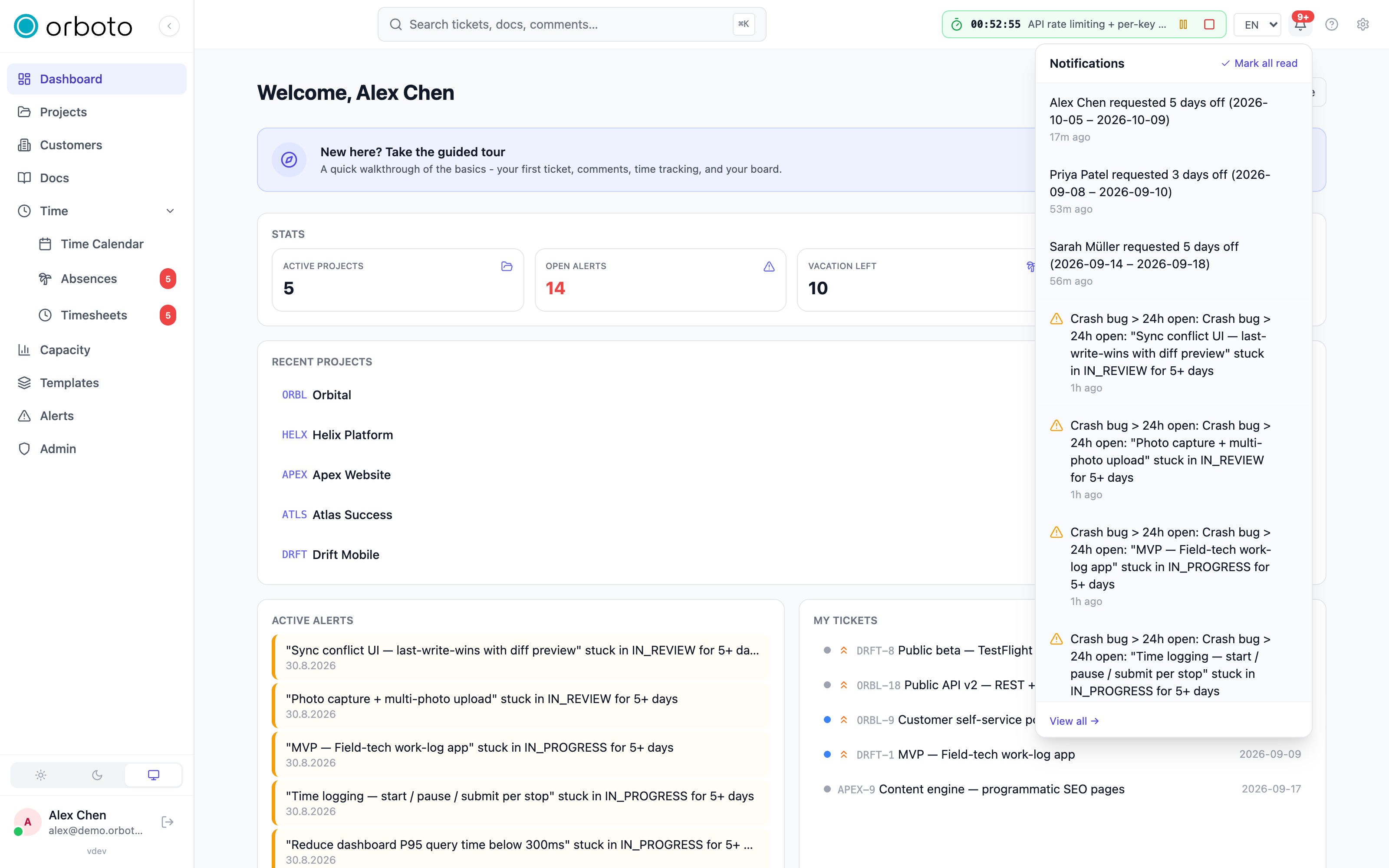
The notification bell
The bell in the top bar shows a badge when you have unread notifications. Select it for a quick list, and open the full inbox to see everything.
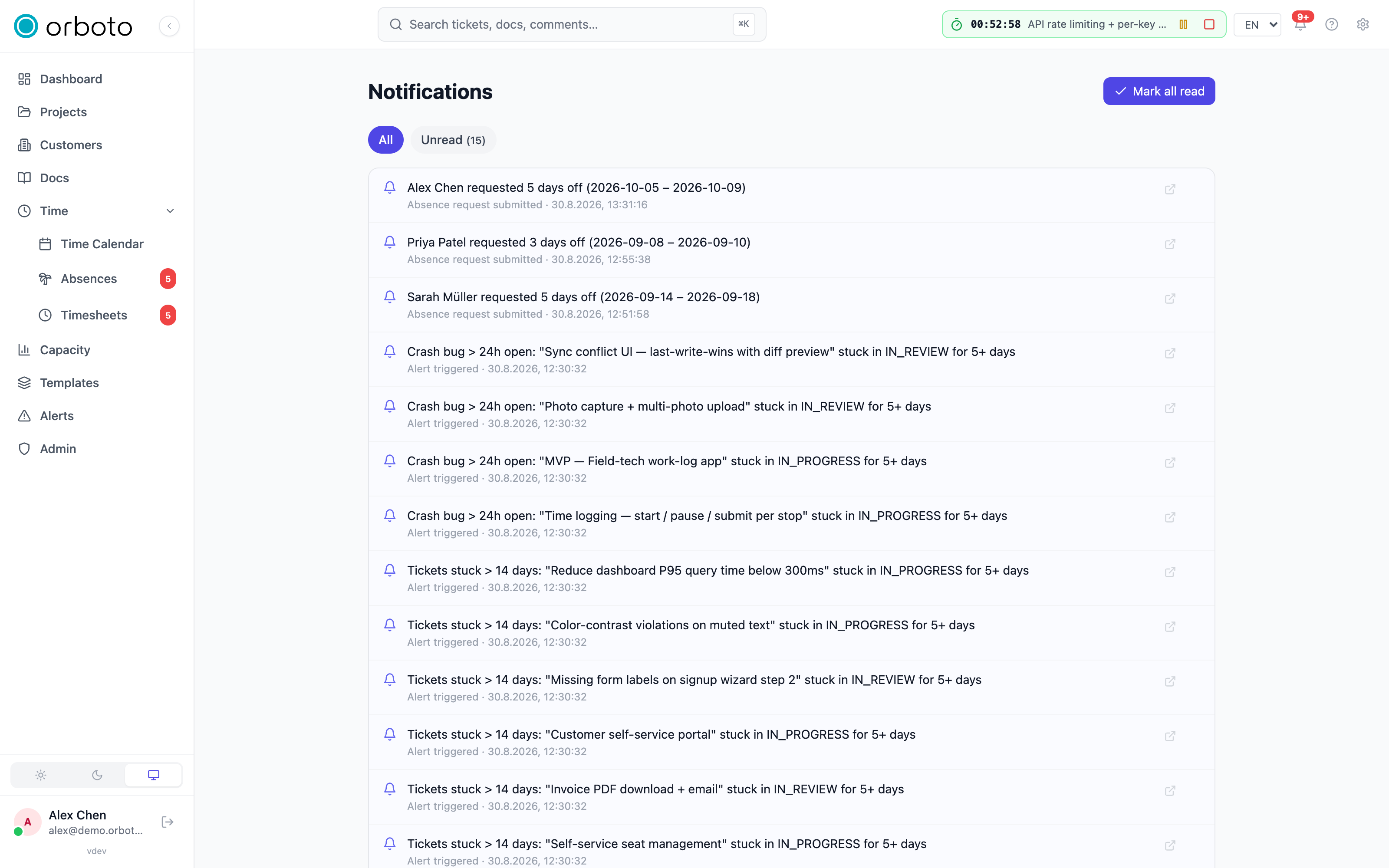
In the inbox you can:
- Read notifications and select one to jump to whatever it refers to.
- Mark as read individually or all at once.
- Filter to focus on what is unread.
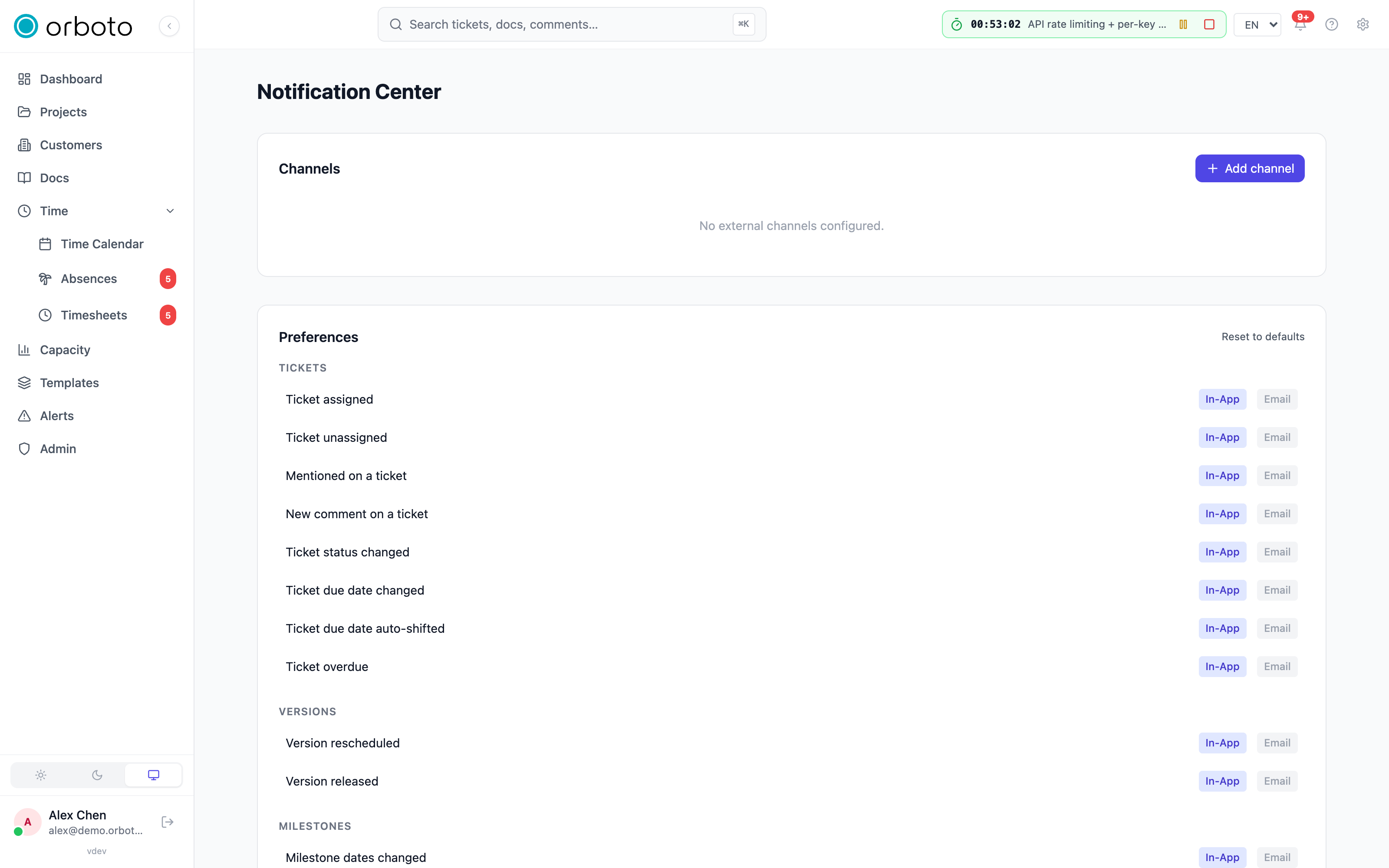
Choosing what you get notified about
Open Notification settings from the gear icon in the top bar.
Events are grouped by area - tickets (assigned, unassigned, mentioned, commented, status changed, Added in v0.212.5 status sync of a linked ticket refused, due date changed or auto-shifted, overdue), versions (rescheduled, released), milestones (dates changed), projects (member added, role changed, status changed), docs (mentioned, shared), absences (approved, rejected, submitted), timesheets (approved, rejected, submitted), and alerts (alert triggered, plus data-request deadline reminders where compliance features are on).
For each event you control delivery independently:
- In-App - shows in the bell and inbox.
- Email - sent to your account email (when email delivery is configured for the workspace).
- One toggle per connected chat channel - so a given event type can go to one channel, several, or none, without turning the channel off entirely.
Adjust each event to taste, or select Reset to defaults to start over. Sensible defaults are set for you when your account is created, so this is fine-tuning, not required setup.
Chat channels (Discord, Slack, Teams, Telegram, and webhooks)
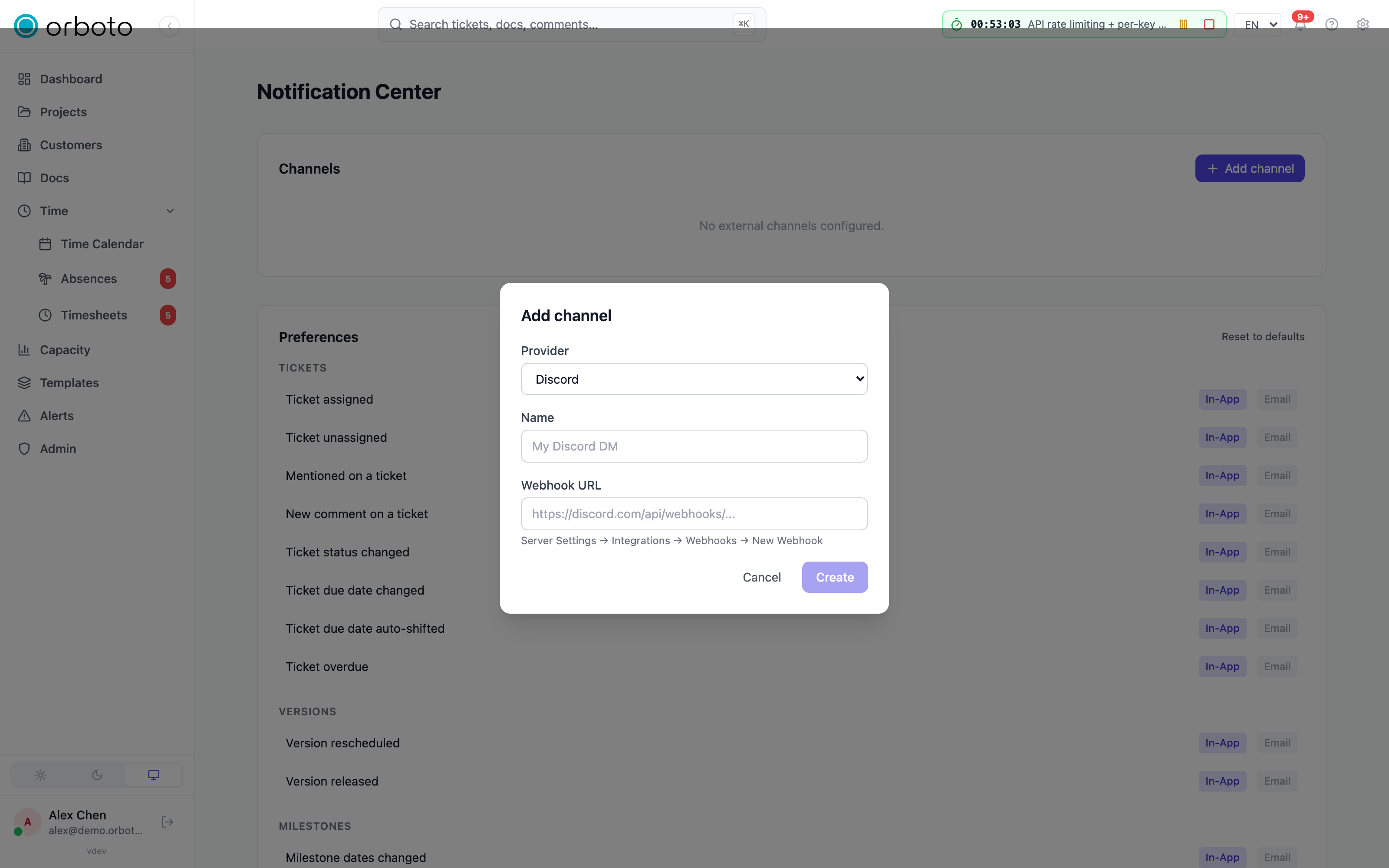
Add a channel to have notifications delivered outside the app:
- In notification settings, select Add channel.
- Choose the channel type - Discord, Slack, Microsoft Teams, Telegram, or a generic webhook - and give it a name.
- Paste what that type needs: an incoming-webhook URL for Discord, Slack, or Teams (each shows short step-by-step help for finding it); a chat ID for Telegram. A generic webhook additionally takes an optional shared secret and up to five custom HTTP headers, for wiring your own receiver.
- Save, then select Verify to send a test message - a channel stays unverified (and greyed out in the per-event chips) until it successfully receives one.
Once verified, the channel appears with a status badge and its own toggle per event type (above). Remove a channel you no longer need with the trash icon - this stops all delivery to it immediately.
Added in v0.230.0 A channel belongs to the person who added it, and you can subscribe only your own. If a request to PUT /users/me/notification-channel-subscriptions names a channel id that is not one of yours, or does not exist, it answers 404 (errors.notifications.channel_not_found) and saves nothing, not even the valid rows of the same request. Delivery follows the same rule: a notification goes only to channels of the person it is for.
The daily digest
If you prefer one summary over a stream of individual emails, turn on the daily digest email in your profile - a single once-a-day roundup of what is happening on your work.
Troubleshooting
- A channel never receives anything. Check its status - an unverified channel is excluded from delivery even if its per-event toggle is on. Select Verify again.
- I'm not getting emails. Confirm email delivery is configured for your workspace (ask an administrator) and that the specific event's Email toggle is on - each event type is independent.
- Too many notifications. Turn off the noisier event types individually rather than disabling notifications wholesale, or switch to the daily digest for a single daily summary instead of a stream.
- I broke my preferences experimenting. Select Reset to defaults at the top of the preferences section to start clean.