

AI assistant
How to use orboto's built-in AI chat assistant - context, approvals, temporary chats, and the AI features across the product.
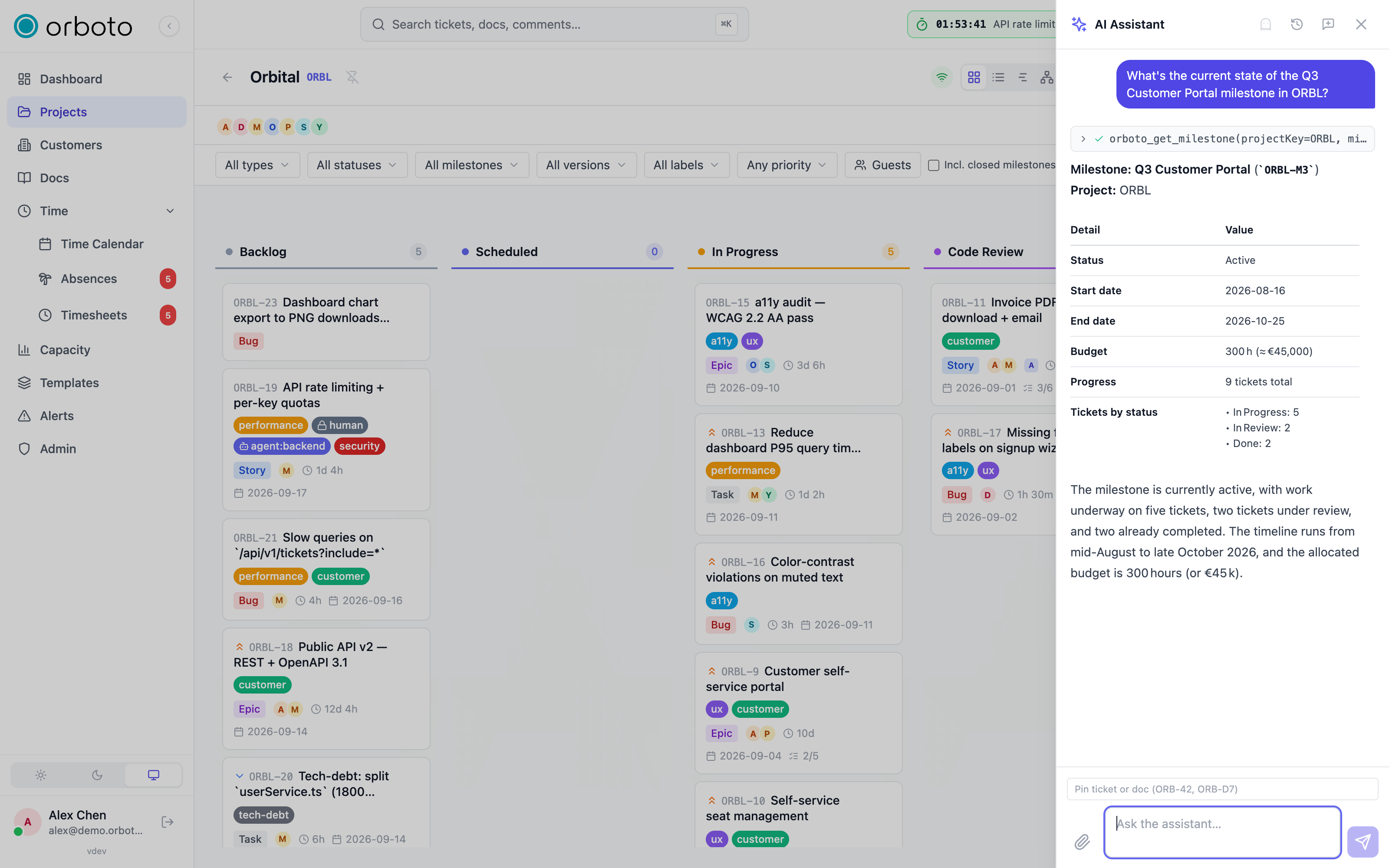
If your workspace has AI turned on and you have permission to use it, orboto includes a built-in AI assistant - a chat panel that understands your workspace and can act in it for you. Open it with the sparkle icon in the top bar or press Cmd/Ctrl + J.
The assistant only appears when both the workspace feature is enabled and your account is allowed to use it. If you do not see the sparkle icon, it has not been enabled for you.
What you can ask
Talk to it in plain language. It can, for example:
- Answer questions about your tickets, projects, and docs ("what's overdue in the release?", "summarise this ticket").
- Find things ("show me high-priority bugs assigned to me").
- Draft and make changes for you (create a ticket, add a comment, update fields, add a primer fact) - always with your confirmation.
- Take you to the right screen. Ask it to open something ("open the analytics for this project") and it navigates there for you.
How a conversation works
- Type your message and send it. The assistant streams its reply, and where it used your data it shows what it drew on.
- Start a new chat for a fresh topic (the old one stays reachable in your history), or retry the last answer to regenerate it in place.
- Select branch on any earlier turn to spin up a brand-new conversation that starts from that point - useful for exploring a different direction without losing the original thread.
- Copy any reply as plain text, or use copy as Markdown to paste it somewhere that renders formatting.
When the connection closes while it answers
Added in v0.230.0 When the connection to an answer in progress closes, the assistant stops: it makes no further model call and runs no further tool. That happens when you press Stop, start a new chat, open another conversation, reload the page or close the tab, and when your own connection drops. A step that has already started finishes. A tool that is running completes, so a change it makes is still made, and the model call in progress completes too.
The turn is saved with what it produced up to then, its text and the tools that ran. Open the conversation from your history and the turn shows that, followed by Stopped before the answer was finished. Send a follow-up message to carry on from there. A temporary chat is never saved, so there is nothing to reopen.
Closing the panel with the close button, Escape or a click outside only hides it. An answer in progress keeps streaming, and it is there when you open the panel again.
Temporary chats
Before you send your first message in a new chat, you can flip it to a temporary (ghost) chat - it stays purely in memory and is never saved to your history. Once you've sent a message the choice locks in for that conversation; start a new chat to change it again.
Giving it context
- Pin context - type a ticket or doc key (for example
ACME-42orACME-D7) into the pin field to attach it, so the assistant answers about that item specifically. You can pin more than one. - Attach a document or image (when supported by your model) so the assistant can read it as part of your question.
Approvals: nothing happens without your yes
When the assistant wants to change something rather than just read, it pauses and shows an approval card before doing anything:
- A normal write (for example creating a ticket) needs a single Approve.
- A destructive action (for example deleting something) needs a clearer, separate confirmation - you have to type the exact ticket key to confirm before the button unlocks.
You can always cancel instead. This keeps you in control - the assistant proposes, you decide.
Model choice
Where your workspace offers more than one AI model, a model selector (from the models your administrator has allow-listed) lets you pick which one answers this conversation, or leave it on the default.
The AI features built into the product
Beyond the chat panel, AI shows up throughout orboto (all optional, all gated on your workspace's settings):
- On a ticket - summarise, suggest a title, labels, or priority, estimate effort, split a big ticket, and ask questions about it. See Projects and tickets.
- In search - describe what you want in plain language. See Search.
- In docs - ask questions answered from your documentation. See Docs and wiki.
- Duplicate and related detection - orboto flags likely duplicates and related tickets as you work.
- Daily digest - an optional AI-written summary of your day.
- Retrospectives - AI-assisted summaries of what happened in a milestone.
- Requirements documents - an AI-written executive summary and content translation, plus assistant-captured project facts. See Requirements documents and reports.
Troubleshooting
- The sparkle icon is missing. AI needs to be enabled for the workspace AND for your account specifically - ask a workspace administrator.
- An approval card won't let me confirm. For a destructive action, the confirm field only unlocks once you type the exact ticket key shown on the card - a partial or mistyped key stays disabled.
- A conversation ends with "Stopped before the answer was finished." Added in v0.230.0 The connection to the answer closed while the assistant was working: you stopped it, switched conversation, reloaded or lost your connection. Everything it produced up to then is kept. Ask again, or tell it to continue.
- I can't find an old conversation. Check whether it was a temporary chat - those are never saved. Closing the panel keeps one, but starting a new chat, opening another conversation or reloading the page discards it for good.
- The assistant's answer looks out of date. Pin the specific ticket, project, or doc you're asking about so it reads current data rather than relying on general context.
Customers and guests
How to organise external customer relationships and control exactly what guest users can see.
AI features
Every AI capability outside the chat assistant - ticket summaries, duplicate detection, related tickets, effort estimates, natural-language search, retrospectives, the daily digest, and translation.