

AI features
Every AI capability outside the chat assistant - ticket summaries, duplicate detection, related tickets, effort estimates, natural-language search, retrospectives, the daily digest, and translation.
The AI assistant is orboto's chat panel, but most of orboto's AI is not a chat at all - it is small, focused helpers built directly into the screens you already use. This page is the full reference for those: what each one does, exactly where to find it, and how to use it.
Every capability on this page needs an AI provider configured for your workspace, and needs to be turned on. If none of this appears for you, ask your administrator to check Admin → AI settings (see AI providers and models). Some capabilities (semantic search, related tickets) additionally need embeddings configured - the same admin page shows whether that is on.
Ticket summaries
What it is. A short, plain-language recap of a ticket - its description plus the discussion in its comments - so you can catch up without reading everything.
Where it appears. Open any ticket and use Summarize from the ticket's AI actions menu (the sparkle icon in the ticket header).
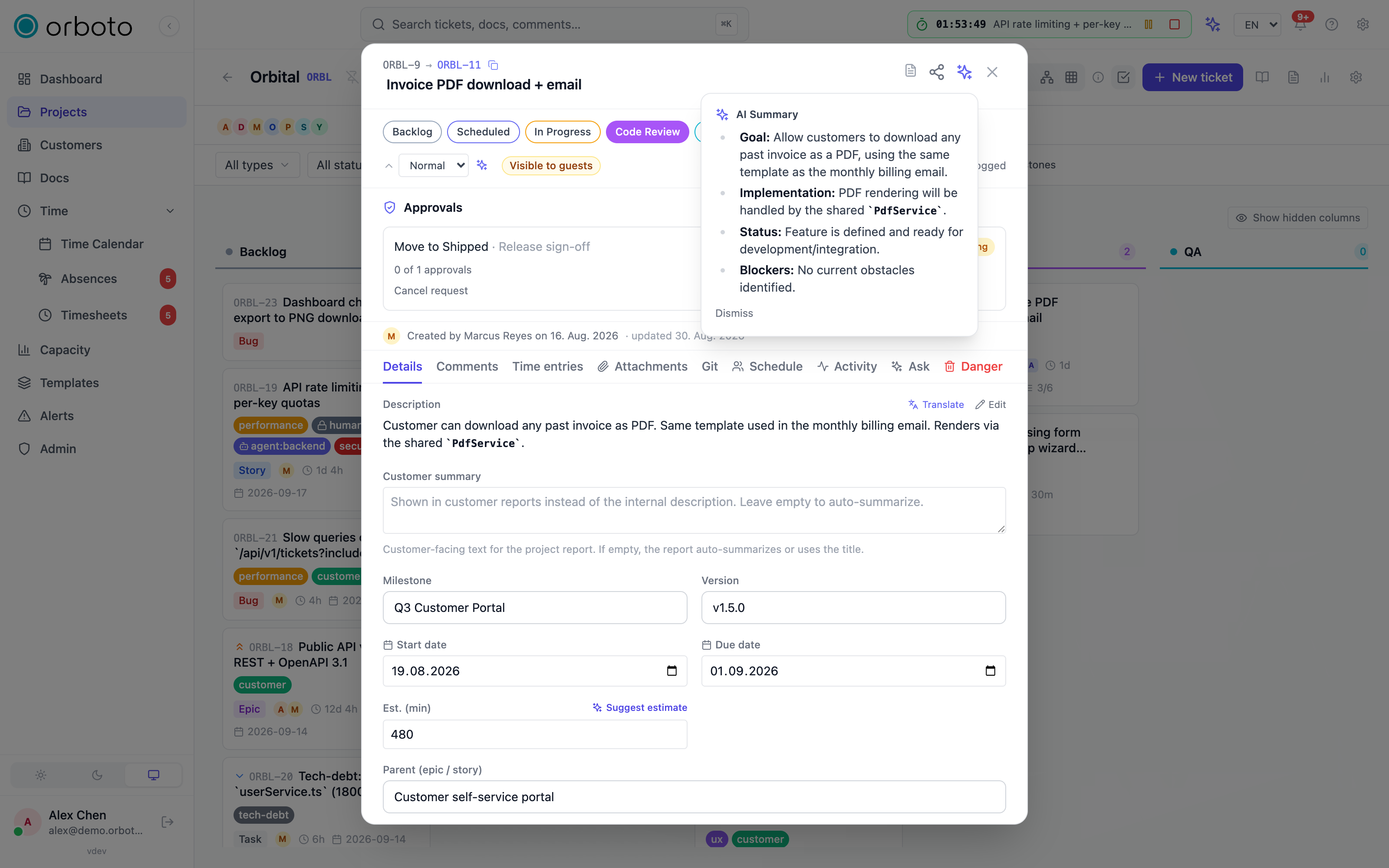
How to use it. Select it, wait a moment while orboto reads the ticket, and a summary appears in place. It is generated fresh each time you ask - nothing is stored automatically. The same summarizer works for docs and whole projects wherever a Summarize action appears.
Ticket summaries sit alongside the ticket's other AI actions (suggest a title, labels, priority, split into sub-tickets, and ask a question about the ticket) - see AI actions on a ticket for the full set.
Duplicate detection while creating a ticket
What it is. As you type a new ticket, orboto quietly checks whether something very similar already exists, so you do not accidentally file the same bug or task twice.
Where it appears. The new ticket form, right above the title field, once your title is at least 8 characters long.
How it works. About half a second after you stop typing, orboto searches the project for close matches on your title and description. If it finds any, an amber banner appears:
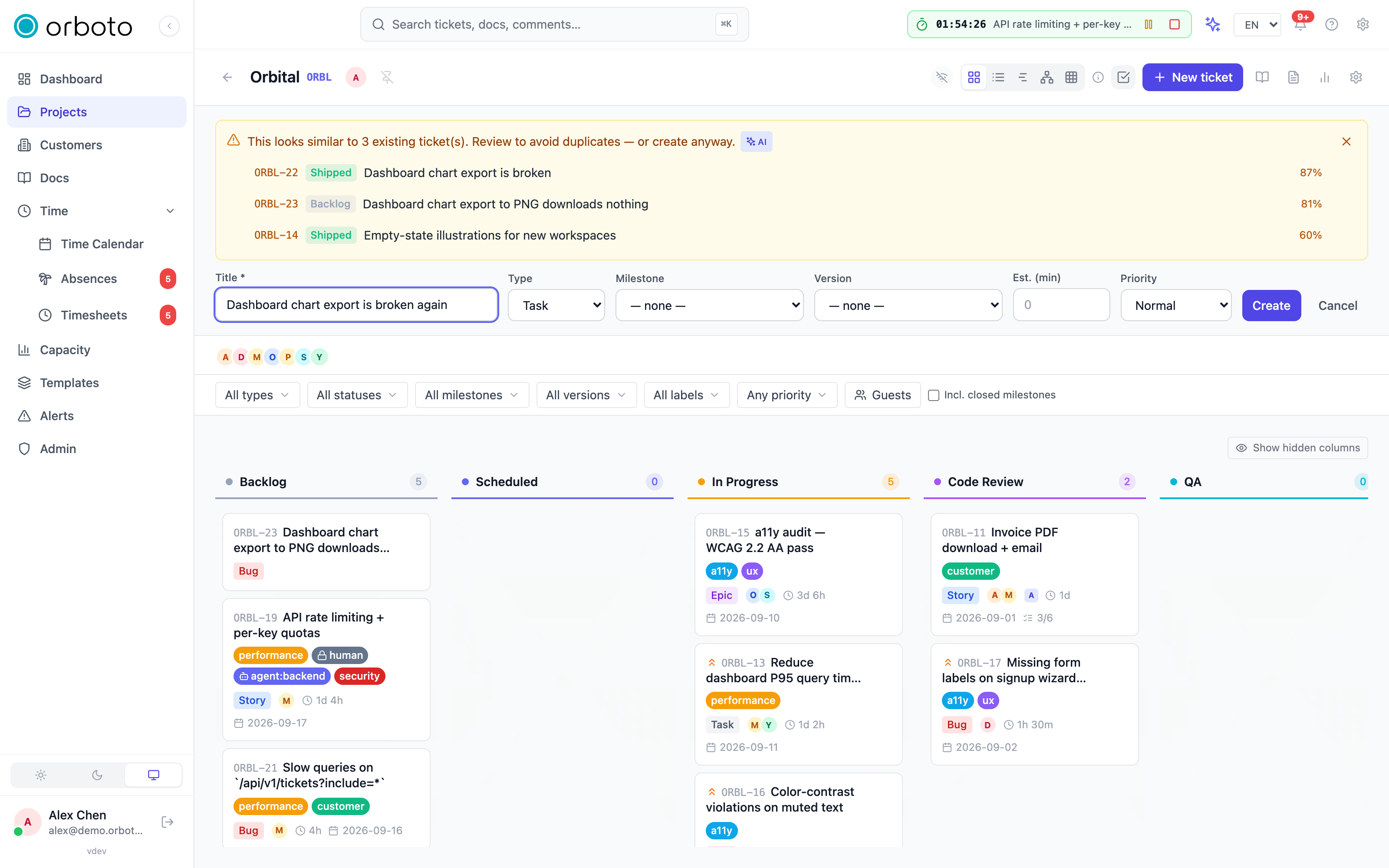
- Up to three candidates are listed, each with its ticket key, current status, and a similarity percentage.
- A small AI badge on the banner means the match came from semantic understanding (comparing meaning, not just shared words) rather than plain keyword overlap - semantic matching needs embeddings configured on your workspace.
- Select a candidate to open it instead of creating a new ticket.
- Select the × to dismiss the banner for this attempt - it reappears if you materially change the title again.
This warning is advisory: dismissing it and creating the ticket anyway is always allowed for a normal user. Some workspaces additionally configure a hard block that refuses the create outright above a very high similarity score - if you hit that, see Troubleshooting below.
Overlapping content inside an existing ticket
A related, second check runs on a ticket you already have open: if a paragraph in its description closely matches a paragraph in another ticket's description, a banner reports how many tickets and paragraph matches were found. Expand Show details to see each matching paragraph side by side with its source, or dismiss the banner if the overlap is intentional (for example, a checklist template repeated on purpose).
Related-ticket suggestions
What it is. A live list of other tickets in the same project that are about a similar topic to the one you are looking at - useful for finding prior work, a root cause, or something you should link before you start.
Where it appears. A Related tickets panel in the ticket detail view, below the main fields.
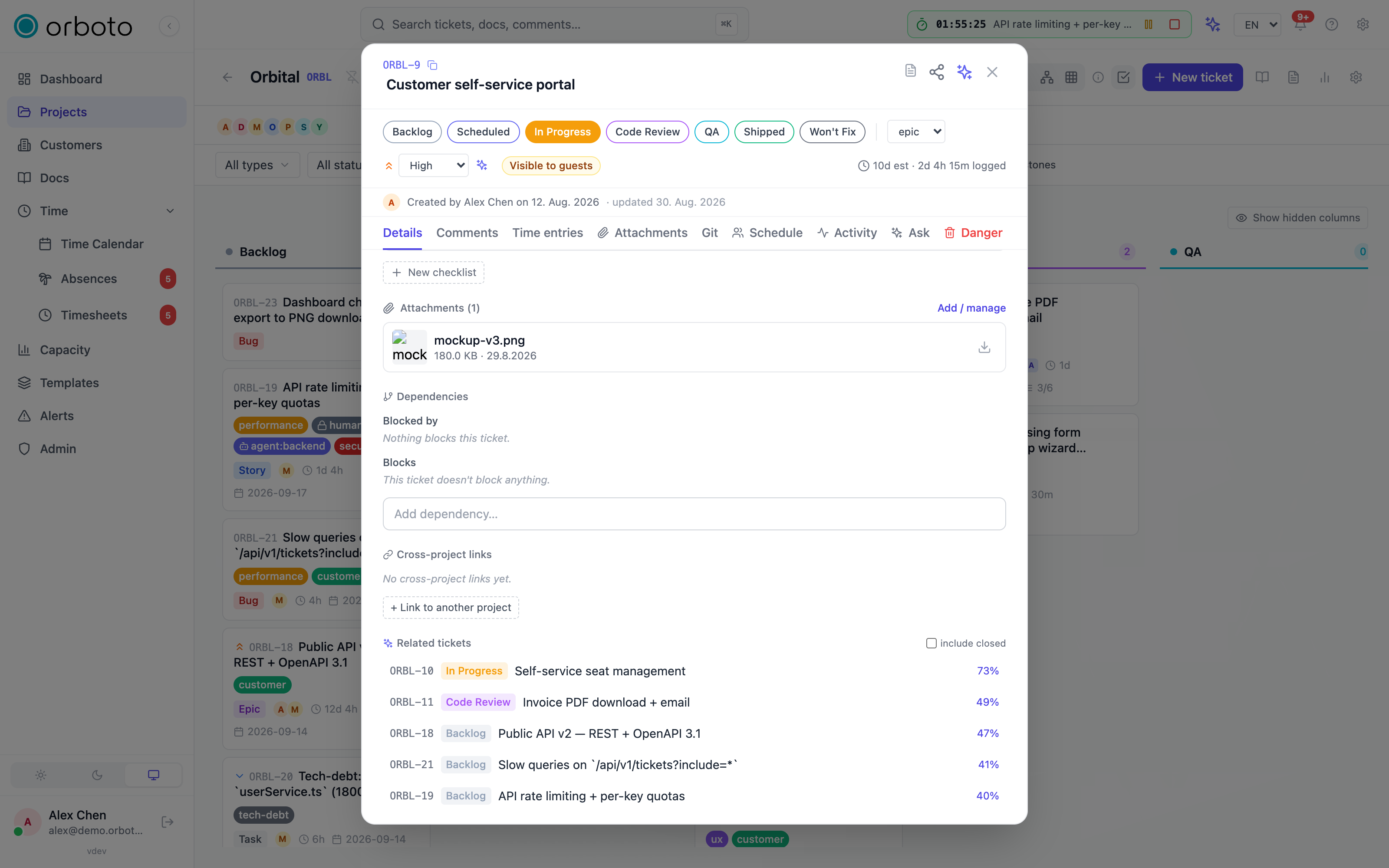
How to use it. The panel lists up to five related tickets with their status and a similarity percentage, most-similar first. Tick include closed to also see closed tickets (useful for "has this been solved before?"). Select any entry to open it. If your workspace has no embeddings configured yet, this panel does not appear - it needs semantic matching to work, not just keyword overlap.
Effort estimation
What it is. A suggested time estimate for a ticket, based on how long genuinely similar tickets took to close in the past - not a guess, a comparison.
Where it appears. The Suggest estimate button in the ticket detail panel's sidebar.
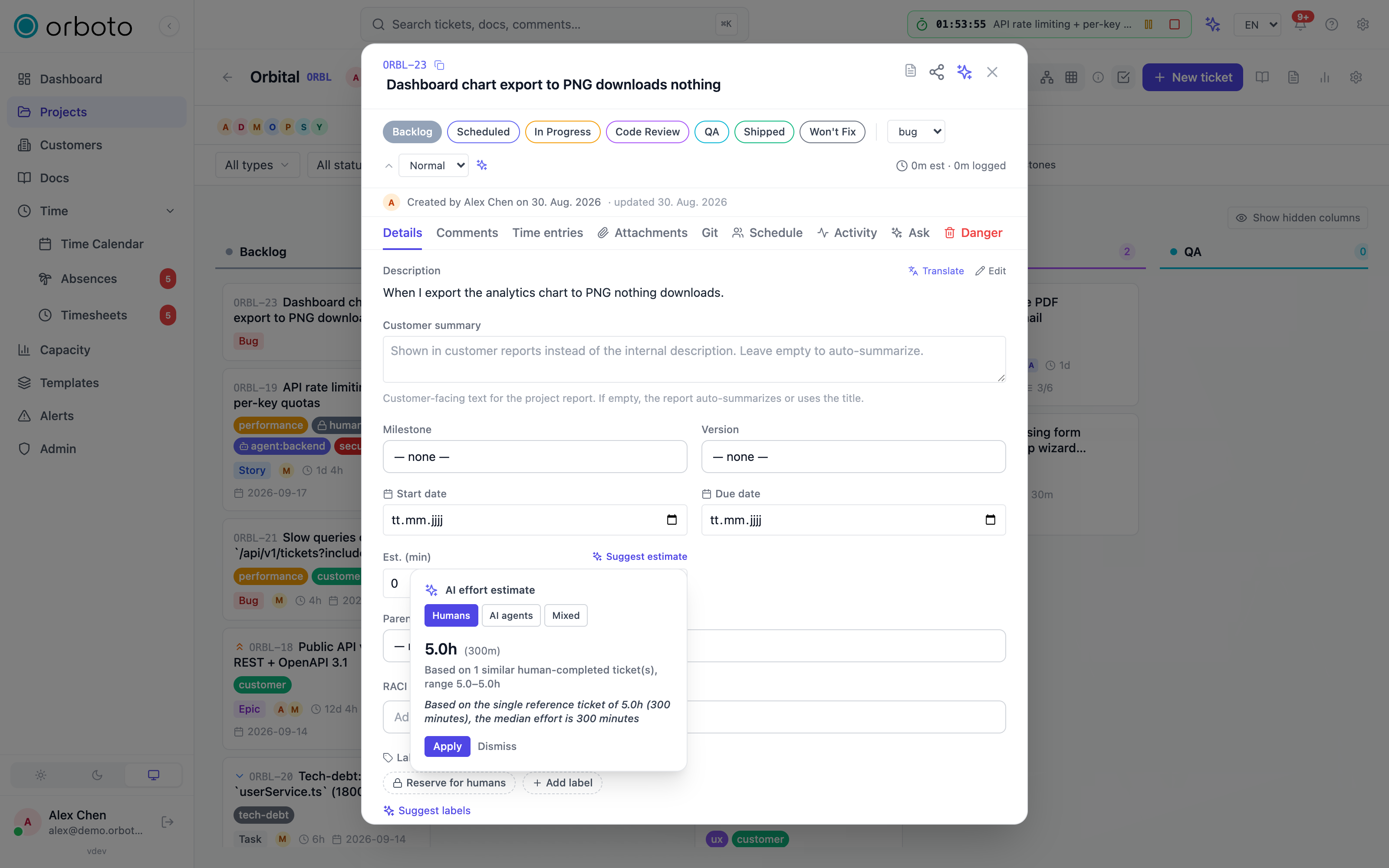
How to use it.
- Select Suggest estimate.
- Pick which population of past tickets to compare against: human-completed, bot-completed, or mixed. Bots and humans often work at very different speeds, so mixing them can skew the number - pick the pool that matches who will actually do this ticket.
- orboto returns an estimate in hours, a plausible range, a short rationale, and how many historical tickets it drew on.
- Select Apply to write the suggested value into the ticket's estimate field, or dismiss it and set your own.
If very few comparable tickets exist yet, the estimate is based on a small sample - the "based on N tickets" line tells you exactly how much evidence backed the number, so you can judge how much to trust it.
Natural-language search
Search also has an AI mode: describe what you want in plain words (for example "high priority bugs assigned to me that are overdue") instead of clicking through filters, and orboto turns it into the right query.
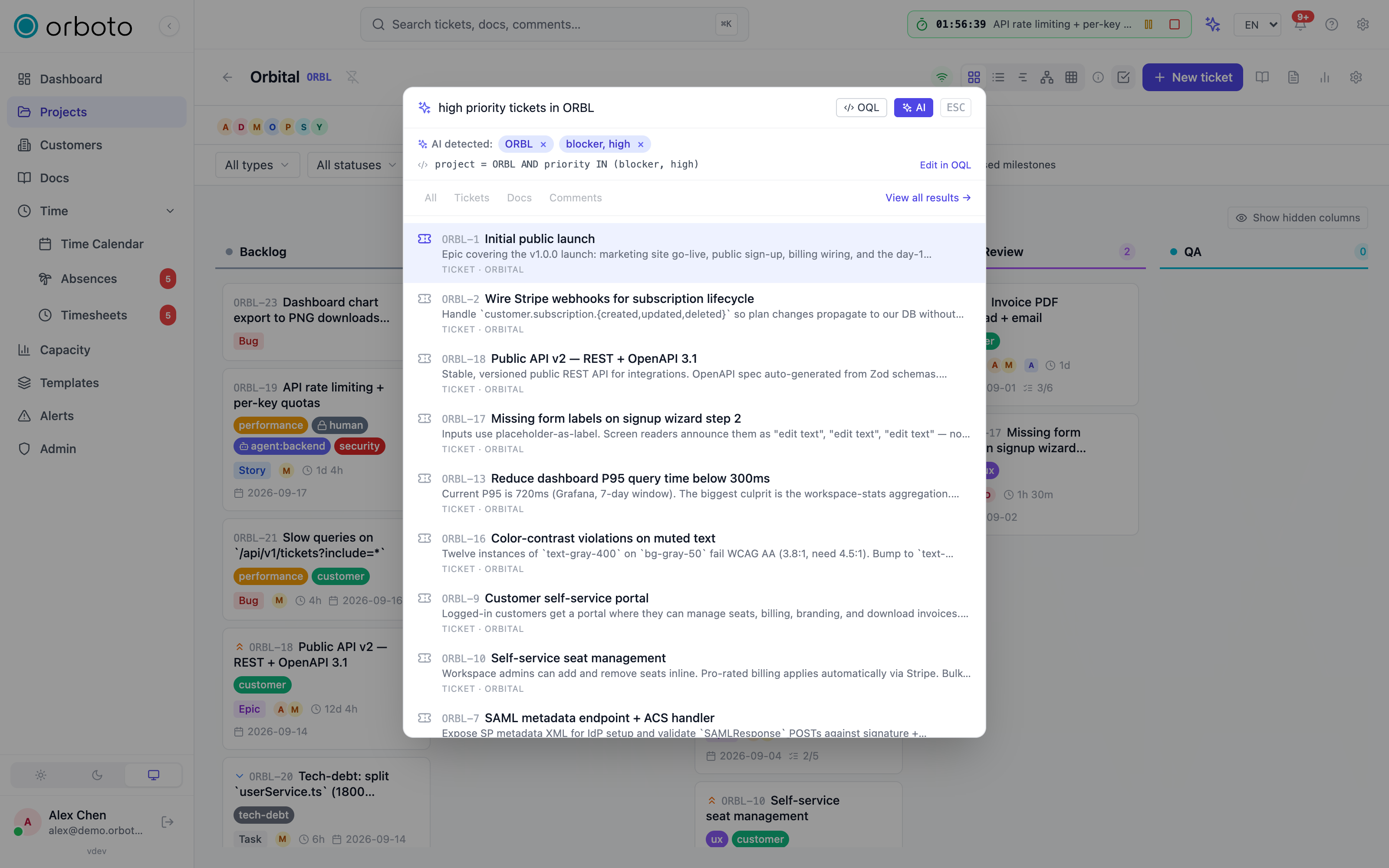 This is covered in full, including how the detected filters and fallback behaviour work, on the Search page.
Retrospective generation
What it is. An AI-written retrospective document for a milestone you just closed: what shipped, what took longer than planned, and any risk signals that fired along the way - with every claim traceable back to a real ticket.
Where it appears. Open a milestone's group actions and select Generate retro.
How to use it.
- Select Generate retro on a milestone.
- orboto gathers the milestone's tickets, logged time, and any alerts that fired during it, and asks the model to write a structured summary in four sections. Every ticket the retro refers to is cited inline with its ticket key, so you can verify any claim against the real ticket.
- Review the result. Copy markdown to paste it elsewhere, or save it directly as a page in a documentation space so the retrospective becomes part of your project's history.
The daily digest
What it is. An optional once-a-day email that summarises what changed on the tickets you care about - assignments, status moves, and new comments - written up by AI instead of listing raw events.
Where you turn it on. Your profile has a Daily digest email checkbox, off by default. Once on, you get a short email most mornings (around 07:00 UTC) covering the last 24 hours of activity on tickets you are assigned to or created - nothing from projects you are not part of.
If nothing relevant happened in that window, no email is sent that day - the digest never arrives empty just to remind you it exists. The digest is one of several notification delivery options; see Notifications for how it fits alongside the notification bell, per-event email, and chat channels. An administrator can customise its subject and wording from the email template editor if your workspace wants a different tone.
Content translation for readers
orboto can translate content on the spot so people reading in a different language get something they can actually understand, in two places:
While writing. Select any text inside a ticket description, a comment, or a doc page and a small floating toolbar appears. Choose Translate, then pick a target language from the list (English, German, French, Spanish, Italian, Portuguese, Dutch, Polish, Swedish, Japanese, Chinese, Korean, Russian, Turkish). orboto shows your original text and the translation side by side - Accept to replace the selection with the translated version, or discard it and keep your original wording. The same floating toolbar also offers Improve, Shorten, Lengthen, and Fix grammar, if you want AI help with wording rather than language.
Keeping a workspace's language consistent. If your workspace expects tickets in one language and you (or someone else) writes one in a different language, an advisory notice appears on that ticket naming the language it detected and the language expected. Where you have permission to edit the ticket, a one-click Translate action on that notice rewrites the title and description into the expected language for you - useful for keeping a shared project readable for the whole team, not just for you.
Generated documents have their own, separate translation option - see Requirements documents and reports for translating a whole generated report into another language.
Troubleshooting
- I don't see any AI actions anywhere. AI needs to be configured and enabled for your workspace - ask an administrator to check Admin → AI settings. If AI is on generally but one specific feature (related tickets, semantic duplicate matching) is missing, that feature specifically needs embeddings, which is a separate toggle from chat.
- Creating a ticket was refused with a duplicate error instead of just warned. Your workspace has the stricter duplicate guardrail turned on, which refuses a create above a very high similarity score instead of only warning. Change the title or description so it is clearly distinct from the existing ticket, or open and update the existing one instead.
- The Related tickets panel never shows anything. It needs embeddings configured on your workspace, and it needs the ticket itself to have been processed into an embedding yet - a ticket created moments ago may not have one until the background worker catches up.
- My daily digest never arrives. Confirm the checkbox is on in your profile, and remember it only sends when there was actual activity on your tickets in the last 24 hours - a quiet day means no email.
- The estimate looks way off. Check which audience pool you compared against (human vs bot vs mixed) and how many tickets it was based on - a low count or the wrong pool both produce a less reliable number.