

Your dashboard
How to customise your dashboard's widgets and what each one shows.
The Dashboard is the first screen you see after signing in. It is your personal home page - a grid of widgets, each showing one slice of what matters to you right now. You can choose which widgets appear and rearrange them; your layout is saved to your account and follows you to any device.
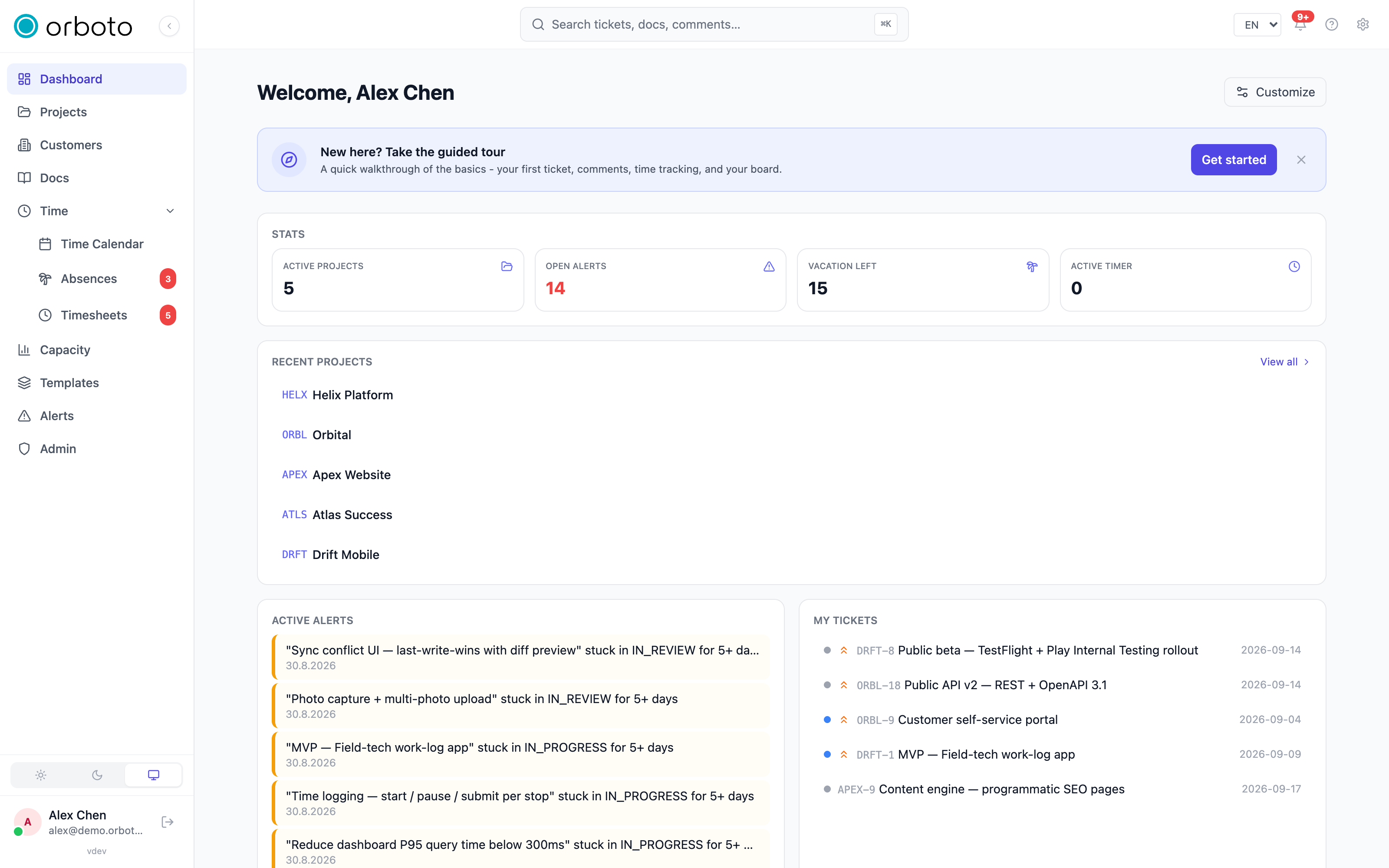
What the widgets show
Depending on what your administrator has enabled and what you add, widgets can include:
- Stat cards - four headline numbers: active projects, open alerts, remaining vacation days this year, and whether you have a running timer. Each one links to the matching page.
- My tickets - tickets assigned to you, sorted with blockers and high priority first, each showing status, priority, and due date.
- Blocked tickets - the same view narrowed to tickets that aren't moving.
- Upcoming deadlines - tickets with a due date coming up, labelled by working days remaining (for example "2 working days" or "3d overdue"), not calendar days.
- Project progress - a chosen project's completion, configurable per widget.
- Recent activity - the latest changes across your projects.
- Recent projects - the projects you opened most recently, with a "view all" shortcut.
- Interesting tickets - tickets the system thinks deserve your attention, based on similarity to your recent work.
- Active alerts - warnings currently firing (see Planning and alerts).
- Time today - how much time you have logged today against your goal.
- Absence summary and Team availability - who is off and who is free.
- Custom saved search - the live results of a search you saved, with a dropdown right on the widget to switch which saved search it shows.
Some widgets (federation status, primer health, and an agent-drift widget) only appear for administrators or in workspaces that use those features.
Customising your dashboard
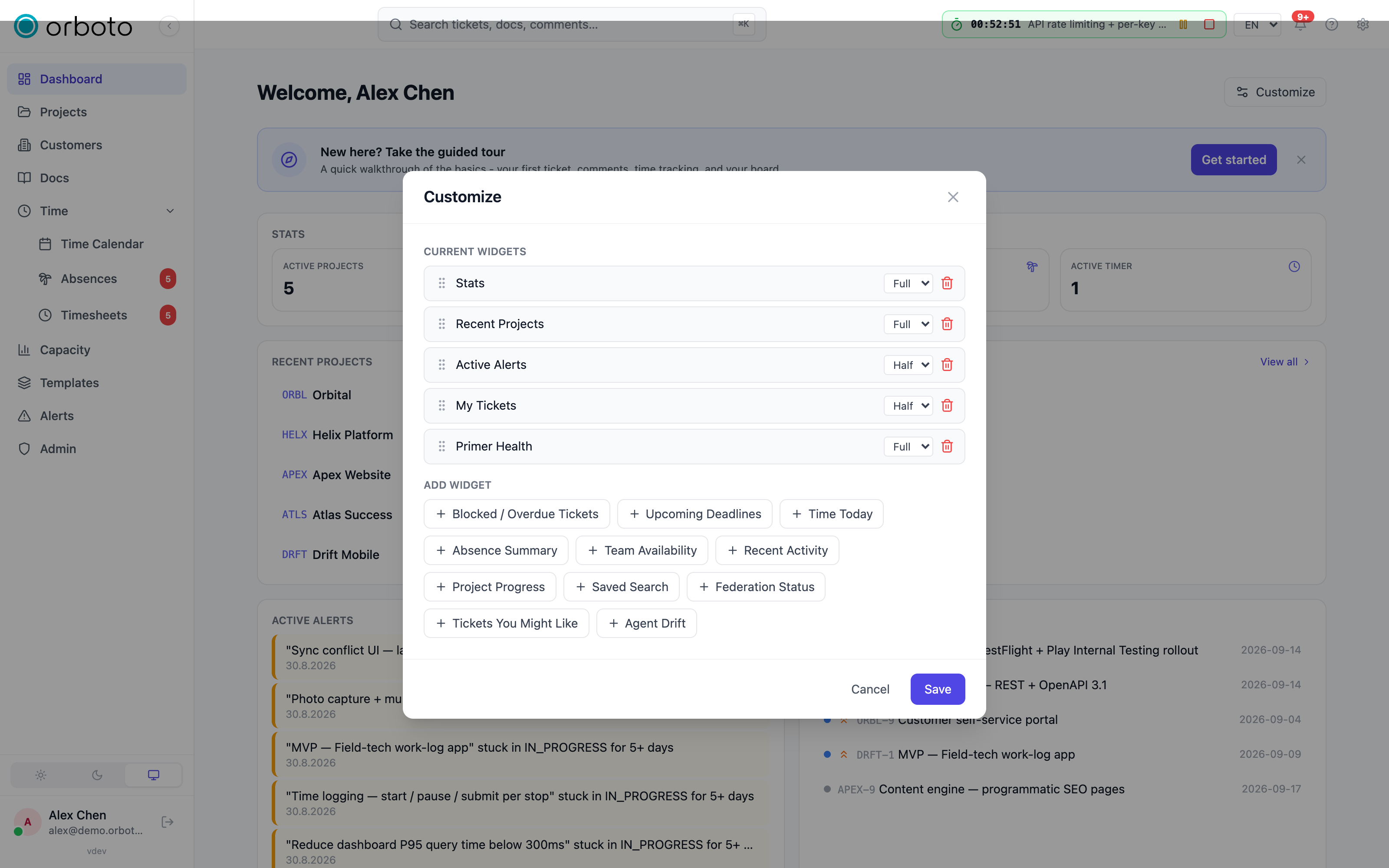
- Select Customise in the dashboard header.
- Add a widget from the catalogue of available types (each type can only be added once).
- Drag a widget by its handle to reorder it - or remove it with the trash icon.
- Set each widget's size to Half or Full width using its dropdown.
- Select Save. Your layout persists to your account immediately.
If saving fails (for example, a connection hiccup), your changes stay in the dialog so you can retry - nothing is lost silently.
Pinning a saved search as a widget
If you often re-run the same search, put its live results on your dashboard:
- Create and save a search first (see Search).
- Add a Custom saved search widget to your dashboard.
- Use the dropdown on the widget itself to point it at the saved search you want - it always shows current matches, no separate configuration screen needed.
Guests see a simpler dashboard
If you are an external or guest user, your home screen is a focused list of just the projects and doc spaces that have been shared with you, rather than the full widget grid. See Customers and guests.
Troubleshooting
- A widget I want isn't in the "add" list. Each widget type can only be added once - if it's already on your dashboard, add it isn't offered again; remove the existing one first if you want to re-add it with different settings.
- A widget shows a blank or "unknown" card. This can happen if a widget type your workspace no longer supports is still saved in your layout - remove it from Customise.
- My saved-search widget shows no results. Confirm the underlying saved search still returns matches on the full search page - the widget mirrors it exactly.
- I don't see the federation, primer-health, or agent widgets. These are operator-facing and only shown to super-admins or users with the matching admin permission.