

Doc spaces
How to create, organise, and manage the spaces that hold orboto's documentation pages - settings, visibility, moving pages, and duplicating a whole space.
A space is the container for documentation pages in orboto - a folder of related pages shown as a tree, covered from the reading and writing side in Docs and wiki. This page is about the space itself: finding and creating spaces, their settings, and managing them as they grow.
The space list
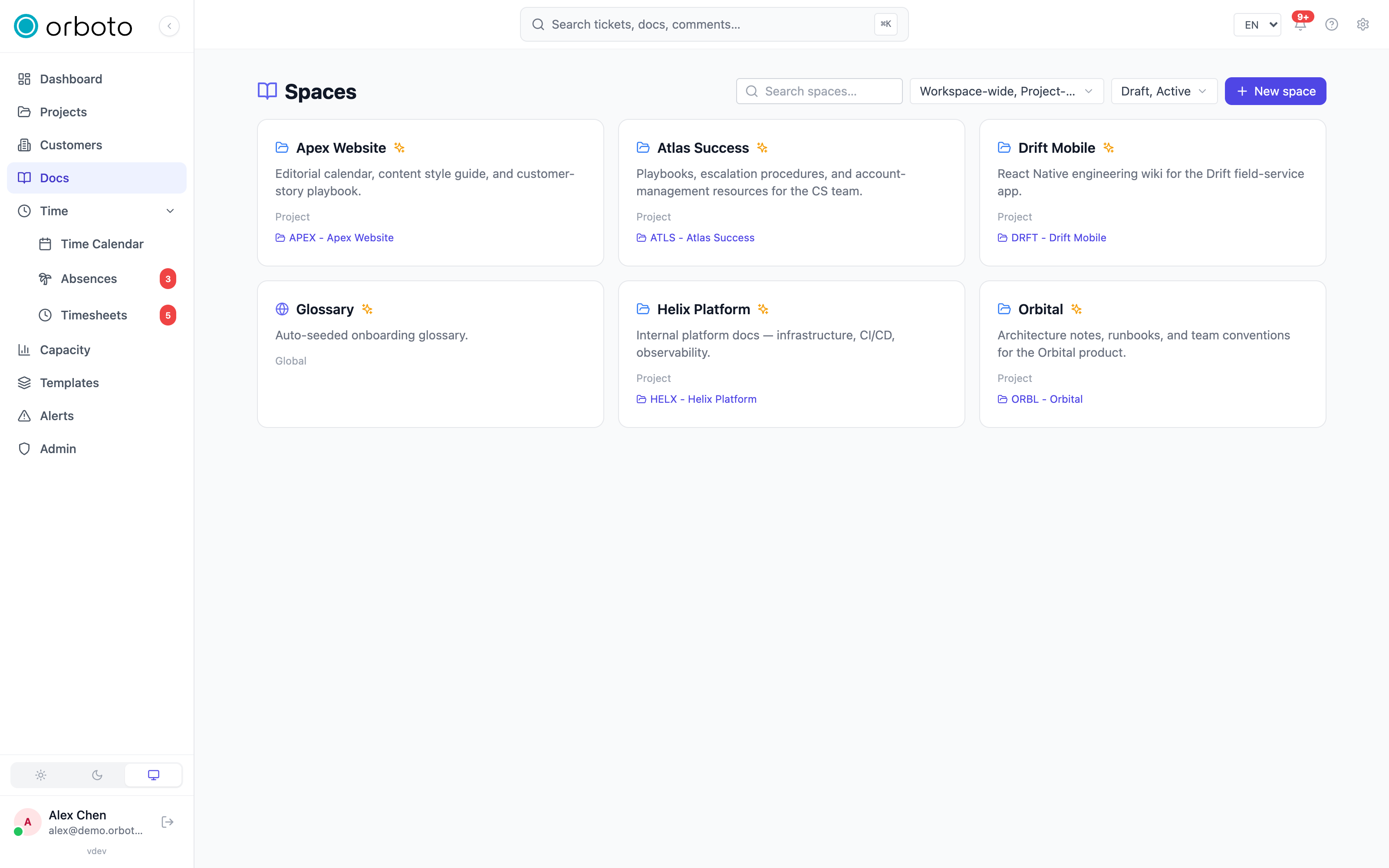
Open Docs in the sidebar to see every space you have access to.
- Each card shows the space's name, description, and a globe icon (global, visible workspace-wide) or folder icon (project-scoped, linked to one project). A project-scoped card also names its owning project.
- Search narrows the list by name or description as you type.
- Two filters sit next to the search box: scope (global / project-scoped) and, for project-scoped spaces, the owning project's status (draft, active, archived, closed) - archived and closed projects' spaces are hidden by default so old work doesn't clutter the list, and you opt back in by ticking their status.
- A summary line ("Showing 6 of 9 spaces") appears whenever a filter is hiding something, so it is never a silent gap.
- Select the pin icon on a card (visible on hover, or always for a space you have already pinned) to pin it to your sidebar - a pinned space stays one click away under the sidebar's wiki section instead of requiring a trip back to this list.
Creating a space
- Select New space. This is only available if you belong to at least one project (or are a super-admin) and are not an external/guest account - documentation authorship is an internal-team activity.
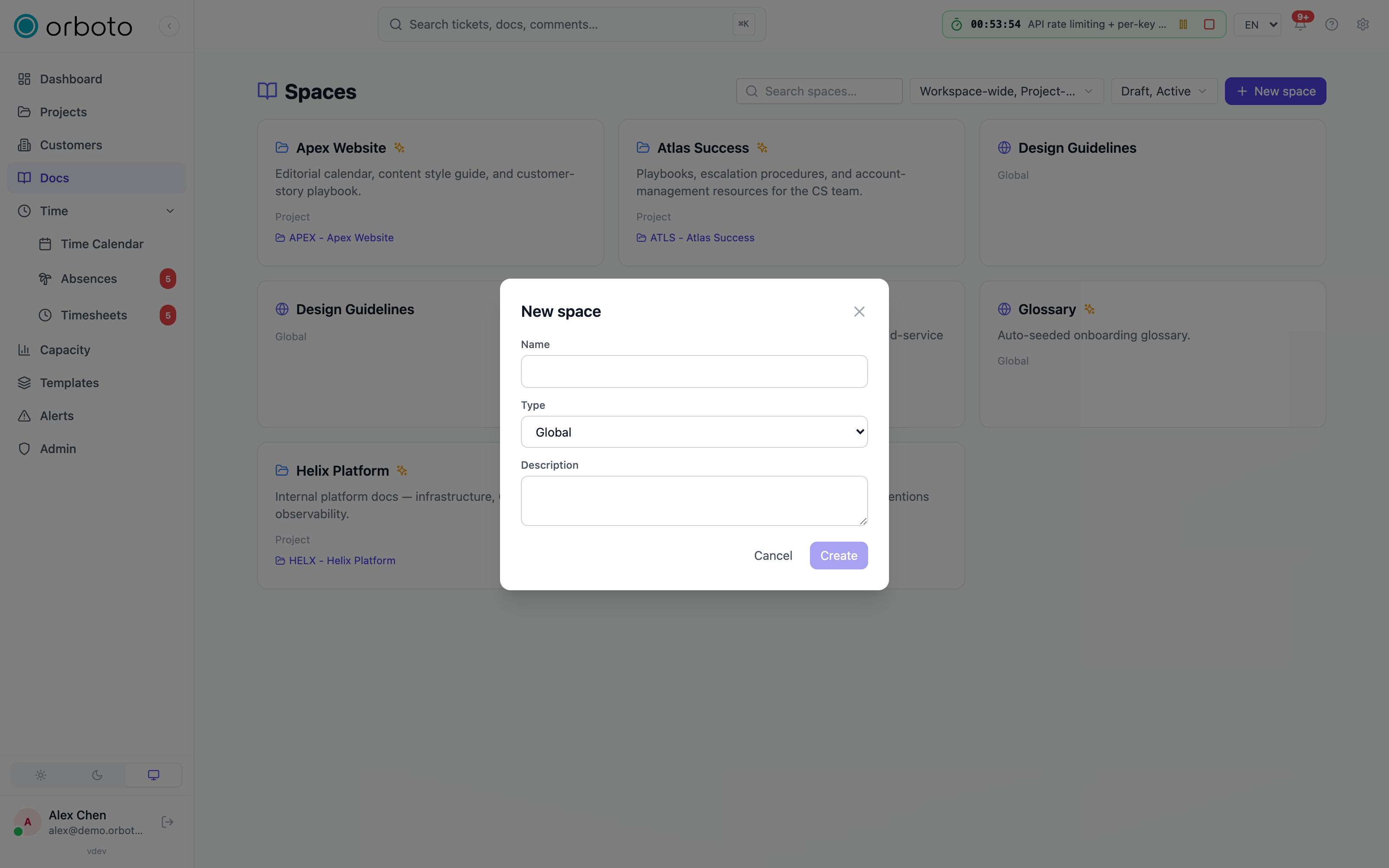
- Give it a name.
- Choose its type:
- Global - visible workspace-wide, not tied to any one project. Use this for company-wide references: onboarding, policies, cross-team runbooks.
- Project - linked to a specific project. Pick the project from the dropdown that appears. The space's page header will link back to that project, and it is the natural home for anything specific to that piece of work.
- Add an optional description - it shows on the space's card and helps people scanning the list know what they will find inside.
- Select Create.
Editing a space
Open the 3-dot menu on a space's card and select Edit to change its name and description at any time. A space whose name is auto-managed (see Auto-generated spaces below) only lets you edit the description - its name stays in sync with the project.
Visibility and who can see a space
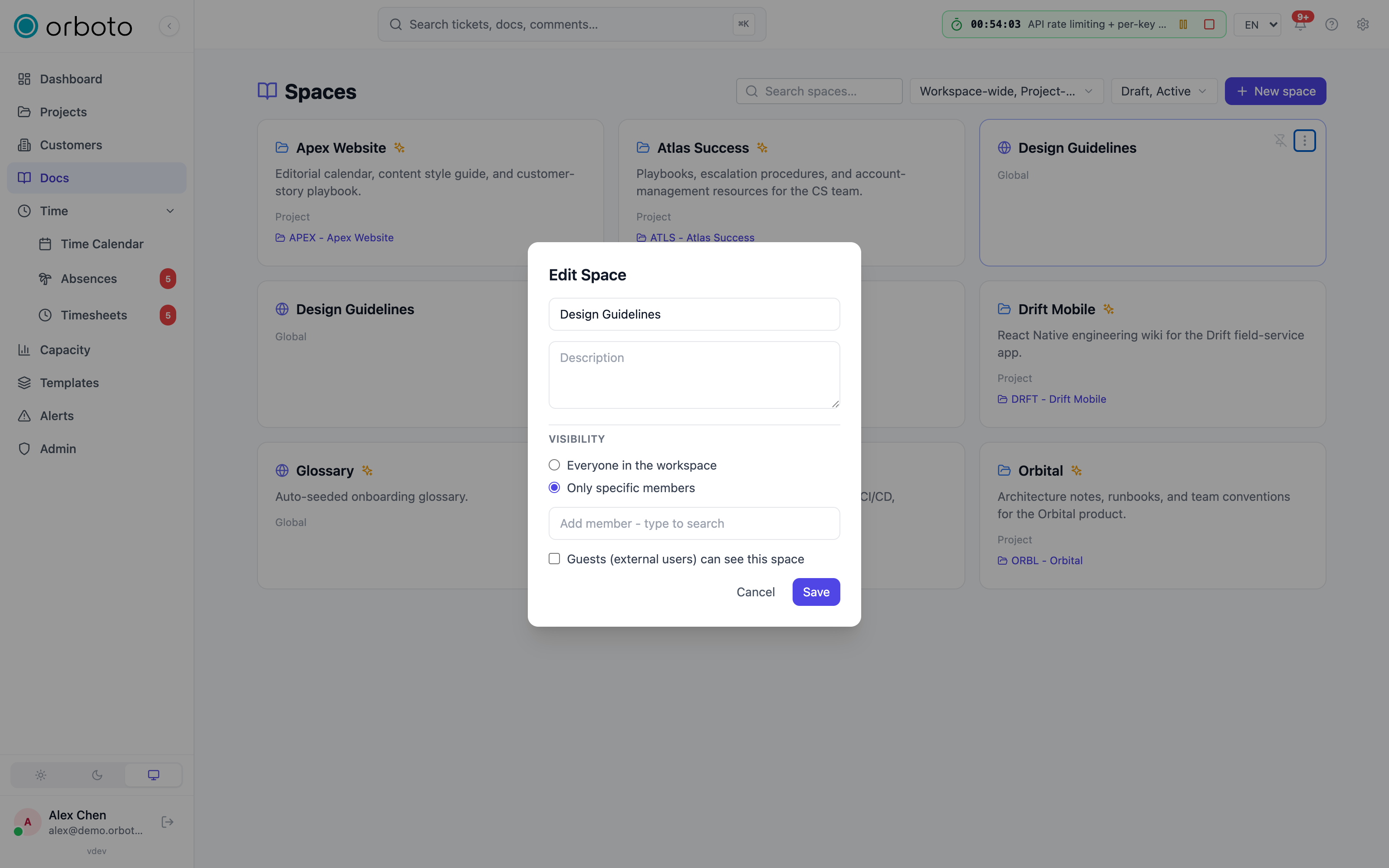
If you can manage a space (you are a super-admin, or you hold edit rights on its owning project), the edit dialog also has a visibility section:
- Everyone in the workspace - any signed-in internal member can see the space, regardless of project membership.
- Project members (project-scoped spaces only) - visible to people who are members of the owning project, with document access according to their role.
- Only specific members - a hand-picked list. Choosing this reveals a search box: type a name to find and add someone, and remove anyone with the × on their chip. A restricted space starts visible only to whoever manages it until you add members.
- Guests (external users) can see this space - a separate checkbox. Leave it off to keep a space internal-only even when its visibility would otherwise let a guest see it.
Without manage rights, the edit dialog only offers the name and description - visibility stays whatever a manager last set.
Organising pages inside a space
Inside a space, open it to see its page tree. Create pages, nest them under one another, and reorder them by dragging - the full page-level workflow (creating pages, smart links, comments, revisions, sharing, importing content) is covered in Docs and wiki.
Dragging in the tree reorders and reparents pages within the same space. There is currently no button to relocate a single page into a different space from the tree - if you want a page's content to live in another space instead, the practical route is to duplicate the whole space if you are moving a lot of it, or open the page's copy as Markdown action and paste the content into a new page in the target space for a single page.
Duplicating a space
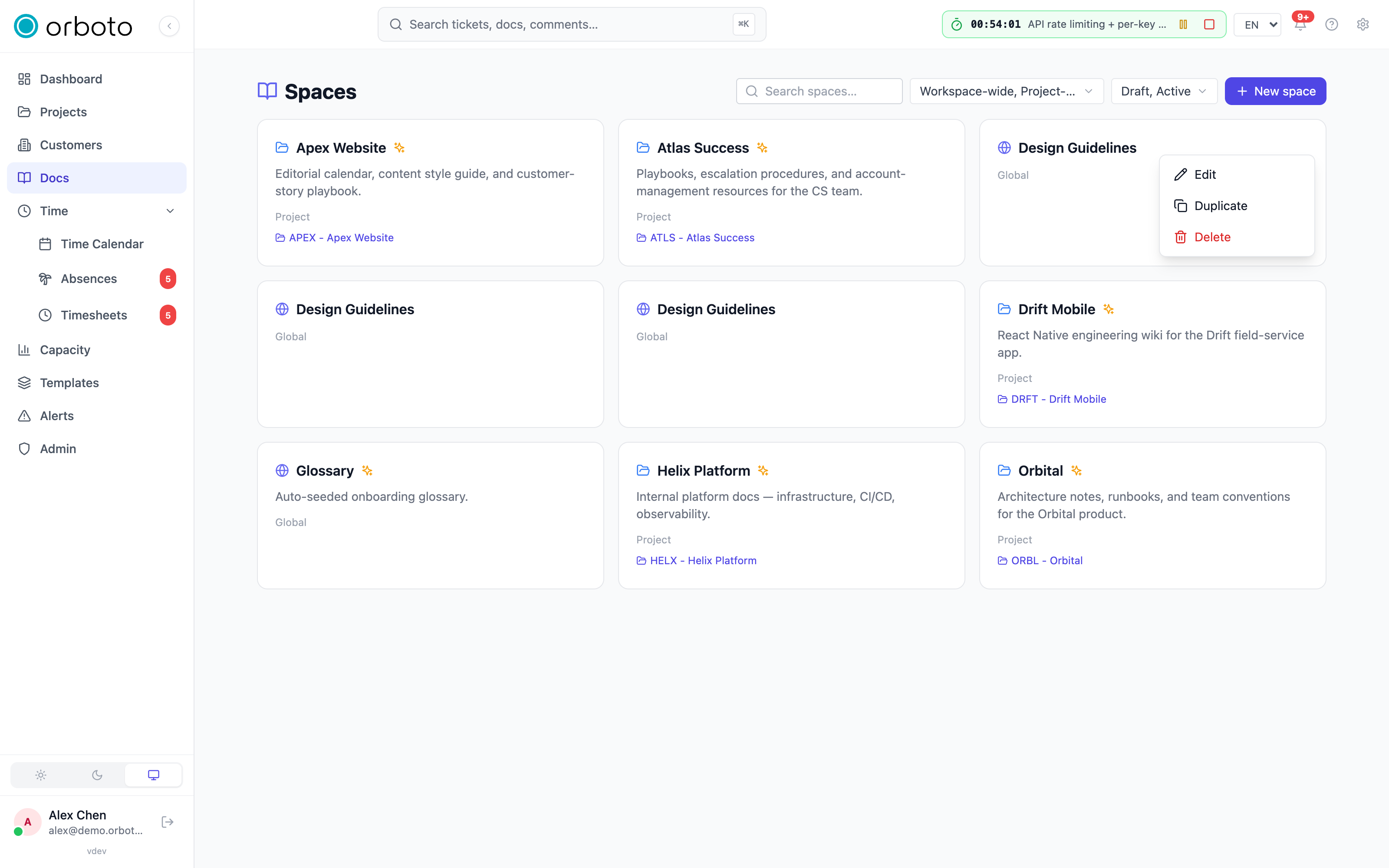
Need a fresh copy of a space's structure - to reuse a well-organised knowledge base as a starting point for a new project, for example? Open the 3-dot menu on a space's card and select Duplicate.
What you get:
- A new space named "(original name) (copy)" with its own key, and every page from the original cloned with its title, content, and full parent-child hierarchy intact.
- The copy starts with the same visibility mode as the original, but if the original was restricted to specific members, the member list itself is not copied - the new space starts visible only to whoever manages it, so you consciously re-add the right people rather than inheriting a list that may not fit the new context.
- Comments, revision history, and attachments are not carried over - the copy is a clean starting point, not a full backup.
Duplicate is unavailable on auto-generated spaces - there is only ever one per project, kept in sync automatically.
Deleting a space
From the same 3-dot menu, select Delete and confirm. This removes the space and every page inside it - there is no per-space undo, so check with a workspace administrator whether a recent backup exists before deleting something you are not sure about.
Auto-generated spaces
Some spaces carry a small sparkle marker next to their name. These are created and kept up to date automatically (for example, a project's onboarding glossary) rather than by a person selecting New space. You can still edit the description and the pages inside stay fully user-editable, but the space's name follows its project and it cannot be duplicated or deleted independently of that project - it disappears when the project itself is deleted.
Troubleshooting
- I don't see "New space". You need to belong to at least one project (or hold a super-admin role) and not be an external/guest account.
- I can't change a space's visibility, only its name and description. Visibility is manager-only - you need edit rights on the owning project, or a super-admin role, to see those controls.
- A restricted space is empty of members after I duplicated it. This is expected - member lists never carry over on duplicate, precisely so a copy doesn't silently inherit access meant for a different context. Add the right people from the edit dialog.
- A space's name field is greyed out. It is an auto-generated space; its name follows its owning project. Rename the project to change it.
- I want a page in a different space. There is no direct move-to-another-space action in the page tree today - duplicate the space if you are relocating a lot of content, or copy a single page's Markdown into a new page in the target space.