

The LLM-Wiki
How orboto's self-maintaining wiki records knowledge automatically, answers questions with citations, and flags its own pages when they go stale or inconsistent.
A normal doc space only changes when someone opens a page and edits it. The LLM-Wiki is an optional mode you can turn on for a space that keeps it current on its own: new material you feed it gets folded into the right pages automatically, questions get answered with citations back to the source pages, and the space periodically checks its own pages for problems - a page nobody has touched while newer material has arrived, two pages that quietly contradict each other, a page nothing links to. This chapter covers that whole loop: turning it on, feeding it knowledge, asking it questions, and keeping the result trustworthy.
Everything on this page needs AI configured for your workspace (see AI providers and models) and the LLM-Wiki turned on for the specific space you are working in.
Turning it on for a space
Open a space and, if you can manage it, select the settings gear next to the space name in the page tree sidebar.
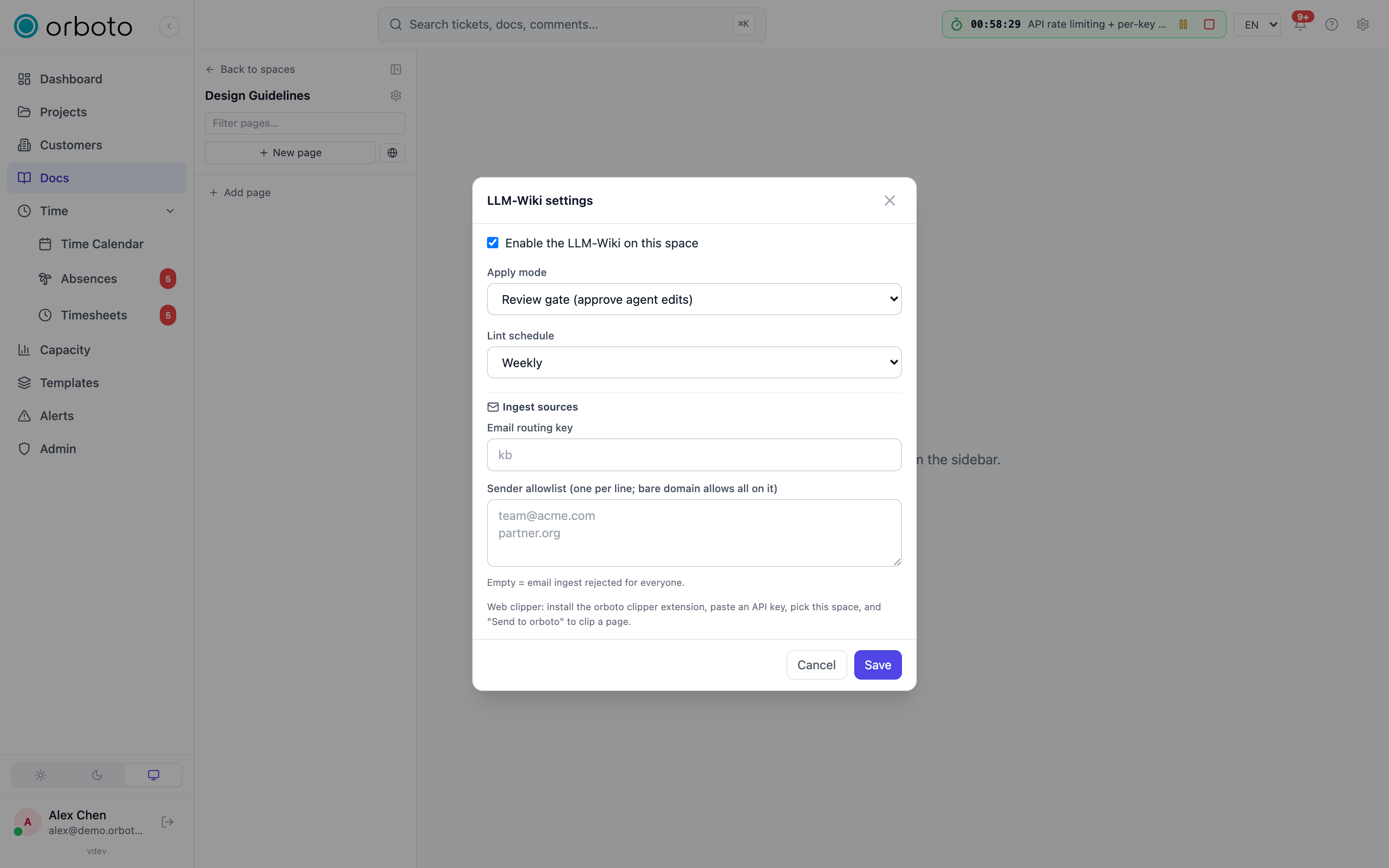
- Tick Enable the LLM-Wiki on this space.
- Choose the apply mode:
- Review gate (the default) - when new material is curated into pages, the proposed changes wait for an administrator to approve them before they land.
- Auto-apply - curated changes write straight to the pages, no approval step.
- Choose the lint schedule - how often the space checks itself for issues (see Wiki lint below): on demand only, weekly, or daily.
- Optionally set up ingest sources (see Recording knowledge below): an email routing key and sender allowlist, and a note on the web clipper.
- Save.
Once enabled, the space shows a small LLM-Wiki badge next to its name so everyone opening it knows it is self-maintaining.
Recording knowledge: what feeds the wiki
The wiki never writes itself from nothing - it curates source material you bring in. Every source lands as its own page (tagged source), and if the space's LLM-Wiki is enabled, an automatic worker reads it and proposes how to fold it into the space's pages: update an existing page that already covers the topic, or create a new one for something genuinely new. Under auto-apply that update happens right away; under review gate it waits for an administrator to approve it.
Ways to bring material in:
- Paste a URL or upload a file - the same import flow as any doc space, covered in Docs and wiki. In a wiki-enabled space, whatever you import becomes a source the curation worker then processes.
- Email it in - once an administrator sets an email routing key in the space's settings, mail sent to
wiki+<key>@your workspace's inbound mail address lands as a source automatically. A sender allowlist (specific addresses, or a bare domain to allow everyone on it) controls who is allowed to feed the space this way - an empty allowlist means nobody can, so this is opt-in per space. - Clip a web page - install the orboto browser clipper extension, paste in an API key, pick the target space, and select Send to orboto on any page you are reading to send it in as a source.
- Turn an answer into a page directly - see Save an answer to the wiki below; this skips the source-and-curate step and writes a page immediately.
- Write a page yourself - a wiki-enabled space is still a normal doc space underneath; you can always create and edit pages by hand exactly as described in Docs and wiki.
Reading the page types
Inside a wiki-enabled space you will see a small icon next to some pages' titles, marking a page the automation manages rather than a page a person wrote directly:
- Source - raw imported material, kept as a record of what came in.
- Index - the space's own table of contents, used internally to check whether every page is properly linked.
- Log - a running activity record of what the automation has done.
These three kinds are read-only by design - editing them by hand would fight the automation. Regular pages (no icon) are the curated wiki content itself, and stay fully editable like any other doc page.
Asking the docs
The Ask AI panel (the sparkle icon) beside a doc page lets you ask a question in plain language and get an answer drawn only from pages you can read, with numbered citations linking back to the exact source pages - hover a citation for a preview without leaving the panel.
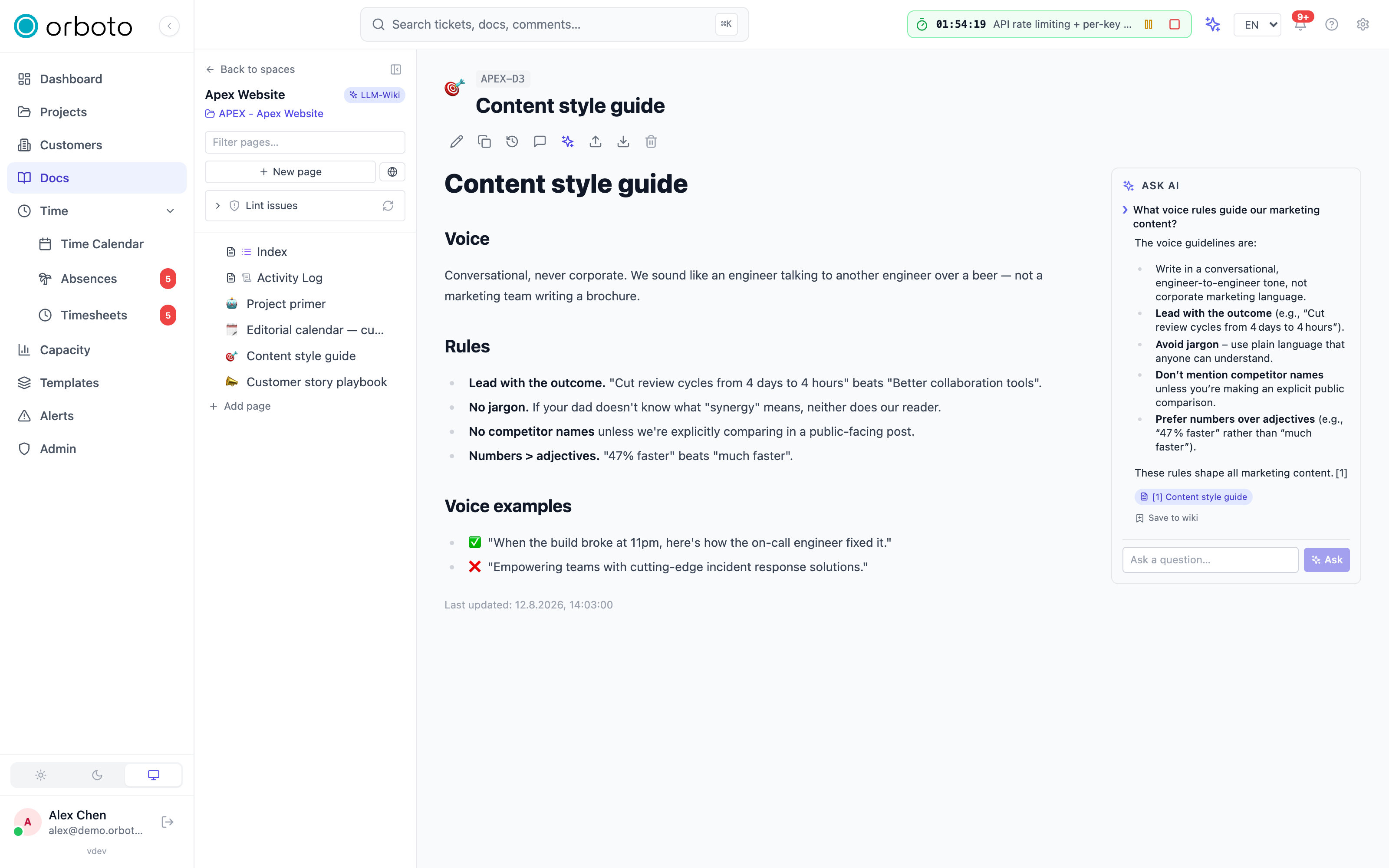 This is the fastest way to find "what did we already decide about X" without reading every page yourself. The full mechanics (how a question is typed, where the panel lives) are in Docs and wiki; this section covers what is happening underneath and what you can do with the answer.
Each answer also tells you, implicitly, how confident to be in it: orboto tries a fast keyword match first, falls back to semantic matching (finding pages that mean the same thing even in different words) when keywords come up short, and combines both as hybrid when that gives the best result. An answer with strong citations across multiple pages is more trustworthy than a thin one with a single weak match - always check the citations rather than taking the prose at face value.
If an answer is good enough to keep, select Save to wiki underneath it. Give the page a title (or keep the suggested one, based on your question) and save - orboto creates a proper wiki page with the answer's content and smart-links to everything it cited, or updates the same page if you save an answer to that exact question again later. This is the quickest way to turn a one-off question into durable, reusable knowledge.
Staleness detection
A wiki page does not go stale just by sitting still - most reference material is meant to stay true for a long time. orboto only flags a page as possibly stale when both of these are true: the page has not been touched in over 90 days, and newer source material has arrived in the space since then that the page has not been updated to reflect. A page nobody has fed anything new never gets flagged, no matter how old it is - "stale" means "the world moved and this page didn't," not "this page is old."
Staleness is one of the checks wiki lint runs - see below for where flagged pages show up and how to resolve them (refresh the page's content, or dismiss the flag if it does not actually need a change).
Wiki lint
What it is. A self-audit that scans a wiki-enabled space for six kinds of problem and lists them as issues you can act on. Nothing is changed automatically - lint only reports; you decide what, if anything, to do about each issue.
| Issue | What it means |
|---|---|
| Orphan page | Nothing links to this page and it is not listed in the space's index - readers have no way to find it by browsing. |
| Missing cross-reference | A page's text mentions another page's title by name but never actually links to it. |
| Stale page | Untouched for 90+ days while newer source material has arrived - see Staleness detection above. |
| Unprocessed source | A source document was imported but the curation worker has not turned it into wiki content yet. |
| Contradiction | Two pages appear to say conflicting things about the same topic. |
| Undocumented concept | Your source material repeatedly references something that has no dedicated page yet. |
Contradiction and undocumented-concept checks use AI directly and only run when AI is configured; the other four are checked mechanically and always run.
Where issues appear
- The space sidebar shows a small badge with the open-issue count next to a Lint issues section; expand it to see the list, and select the refresh icon to run lint now rather than waiting for its schedule.
- A doc page's header shows a pill with its own open-issue count whenever the page you are currently reading has one or more open issues - hover it to read what they are.
- The admin LLM-Wiki inbox (see below) lists issues across every wiki space in the workspace in one place.
Resolving an issue
Each issue carries a plain-language message and, where possible, a suggested fix (for example, "add a smart-link to this page" or "re-ingest recent sources to refresh this page"). Read the suggestion, make the change it describes if it makes sense, and:
- Dismiss an issue you have looked at and decided is not worth acting on (an intentional orphan page kept as a private note, for example) - it will not be reported again unless the underlying problem changes.
- Do nothing and re-run lint later - if the condition that caused the issue is no longer true (you linked the page, updated the stale content), the next lint run automatically marks it fixed on its own; you never have to close an issue by hand once you have actually addressed it.
The admin inbox
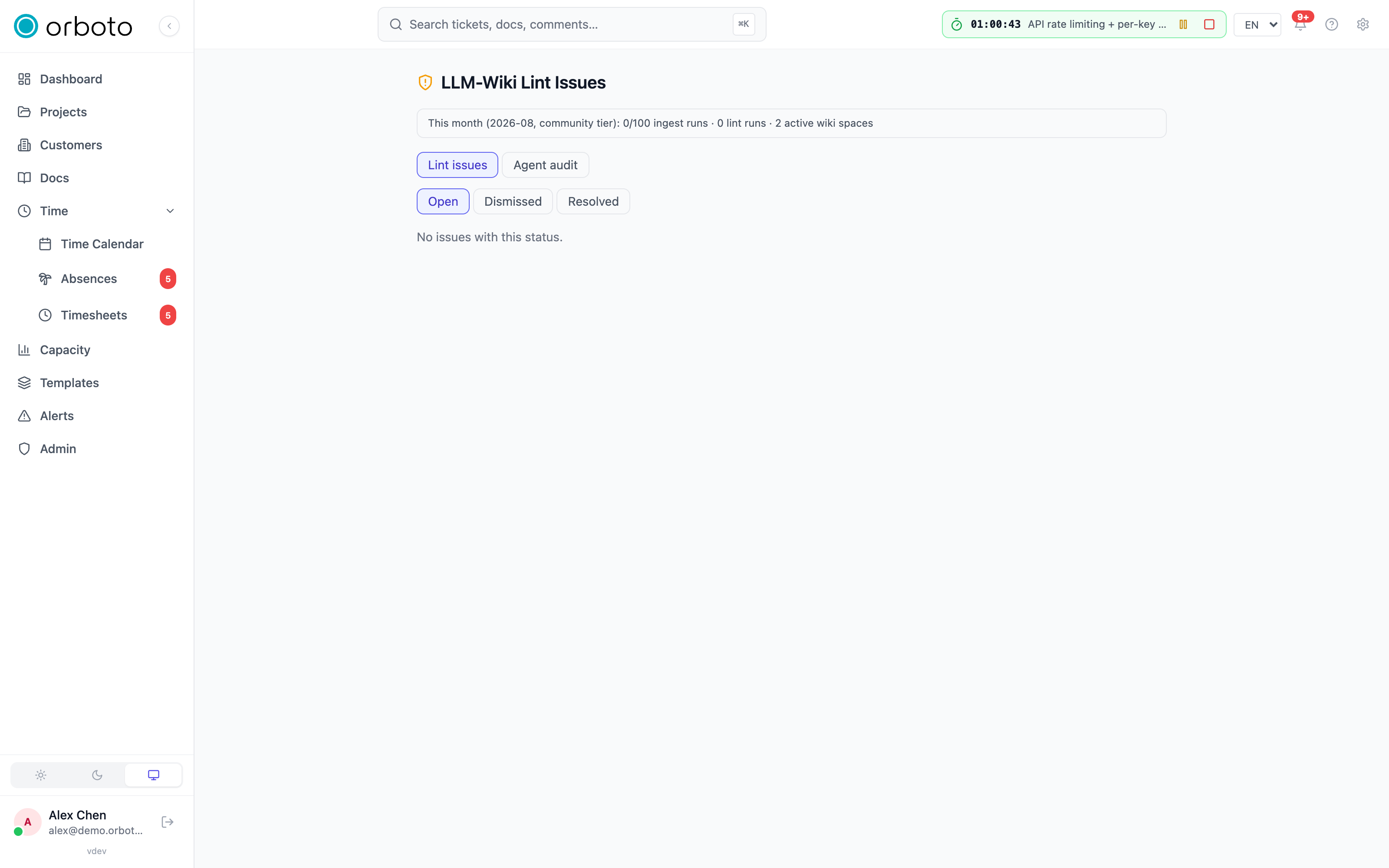
Workspace administrators have a dedicated LLM-Wiki page (under Admin) with two tabs:
- Issues - every lint issue across every wiki-enabled space, filterable by status (open, dismissed, fixed), with the same dismiss/reopen controls as the per-space panel plus which space each issue belongs to.
- Audit - a log of every automated edit the wiki's curation worker has made (what operation, which space, a content hash before and after), exportable as a CSV for a full paper trail of what the automation changed and when.
A small usage line at the top of the page shows the current month's ingest and lint run counts against your plan's limits, so administrators can see usage at a glance without digging through billing.
Following an ingest
Added in v0.229.0 A source you add shows up as a run straight away, not only once the AI has answered. orboto wiki runs <space> and Admin → LLM-Wiki → Runs list waiting and running sources first: "waiting for the ingest worker, 3 min" or "running, 1 min". A run that no worker picked up within 15 minutes, or that has been running for 30 minutes, is marked stalled, and super-admins get one alert with a link to the waiting runs. You can retry a stalled or failed run. A run that is still in progress can't be retried, so a source is never processed twice. Two workers never process the same run either.
orboto wiki record, ask and lint wait up to 4 minutes for the answer. The server gives up after 3 minutes and then answers errors.docs.plan_deadline_exceeded without storing anything, so you can simply run the command again.
Troubleshooting
- I don't see a settings gear on my space. You need manage rights on the space (the same permission that gates other space-management actions) - ask a project admin or a super-admin to enable the LLM-Wiki for you, or to grant you that permission.
- I imported a source but nothing changed on any page. Under review-gate apply mode, curated changes wait for an administrator to approve them rather than landing immediately - ask whether one is pending. Also check that the space actually has the LLM-Wiki enabled; a plain doc space keeps imported material as a static page and never curates it.
- I can't edit a page. Check for the source/index/log icon next to its title - those three kinds are machine-maintained and read-only by design. Edit the regular (unmarked) wiki pages instead.
- A page I know is out of date isn't flagged stale. Staleness only fires when newer source material has arrived since the page last changed - if nothing new has been fed into the space, orboto has no signal that the page needs a refresh. Feed in an updated source, or edit the page directly.
- Lint shows an issue I've already fixed. Lint only re-checks when it runs - either wait for its scheduled run or select Run lint now in the space sidebar to re-check immediately.
- Email ingest rejects my message. The space's sender allowlist is empty by default (nobody allowed) until an administrator adds your address or your domain to it.