

Absences
Request vacation and sick leave, approve your team's requests, and see who's out on the shared calendar.
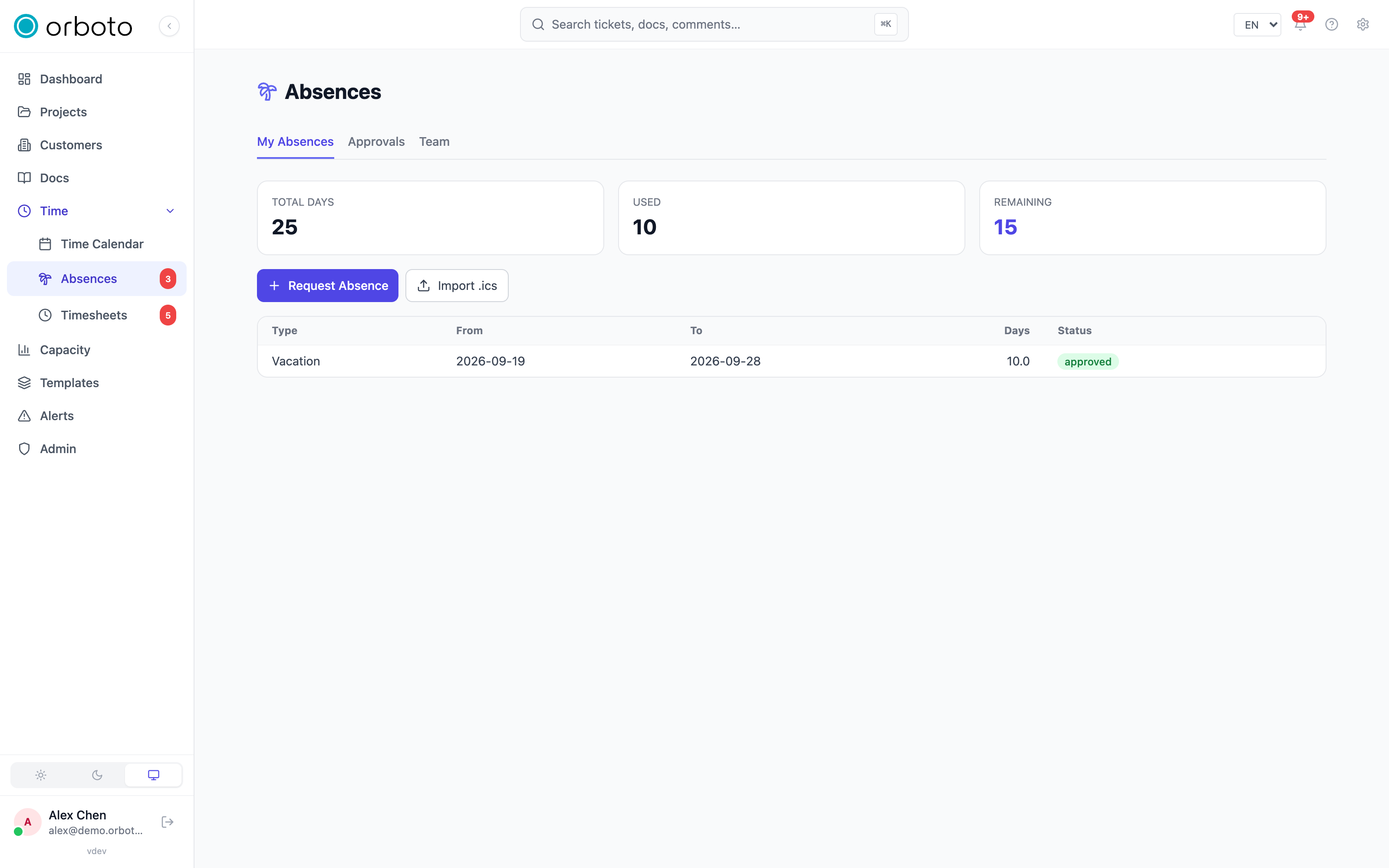
Open Absences in the sidebar. It has three tabs: Mine (your own requests and balance), Approvals (requests waiting on you), and Team (a shared calendar of who's off).
Requesting time off
- On the Mine tab, select Request - or shift-click a day on the Time Calendar to open the request pre-filled with that date.
- Choose the type (for example vacation or sick leave - the list is configured by your administrator).
- Set the from and to dates, and an optional note.
- Submit.
Duration is counted in working days only - weekends, public holidays, and company closures are excluded automatically, so a Friday-to-Monday request costs two days, not four. Your Mine tab shows three balances for the year: total, used, and remaining days.
A request still in pending or draft status can be cancelled (the trash icon on its row). Once it's approved or rejected, it's final - ask your approver to reject and let you resubmit if the dates were wrong.
Importing an external calendar
If your vacations already live in another calendar app, select Import .ics on the Mine tab to upload an .ics file. orboto parses each event and reports how many were created vs. skipped (for example, duplicates it already has), plus any warnings, before you leave the import dialog.
Added in v0.212.5 An imported event follows the same rules as a request you submit by hand. It is created as Vacation (an upload through the API can name another absence type). If the type needs approval, the imported absences are pending and your approvers get one notification for the whole import, with the count, the total days and the date span (a single event notifies like a normal request). A type that needs no approval is approved at once. For a type that counts against your vacation allowance, an event larger than your remaining balance is skipped with a warning instead of being created.
Added in v0.230.0 An import is limited in size: a file may be up to 1024 KB and may hold up to 500 events, repeating events counted once per occurrence. A larger file is refused as a whole, so you never end up with half of it. Split the file, or ask an administrator to raise the limit under Admin -> Backup -> Import and sync limits. A file that nests its entries deeper than 8 levels or holds more than 20000 entries is refused before it is read. Event titles are shortened to 500 characters and notes to 5000, and the result lists at most 100 warnings. The same limits apply to the company closure import. See Import and sync limits.
Approving time off
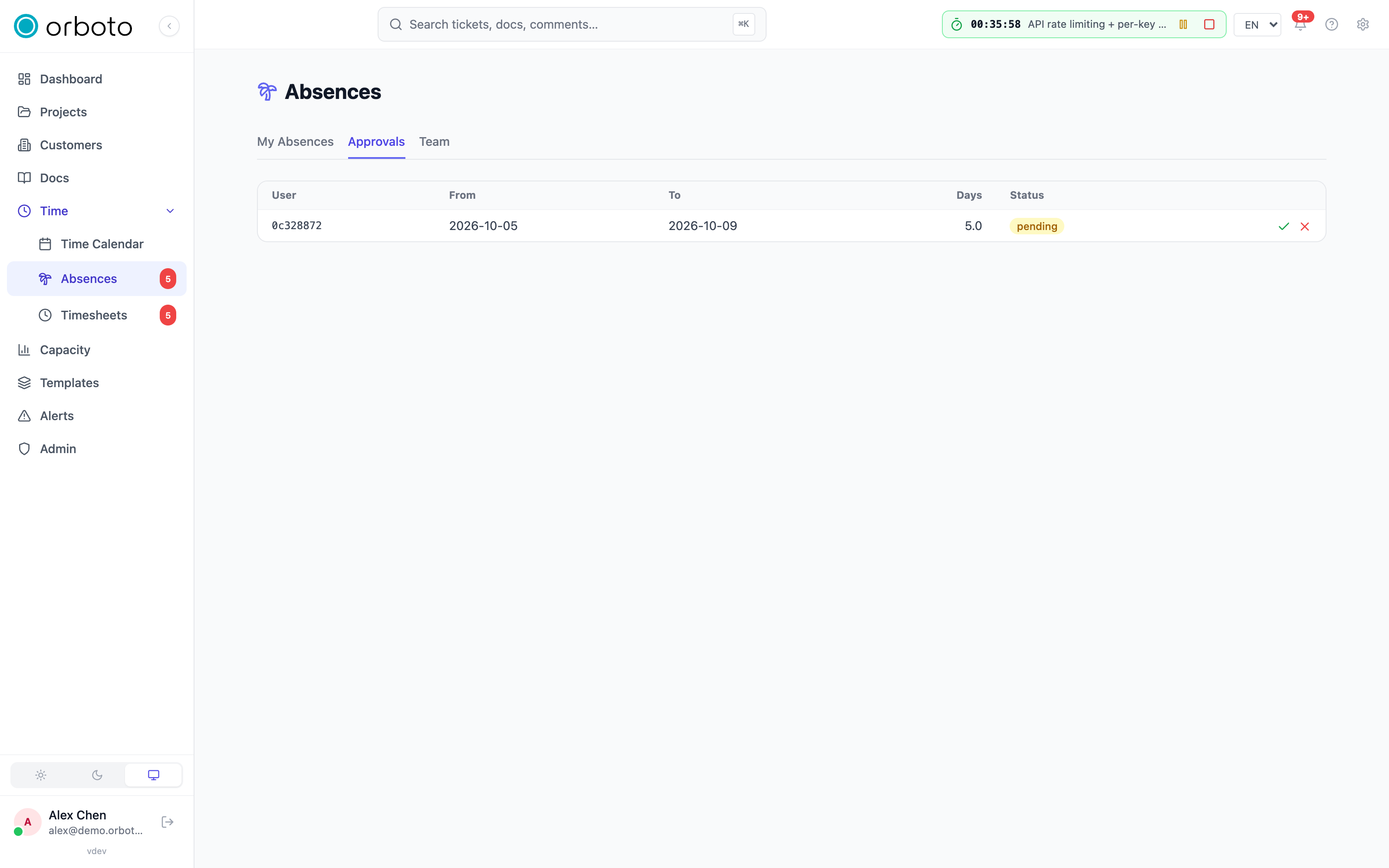
If you approve absences for your team, the Approvals tab lists every pending request with the requester, dates, and day count. Approve it with one click, or Reject with a required reason - the requester sees that reason on their own Mine tab.
The Team calendar
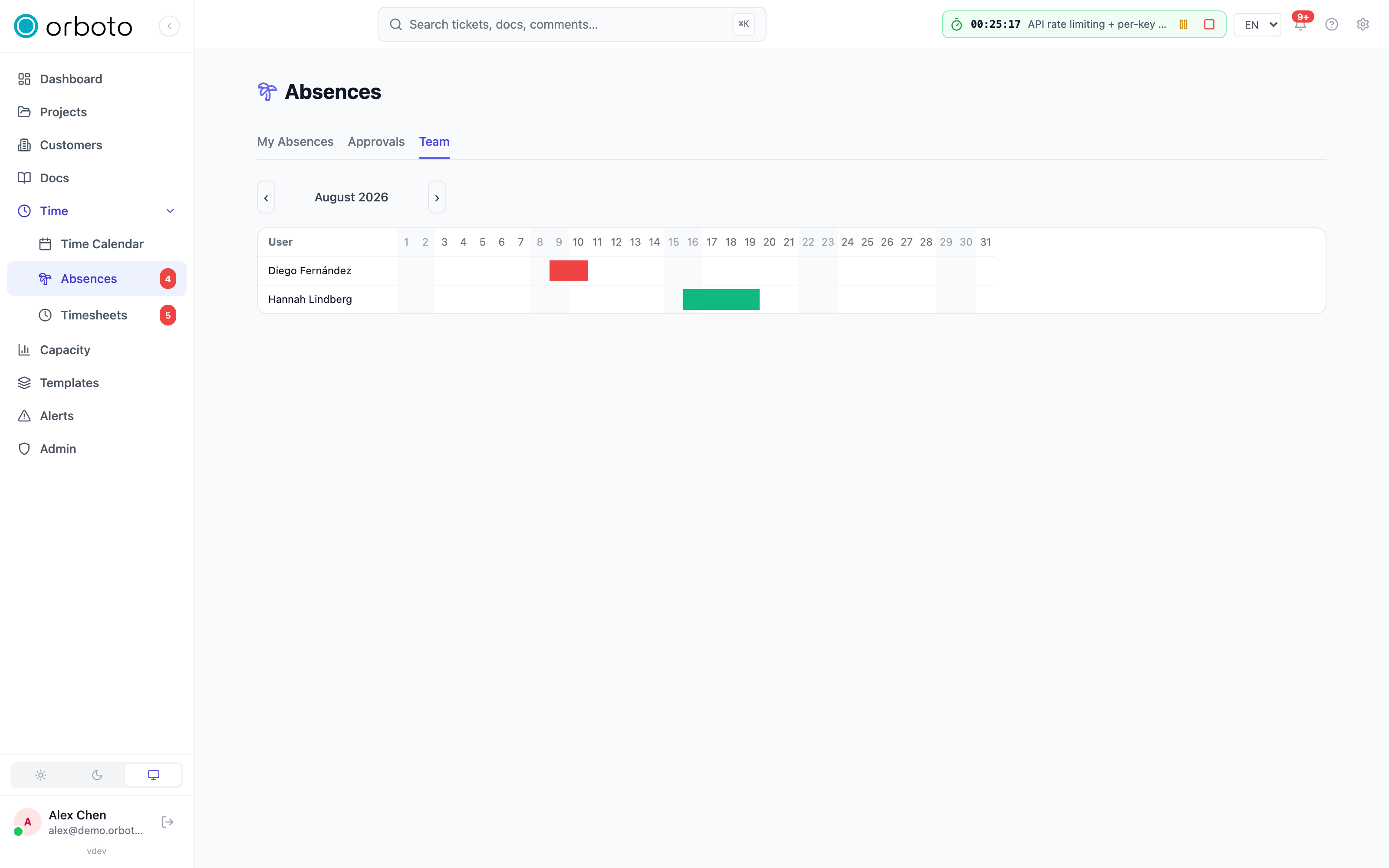
The Team tab is a month grid: one row per person, one column per day, with a colored bar for each approved absence (color follows the absence type) spanning its date range. Weekends are shaded, and you can navigate month to month. Hover a bar to see the type and exact dates.
Effect on capacity
Approved absences automatically reduce the person's capacity for the days they cover - there's nothing to configure, it flows through the same working-day calculation.
For administrators
Absence types, public holidays, and company closures are configured in the admin area's absence settings (three tabs: Types, Holidays, Closures). Company closures also support the same .ics import as personal absences, so an office-wide closure calendar can be uploaded in one step instead of entered day by day. Each user's yearly allowance (including carry-over days) is set on their profile in the admin Users page.
Troubleshooting
My request shows the wrong number of days. Check for public holidays or company closures inside your date range - they're excluded automatically and won't count, even though the calendar shows the full span you picked.
I can't cancel a request. Only pending or draft requests can be cancelled by you. An approved or rejected request needs your approver to act (reject an approved one, or let you resubmit after a rejection).
A teammate is missing from the Team calendar. The Team calendar shows every approved absence workspace-wide to any internal user (unlike Capacity, which scopes to shared projects) - if they're not appearing, their request likely isn't approved yet, or falls outside the month you're viewing.
The .ics import imports nothing and says the file holds too many events or is too large. Added in v0.230.0 The file is over a limit (1024 KB, 500 events by default) and was refused as a whole. Split it into smaller files, or ask an administrator to raise the limit. See Import and sync limits.