

Milestones and alerts
Group tickets into milestones and set up alert rules that warn you automatically when work drifts.
This chapter covers milestones - the checkpoints that structure a project's timeline - and alert rules, which watch your work and warn you when something needs attention. For releases and reusable project blueprints, see Versions and releases and Project templates.
Milestones
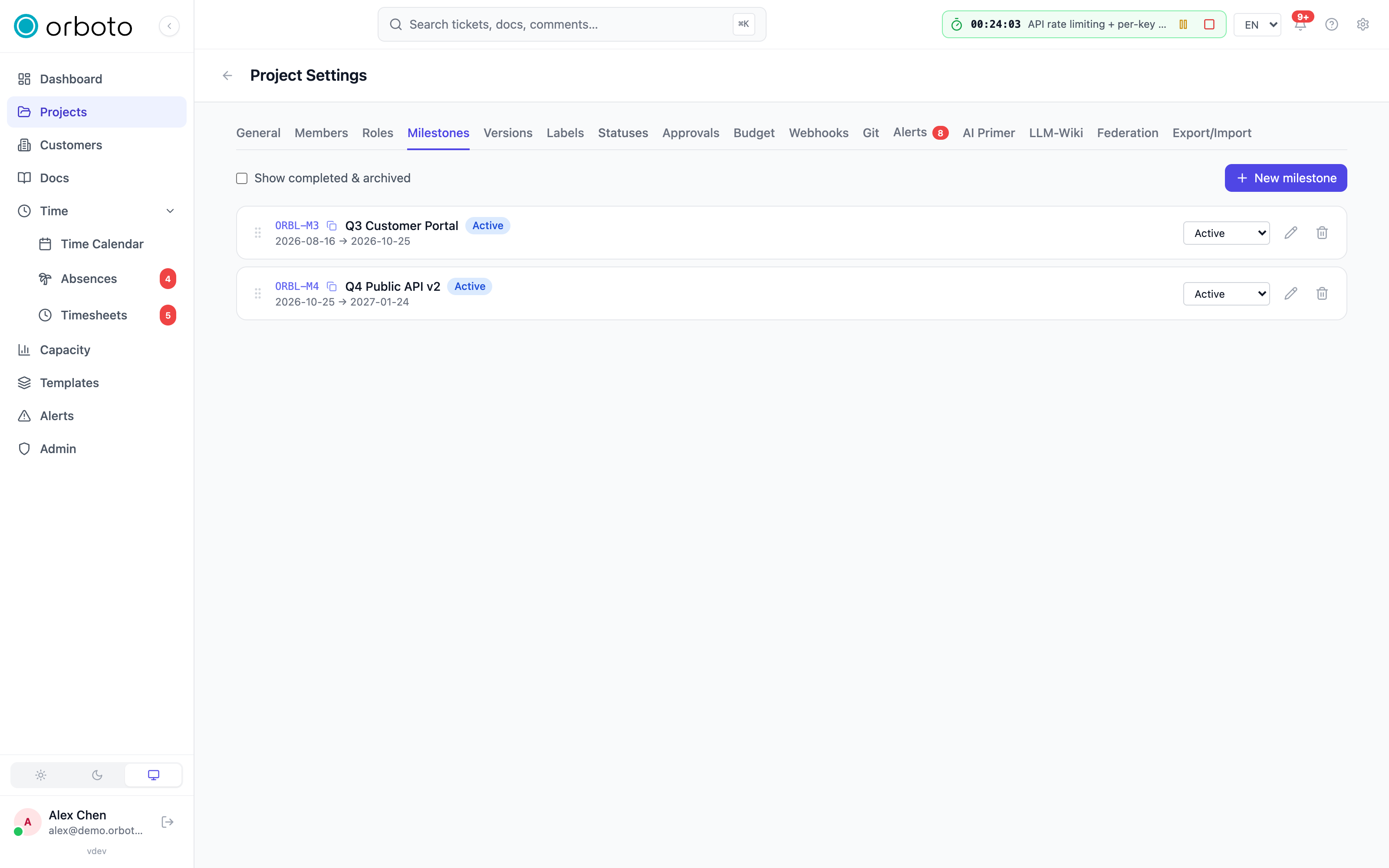
A milestone is a meaningful checkpoint in a project - a phase, a sprint, or a deliverable that groups tickets toward a shared goal and date. Milestones are managed from a project's Settings → Milestones tab, and used all over the app: filters, the Gantt view, analytics, and guest access.
Creating and editing a milestone
- Open Settings → Milestones and select New milestone.
- Enter a name and optional start / end dates.
- Save.
Select the pencil icon on a milestone row to edit its name, dates, and privacy afterwards. Drag a row by its grip handle to reorder milestones - the order you set here is the order they appear everywhere else (filters, the Gantt view, dropdowns).
- Each milestone has a status:
active,completed, orarchived, changeable from the row's dropdown. - A milestone can be marked private so only people with the
milestone:view_privatepermission see it. Added in v0.230.0 The tickets in a private milestone, and every sub-ticket below them, are hidden from everyone without that permission (see Private tickets and sub-tickets). - Milestones carry a short key (for example
ACME-M3) for unambiguous reference in comments, docs, and links. - Show closed milestones (checkbox above the list) reveals archived/completed ones when you need to look back; they're hidden by default to keep the list focused on current work.
- Assign tickets to a milestone (from the ticket detail panel, or in bulk) so their progress rolls up to it.
Deleting a milestone
Deleting a milestone does not delete its tickets - they become unassigned from that milestone. There is no undo, so if you only meant to close it out, set its status to completed instead.
Alerts
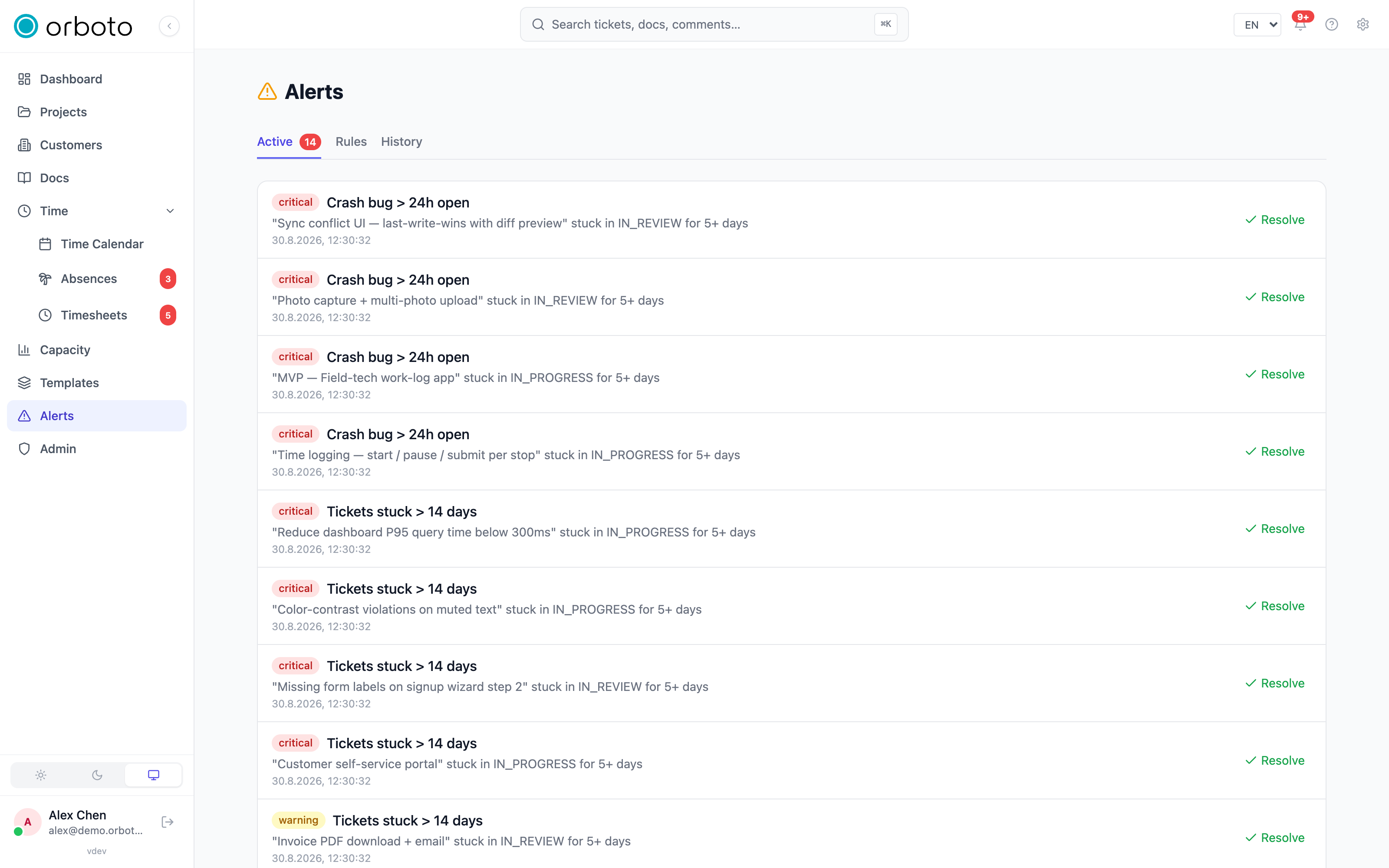
Alert rules watch your work and warn you when something needs attention - a budget nearing its limit, a ticket stuck too long, a deadline at risk, a timesheet not submitted. Open Alerts in the sidebar for workspace-wide rules, or a project's Settings → Alerts tab for rules scoped to just that project.
Active alerts and history
- The Active tab lists alerts currently firing, each with the rule name and a short summary. Select Resolve to mark one handled.
- The History tab shows past alerts and when they were resolved.
Creating an alert rule
Select New rule to open the four-step wizard:
- Trigger - pick what to watch for (see the table below) and a name for the rule.
- Conditions - the trigger-specific settings, for example a threshold percentage, which statuses count as "open", or how many days out to start warning.
- Notification - choose severity (info, warning, critical), whether it notifies in-app and/or by email, which roles or members get notified, and a cooldown in minutes so a recurring problem doesn't spam you every time it's checked.
- Review - confirm before creating.
| Trigger | Fires when |
|---|---|
| Budget Threshold | The project's burn-rate crosses the threshold percent. |
| Milestone Deadline Risk | A milestone's completion is below threshold AND its end date is within the lookahead window. |
| Ticket Overdue | An open ticket is past its due date by N days. |
| Estimate Exceeded | Logged time on a ticket crosses N% of its estimate. |
| User Over Capacity | A user's assigned hours exceed their weekly capacity by N%. |
| Ticket Stuck | A ticket hasn't changed status for N days. |
| No Sprint Activity | An active milestone has had no ticket updates for N days. |
| Timesheet Not Submitted | A closed period still has unsubmitted timesheets after N days. |
| Milestone AI Risk | An active milestone reaches red on the AI risk assessment (open %, blocked tickets, days remaining, budget burn). |
| Ticket Created | A ticket is created - narrow it by milestone, the creator's project role, or whether the creator is a guest. |
Once created, a rule's row lets you:
- Test rule - see how many tickets/entities would match right now, before you switch it on.
- Mute - silence the rule for 1 hour, 24 hours, 7 days, or forever, without deleting it.
- Toggle Active on or off.
- Delete the rule.
When an alert fires it also reaches you through your normal notifications (in-app and/or email, per the rule's settings), and the cooldown keeps orboto from re-notifying you about the same firing alert on every check.
Troubleshooting
A milestone I archived still shows in the ticket filter. Turn on Show closed milestones in the filter bar to see it, or leave it off to hide archived/completed milestones from day-to-day views.
My alert rule never fires. Use Test rule first - it shows exactly what would match right now, which is the fastest way to tell a wrong condition from a rule that's simply waiting for the right moment. Also check the rule is Active, and that it isn't currently muted.
I'm not getting emailed for a firing alert. Confirm the rule has Notify by email enabled in its Notification step, and that you're in its notified roles/members list - in-app and email are independent toggles.