

Approval gates
Require sign-off from specific people before a ticket can enter a status, with tracked approve/reject decisions.
An approval gate (also called a sign-off gate) is a rule that says: before a piece of work can move into a particular state, a specific person or group has to say yes. It's a common pattern wherever a status change has real consequences - releasing something to customers, closing a ticket that was disputed, moving a change into production - and a team doesn't want that step to happen just because someone dragged a card across a board.
An example. ACME's team wants every ticket to require the release manager's sign-off before it can be marked "Released". Without a gate, anyone who can edit a ticket could set that status directly. With a gate configured on "Released", the move is blocked until the release manager - or whoever the policy names - approves it.
How this relates to statuses
Statuses in orboto don't have a fixed sequence by default - any status is reachable from any other. Approval gates are the actual, project-configurable way to restrict a move: a gate targets one destination status and blocks entry into it until the required sign-off lands. It doesn't care which status the ticket is coming from.
Setting up an approval policy
Open a project's Settings → Approvals tab. This tab only appears for users with the ticket:manage_approvals permission - it's not just disabled without it, it's not shown at all.
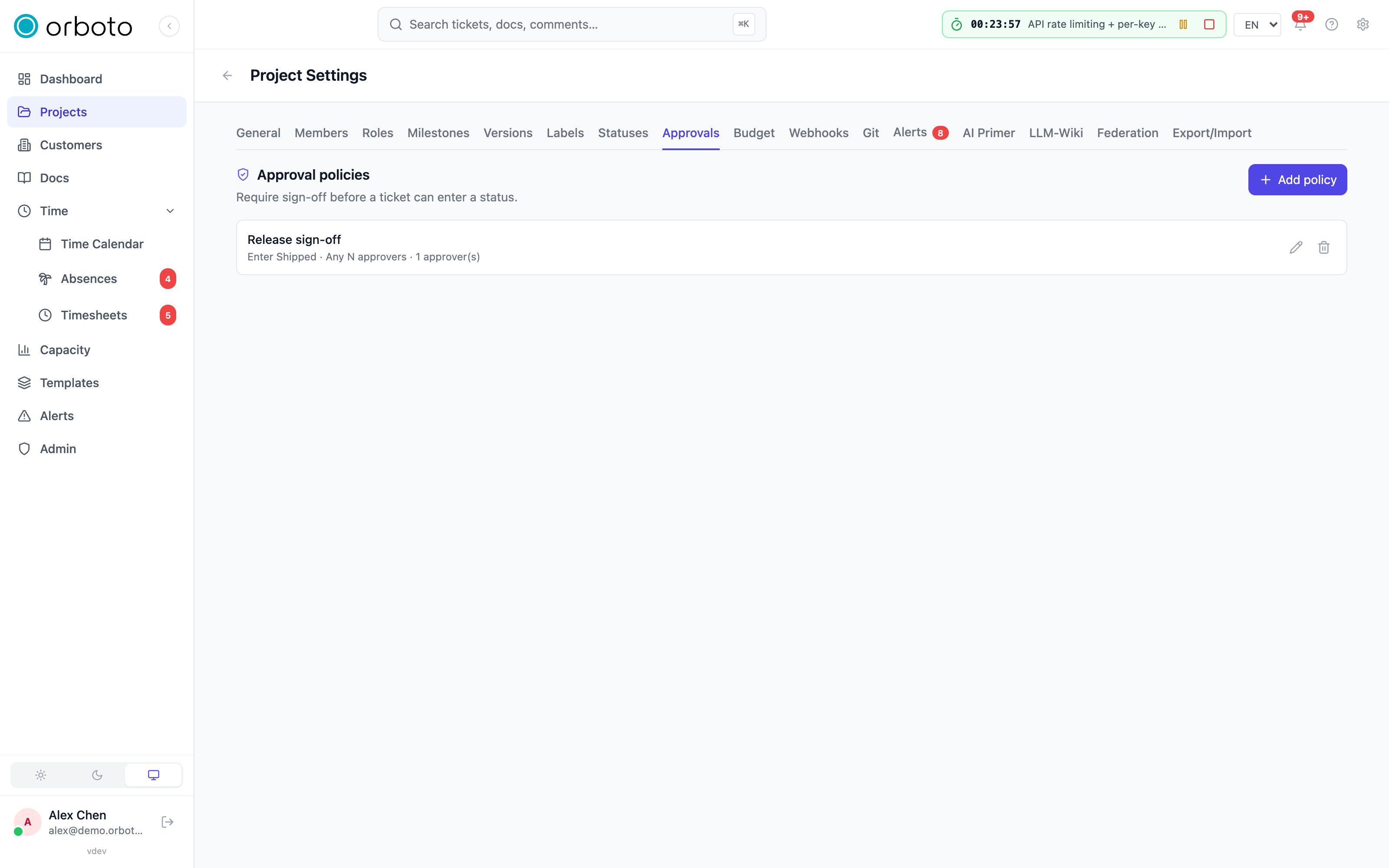
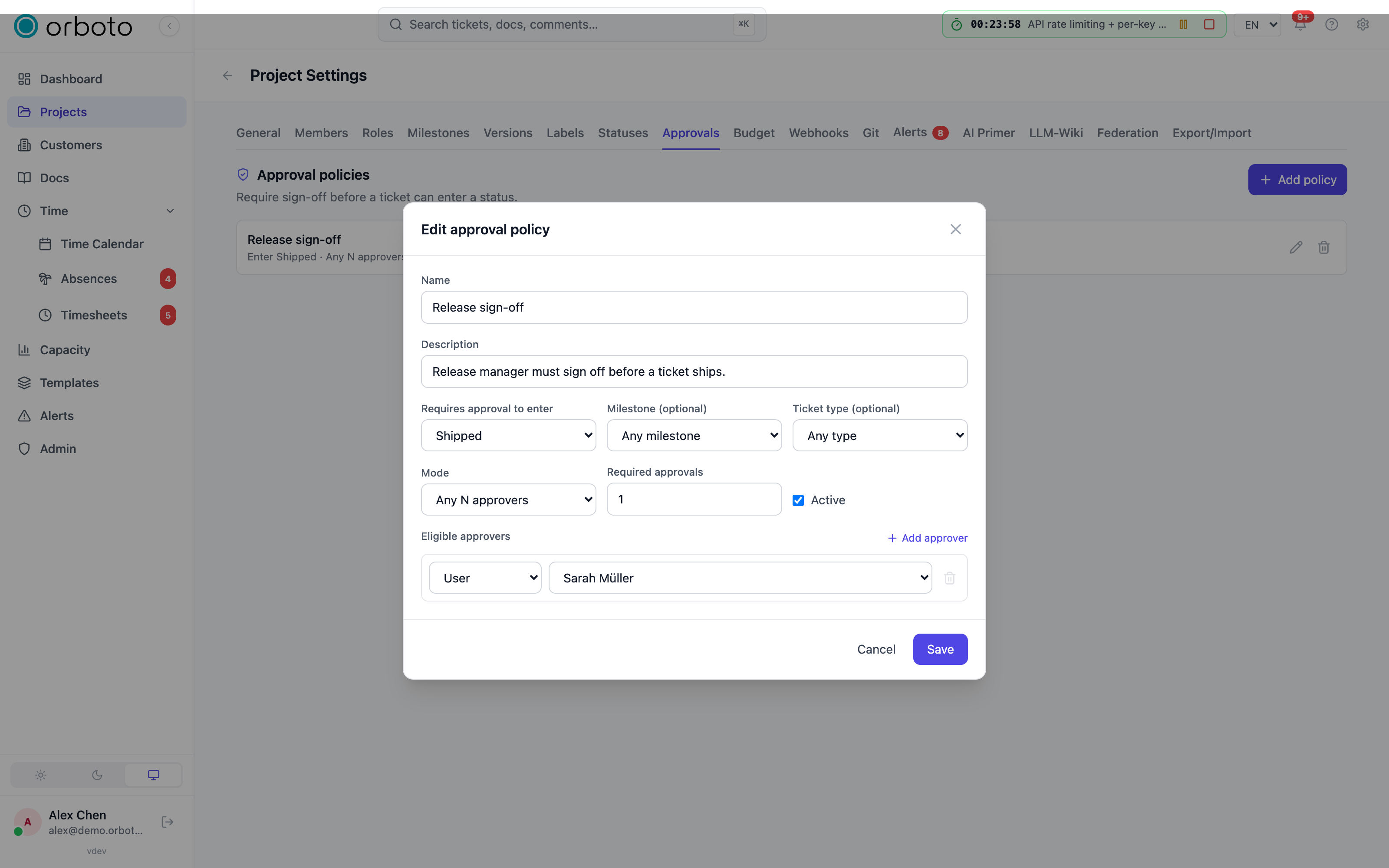
Select Add policy to open the policy editor:
- Name and Description - free text, shown in the policy list and on the ticket's approval panel.
- Requires approval to enter - the destination status this gate protects. Required.
- Milestone (optional) - narrow the gate to tickets in one milestone; leave as Any milestone to apply project-wide.
- Ticket type (optional) - narrow the gate to one ticket type (bug, task, story, epic, improvement); leave as Any type to apply to all.
- Mode:
- Any N approvers - the request is approved once a set number of distinct people approve; a single reject rejects the whole request. Set Required approvals to the number needed.
- Sequential steps - each step needs exactly one approval, in order; a reject at any step rejects the whole request.
- Active - untick to keep a policy defined but not currently enforced.
- Approvers (labeled Eligible approvers in Any N mode, Approval steps (in order) in Sequential mode) - add one or more entries, each pointing at:
- a project Role (anyone holding it is eligible),
- a specific User, or
- a RACI role on the ticket itself (Accountable, Responsible, Consulted, or Informed) - useful when "whoever is Accountable on this ticket" should approve, whatever ticket it turns out to be.
Save. The policy list shows each policy's name, a one-line summary ("Enter Released · Sequential · 2 approver(s)"), and an Inactive badge on any policy you've turned off. Deleting a policy doesn't erase history - any approval requests it already created keep their record.
More specific policies win. If a ticket matches more than one active policy for the same destination status (for example, a project-wide policy and a milestone-specific one), the more specific one applies: milestone + type beats milestone alone, which beats type alone, which beats a plain project-wide policy.
What happens when a ticket hits a gate
When someone tries to move a ticket into a gated status - from the ticket detail panel or by dragging it on the board - and no approved request already exists, the move is blocked. An error appears explaining that the transition requires approval and that a sign-off request is now pending, and the ticket stays where it was.
At the same time, an Approvals panel appears on the ticket (it's invisible on tickets with no approval activity, so most tickets never show it) with:
- Which status is being requested and which policy triggered it.
- A status chip: Pending, Approved, Rejected, Cancelled, or Applied.
- A progress line, e.g. "1 of 2 approvals" (and, in Sequential mode, which step is next).
- The votes cast so far, each with an optional comment.
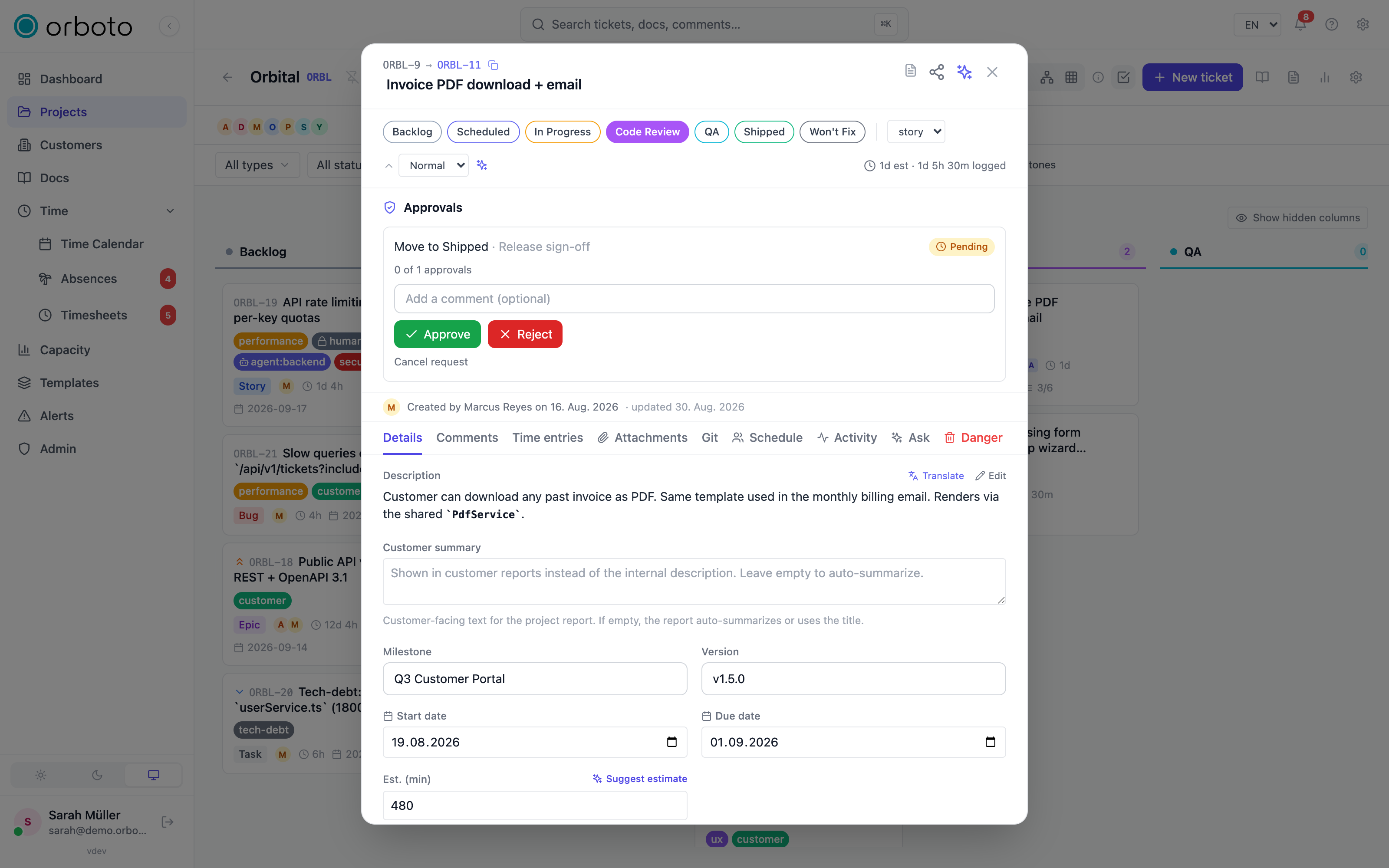
Eligible approvers - the people the policy actually names - see a comment box and Approve / Reject buttons directly in that panel. The person who requested the move can't approve their own request; that's a deliberate separation-of-duties rule, not a bug. The requester (or anyone with ticket:manage_approvals) can Cancel a still-pending request instead.
After a request is fully approved, you re-issue the move
Approval doesn't automatically apply the transition. Once a request reaches Approved, the panel says so and tells you to set the status again - repeat the exact same move you originally tried, and this time it finds the already-approved request and applies it, marking the request Applied so it can never be replayed for a later move into the same status.
Bypassing a gate
A super-admin can push a gated transition through even without the required sign-off - an emergency escape hatch. Doing so is recorded in the audit log as a bypass, so it stays on the record even though it skipped the normal approval flow. Ordinary project members and admins cannot bypass a gate; the bypass is reserved for the workspace's super-admin role.
Troubleshooting
I don't have an Approvals tab in Project Settings. You need the ticket:manage_approvals permission - ask a project admin to grant it, or to make the change on your behalf.
My status move is blocked and I don't see why. Check the Approvals panel on the ticket - if a gate applies, a pending request explains what's needed. If there's no approval activity at all, the block is more likely a permission issue or an open blocker rather than an approval gate.
The request shows Approved but the ticket still hasn't moved. That's expected - re-issue the same status change once more to apply it. Approval clears the way; it doesn't perform the move by itself.
I can't approve a request on my own ticket. Requesters can't approve their own requests, even if they're otherwise eligible under the policy. Ask another eligible approver, or use Cancel request if the move was a mistake.
Deleting a policy didn't remove its history. That's intentional - past approval requests keep their record (who requested it, who approved, when) even after the policy that created them is edited or deleted, so the audit trail stays intact.
RACI roles
Assign Responsible, Accountable, Consulted and Informed roles per ticket, with exactly one enforced owner for every piece of work.
Project templates
Reusable project blueprints - milestones, tickets, labels and doc pages you can stamp onto a new project instead of starting from a blank board.