

Project templates
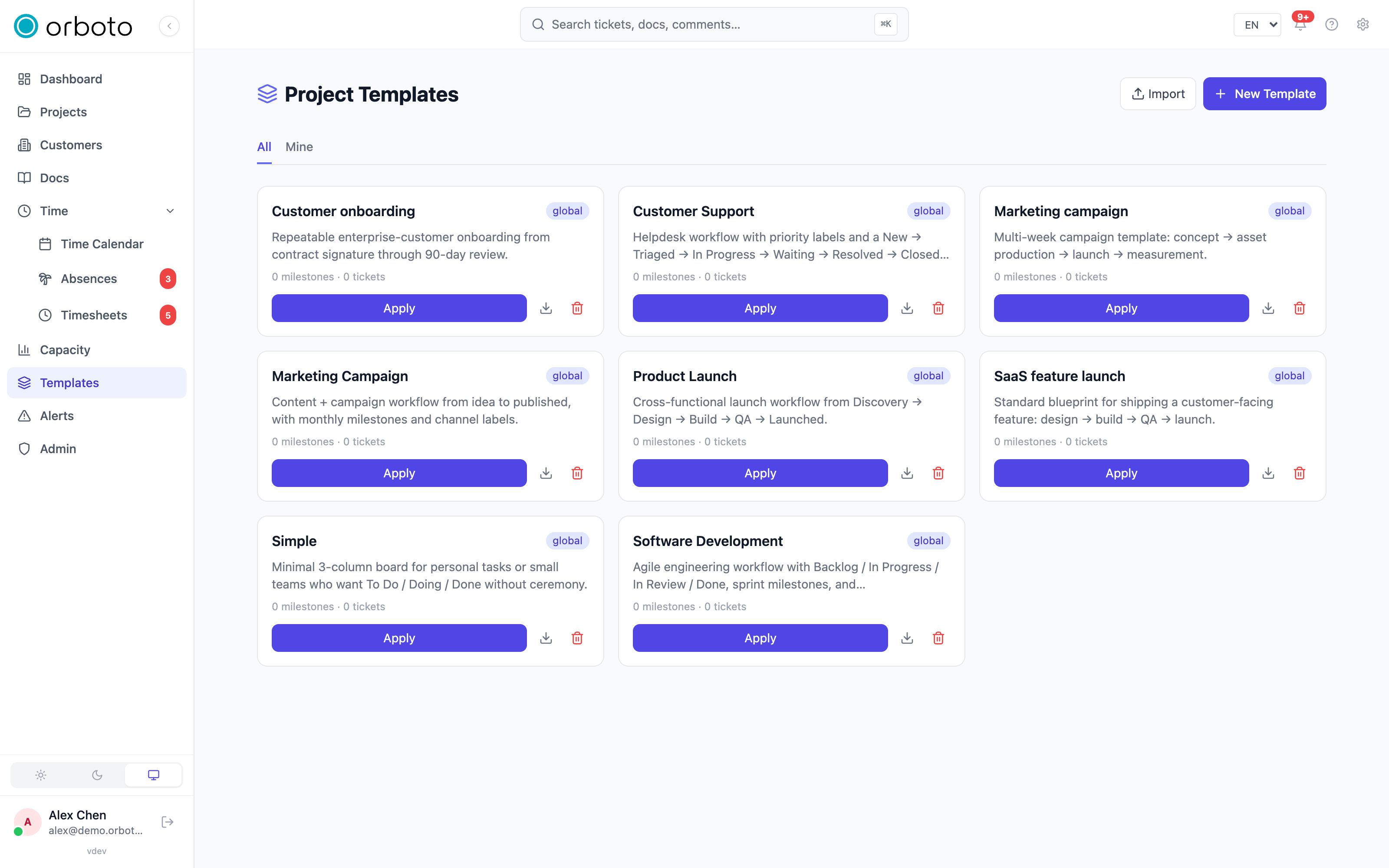
Reusable project blueprints - milestones, tickets, labels and doc pages you can stamp onto a new project instead of starting from a blank board.
A template is a reusable project blueprint. Instead of rebuilding the same milestone plan, label set, and starter tickets every time you kick off a similar engagement, you build the structure once and apply it whenever you need it.
What a template contains
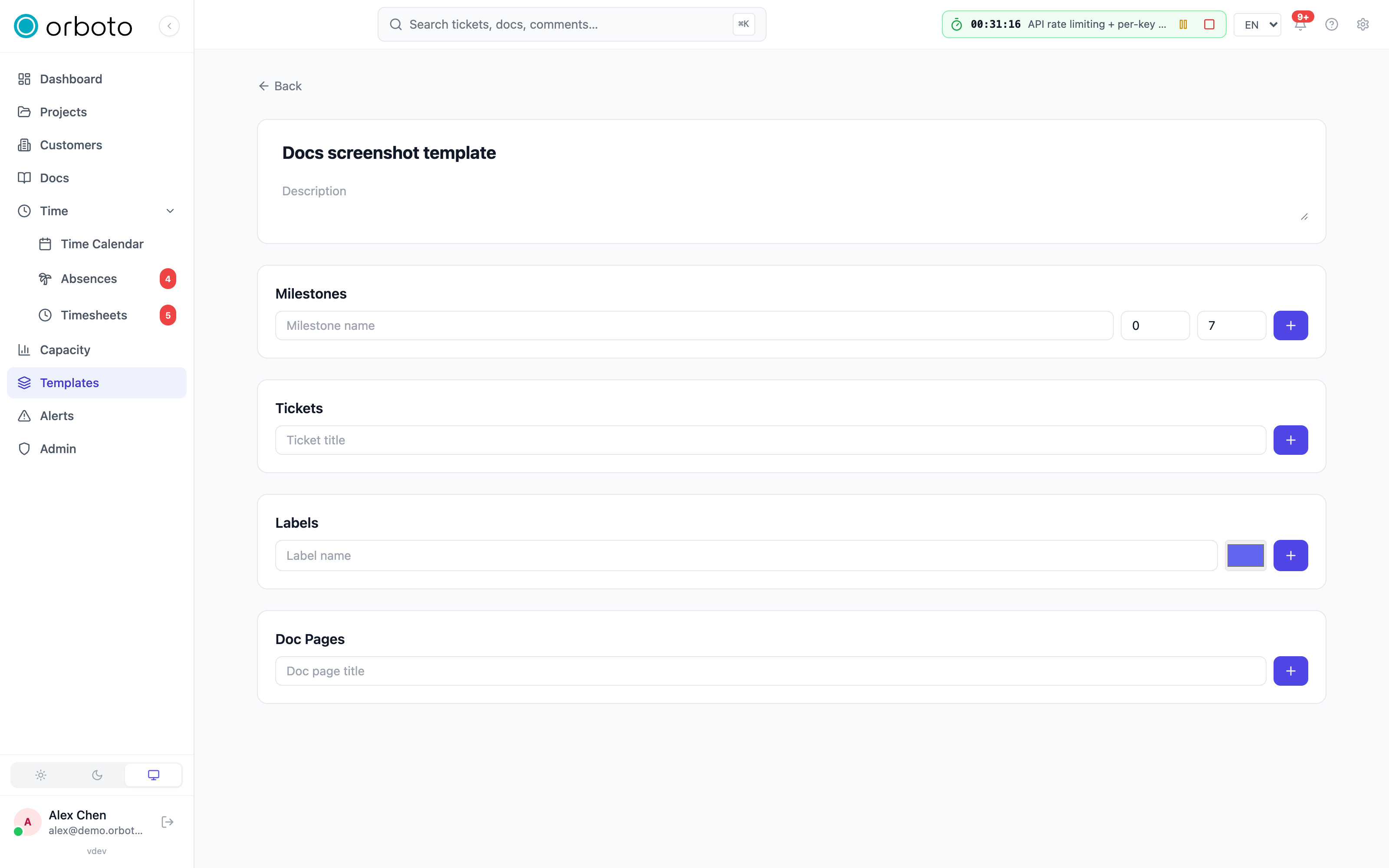
- Milestones - each with a name and relative day offsets (start +N days, end +M days) instead of fixed calendar dates.
- Starter tickets - a title and type, optionally pointed at one of the template's milestones.
- Labels - name and color.
- Doc pages - starter documentation pages.
A template never contains operational data - no time entries, comments, or file attachments. Because milestone dates are relative offsets, applying the same template in March or in November produces sensible dates either way.
Creating a template
Open Templates in the sidebar, then either:
- New - select New template, give it a name, optional description, and category, and it opens in the template editor to fill in.
- From an existing project - snapshot a project you like into a template. Only its structure is copied. Added in v0.211.3 The snapshot contains only what you can read: tickets you may see, private milestones only if you may view them, and docs you may read. Applying or exporting a template you cannot read answers not found.
In the editor, add milestones (name + start/end offset in days), tickets (title, optionally linked to a milestone), labels (name + color), and doc pages one row at a time - each add/remove happens immediately, so there is no separate save step.
Personal vs. global. A new template is personal to you by default. Tick Make global (at creation, or from the template's card) to share it with the whole workspace.
Export / import. Use the export icon on a template card to download it as a JSON file, and Import at the top of the Templates page to bring one in - handy for moving a template between workspaces or keeping one under version control.
Applying a template
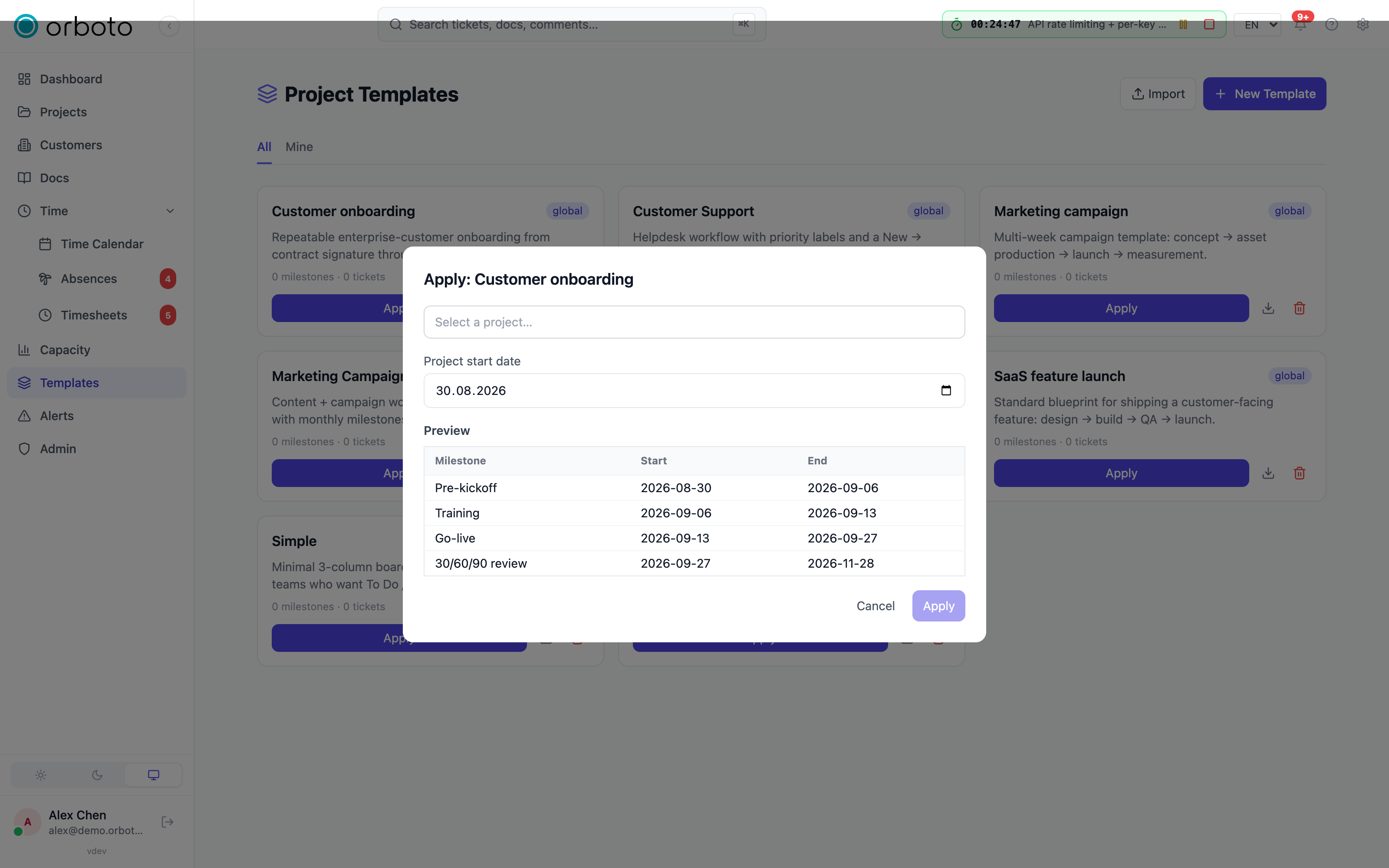
- Select Apply on a template card.
- Pick the target project and a start date.
- Review the preview table - it shows each milestone's computed start and end date for the start date you chose.
- Confirm. orboto creates the milestones with absolute dates, the starter tickets (linked into the right milestone), the doc pages, and matches labels by name against the target project - existing labels are reused, missing ones are created.
The confirmation reports exactly how many milestones, tickets, labels, and doc pages were created, so you can sanity-check the result immediately.
Tips
- Keep one template per engagement type (client project, game jam, release train) and refine it after each project retrospective - templates are cheap to iterate on since applying never touches the original.
- Offsets can overlap - parallel milestones (for example "Design" and "Prototyping" running at the same time) are fine.
- Use Export on a template you are happy with as a lightweight backup before making experimental changes to it.
Troubleshooting
Applying the template didn't create the labels I expected. Labels are matched by exact name. If a target project already has a label with a slightly different name (different casing, trailing space), you'll end up with two similar labels instead of one being reused - clean up names before applying, or clean up duplicates in project settings afterwards.
A milestone date looks wrong after applying. Check the offset value in the template editor, not the applied project - offsets are always counted in calendar days from the start date you entered when applying, including weekends.
I can't find a template a colleague made. Personal templates are only visible to their creator; ask them to toggle Make global, or export and send you the file to import.